ON THIS PAGE
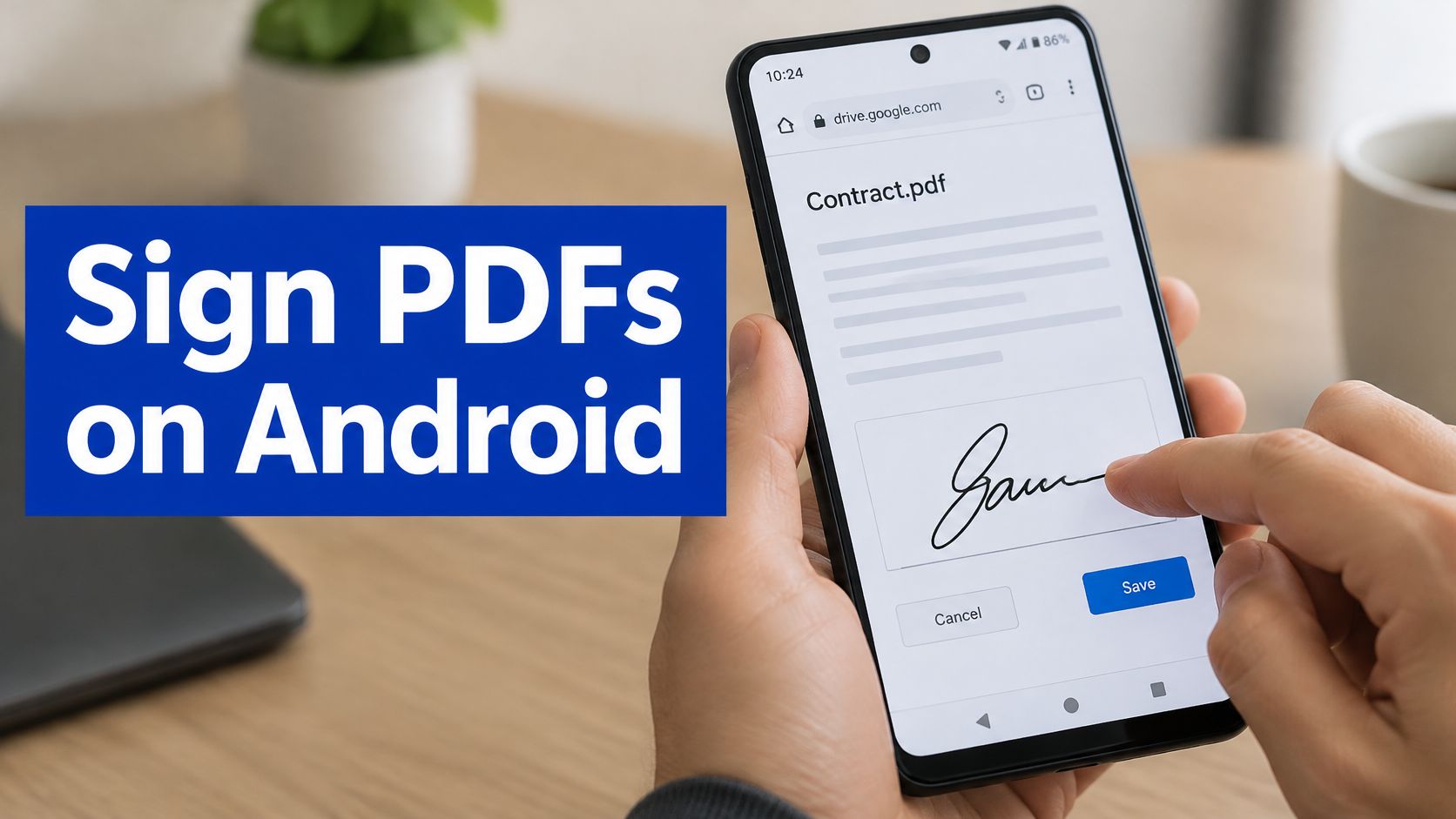
An employment form lands in your inbox while you're away from your computer, and you need to return it signed. You can sign a PDF on Android in your browser by opening a signing tool, uploading the file, drawing, typing, or uploading your signature, and positioning it on the page. Save a separate completed copy, but check the recipient's requirements first if they need identity verification or a certificate-backed signature.
Table of Contents
- Sign a PDF in Your Android Browser
- Prepare Your Android Device and PDF
- Create and Place Your PDF Signature
- Choose Drawn Typed or Uploaded Signatures
- Know When a Visual Signature Is Enough
- Save Verify and Share the Signed PDF
- Fix Common Android Signing Problems
Sign a PDF in Your Android Browser
For a routine form, you don't need to print the document or install a dedicated app. A browser-based signing workflow lets you work with the PDF on your phone, add your mark, and download the result.
The important decision comes before you start: does the recipient accept a basic electronic signature? An employment acknowledgment might allow one, while an employer's formal contract process might require a specific signing service. Follow the instructions attached to the document rather than judging by how official the signature looks.
Choose your starting point
You'll generally have these options:
- Draw your signature with your finger directly on the phone.
- Type your name for a consistent, readable text-based mark.
- Upload a signature image if you already have a suitable file.
You don't need to reproduce every detail of a pen signature on a small touchscreen. Aim for a deliberate, readable mark that fits the designated space and meets the recipient's instructions.
The process follows a straightforward sequence:
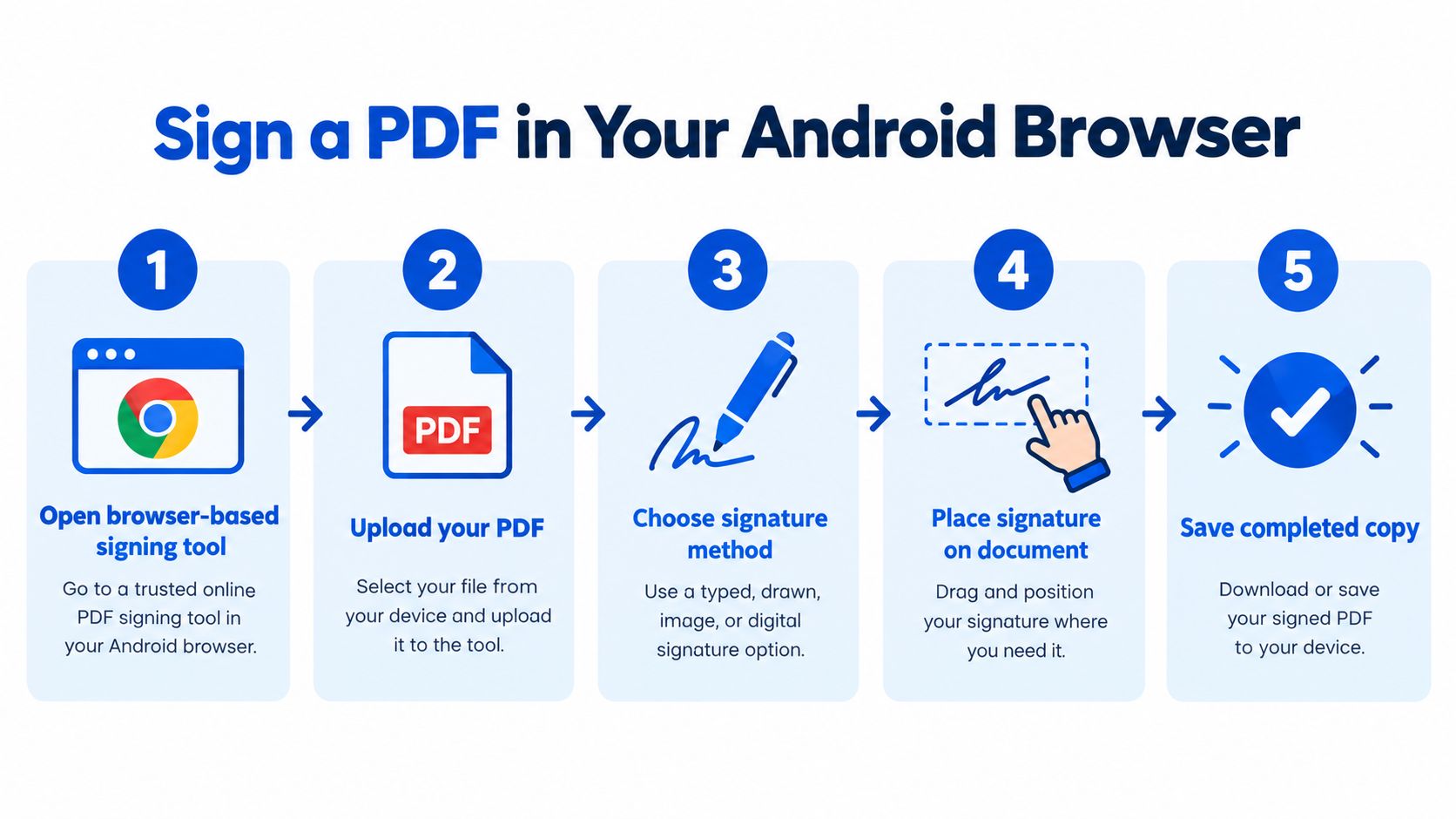
Practical rule: Read the document before opening the signature controls. Signing quickly isn't useful if you approve the wrong version.
Treat the browser preview as your working document, not your finished deliverable. Your task isn't complete until you've downloaded the signed PDF and checked that the signature appears in the saved file.
Prepare Your Android Device and PDF
Start with the document, not the signature. Open the attachment or downloaded file and confirm that it's the version you intend to sign.
Check the document title, the names of the parties, and any revision information. If someone sent an updated agreement in a later email, don't accidentally sign the earlier attachment.
Check readiness before uploading
Use this preparation checklist:
- Browser access: Use an updated, modern Android browser and a reliable connection.
- File readability: Confirm that the PDF opens and that its text and pages display normally.
- Recipient instructions: Identify the signature location, required date, and any special signing requirements.
- File restrictions: Check whether a password or editing restriction prevents changes.
- Available storage: Make sure you can save the completed document on your device.
- Original copy: Keep the unsigned file separate so you can restart without reconstructing it.
If the PDF requests information beyond your signature, complete those fields first. The guide to filling out a PDF form can help you distinguish filling in a document from adding a signature.
Don't bypass a restriction just because it interrupts your task. Ask the sender for an authorized, signable copy when you're unsure whether you can change the file.
Keep the original attachment untouched. A clearly named working copy makes it easier to recover from a misplaced signature or an incomplete export.
Before entering personal information, confirm that you've opened the intended website and selected the correct document. If the file contains sensitive information, check your organization's rules for using online tools before uploading it.
Create and Place Your PDF Signature
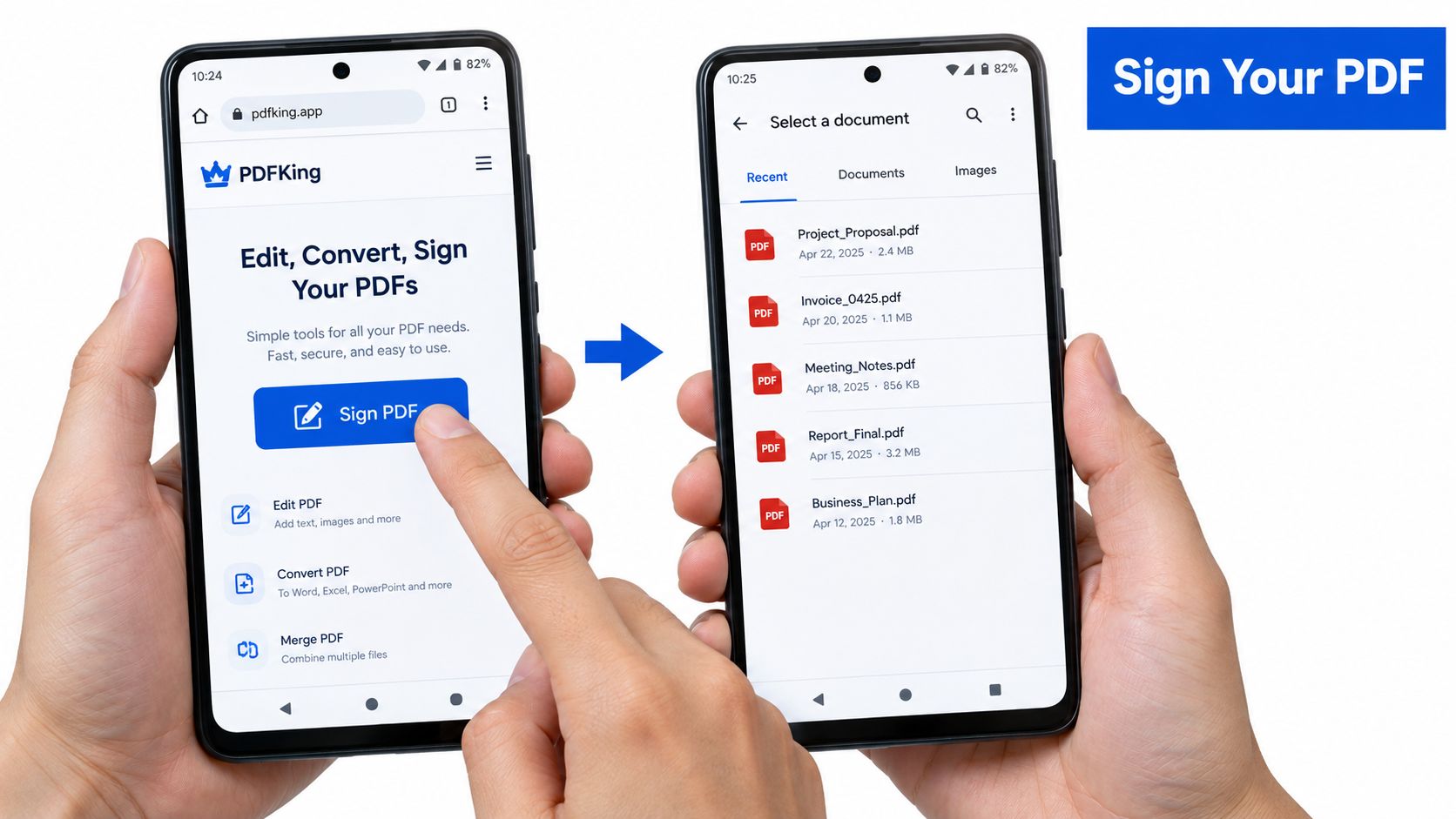
Open PDFKing in your Android browser and choose its Sign PDF tool. Use the file-selection control to open Android's document picker, then select the unsigned PDF from its saved location.
Don't assume that the first file shown is the right one. Match its name to the document you checked during preparation, especially if your Downloads folder contains several similar attachments.
1. Upload and review the document
Wait until the PDF preview appears before adding anything. Move to the required page and find the signature line, signer name, or approval area.
If the document includes separate spaces for employee and employer signatures, confirm which one belongs to you. Likewise, don't mistake a witness field for the main signature field.
The mobile workflow should keep the document and its signature area easy to inspect:
2. Create your signature
Open the signature controls and choose the available method that suits your task. Draw your mark, type your name, or select an existing signature image.
If you're drawing, use a comfortable motion rather than trying to squeeze the signature into its final page dimensions immediately. Create the mark first, then adjust its size after placing it.
For more control over freehand marks, see the guide to drawing on a PDF. Keep signature placement separate from unrelated annotations so you don't accidentally mark the surrounding document.
3. Position and resize the mark
Place the signature inside the intended area, then adjust its size using the available controls. Keep its proportions natural and leave enough space around nearby text.
Check these details before continuing:
- Correct signer: Your signature belongs beside your name or designated role.
- Clear boundaries: No part of the mark extends beyond the page or signature area.
- Readable content: The signature doesn't cover instructions, dates, or printed names.
- Appropriate scale: The mark is easy to see without dominating the page.
On a small screen, zoom in to position the signature accurately, then zoom out to judge its size against the rest of the form. A mark that looks comfortable at high zoom may appear too small at normal viewing size.
4. Apply the signature
Confirm the signature placement using the tool's available completion control. Button wording can vary, so follow the action that applies the mark and produces the completed file rather than looking for an assumed menu label.
Before downloading, inspect the signed area at high zoom. If the preview shows clipping or overlap, correct it now instead of hoping the export will fix it.
Choose Drawn Typed or Uploaded Signatures
Choose a signature method for its practical fit, not because one appearance seems more legally impressive. A handwritten-looking mark isn't automatically stronger evidence than a typed name.
Drawing works well when you want to create a personal mark directly on your phone. The trade-off is touchscreen control: a finger can obscure the stroke you're making, and cramped movements can produce an uneven result.
Typing avoids that drawing problem. Use the name the recipient expects, and don't choose a decorative appearance that makes it difficult to read.
Choose the Right Signature Method
| Signature Method | Best Use | Practical Advantage | Common Issue |
|---|---|---|---|
| Drawn | Creating a personal mark on your phone | No separate signature image needed | Uneven strokes or cramped lettering |
| Typed | Producing a clear, consistent name | Easy to enter and review | Wrong spelling or an unsuitable style |
| Uploaded | Reusing a prepared signature image | Consistent appearance across documents | Unwanted background, margins, or poor image quality |
An uploaded image is useful when you already have a clean signature file. Crop unnecessary margins before using it, but leave enough room to avoid cutting off loops or extended strokes.
A transparent background can help the signature sit naturally on the page. An opaque background may cover a line or nearby text, so inspect the placement rather than assuming the image will blend into the form.
Appearance check: A clean signature image improves readability. It doesn't, by itself, verify who placed it on the document.
Avoid enlarging a small, blurry image until its edges become distracting. Replace it with a clearer file or use another available method.
Whichever option you choose, follow the recipient's instructions. If they specify a typed name, a handwritten mark, or a particular signing process, that requirement matters more than your preferred appearance.
Know When a Visual Signature Is Enough
A visible signature and a certificate-based digital signature solve different problems. The first puts a mark on the page; the second uses a digital identity and cryptographic verification.
A certificate-based digital ID includes a private key used for signing and a certificate used for verification. That distinction matters when someone needs to verify the signer or detect changes to the document, rather than see an approval mark.
Match the evidence to the task
Use the recipient's requirements to guide your choice:
- Routine acknowledgment: A basic electronic signature may be acceptable when the recipient permits it.
- Identity-sensitive agreement: Ask whether the process requires authentication or other signer-identification evidence.
- Regulated or cross-border document: Confirm whether a trusted certificate, qualified service, or another formal process is required.
- Existing digital-signature field: Check the approved signing method before placing an image over it.
In the United States, electronic signatures have a legal framework under ESIGN, but consent and access to electronic records still matter. The FTC's report on ESIGN consumer consent explains why electronic delivery involves more than adding a mark to a page.
For additional reading on legal questions, consult the caseledge 2026 e-signature guide, then confirm the requirements that apply to your transaction and jurisdiction.
Preserve the supporting evidence
For a formal signing process, retain the original PDF, completed document, relevant consent language, signer-identification evidence, timestamps, and any audit record provided. Don't assume a visual mark contains that information.
Password protection serves a separate purpose from signing. The guide to password-protecting a PDF covers access protection, not proof of signer identity.
A stronger-looking signature isn't necessarily a stronger signing process. For legal filings, regulated procurement, or high-value agreements, ask the receiving organization what it can verify and what it will accept. This is a document-handling decision, not a guarantee of legal enforceability.
Save Verify and Share the Signed PDF
Save the completed PDF as a separate file rather than replacing your unsigned original. Use a recognizable name that distinguishes the signed copy without adding unnecessary personal information.
Don't send it straight from the preview. Open the downloaded file and check what the recipient will receive.
Inspect the saved document
Follow this finishing checklist:
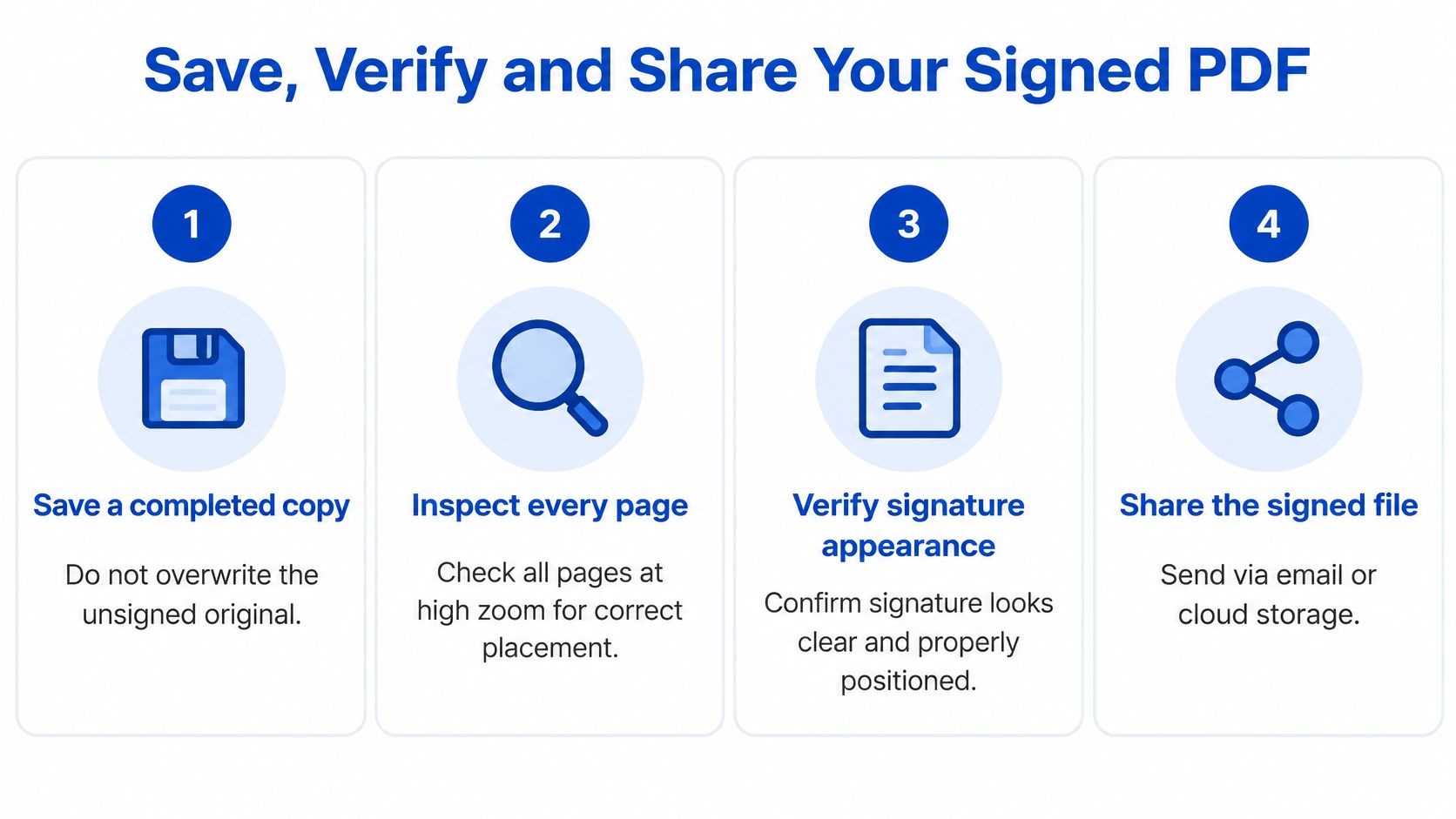
For a one-page form, inspect the signature area closely and then review the whole page. For a multi-page agreement, review every page to confirm that the export preserved the document and that you signed each required location.
- Placement: Check the correct page and signer field.
- Appearance: Look for clipping, overlap, faint strokes, or an oversized mark.
- Completeness: Confirm that required names, dates, and other entries remain visible.
- File integrity: Make sure the PDF opens normally and includes the expected pages.
Share only the intended file
Confirm the saved file's name and location before attaching it. Android's document-access security guidance recommends controlled access and limited permissions, which supports using the document picker or sharing controls instead of granting unnecessary storage access.
For delivery options, follow the guide to sending a PDF. Check both the attachment and recipient before sending, particularly when the file contains employment, financial, or client information.
If you used a certificate-backed signing process, verify the result with an appropriate PDF validator. Check the certificate and timestamp when required, and avoid Print to PDF afterward because re-rendering can remove the original signature structure.
Send the downloaded, checked document, not an unsigned attachment with a similar filename.
Fix Common Android Signing Problems
Use the symptom to choose the next action:
- PDF won't open: Return to the original attachment and download a fresh copy.
- Password or editing restriction: Request permission or a signable version. Review authorized PDF unlocking only for files you own or may modify.
- Signature controls are missing: Retry in an updated browser and confirm that you opened the signing tool.
- Image has an unwanted background: Crop or replace it.
- Signature looks clipped or tiny: Reposition, resize, and inspect it before exporting again.
- Save or share fails: Download a fresh completed copy, locate it, then attach it manually.
Don't use a workaround that unexpectedly changes the document or bypasses a required signing process.
Frequently Asked Questions
Can I sign a PDF on Android without an app?
Yes. Use a browser-based signing tool and download the completed PDF.
Can I type my signature instead of drawing it?
Yes, if the tool supports typing and the recipient accepts that method.
Does a signature image prove my identity?
Not by itself. Use the verification process the recipient requires.
Why can't I sign a locked PDF?
Its restrictions may prevent changes. Ask the sender for an authorized, signable copy.
Can I edit a digitally signed PDF afterward?
Later changes can invalidate the signature. Complete edits before signing and verify any permitted changes with the recipient.
Every PDFKing tool is 100% free, adds no watermark, and requires nothing to install. Visit PDFKing, choose Sign PDF, and use your Android browser to add your signature and download a separate completed copy.