ON THIS PAGE
You're ready to submit a packet, and the portal rejects your PDF for size, or your printer scales an A4 page oddly onto Letter paper. To fix a PDF change document size problem, first decide if you need new page dimensions or a smaller file size, because those are different jobs with different tools. Resize the page canvas for print and layout, and compress the file data for email and upload limits.
Table of Contents
- What Changing PDF Document Size Actually Means
- Preparing Your Document Before You Resize
- Resizing Page Dimensions in PDFKing
- Reducing File Size for Email and Portals
- Choosing Scan Settings and Content Type
- Verifying Output Before You Submit
- Conclusion and Frequently Asked Questions
What Changing PDF Document Size Actually Means
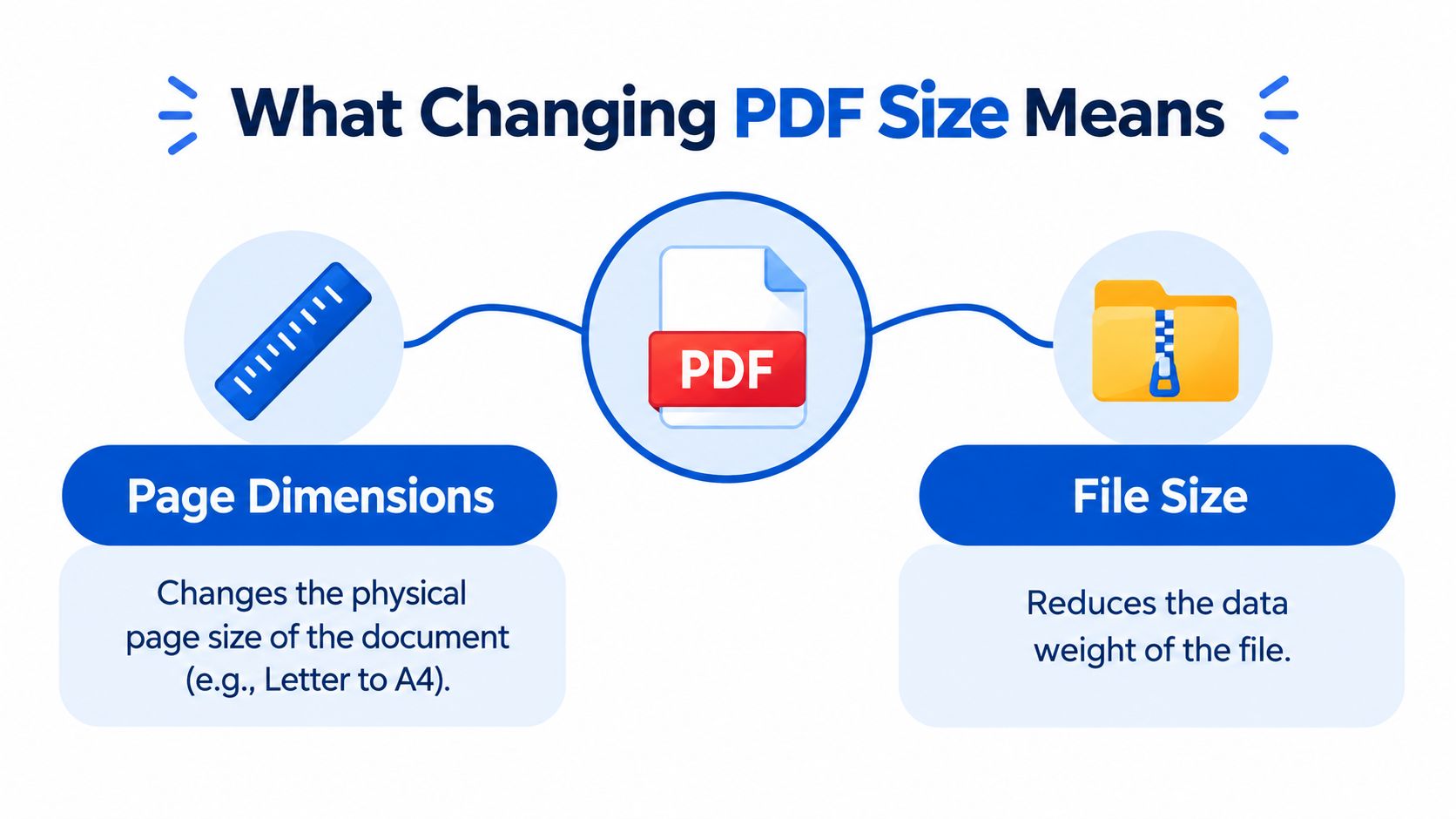
Most size problems start with a mix-up. You can change how large a page is on paper, or you can change how much data the file contains. Treating those as the same task often fixes one problem and creates another.
Page dimensions are the physical canvas, such as A4, Letter, or Legal. Changing them can move margins, alter print scaling, and shift signatures or form fields. If you need exact measurements before you start, review this guide to A4 paper size in inches.
File size is storage weight, measured in kilobytes or megabytes. Compression reduces that weight by optimizing images and removing redundant internal data. Your page can stay Letter size on screen while the file becomes much easier to email.
Pick the Outcome First
Ask what will happen to the document next. Print work usually points to page dimensions. Email, court portals, school systems, and client uploads usually point to file size.
- Choose page resizing: The document prints at the wrong scale, has uneven margins, or mixes A4 and Letter pages.
- Choose compression: The layout looks right, but the file won't attach, upload, or send.
- Choose both, in order: Fix the canvas first, preview it, then compress a copy for delivery.
That order matters. If you compress first and resize later, you may repeat work or degrade images twice. Start with layout, confirm it's right, then reduce bytes only as much as the recipient requires.
Preparing Your Document Before You Resize
A few minutes of checking prevents clipped text and rejected uploads. Don't judge page size by how big it looks on your monitor, because zoom changes appearance without changing the actual canvas.
Open Document Properties in your PDF reader and write down the current width and height. Note the unit shown, whether points, inches, or millimeters, and check if all pages match. Mixed sizes are common when exhibits, scans, and forms come from different sources.
Four Checks Before You Open a Tool
- Confirm the target: Pick the exact paper size the printer, court, school, or client expects.
- Identify the content type: Decide if the file is text based or a scanned image. You can test this by trying to select words with your cursor.
- Decide on scaling: Determine if content should fit the new canvas, stay at its original scale, or be recentered with new margins. For margin only jobs, this guide on how to crop PDF pages covers the trimming choices.
- Save a backup: Keep the untouched original under a clear name, so you can restart if a setting harms legibility.
Text based PDFs usually resize cleanly because fonts and vector lines scale well. Scanned pages are pictures, so enlarging or heavy compression can soften small print. Knowing which type you have tells you how careful you need to be with preview and zoom tests later.
Resizing Page Dimensions in PDFKing
A court packet with A4 appendices can look acceptable on screen yet print with clipped footers on Letter paper. That calls for a page-dimension change. A portal that rejects an attachment for exceeding its limit calls for compression instead. Keep those jobs separate before changing the PDF.
PDFKing's Crop PDF tool runs in your browser, so there's nothing to install, and it's 100% free with no watermark. It trims margins or changes the page region when scanner edges, inconsistent borders, or mixed paper standards are the problem.
Set the Crop in Production Order
| Control | Setting to choose | What it prevents |
|---|---|---|
| Source file | Open a duplicate | Permanent damage to the only original |
| Crop frame | Drag the frame or enter margins | Scanner edges and excess white space |
| Page range | All pages or selected pages | A uniform crop clipping odd-size exhibits |
| Preview | Inspect the crop frame on changed pages | Cut-off headers, footers, or exhibit stamps |
| Output | Download with the target size in the filename | Confusion over what recipients should print |
Standard sizes explain why a simple swap can go wrong. A4 measures 595.28 by 841.89 points, while US Letter measures 612 by 792 points. Letter is wider and shorter, so content placed for A4 can shift or run off the page without scaling or recentering.
For a US court packet built from A4 drafts, fit the content to Letter and inspect signature blocks closely. A scanned textbook chapter may only need its wide white margins trimmed, improving readability while preserving the scale of the original page image.
Practical rule: Judge the crop at actual print size in the preview. A thumbnail can hide a frame that crosses a footer or stamp.
Reducing File Size for Email and Portals
The upload bar stalls at 98 percent, then the portal returns a useless error. Page size was already fixed, so the problem is bytes: image data, embedded fonts, scan artifacts, and metadata. Compression trims those internals while leaving Letter or A4 dimensions alone, which is why it belongs after cropping and page setup, not before.
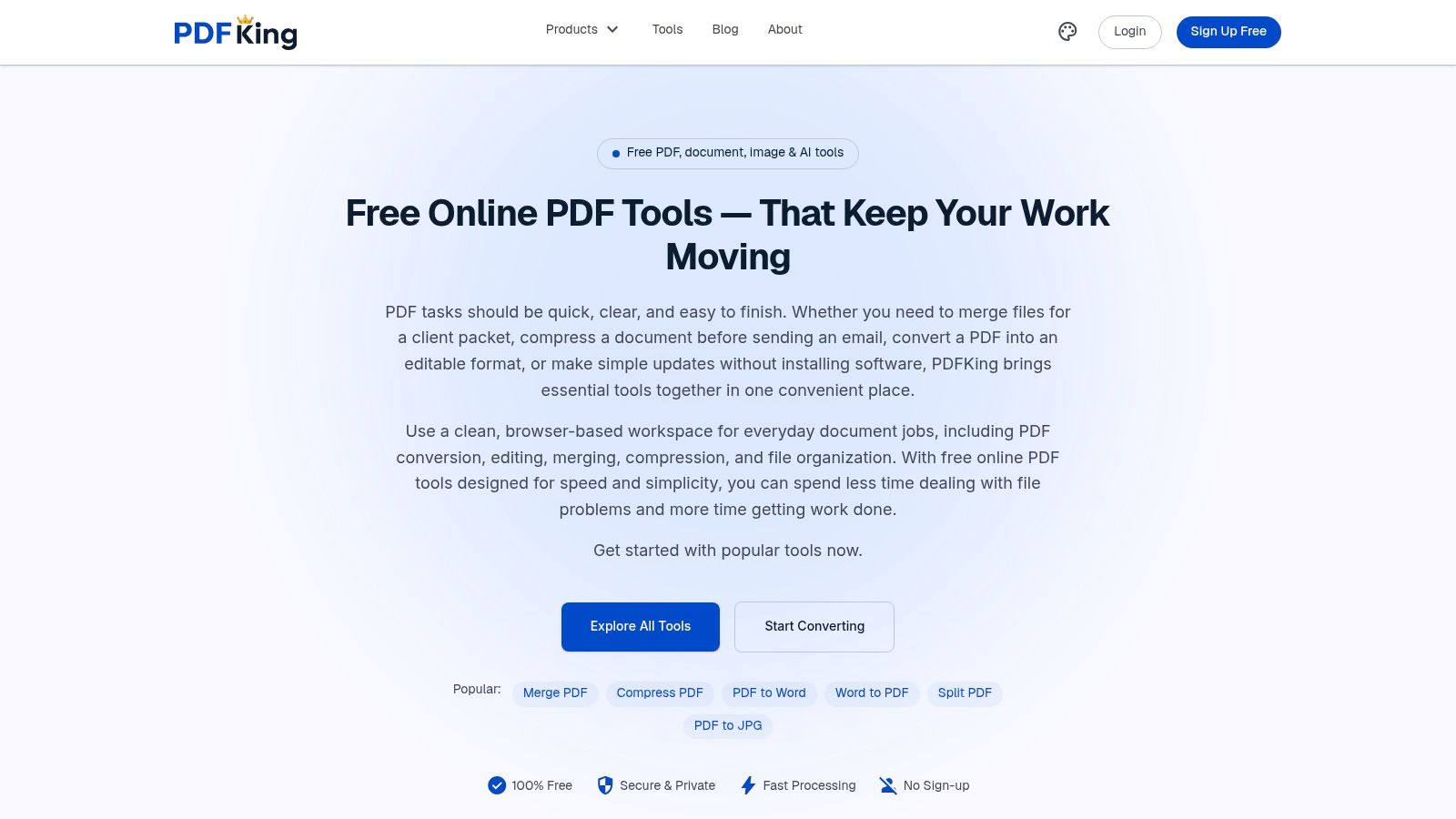
In PDFKing, run Compress PDF on the layout-approved copy, choose the lightest level that meets the cap, and save the result under a distinct name such as ExhibitA_compressed.pdf. I start conservatively on exhibits with photos or fine print; aggressive settings are for deadlines and hard ceilings, and they can soften stamps, shading, and small type.
Limits arrive as a total message budget, not a promise for one attachment. Microsoft says internet email accounts such as Outlook.com and Gmail cap message size at 20 MB, and encoding can make usable attachment room smaller than that headline figure. Court and client portals often impose their own ceilings, so read the submission page before compressing twice.
Judge output by the job: a brochure can take a light pass, a scanned textbook needs readable footnotes, and a large exhibit may be cleaner split into labeled parts than squeezed into one brittle file. For settings trade-offs, use this guide to reduce PDF size without losing quality.
Don't chase the smallest possible file. Chase the smallest file that still prints cleanly, searches correctly, and passes the recipient's rules.
Choosing Scan Settings and Content Type
Many oversized PDFs are born at the scanner. If you control the scan, you can prevent a rescue job later. Three choices drive most of the result: resolution, color mode, and whether the output includes a searchable text layer.
The U.S. Food and Drug Administration states in its PDF specification that scanning at 300 dots per inch generally keeps pages legible on screens and in print while minimizing file size. That makes 300 dpi a safe default for records, exhibits, and forms you'll submit to someone else.
Scan Settings by Use Case
| Use Case | DPI | Color Mode | Content Type |
|---|---|---|---|
| Routine office text | 200 to 300 | Black and white or grayscale | Searchable PDF |
| Court or agency records | 300 | Grayscale unless color matters | Searchable PDF |
| Photos or detailed exhibits | 300 or higher | Color | Image with text layer if captions matter |
| Quick internal reference | 200 | Grayscale | Searchable PDF |
Color deserves a deliberate choice. Full color helps when stamps, charts, photos, or highlighted evidence carry meaning. For plain contracts and letters, grayscale or black and white usually keeps text sharp with far less data.
Content type matters just as much. An image only scan can't be searched, copied reliably, or read well by assistive technology. A searchable scan adds an OCR text layer, which helps reviewers find names and dates. If a file is already huge, this explanation of why your PDF is so big can help you pinpoint the cause before you compress.
Higher resolution isn't always better. It captures detail, but it also captures paper texture, shadows, and scanner noise. Use extra resolution for fine print or images that need it, not as a default for every page.
Verifying Output Before You Submit
A packet clears the upload bar at 9 MB and still comes back rejected. Court portals and agency intake systems bounce files over mixed page sizes, password protection, and signature stamps clipped by aggressive cropping. Byte count is one line on their checklist, not the whole checklist.
Start with document properties. Page dimensions should match your target on every page, not just the first. Scanners and merge tools routinely leave one odd-sized sheet buried mid-packet. Then compare final bytes against the limit while counting every attachment in the submission, since most portals measure the total upload, not each file.
Read like a reviewer next. Open the first page, the densest middle page, a signature page, and the last page. Form fields drift and stamps get cropped at edges where content sat closest to the margin. Then zoom in on the smallest print. W3C testing documents that tagged PDFs can support text enlargement up to 200 percent without loss of content or functionality, which is roughly the bar a recipient using assistive technology will hit.
Two last checks take under a minute: search for a word you know appears in the document to confirm the text layer survived compression, and open the file in a second viewer or device to catch rendering quirks your default reader hides.
If something fails, fix that specific cause. Add margin back for clipped content, lighten compression for fuzzy text, split the packet when quality drops before you reach the cap. Once the file passes, these methods for sending a PDF cover the delivery side.
Conclusion and Frequently Asked Questions
Keep the two jobs separate. Resize page dimensions when print scale, margins, or canvas size are wrong. Compress file size when delivery limits block an otherwise correct document. Then verify dimensions, bytes, readability, and search before you send anything.
How do I make a PDF smaller without losing quality
Start with the lightest compression that meets the limit. Check the busiest page at 200 percent zoom, and keep your original backup.
Does changing page size change file size
It can, but not reliably. Cropping white margins may remove little data, while scaling scanned images can change bytes more. Use compression when bytes are the actual problem.
Why did a portal reject my file under the size cap
The portal may object to encryption, missing pages, unreadable scans, mixed page sizes, or an unsupported format. Recheck those items, not just the megabyte count.
Can I process several files the same way
Yes, use the same settings on copies with a consistent naming pattern. Still spot check each output, because one photo heavy file may need lighter compression than the rest.
Should I resize before or after I compress
Resize and approve the layout first. Compress last, so you don't degrade images and then repeat the process.
Ready to fix your PDF the right way, by resizing pages with Crop PDF or reducing bytes with Compress PDF, both free with no watermark and nothing to install. Visit PDFKing to open the tool that matches your goal, process a copy of your file, and verify the result before you submit it.