Split PDF — Extract, Separate & Split Pages Online Free
Break one large PDF into smaller, easier-to-share files without installing software. Use PDFKing to split PDF pages, extract PDF pages, or separate every page into its own PDF with a simple online workflow. Whether you need one chapter from a long report, individual invoices from a batch scan, or separate files for review, this free PDF split tool helps you create cleaner documents fast.
Drag & drop a PDF here
or click to browse · No file size limit
Select PDF FileWhat You Can Do With This PDF Split Tool
Use Split PDF when you want quick control over document structure without opening a desktop editor. Key features include:
Separate every page
Turn each page of a PDF into its own individual file.
Split PDF to PDF
Keep the output in standard PDF format for easy opening and sharing.
Preserve quality
Pages are copied without unnecessary quality loss, so text, images, and layout remain sharp.
No watermark
Download clean output without PDFKing branding on the file.
No signup required
Start splitting without creating an account.
No software installation
Work from a modern web browser on desktop, tablet, or phone.
Simple ZIP download
When multiple PDFs are created, download them together for convenience.
Make Large PDFs Easier to Work With
A single PDF is convenient until it contains more pages than you actually need. Long reports, scanned bundles, contracts, textbooks, statements, and application packets often include sections meant for different people or tasks. Splitting helps you send only the relevant pages, keep files organized, and avoid asking recipients to search through a bulky document.
PDFKing gives you a straightforward way to split PDF online. Choose your PDF, separate the pages you need, and download the result as new PDF files. Your original document stays unchanged, so you can keep the master copy while creating focused files for sharing, filing, or review.
If your goal is to keep only certain pages in one new document, try Extract PDF Pages. If you need to put files back together later, use Merge PDF.
How PDFKing Split PDF Compares
How this free PDF splitter compares with the most popular alternatives:
| Feature | RecommendedPDFKing | iLovePDF | Smallpdf | Adobe Acrobat Online |
|---|---|---|---|---|
| Free to use | Yes, unlimited | Free tier | Free tier | Limited free |
| Signup to download | No | No | No | Yes |
| Daily file limit | None | Limited on free | Limited on free | Limited on free |
| Split every page in one click | Yes | Yes | Yes | Yes |
| Download all pages as ZIP | Yes | Yes | Yes | Limited |
| Watermark on output | Never | No | No | No |
| Works in mobile browser | Yes, no app | Yes | Yes | Yes |
Benefits of Using PDFKing
PDFKing is designed for people who want the task done quickly, not a complicated editing suite.
Benefits include:
- Less clutter: Create smaller, cleaner documents from one oversized PDF.
- Better sharing: Send only the pages a client, coworker, teacher, or agency needs.
- Faster organization: Turn a mixed scan into separate files for naming and sorting.
- Original quality kept: Split pages remain clear and readable.
- Flexible workflow: Split first, then merge, compress, rotate, protect, or reorder as needed.
- Works anywhere: Use the same tool on Windows, macOS, Linux, iOS, and Android.
- No learning curve: The interface is built for a quick upload, split, and download process.
Supported File Types and Output
This tool is made for PDF files.
Supported input includes:
- Standard PDF documents
- Scanned PDFs
- Fillable PDF forms
- PDFs exported from office documents
- Digitally signed PDFs, where output review is recommended after separation
Output includes:
- Standard PDF files
- Individual PDFs when pages are separated
- A ZIP download when multiple output files are created together
Starting with a Word document? Convert it first with Word to PDF, then return here to split PDF pages.
Why Choose PDFKing for Split PDF?
Choose PDFKing if you want a direct, no-fuss way to split PDF online. You do not need a full PDF editor, subscription flow, or desktop installation just to separate pages.
PDFKing is especially useful when you want to:
- Learn how to split PDF into separate files without technical steps
- Extract pages from PDF files for sharing or filing
- Split a PDF to PDF while keeping output easy to open
- Avoid watermarking your finished documents
- Work on a phone, tablet, laptop, or desktop from the same online tool
- Pair splitting with related PDF tools in one workflow
No Desktop Download Needed
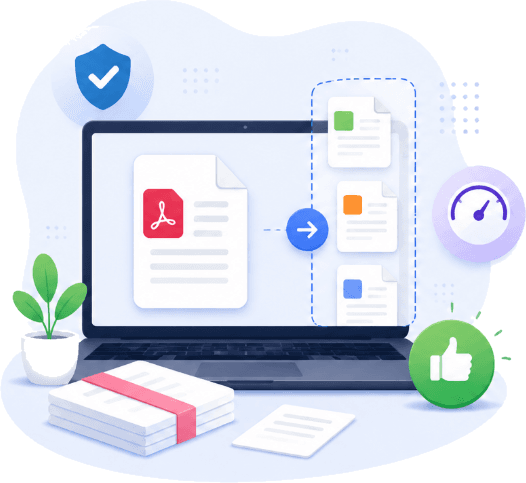
PDFKing Split PDF is an online browser tool, not a desktop product. There is no desktop version to download, install, update, or uninstall. Open the tool, split the PDF, download your output, and move on.
This makes it practical for quick document tasks on shared workstations, personal laptops, mobile devices, and Chromebooks.
Common Ways to Split PDF Pages
Send Only One Section
Share a single contract clause, proposal section, invoice, or signed page without sending the full document. This is useful when a recipient only needs one part of a file.
Organize Scanned Paperwork
Batch scans often combine receipts, IDs, forms, statements, or certificates into one long PDF. Use PDF split to turn the scan into separate documents that are easier to name and find.
Prepare Legal or Compliance Files
Separate exhibits, policies, agreements, disclosures, or supporting documents into individual PDFs for review. Smaller files make it easier to check page counts and keep document sets tidy.
Break Study Materials Into Chapters
Students and teachers can split PDF pages from lecture notes, textbooks, research packs, and readings so each topic is easier to review on its own.
Reduce Sharing Friction
If a document is too large or too broad for email, portals, or messaging apps, split it first. If a split file is still large, use Compress PDF to reduce its size.
How to Split PDF Into Separate Files
Follow these steps if you are wondering how to split PDF pages online:
- 1
Choose your PDF
Drag your file into the upload area or select it from your device.
- 2
Split the PDF
Run the tool to create the new PDF files.
- 3
Download your files
Save the split PDFs to your device. When several files are produced, they may be delivered together as a ZIP.
Need to remove unwanted pages instead of separating pages into new files? Use Delete PDF Pages.
Frequently Asked Questions
Upload your PDF, choose how you want to separate the pages, run the Split PDF tool, and download the new PDF files. PDFKing is free and does not require signup.
Fast Processing
Process your files in seconds.
100% Free
No hidden fees or charges.
Secure & Private
Your data is always protected.
Works Everywhere
Any device, any browser.
Related PDF Tools
Continue your document workflow with these PDFKing tools:
Extract PDF Pages
Pull selected pages into a new PDF.
Merge PDF
Combine multiple PDFs into one document in the order you choose.
Compress PDF
Shrink file size while keeping text and images sharp.
Organize PDF
Reorder, rotate, and manage pages visually.
Rotate PDF
Fix page orientation before sharing.
Delete PDF Pages
Remove pages you do not need.
Protect PDF
Add password protection to your PDF files.
Word to PDF
Create polished, shareable PDFs from Word documents.
Related Articles

How to Split PDF Into Single Pages: Quick Guide
Learn how to split PDF into single pages for free with our simple steps. Get precise, watermark-free results in minutes.

How to Split PDF Online Free (Single Pages and Ranges)
Learn how to split PDF online free in your browser. Step-by-step guide for single pages, page ranges, and extract pages with no install required.
How to Use a Zip File to PDF Converter the Right Way
Learn how a zip file to PDF converter extracts archives and turns images, Word docs, HTML, and PDFs into one clean PDF, with tips, batch steps, and fixes.