ON THIS PAGE
A ZIP file to PDF converter doesn't turn the archive itself into a document. It extracts the files inside, converts each supported file into pages, then merges those pages in an order you control. Do that inspection and ordering step well, and you get a clean, shareable packet instead of a jumbled bundle.
Table of Contents
- What a Zip File to PDF Converter Actually Does
- Matching the Files Inside Your ZIP to the Right Conversion Path
- A Practical Workflow for Batch Converting an Archive
- Ordering, Merging, and Accessibility Tradeoffs
- Troubleshooting Common Conversion Problems
- A Quick Preflight Routine Before You Hit Convert
- Frequently Asked Questions About ZIP to PDF Conversion
What a Zip File to PDF Converter Actually Does
You're a teacher with a folder of student scans sent as one ZIP. Or you're a paralegal pulling exhibits from an archive, or a small business owner packaging a month of invoices. In each case, the ZIP is only the container. The work you need done is on what's inside it.
That's the key distinction. ZIP packages and compresses files, while PDF preserves page-oriented documents for viewing and distribution. The Library of Congress describes ZIP_PK as a format that combines data compression, file management, and encryption, with each file placed after a local file header and a central directory holding file names and metadata, as detailed in its Library of Congress format description for ZIP_PK. A converter has to read that structure before it can do anything useful.
The three jobs inside every conversion
First, inspect the archive. The tool reads the central directory, lists entries, checks sizes and paths, and flags anything it can't process. Second, it extracts safely, verifying each entry and rejecting paths that try to write outside the working folder. Third, it transforms eligible files into PDF pages using a renderer matched to each format, then merges them. Our guide on how to convert PNG files to PDF shows that last step for images in detail.
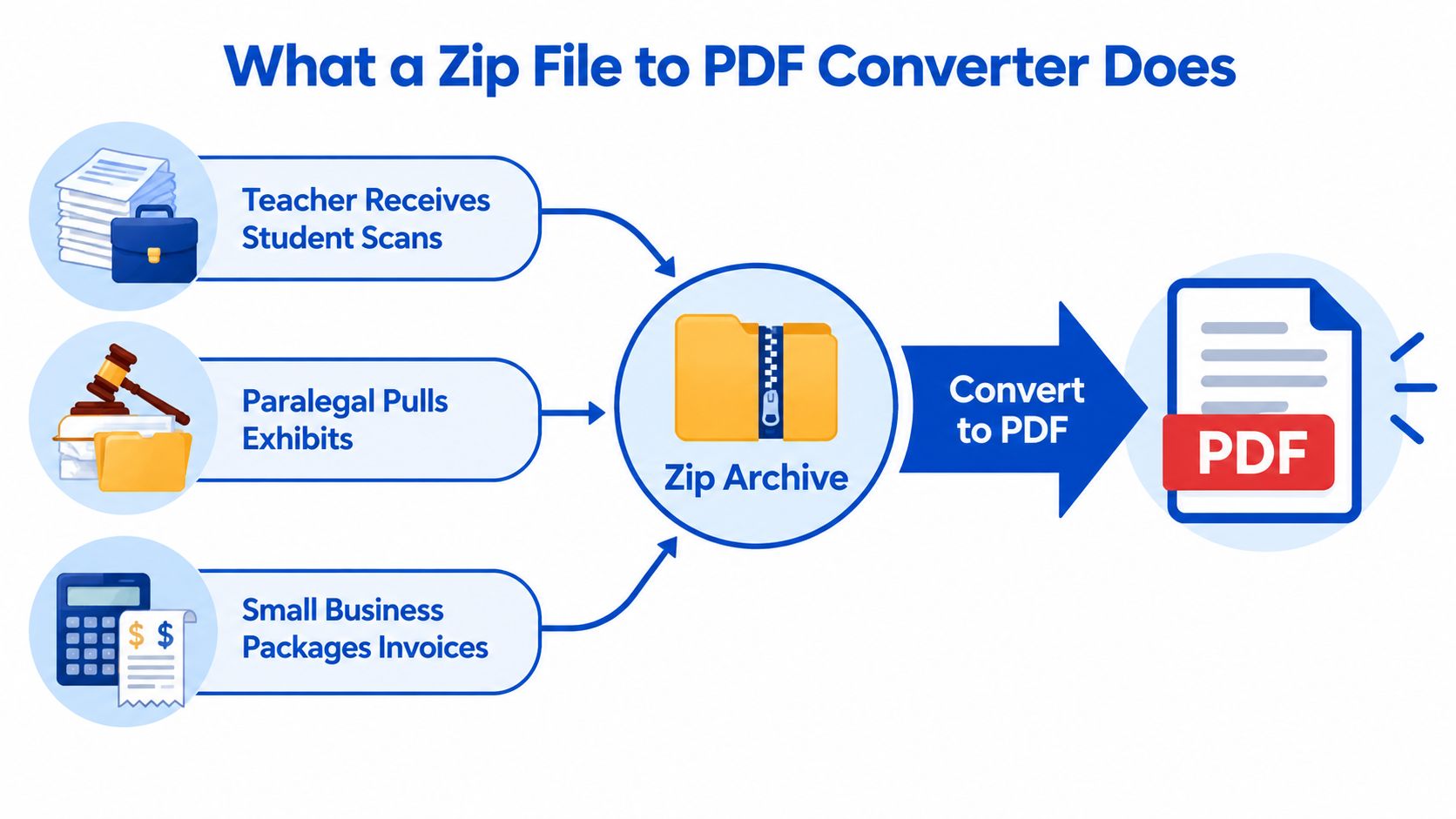
This separation explains why the same archive can produce different outputs. A ZIP holding ten JPGs becomes an image-based PDF. The same ZIP holding a DOCX proposal and two existing PDFs becomes a mixed document, where fonts, page sizes, and reading order all need decisions. The extension on the archive tells you almost nothing. The contents tell you everything.
Practical rule: Treat the ZIP as a box, not a document. Your output quality is set by what's in the box and the order you lay it out, not by the box itself.
That mental model also keeps expectations honest. Compression inside the archive doesn't carry over to the PDF. Text doesn't become searchable just because it's now on a PDF page. And a file the converter can't render won't fix itself. Once you see conversion as extract, convert, then merge, the rest of the decisions in this guide become straightforward.
Matching the Files Inside Your ZIP to the Right Conversion Path
Open ten client archives and you'll see the same mix: phone photos, Word documents, a saved web page, a plain text brief, and PDFs that were already finished. Each type takes a different path to a page, and picking the wrong one is where quality drops.
Images are the simplest case. A JPG or PNG becomes a page with that image fitted to the page geometry. A folder of phone photos becomes a contact-sheet style PDF, one photo per page, which works well for receipts, site photos, and scanned homework. The risk is scale. A tall screenshot on a standard page can crop or leave wide margins if dimensions aren't checked.
Office and text files need a real renderer. A DOCX proposal has fonts, headings, and page breaks that must be laid out, not pasted. A TXT file has none of that, so the converter chooses a font, margins, and line breaks for you. Our walkthrough on how to change a text document to PDF covers those choices. An HTML brief saved for an offline meeting renders like a printed web page, so check that links and tables survive.
Choosing a Conversion Path by Source File Type
| Source in ZIP | Likely Output | PDFKing Tool |
|---|---|---|
| JPG, PNG, HEIC | One image per page, raster only | JPG to PDF |
| DOCX | Multi-page, searchable text | Word to PDF |
| HTML | Printed page layout with links | HTML to PDF |
| TXT | Plain paginated text | Text to PDF conversion |
| Pages appended as they are | Merge PDF |
Existing PDFs inside the archive need no conversion at all. They're appended during the merge, which is why a mixed packet usually works best as separate conversion passes followed by one merge. That same pass-by-pass thinking helps with paperwork outside conversion, too. If you're assembling documents for a business mailing address change, it helps to find a real U.S. address before you finalize letterheads and forms that will end up in the packet.
One more expectation to set: the PDF can be larger than the ZIP. ZIP compression doesn't guarantee every file inside gets smaller, and the specification lists methods from Store at method 0 to Deflate at method 8, as noted in the IANA media type registration for ZIP. Already-compressed files like JPEGs gain little, and placing them on PDF pages can add size back.
A Practical Workflow for Batch Converting an Archive
A repeatable routine beats improvising each time a client sends an archive. The sequence below works for a homework bundle, an exhibit packet, or a month-end invoice set, and it takes only a few minutes once you've done it twice.
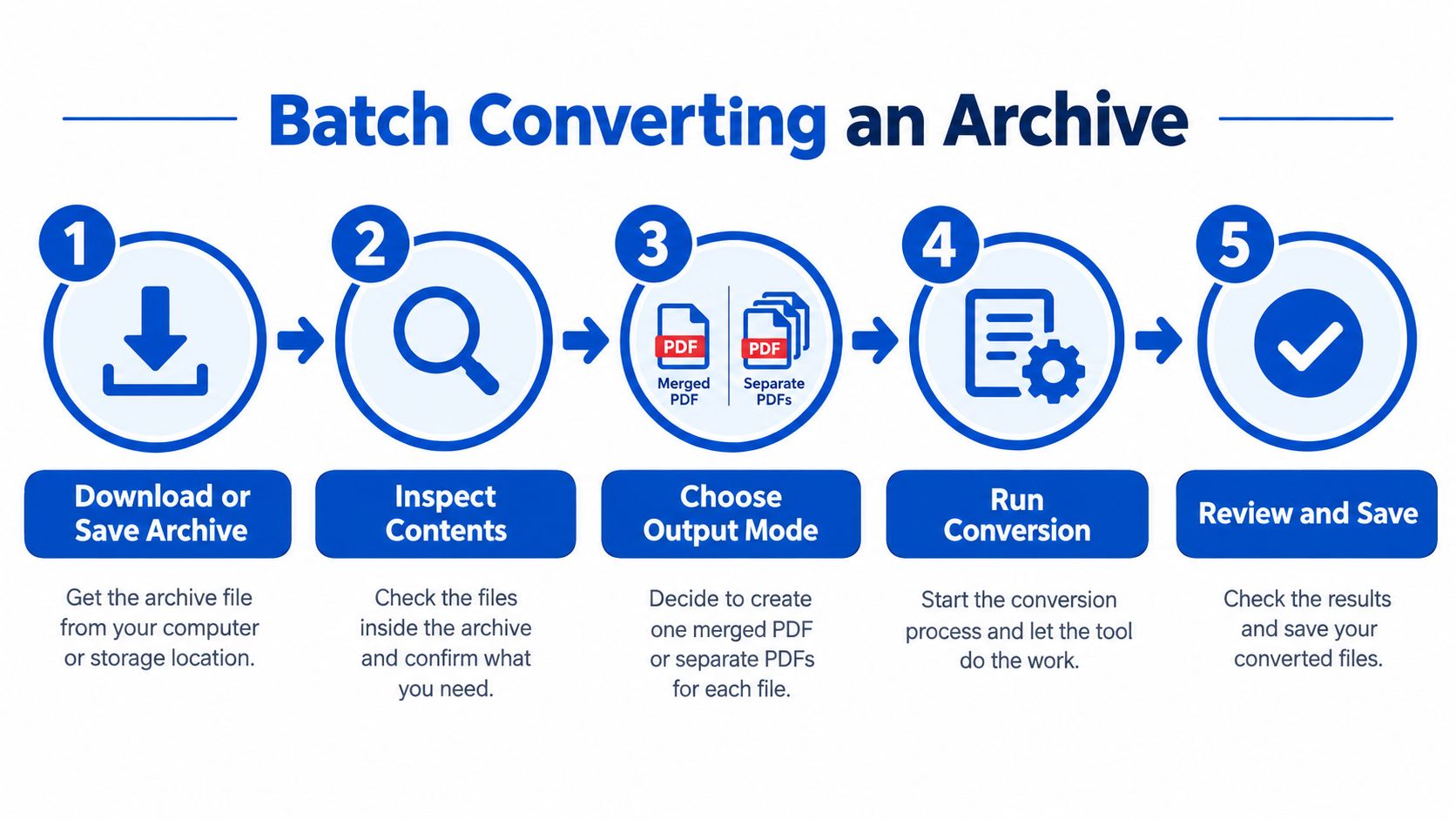
The five steps in order
- Save the archive locally. Work from a copy, not the email attachment, so you can start over if an extraction goes wrong.
- Inspect the contents. Open the ZIP and list what's inside before converting anything. Note file types, duplicates, and anything that shouldn't be shared.
- Choose your output mode. Decide now whether you need one merged PDF or separate PDFs per file. This choice drives every step after it.
- Convert by type. Run images through an image pass, Word files through a Word pass, and leave finished PDFs alone. Keep each output in its own folder.
- Merge, review, save. Assemble the final file in your chosen sequence, open it, and scroll every page before sending.
A typical packet shows why step order matters. Say you're building a submission with a Word cover letter, three JPG references, and an existing PDF exhibit. Convert the letter first, then the images, then merge in reading sequence: cover letter, references, exhibits. If the merged order comes out wrong, don't reconvert. Just fix the sequence afterward, as shown in our guide to reorder PDF pages online for free.
Keep pages separate when a document needs its own identity. A long report with its own bookmarks and title page usually should stay a standalone PDF. Merge when the reader needs one fixed path through the material, like a court submission or a graded portfolio.
Finish with cleanup. Delete the local extraction folder once you've confirmed the final PDF is correct. Loose extracted copies on a shared drive are how files get sent twice, or sent to the wrong person. That habit matters more than most settings in the converter itself.
Ordering, Merging, and Accessibility Tradeoffs
Many assume the converter's job ends when pages appear. It doesn't. A packet in the wrong order, or one a screen reader can't follow, fails the person receiving it even if every page rendered perfectly.
Order starts with filenames. Converters that sort automatically use deterministic filename order, which only matches reading order if someone named the files that way. Prefixing files with 01, 02, and 03 before you convert is the cheapest fix you'll ever make. Nested folders need a decision, too. Map each folder to a section of the final packet, convert folder by folder, and merge in that section order rather than flattening everything into one alphabetical pile. When filename order still produces the wrong sequence, our guide on how to merge PDF files shows how to set the order manually during the merge.
Duplicate names deserve a pause. Two folders can each contain a file called scan1.jpg, and a careless extraction overwrites one with the other. Rename duplicates with a folder prefix before converting, or you'll lose pages without any error message.
The accessibility gap in one click outputs
Accessible PDFs need logical reading order, structural tags, correct headings, table structure, meaningful links, and alternative text, not just a visually correct page sequence. The W3C identifies Tagged PDF as the most reliable way to preserve recoverable text, graphics, images, and ordering for assistive technologies, as explained in its W3C guidance on PDF accessibility techniques.
A PDF can open perfectly in a reader and still be unusable for a screen reader user. Visual order and reading order aren't the same thing.
Scanned images sit at the center of this problem. A scan is a picture of text, so it needs OCR before it can be tagged or searched. Tags also have to reflect real meaning. Marking every bold line as a heading because it looks like one gives assistive technology a structure that doesn't match the document. For schools, law firms, and public submissions, that distinction decides whether the packet can be read by everyone it's sent to.
Troubleshooting Common Conversion Problems
Most conversion failures fall into a handful of patterns. Match the symptom to the cause first, and the fix is usually a two minute preflight step rather than a different tool.
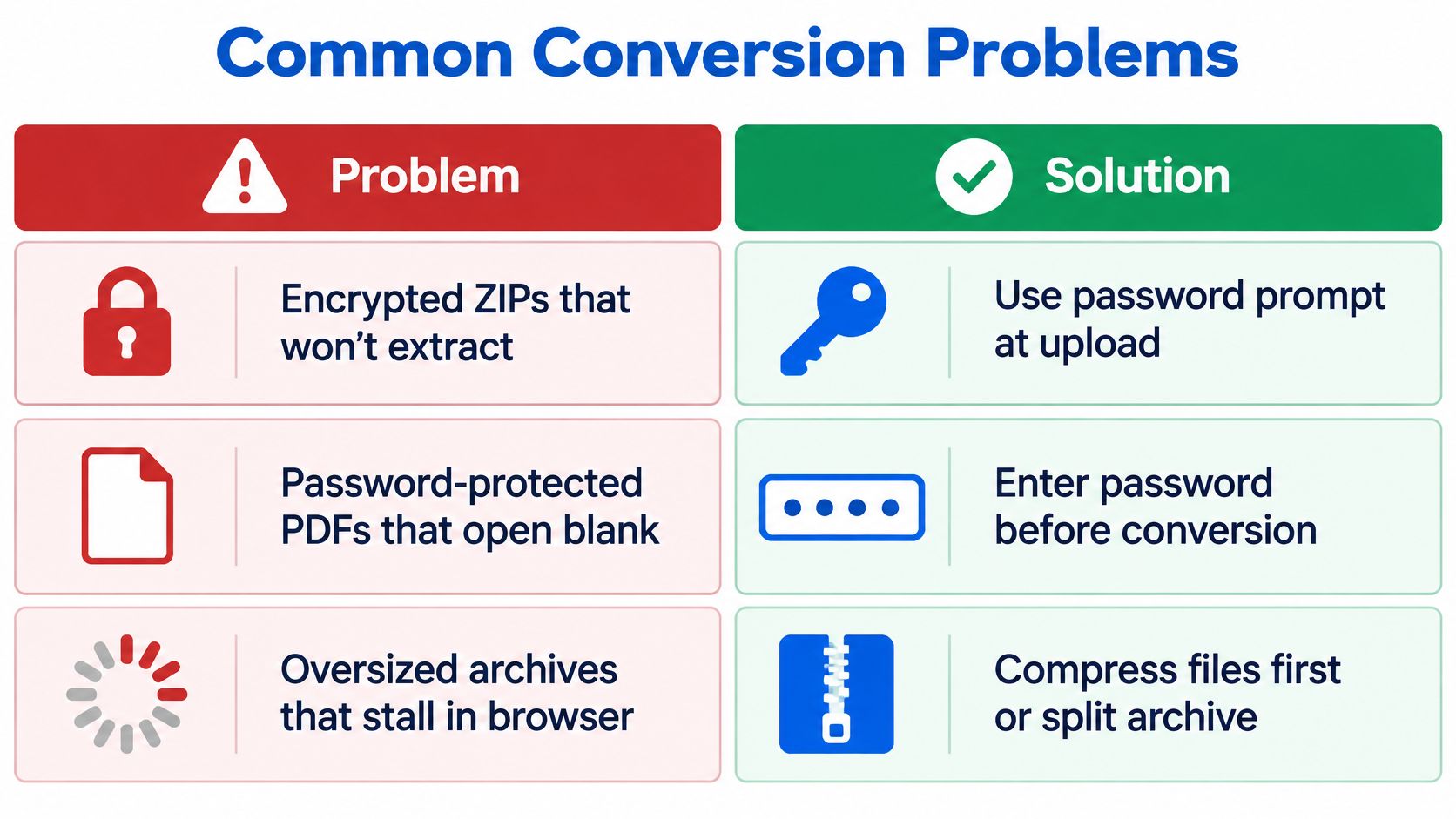
Encrypted ZIP that won't extract. Archive-level encryption blocks extraction entirely, so no converter can see the contents. Enter the password in your extraction tool first, or ask the sender for an unencrypted copy. A password-protected PDF inside the archive is a separate problem. That file may merge as blank pages or fail without notice. Open it, confirm you have the right to use it, remove the password, then convert.
Oversized archive that stalls the browser. File count hurts more than total size. One published browser benchmark reports that a 365.8 MB archive with 5,518 files took 52 seconds to extract in the browser, while 70,000 tiny files took about 500 seconds in Chrome, as described in the OpenSSF secure coding guidance on archive handling. Split huge archives into smaller batches instead of retrying the same upload.
Rendering problems after conversion
- Cropped or rotated images. Phone photos carry orientation data some converters ignore. Rotate the affected pages after conversion and check page fit.
- Fonts that look wrong. Missing fonts get substituted, which shifts line breaks and spacing. Embed fonts in the source document before converting.
- Mixed page sizes. Every PDF page needs defined geometry, and the PDF/raster specification requires a MediaBox entry of [0 0 w h] for width and height, as set out in the PDF/raster specification from the PDF Association. Normalize sizes or crop after merging.
- Washed out color. Color space differences between source images and the PDF can mute tones. Compare one known page before converting the full batch.
Form-heavy documents add their own traps, since fields and totals must survive the trip. Construction billing is a good example, and Drawra's G702 filing walkthrough shows how much checking a single standardized form needs before it's filed. Apply that same page-by-page verification habit to any converted form.
A Quick Preflight Routine Before You Hit Convert
Run this short routine before every conversion and most problems in the previous sections never happen. It takes about two minutes for a typical archive.
Your two minute checklist
- Inventory the files. List every entry, including nested folders and hidden items you didn't expect to see.
- Check encryption. Confirm the archive opens and note any password-protected PDFs inside it.
- Review metadata. Author fields, comments, and tracked changes can ride along into the output. Conversion doesn't strip them for you.
- Set the page order. Rename with number prefixes or plan your merge sequence before converting, not after.
- Decide the output size. If the packet is headed for email, plan a compression pass too, as covered in our tips on compressing files for email.
Conversion does not redact anything. Names, comments, author fields, embedded attachments, and visually hidden content can all survive into the final PDF. If something shouldn't be shared, remove it from the source file before you convert, or redact it properly afterward. A black rectangle drawn over text in an editor isn't redaction if the text underneath is still selectable.
Bundling an entire archive into one PDF can create a broader data release than sharing selected files individually. Convenience and disclosure risk rise together.
After converting, search the final PDF for sensitive terms: client names that shouldn't appear, account numbers, internal notes. Then open the file properties and check the title and author fields. Finally, delete the local extraction folder and any intermediate PDFs you no longer need. That last step closes the loop, so the only copy in circulation is the packet you meant to send.
Frequently Asked Questions About ZIP to PDF Conversion
Can a converter open an encrypted or password-protected ZIP
No. Archive encryption hides the contents, so extraction fails before conversion starts. Enter the password in an extraction tool first, or ask the sender for an unencrypted archive. Password-protected PDFs inside an open archive need their passwords removed separately.
Do scanned images need a separate OCR step
Yes, if you want searchable or accessible text. A scan converted without OCR stays a picture of words. Run OCR first, then convert, and you'll get text a reader can search and assistive technology can follow.
How do I control order when filenames don't match reading sequence
Rename files with number prefixes like 01 and 02 before converting, or set the sequence manually when you merge. Legal teams juggling exhibit order alongside filing deadlines often pair this habit with structured legal operations for docketing teams so packet order and case dates stay in sync.
Is the conversion really free with nothing to install
Yes. The tools described here are 100% free with no watermark and nothing to install. They run in your browser, so the same workflow works on a school laptop, an office desktop, or a phone.
How do I handle sensitive information before bundling
Remove files that don't belong in the packet, redact sensitive content in the source files, and check metadata before converting. Afterward, search the finished PDF for names or numbers that shouldn't be there. Never rely on conversion to hide anything for you.
Ready to turn that archive into a clean, ordered packet? Visit PDFKing to convert, merge, and organize your files into a finished PDF in your browser, free with no watermark and nothing to install.