ON THIS PAGE

Your submission packet is almost ready, but the cover is buried, an appendix interrupts the report, and a scanned page is upside down. To reorder PDF pages online free, open a browser-based page organizer, upload your PDF, drag the thumbnails into the intended sequence, and download the result. Before sending it, check the exported file, not just the thumbnail grid.
Table of Contents
- What You Can Do in a Free Browser-Based Reorder Tool
- Reordering Pages with Drag and Drop in PDFKing
- Rotating and Deleting Individual Pages
- Saving Your Reordered File Without Losing Layout
- Mobile Workflow and File Size Limits
- Accessibility and Pre-Submission Verification
- Troubleshooting and FAQ
What You Can Do in a Free Browser-Based Reorder Tool
Reorder, rotate, delete, and save are the core operations you need. Upload your document, inspect the page previews, make the necessary changes, then export a separate PDF. These actions address different problems, so don't treat every misplaced or unreadable page as a reordering task.
PDFKing's Organize PDF workspace supports visual page arrangement, rotation, and removal in your browser. Every tool is 100% free, with no watermark and nothing to install, and you don't need an account.
The basic workflow is summarized below.
Main image title: Put Your PDF Packet in Submission Order
Image description: A page-thumbnail workspace for https://pdfking.app, showing a misplaced cover, an appendix moved behind the report, and an orientation correction.
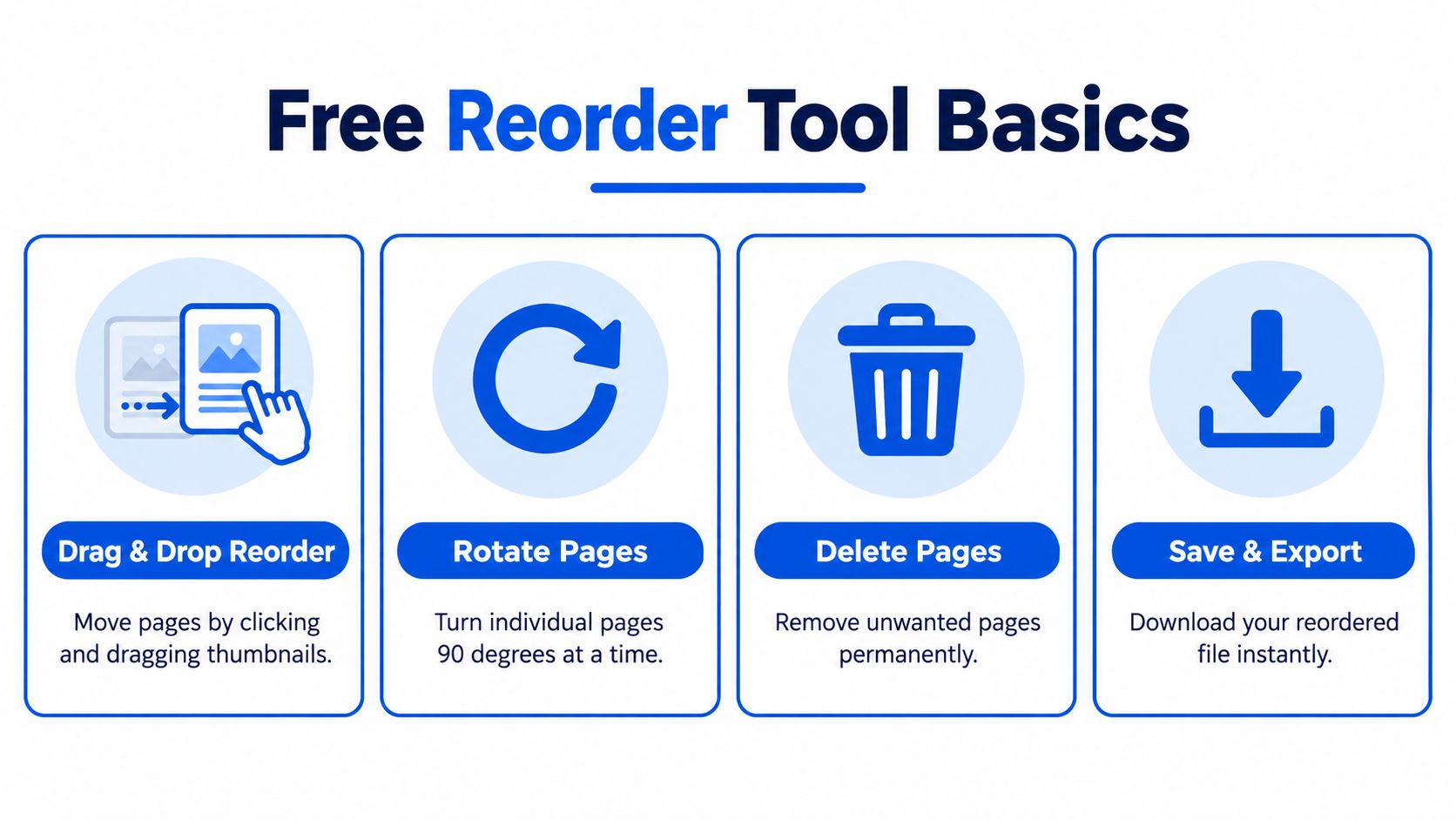
1. Match the operation to the problem
- Reorder when all the required content is present but the sequence is wrong.
- Rotate when an otherwise readable page faces the wrong direction.
- Delete when a page doesn't belong in the final packet.
- Save and export when the preview matches your submission requirements.
If you only need selected material, use the approach in extracting selected pages from a PDF. Removing everything else from a working document isn't always the clearest way to create a separate handout.
PDF's history helps explain its usefulness for document packets. Adobe released PDF 1.0 with Acrobat in 1993 and made the specification available without charge that year; PDF/A followed in 2005, and ISO published PDF 2.0 as ISO 32000-2 in 2017, as documented in the PDF standards history presentation.
Practical rule: Organize the document around what the recipient must read, not the order in which the files arrived.
Reordering Pages with Drag and Drop in PDFKing
A proposal packet may have its executive summary after the appendix, while a student submission may place required forms in the wrong sequence. Before opening PDFKing, make a copy of the source file and write down the intended order. For example, a proposal might run from cover to contents, executive summary, report, and appendix. Follow the assignment or submission checklist for student packets.
2. Upload and identify the pages
Open Organize PDF and select the document in your device's file picker. If it is stored in cloud storage, download it first or make it available through that picker. A dedicated cloud-import button may not be available.
Wait for the thumbnails to load. Match previews to page numbers, then inspect pages whose headings are too small to identify at a glance.
3. Move content by its identity
Click and hold the misplaced thumbnail, drag it to the intended insertion point, and release when the placement indicator is clear. Check the pages on both sides of the move. Page numbers can change during rearrangement, so identify content by its heading or subject, not by its former number.
For a proposal, move the executive summary after the contents page and place the appendix after the report. Keep the cover and contents in place, then check that the contents entries still match the new sequence.
Dragging changes the visible page order in the editing workspace. In the PDF itself, that sequence is represented through page objects and the page tree. A tool must preserve the page objects, update their ordering, and keep the tree's /Count values accurate, as explained in the technical overview of PDF page ordering. These are file-structure details handled by the tool, not settings to adjust manually.
- Wrong drop: Move the thumbnail back while you can still identify it.
- Undo: Use the control if the workspace offers one; don't count on it being available.
- Multi-select: Group pages only if the interface clearly supports it. Otherwise, move them individually and check their neighbors after each move.
An insertion marker shows where the page will go. Review the full sequence before exporting, especially when the document includes a printed contents page.
Rotating and Deleting Individual Pages
An upside-down scan and an unwanted attachment need different fixes. Rotation changes orientation; deletion removes content from the exported packet. Make these decisions from a readable preview, not from a tiny thumbnail that merely looks blank.
4. Correct orientation without hiding scan problems
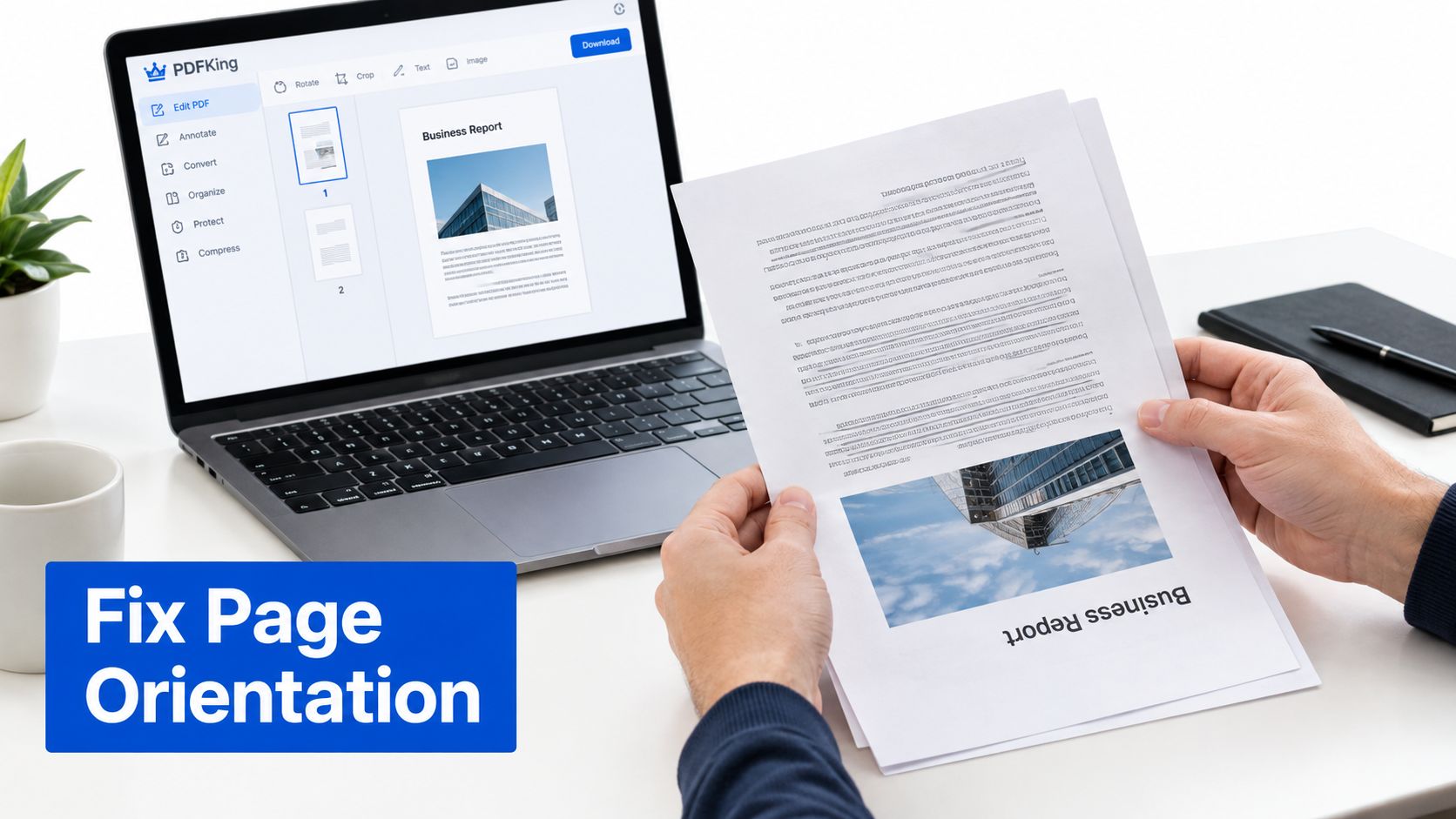
Select the affected page and use its rotation control until the text is upright. Inspect the page itself rather than assuming every sideways thumbnail is wrong. A wide table may belong in horizontal orientation.
Rotation won't restore clipped text, improve an unreadable scan, or recover a missing margin. If the content is unclear, obtain a better scan instead of repeatedly turning the page.
Follow the guide to rotating a PDF and saving its orientation when the correction needs to remain in the downloaded document. The decisive check is whether the exported page opens upright, not whether it looked upright during editing.
| Page condition | Appropriate action |
|---|---|
| Readable content facing the wrong direction | Rotate the page |
| Duplicate or unrelated material | Delete after confirming its identity |
| Clipped, blurred, or missing content | Replace it with a better scan |
5. Remove only genuinely unwanted pages
Select the page you intend to remove and activate the deletion control. For several pages, use a clearly supported multi-selection or range control; otherwise, remove them individually.
Before deleting a blank-looking page, inspect it for faint stamps, handwritten notes, or separator text. A separator may also be intentional, particularly in a packet prepared for printing.
Keep the source outside the editing workflow. A removed page can't be recovered from an exported file that no longer contains it.
After deletion, check the adjacent pages for continuity. A missing heading, interrupted sentence, or detached attachment is a reason to stop and compare the packet with the original.
Saving Your Reordered File Without Losing Layout
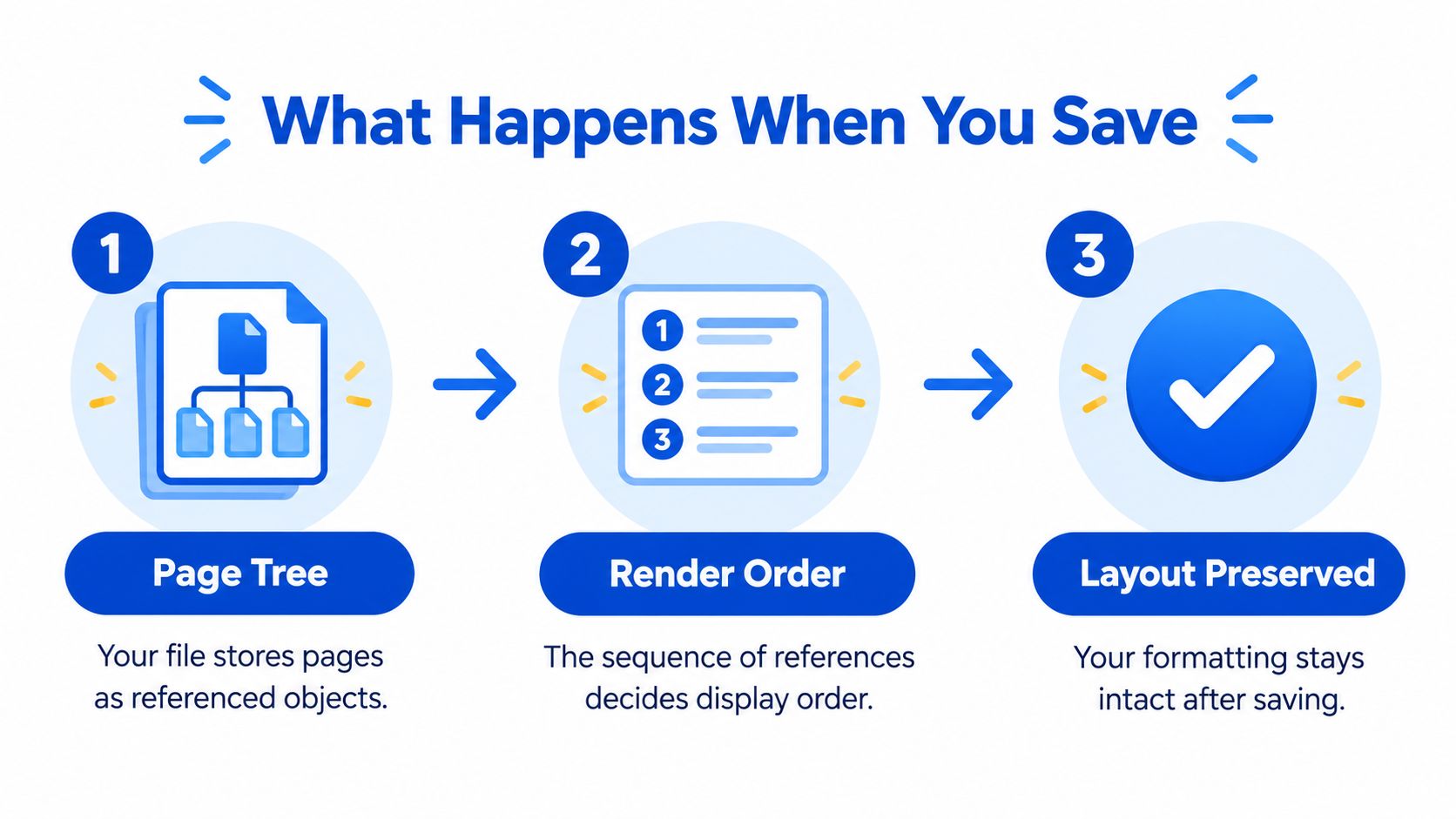
A page can look correctly placed in the editor and still be missing, out of order, or poorly rendered in the downloaded file. Saving page order isn't the same as rebuilding page content. A PDF's page tree controls display order by referencing individual page objects. Reordering changes the sequence of those references, not the page images or content themselves.
That structure supports compliant readers opening documents with many pages, as explained in the PDF document-structure explanation. You don't need to inspect the page tree manually. Check the exported file instead.
The diagram illustrates how a PDF maintains structure and layout when saved.
6. Export and reopen before replacing anything
Download the reorganized PDF with a distinct filename, then open that downloaded copy in a PDF viewer. This checks the saved document, not the editor's temporary view.
- Sequence: Compare the first, middle, and last pages with the intended order.
- Completeness: Confirm the page count, allowing for pages you deliberately deleted.
- Layout: Check text, images, margins, headers, and footers at a readable zoom.
- References: Check printed page numbers and contents entries against the new positions.
Test the workflow on a noncritical file first. Move pages into a nonconsecutive order such as 4-1-3-2, export, then confirm that sequence in the downloaded PDF. This tests whether the tool changed the order, rather than it saving the original arrangement.
Submission safeguard: Keep the source file until someone has checked the downloaded packet against the required contents.
For laboratory procedures, separate file organization from version approval. The lab SOP app selection guide discusses managing procedures beyond a single PDF export.
Mobile Workflow and File Size Limits
On a phone or tablet, accurate selection matters more than speed. Open the organizer in Safari or Chrome, choose the PDF through your device's file picker, and inspect the page previews before starting a drag.
A file opened inside an email attachment viewer isn't necessarily open in your browser's editing workspace. If a sharing menu sends the document to another app, return to the browser and select the file there.
7. Make touch editing deliberate
Try horizontal orientation when the thumbnail grid feels crowded. Zoom in for inspection if the browser permits it, then return to a workable view before dragging.
- Selection: Confirm which thumbnail is active before rotating or deleting.
- Placement: Release only when you can identify the destination between neighboring pages.
- Download: Locate the saved output in your device's downloads or files area before attaching it.
- Heavy packets: Switch to a desktop if touch placement becomes difficult or previews won't render reliably.
8. Check the attachment budget separately
Reordering doesn't necessarily reduce file size. A scanned packet can remain too large to send because its embedded images still occupy substantial space.
Gmail personal accounts allow 25 MB in total attachments per message, not per file; when the combined attachment size exceeds that threshold, Gmail substitutes a Google Drive link, according to Gmail's attachment guidance.
Use compression when you need the complete packet in a smaller file. Review the guide to making file size smaller, then inspect fine print and scanned details in the compressed output.
Use splitting or extraction when the recipient needs only part of the packet. Don't discard required evidence just to fit an attachment limit. For a filing portal or school submission system, check its own published requirements rather than assuming the email threshold applies.
Accessibility and Pre-Submission Verification
Correct visual order doesn't guarantee correct reading order. PDF logical structure is stored separately from visible content, and its hierarchy can be independent of the order and location of page graphics, as explained in W3C guidance on PDF reading order.
A packet can therefore look organized while remaining difficult to use with assistive technology. Moving whole pages isn't a substitute for repairing tags or the sequence of elements within a page.
9. Check navigation and interactive content
- Bookmarks: Open each important destination and confirm it reaches the intended material.
- Internal links: Test contents entries and cross-references.
- Forms: Check field behavior and keyboard navigation.
- Reading order: Inspect tags with an accessibility checker and test with a screen reader or reflow view.
- Signatures: Treat a digitally signed original as protected evidence. Modification can invalidate its signature.
For navigation work after reorganization, consult the guide to adding bookmarks to a PDF. Bookmarks help readers move between sections, but they don't repair the underlying reading sequence.
10. Know when page organization isn't enough
Forms, multi-column documents, tables, and scanned packets need particular attention. If the reading sequence is wrong, return to an appropriately tagged source export or arrange a separate accessibility-remediation step.
For legal coursework, CramShare's safe legal study material downloads is a related resource for reviewing how you obtain source material. Keep that source review separate from checking the reorganized submission.
Finish with a visual review of scanned, rotated, and mixed-size pages. Accessibility checks and visual checks answer different questions; neither replaces the other.
Troubleshooting and FAQ
If pages won't drag, wait for previews to finish and retry a clearly identified thumbnail. If the export opens in an unexpected order, compare it with your written sequence and restart from the source if necessary.
For unreadable files, consult Cloudvara's guide to fixing PDFs that won't open. If separate documents need combining before organization, use the guide to merging PDF files.
Can I reorder a scanned PDF?
Yes. Identify pages from their content, especially when printed numbering is missing.
What if a thumbnail looks wrong?
Inspect the full page. Don't delete content based only on a preview.
Why does a rotated page print sideways?
Check the exported page orientation and print preview before changing the file again.
Will tagged reading order stay correct?
Don't assume it will. Run the accessibility checks above.
What happens to digital signatures?
Modification can invalidate them. Retain the signed original.
Can I organize an encrypted PDF?
Use only documents you're authorized to edit. If the organizer can't open the file, request an editable copy rather than assuming password support.
What if the file is still too large?
Compress the complete packet or extract only the material the recipient requires.
PDFKing offers free browser-based tools for arranging, rotating, and removing PDF pages, with no watermark and nothing to install. Visit PDFKing, open Organize PDF, and put your packet in the required sequence before downloading and checking the final file.