ON THIS PAGE
You've received a PDF from a teacher, client, court, or colleague, and you only need to correct a line, remove a page, add a signature, or highlight a passage. You don't need Adobe Acrobat for most of these tasks. A browser-based editor can handle common changes, while OCR, redaction, and accessibility work require extra checks.
Table of Contents
- What Editing a PDF Without Acrobat Actually Means
- Converting a PDF to Word for Major Rewrites
- Adding and Removing Text and Images In Browser
- Annotations, Metadata, and Quick Signatures
- Proper Redaction for Sensitive Content
- Accessibility and Screen Reader Readiness
- Troubleshooting Common Editing Problems
What Editing a PDF Without Acrobat Actually Means
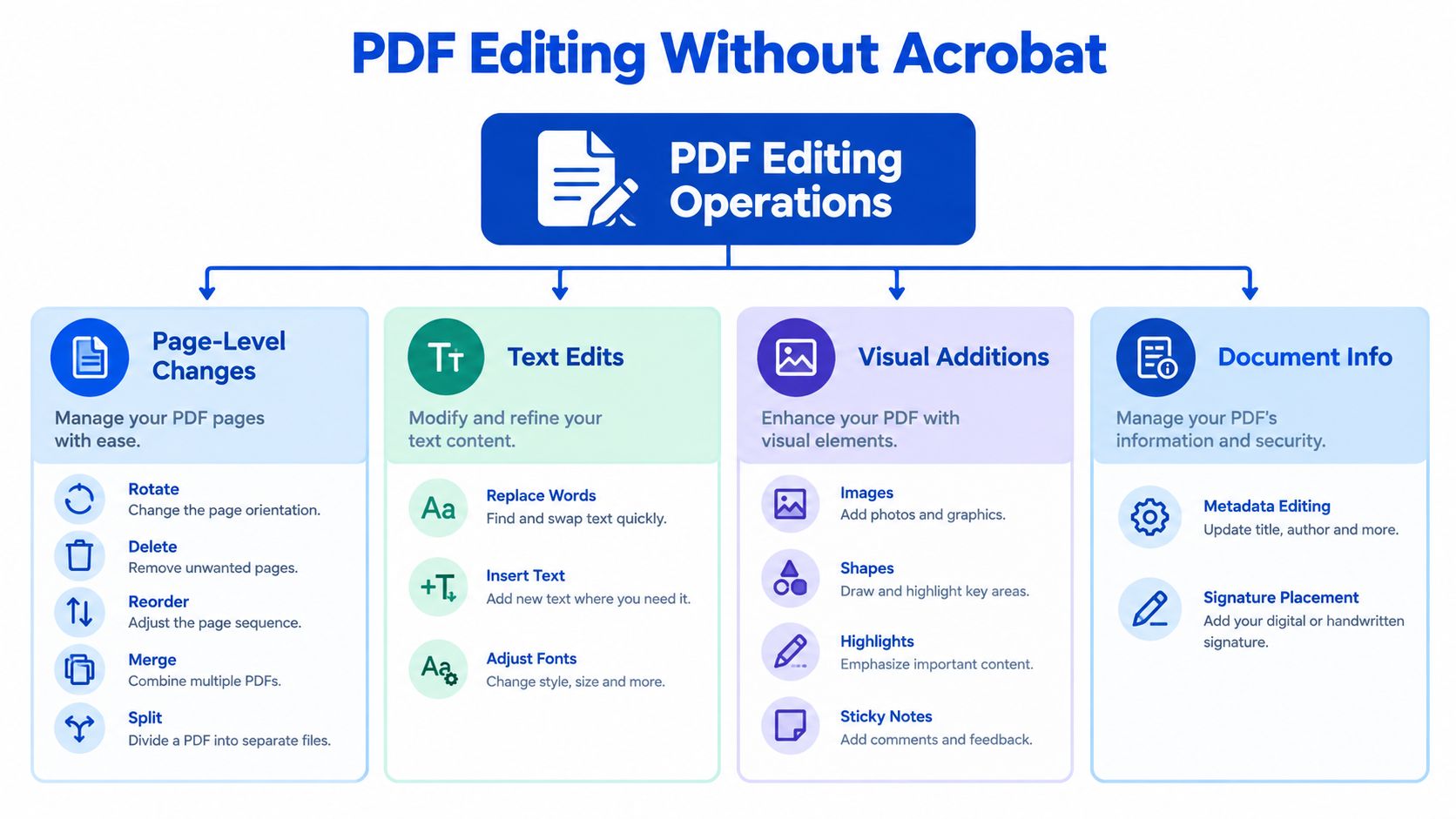
PDF editing isn't one single action. It's a group of operations that affect different parts of a document. You might rotate a page, delete an unwanted page, reorder pages, merge files, add a text box, place an image, highlight a sentence, update document information, or add a signature.
A PDF is a page-oriented format that can contain text, images, graphics, annotations, metadata, hyperlinks, bookmarks, and other elements. The Library of Congress overview of PDF explains that PDF can also support searching, text extraction, indexing, and conversion to formats such as HTML, XML, and RTF while preserving some structure.
Identify the kind of change you need
Start by naming the operation:
- Page management: Rotate, delete, reorder, merge, split, crop, or extract pages.
- Text changes: Add a short correction, insert a label, or replace a small amount of visible text.
- Visual additions: Place an image, shape, arrow, highlight, drawing, or note.
- Document information: Change the title, author, subject, keywords, or add a signature.
- Deep reconstruction: Run OCR, rebuild a complex layout, remove confidential information, or repair accessibility structure.
The first four categories are usually content-preserving operations. They change how the document is arranged or what appears on the page without rebuilding the entire file. Deep reconstruction is different because it can affect text order, fonts, hidden content, forms, and accessibility.
PDF became an internationally standardized format after Adobe's PDF 1.7 became ISO 32000-1 on July 1, 2008. ISO later published PDF 2.0 in 2017, which helped create a technical foundation for independent tools and browser applications. You can read more about the history of PDF standards and editing without Acrobat.
Before uploading anything, check whether you can select text with your cursor. If you can, you probably have a digitally generated PDF. If every page behaves like a photograph, it's likely a scan and may need OCR before you can change the wording.
Converting a PDF to Word for Major Rewrites
A PDF works well as a final, fixed page. A Word document works better when the wording itself needs to change. If you need to rewrite paragraphs, reorganize a report, revise a contract draft, or move several headings, converting the file to DOCX is usually the cleaner route.
Save an untouched copy first. Then use a PDF-to-Word converter and open the DOCX in Microsoft Word, LibreOffice Writer, or another compatible editor.
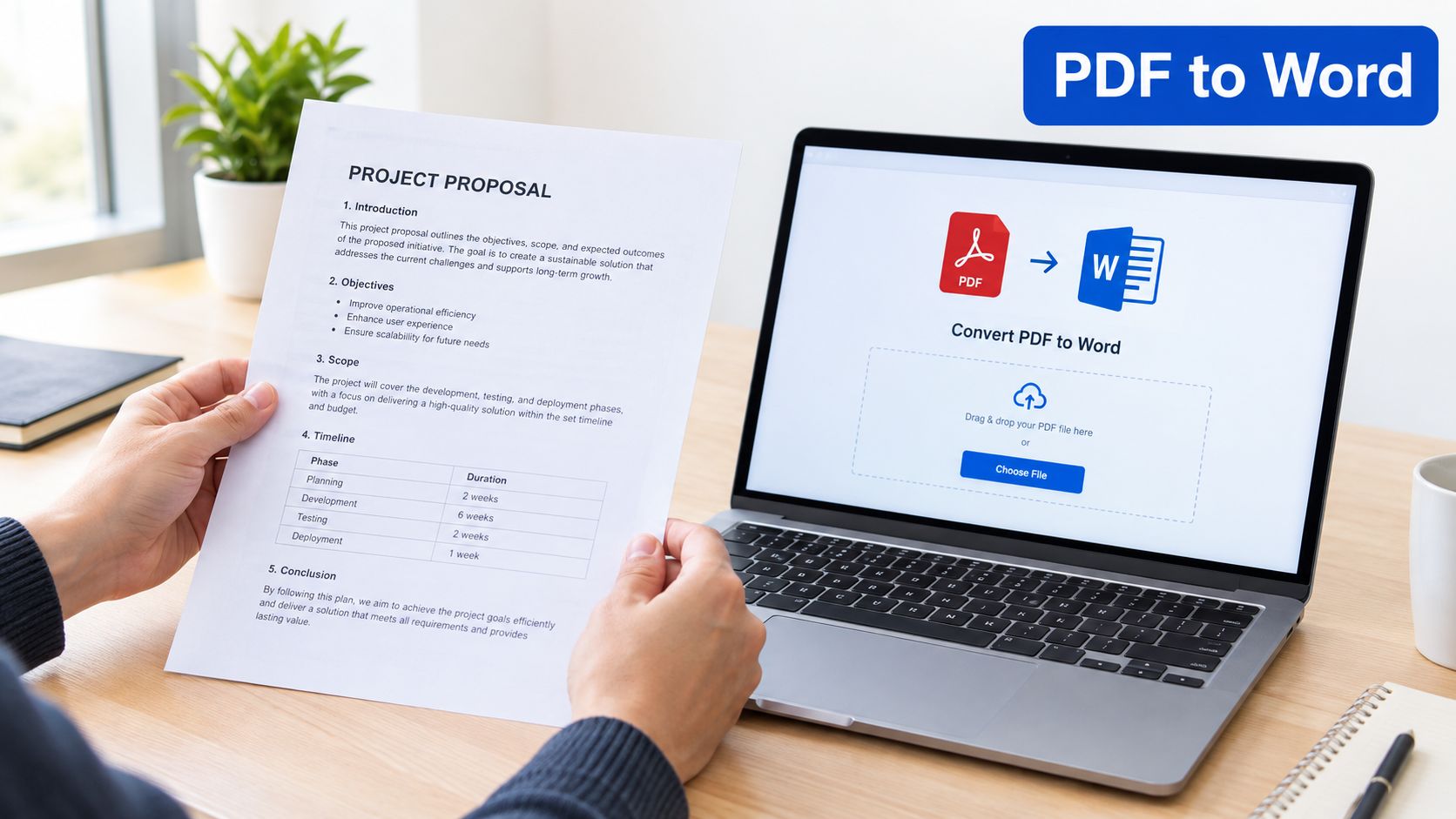
A conversion is helpful when the document's meaning matters more than exact page placement. A Word processor can reflow text, while a PDF keeps the original page layout locked in place. That difference matters the moment you want to add, remove, or reorder real content instead of just covering it on the page.
Start by duplicating the source file so the original stays unchanged. Convert the copy to DOCX, then open it and inspect the first pages right away. Look for shifted headings, missing characters, odd spacing, and table cells that no longer line up. Once the structure looks sound enough, make the larger revisions, update names and tables, and adjust section order as needed. Export a new PDF after the edits are done.
Compare the exported file with the original before you share it. Pagination, headers, footers, images, and tables often tell you whether the conversion held together. Plain paragraphs and simple headings usually survive better than multi-column pages, footnotes, text wrapped around images, complex tables, embedded fonts, and interactive form fields. Those elements can survive a conversion, but they deserve a closer check because their structure is easier to disturb.
A contract is a good example. If only one date changes in a stable paragraph, overlay editing may keep the page looking cleaner. If several clauses need rewriting, DOCX conversion gives you more room to work, but the final pagination still needs verification before anyone else relies on it.
During review, do more than glance at the page. Search for important names, dates, account numbers, and legal references. Open the exported PDF in a second viewer and confirm that hyperlinks still work, text remains selectable, and tables keep their row and column relationships. For a closer look at preserving layout during this kind of rewrite, see the guide to converting PDF to Word without losing formatting.
Adding and Removing Text and Images In Browser
For a text-based PDF with a small correction, an in-browser editor is usually the simplest route. You can work on a duplicate, place a text box over the old wording, add an image or shape, and export a revised copy without installing desktop software.
Make a localized change
Begin with the page dimensions. A PDF page doesn't reflow like a Word document, so a new text box won't automatically push nearby content downward. Place the replacement carefully and inspect the surrounding line breaks.
A practical sequence is:
- Upload a copy. Keep the original available for comparison.
- Choose the text tool. Click where the correction should appear.
- Match the visible style. Adjust font size, color, spacing, and alignment as closely as the editor allows.
- Cover or remove the old visible wording only when appropriate. A visual cover is not a security redaction.
- Add images or shapes. Resize them without covering important text or margins.
- Export the edited PDF.
- Reopen the exported file. Check the text, links, reading order, and page appearance.
PDFKing's browser-based editor can add text, highlights, shapes, drawings, arrows, images, and annotations, along with page-level changes such as rotating, reordering, deleting, and adding pages. It's 100% free, adds no watermark, and requires nothing to install.
Know when overlay editing is the wrong choice
A scanned PDF usually contains page images rather than editable text. You may be able to draw a new text box on top, but you won't change the underlying scan. Run OCR first if the wording must be searchable or editable.
Protected files also need care. A password or permission setting may prevent editing, and you should only open a document when you're authorized to do so. If the file contains unusual embedded fonts, a replacement line may wrap differently even when the font size appears correct.
Use overlay editing for labels, short corrections, arrows, highlights, and images. Switch to DOCX conversion when the revision affects paragraphs, columns, tables, or page flow.
Annotations, Metadata, and Quick Signatures
Many PDF tasks don't require changing the original words at all. You may need to mark a passage for a student, point a client toward a clause, add a signature, or make the file easier to identify in a shared folder.
Add notes and visual guidance
Select the appropriate annotation for the job:
- Highlight: Draw attention to existing text without changing it.
- Sticky note or comment: Add an explanation that readers can open separately.
- Arrow or shape: Point to a field, number, diagram, or area requiring attention.
- Drawing: Mark a page by hand, especially on a worksheet or proof.
- Watermark: Identify a draft, copy, or internal document.
- Page number: Help readers refer to a page in a packet.
Annotations are separate PDF objects in many workflows. That means they may remain selectable, movable, or removable unless you flatten the document. That's useful during review, but it can cause confusion if a recipient expects the marks to be permanent.
Update document information
Metadata helps people and software identify a file. Depending on the tool, you may be able to update the title, author, subject, and keywords. Use a clear title rather than a temporary filename, and remove personal information when the document will be shared outside your organization.
Open the exported PDF's document properties after saving. Confirm that the title and author are correct, and check whether comments, attachments, or other hidden objects remain.
Place a signature carefully
A quick signature is usually a visible addition. You can draw, type, or place an image of a signature where the form requires it, then save a new copy. Confirm that the signature is on the correct page and that nearby fields remain readable.
This is different from a certificate-based digital signature or a legal signing workflow with identity verification and an audit trail. If the recipient specifies a particular signing method, follow those requirements rather than assuming a visible signature is enough.
For practical annotation work, use the PDFKing tool for adding notes to a PDF. After exporting, open the file in another viewer and check that highlights, comments, images, and signature placement appear as intended.
Proper Redaction for Sensitive Content
A black box is not the same as redaction. It may hide words on screen while leaving the original text available for copying, searching, extraction, or forensic inspection. Password protection controls access to a file, but it does not remove sensitive information from the page.
Use a dedicated redaction tool when the recipient must never recover the content. The safest workflow starts with a copy, not the original. Keep the source file untouched in a controlled location, then work through the redaction in a way you can verify later.
Search first for every occurrence of names, account numbers, addresses, and similar sensitive terms. Apply true redactions, meaning the underlying content is removed rather than covered by a visible overlay. Then sanitize the file by clearing metadata and checking comments, attachments, form fields, hidden text, thumbnails, JavaScript, and revision remnants where the tool supports those checks. Save the result under a new filename, and do not overwrite the source.
Verification matters as much as the redaction itself. Open the released copy in another viewer, try selecting and copying the text, search for the redacted terms, and extract the text to see what still remains. Inspect document properties as well, because title, author, and other metadata can reveal more than the page shows. If confidentiality is important, run an independent parser too, since one viewer can miss content that another tool still exposes.
A government examination of PDF redaction functionality found that some non-Adobe workflows left recoverable remnants in embedded font-map CMap objects. It also reported that tested files created with Acrobat, Distiller, and Microsoft Word did not yield the redacted text, and that sanitization removed metadata objects. The government examination of PDF redaction functionality.pdf) shows why a visual check alone is not enough.
White text, white rectangles, cropping, and ordinary highlights only disguise content. The PDFKing guide to redacting text in a PDF explains the difference between hiding information and removing it.
Accessibility and Screen Reader Readiness
A PDF may look polished on screen while remaining confusing for someone using a screen reader. A text box, image, or highlight changes the visible page, but it does not create headings, reading order, table relationships, field labels, or alternative text.
Treat accessibility as a structural editing task. Government guidance identifies searchable text, logical reading order, tagged headings, structured lists and tables, alternative text for meaningful images, and keyboard-accessible fields as parts of an accessible PDF. It also explains that HTML or editable OpenDocument files may be better choices when a PDF is not required. See the PDF accessibility requirements.
Start with the document's content layer. Select and search the text, then check whether a screen reader follows the intended sequence. A two-column page can look correct but read across the wrong lines if its tags are missing or disordered. Headings, lists, tables, images, and form fields each need their own structure, descriptions, or labels. Confirm that keyboard focus follows a sensible order and that security settings permit assistive-technology access.
A short checklist helps expose gaps:
- Are headings, lists, and tables identified correctly?
- Do meaningful images have useful descriptions?
- Do fields have labels and a sensible keyboard order?
- Does the screen reader announce the page in the intended sequence?
For worksheets, public forms, school handouts, and government documents, visual polish is only one layer. Return to the editable source when tags, styles, or labels need repair, then export a new PDF and test that copy with a screen reader.
Readers comparing tools can review these accessibility options when preparing materials for people with different access needs. Selectable text alone does not prove full accessibility. Structural reconstruction requires verification.
Troubleshooting Common Editing Problems
Most editing failures have a recognizable cause. Diagnose the file before trying random tools.
| Symptom | Likely Cause | Fix |
|---|---|---|
| Text won't change | The page is a scan or image-only PDF | Run OCR, then correct the text against the page image |
| New text looks different | The original font isn't available or embedded | Match the style manually, or convert the file and rebuild the affected section |
| Columns read in the wrong order | The PDF's reading structure doesn't match its visual layout | Inspect the extracted text and rebuild the source document if order matters |
| A protected file won't edit | Editing permissions or encryption are active | Remove restrictions only on a file you own or are authorized to modify, then edit the permitted copy |
| An annotation disappears | The export flattened or discarded the annotation layer | Reapply the annotation and reopen the exported file before sharing |
| A table shifts after conversion | The table has complex layout or positioning | Compare it with the original and rebuild the table manually |
| A signature appears in the wrong place | The page shifted or the field was misidentified | Reopen the final PDF and verify the page, field, and surrounding text |
| Redacted text can still be found | A shape or cover hid the text without removing it | Use a dedicated redaction function and test extraction |
Fix scans before attempting text edits
OCR creates a searchable text layer, but it can misread low-resolution pages, unusual fonts, columns, handwriting, seals, and tables. A comparative digitization study reported that its strongest pipeline achieved 98.70% character accuracy and 97.71% word accuracy overall in a comparative OCR digitization study of character and word accuracy, but that result doesn't mean every file will produce the same quality.
Search for 10 to 20 key terms, copy several paragraphs into a text editor, inspect multi-column order, and compare dates, currency, account numbers, and legal citations against the page image. Tables, footnotes, ligatures, accented characters, and headers deserve manual review.
Check fonts and structure after exporting
A page can look fine on your computer and change on another device if fonts weren't embedded. Open the result in a second viewer, search for text, check hyperlinks, inspect bookmarks, and confirm that annotations remain available when they should.
If you're editing a protected file, only remove restrictions from a document you own or have permission to modify. A practical guide to editing a protected PDF explains the same permission check before you make changes.
Because PDFKing runs entirely in the browser, you can run this diagnose, verify, reopen loop on the same file without switching tools. Use the editor for page-level fixes, move to PDF-to-Word for larger rewrites, and treat OCR, redaction, and accessibility work as steps that always need a final check against the original.