ON THIS PAGE
Use PDF to Word now
Upload Files
Drag & drop PDF Files here
or click to browse
You have a PDF that looks perfect on screen, but the moment you open it in Word, the columns shift, table cells merge, and page numbers wander. To convert PDF to Word without losing formatting, first identify whether the file contains real text or scanned images, then use a layout-aware converter and verify the DOCX page by page.
Table of Contents
- Why Formatting Breaks When You Convert PDF to Word
- Prepare Your PDF for a Clean Conversion
- How to Convert PDF to Word in PDFKing and Keep Layout Intact
- Fix Common Formatting Issues After Conversion
- When to Choose Formatting Preservation Over Easy Editing
- Frequently Asked Questions About Converting PDF to Word
Why Formatting Breaks When You Convert PDF to Word
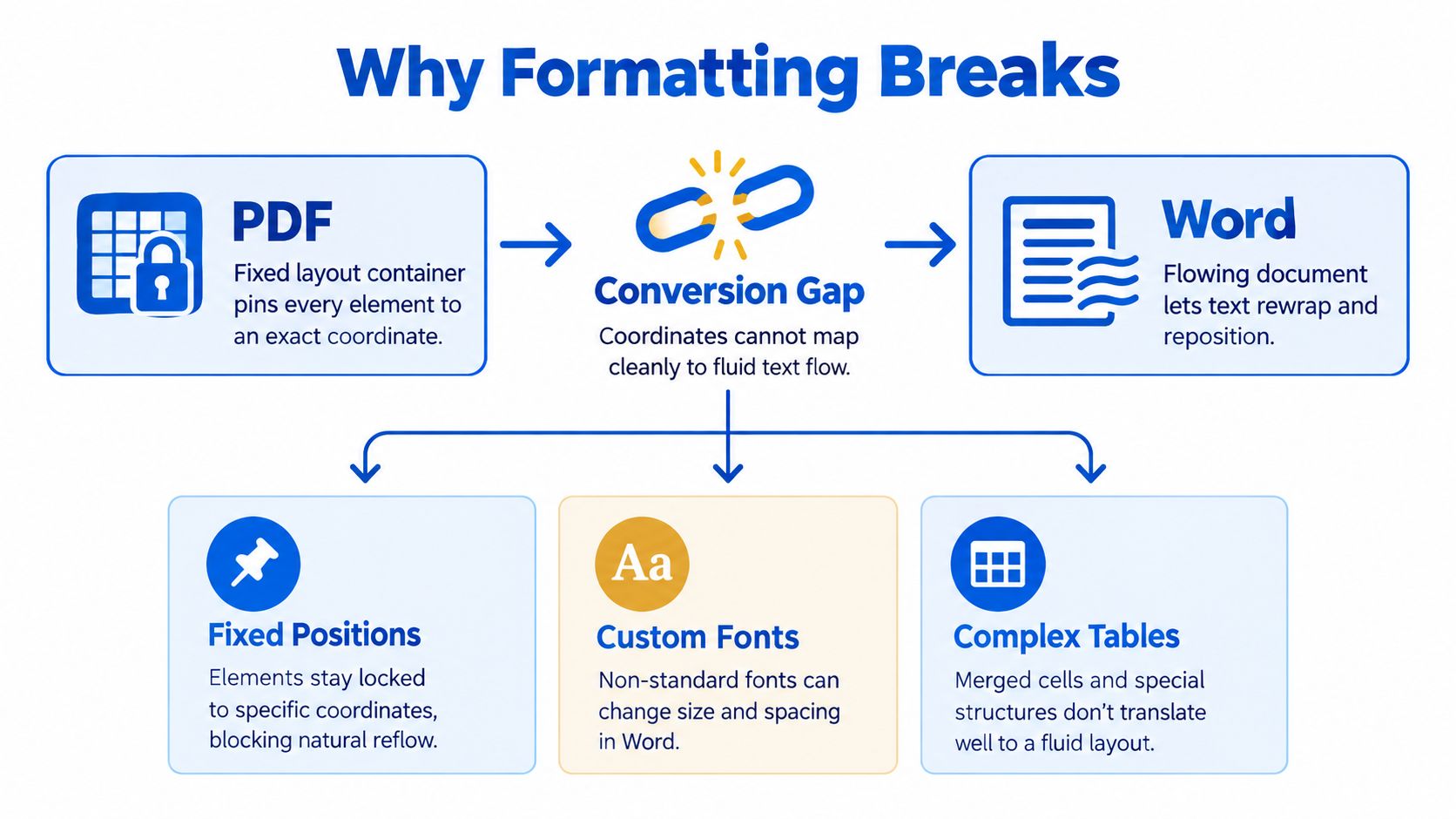
PDF and Word handle documents in different ways. A PDF is a fixed layout container. It places text, images, lines, and tables at specific coordinates on a page. Word is an editable, flowing document, so text can rewrap when fonts, margins, spacing, or page width change.
A converter has to infer paragraphs, headings, columns, tables, headers, and reading order from those fixed page objects. That reconstruction works well for a plain business letter, but it becomes less predictable when the page includes sidebars, floating images, custom fonts, or nested tables. The challenge is structural fidelity, not just making the converted page look similar at first glance.
Start with the document type
A native PDF usually contains selectable text. The converter can rebuild that text into Word paragraphs and identify the approximate position of images and tables. A scanned PDF contains page images instead, so it needs optical character recognition, or OCR, before the text can become editable.
Expected fidelity varies sharply by layout. Simple business letters are reported at 95–99%, single-column academic papers at 88–95%, and legal contracts at 90–97% in the referenced quality analysis. Two-column academic papers and mixed-layout annual reports fall to 60–80%, while scanned documents range from 75–90% at 300 DPI and 50–70% at 150 DPI because OCR and table detection introduce more errors. See the PDF-to-Word accuracy analysis for the document-type breakdown.
Practical rule: The more a PDF resembles a normal page of flowing text, the more likely its Word version will remain stable. Columns, tables, and scans require inspection.
For teams that handle repeated document processing, it also helps to understand the wider role of structured workflows. The overview of Refact document automation provides useful context for separating extraction, conversion, review, and storage instead of treating every file as a one-click task. If the source file is unusually large, check why your PDF is so big before converting, since unnecessary pages and oversized images can make the workflow harder to manage.
Prepare Your PDF for a Clean Conversion
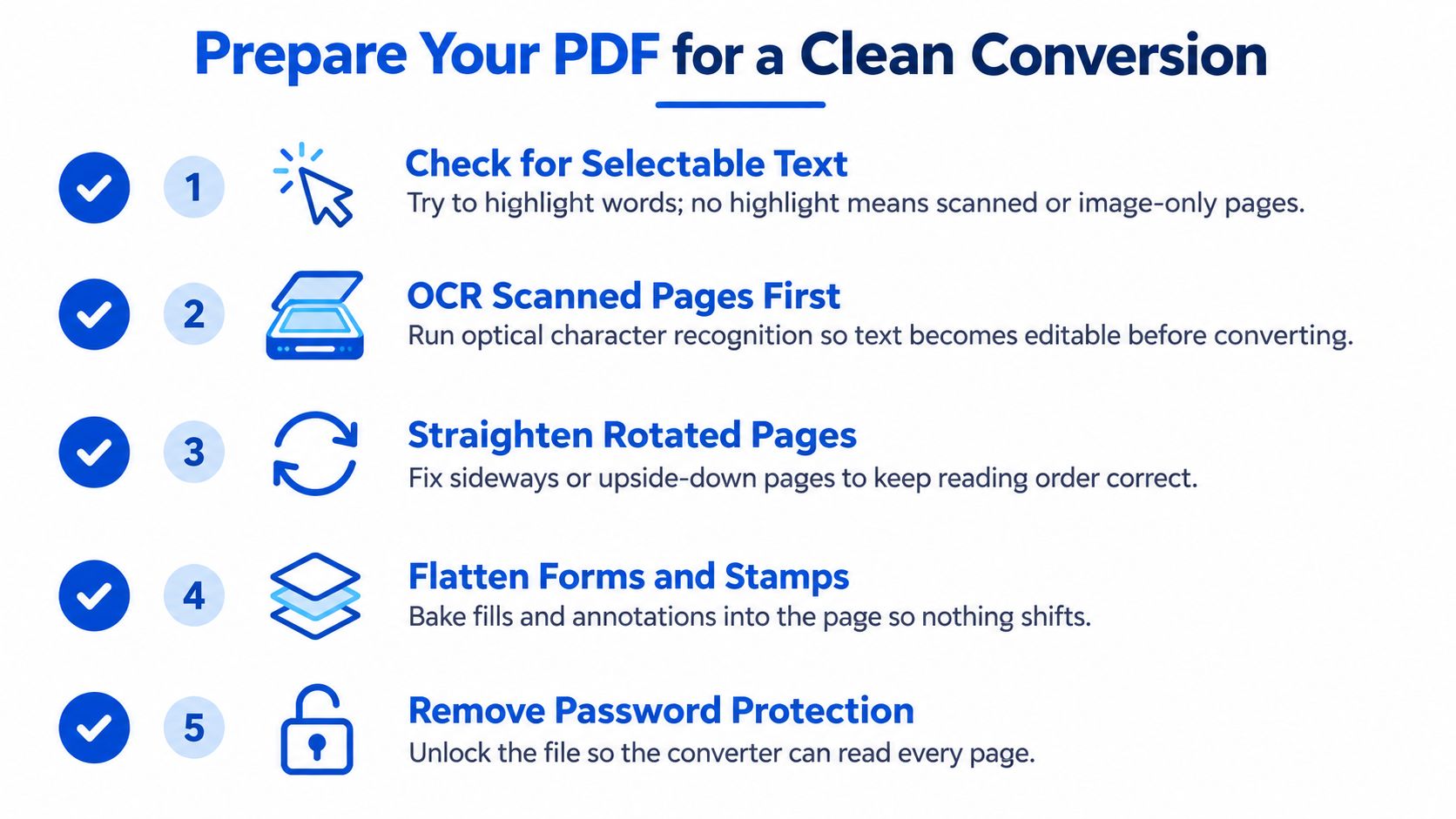
A clean DOCX starts with a controlled source file. Before opening a converter, determine whether the PDF contains editable text, scanned pages, rotated content, missing fonts, or unnecessary material. That decision determines whether direct conversion is appropriate or whether a layout-aware workflow with OCR and verification is safer.
Run a short preflight check
Test text selection. Highlight a sentence in the PDF. If individual words can be selected, the file probably contains native text. If the whole page acts like one image, plan for OCR.
Inspect every page. A document may combine native text with scans, rotated exhibits, or photographed forms. Checking only the first page can hide problems that appear later.
Correct orientation and skew. Straighten sideways or tilted pages before conversion. Mixed portrait pages can also disrupt reading order and create misplaced text blocks.
Review fonts and spacing. Custom or embedded fonts may map differently in Word. Keep the original font files available for verification, and expect line breaks or page counts to change when those fonts are unavailable.
Remove unnecessary material. Delete blank pages, duplicate scans, and unrelated appendices. A focused source is faster to compare against the converted file.
Decide whether OCR belongs first
Native text can usually enter a layout-aware PDF-to-Word workflow directly. Scanned pages require OCR, but recovered text alone does not prove structural fidelity. A scanned PDF conversion quality test reported high character and token recall, while many outputs still needed major editorial repair. Tables, columns, labels, and reading order can fail even when the words look readable.
Before converting, flatten form fields, stamps, and annotations that must remain part of the page appearance. Remove password protection from files you own or are authorized to edit. This password-protected PDF guide explains that preparation step.
For difficult files, avoid relying on one-click conversion. Clean the source, choose OCR only where required, convert with layout awareness, then compare headings, columns, tables, page breaks, and representative pages against the PDF. That verification catches structural errors that a quick visual glance can miss.
How to Convert PDF to Word in PDFKing and Keep Layout Intact
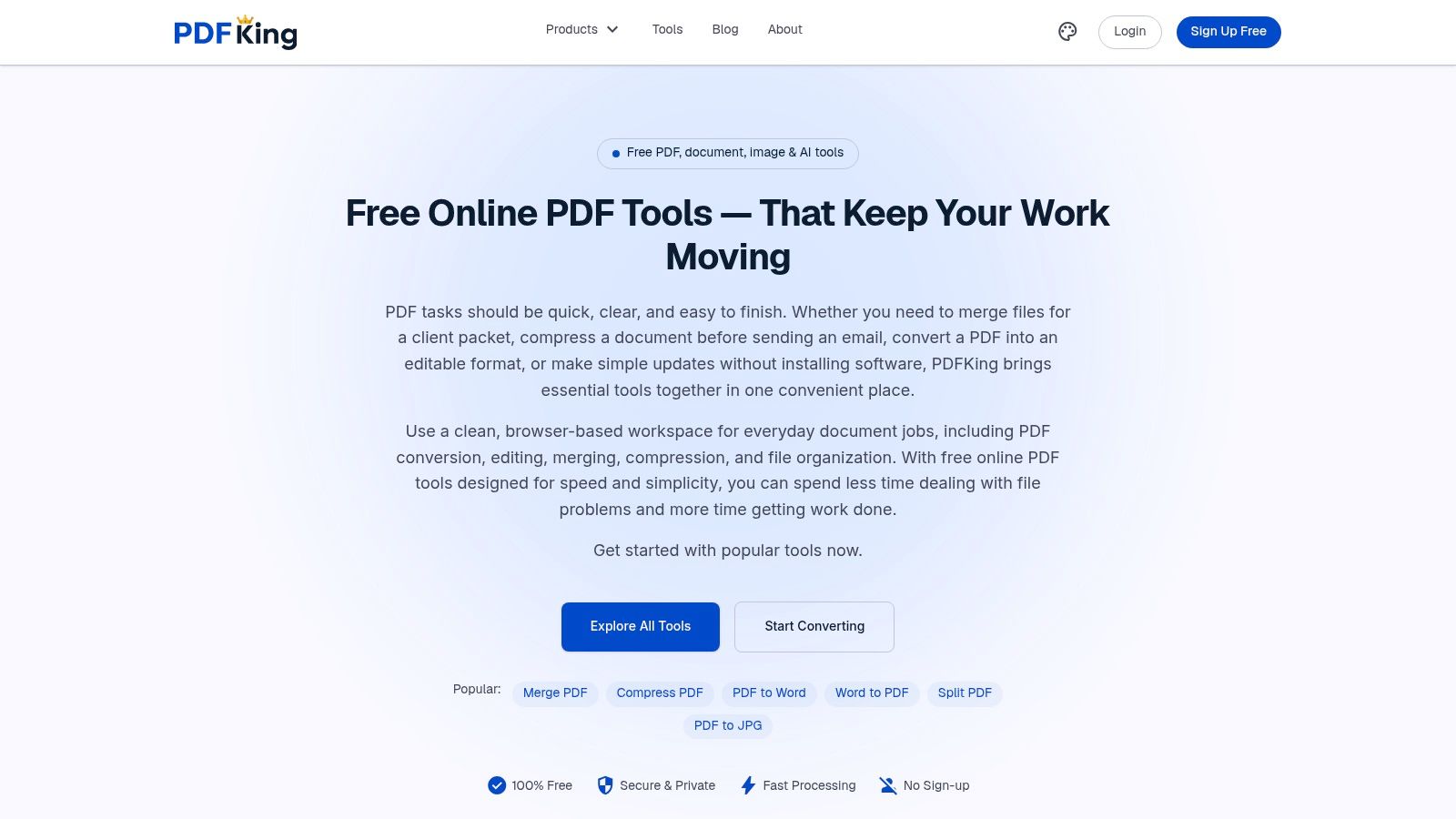
PDFKing provides a browser-based PDF-to-Word conversion workflow. It's 100% free, adds no watermark, and requires nothing to install. The output is a DOCX file that you can open in Microsoft Word, Google Docs, LibreOffice, or another compatible editor.
Use the conversion workflow
Open the PDF to Word tool. Go to the PDFKing PDF to Word converter in a modern browser. It works through the browser, so you don't need a desktop installation.
Upload the source PDF. Select the file from your device. Before uploading, confirm that you're using the cleaned version rather than an earlier draft with blank pages or incorrect orientation.
Start the conversion. Let the tool process the document. For a native text PDF, the converter can work from the existing text objects. For a scan, the result depends on whether readable text can be recognized and placed coherently.
Download the DOCX output. Save the Word file with a clear filename that distinguishes it from the original PDF. Keeping both files lets you compare the page structure during review.
Open the DOCX in your editor. Check the first page, a representative middle page, and the final page before making edits. For long reports, sample pages containing tables, columns, images, and footers rather than reviewing only plain paragraphs.
The conversion itself is only half the process. Formatting that looks close in a browser can still contain broken paragraph boundaries, incorrect table cells, or floating objects once Word starts reflowing the document.
This short visual walkthrough can help you orient yourself to the browser-based process:
Preserve the useful parts first
Don't start by changing every font or margin. First compare the DOCX with the PDF and identify whether the important structure survived: headings, page breaks, table relationships, image placement, and reading order. If those elements are sound, small style corrections are faster than rebuilding the document.
For a simple letter or single-column report, the result may need little work. A multi-column report, scanned form, or table-heavy packet should be treated as a reconstruction that needs a deliberate verification pass.
Fix Common Formatting Issues After Conversion
A converted DOCX rarely fails everywhere at once. Most problems cluster in a few predictable areas, which makes targeted cleanup faster than starting over.
Repair tables before polishing text
Tables are difficult because the PDF may store their borders, labels, and values as separate positioned objects rather than as true rows and cells. Look for these signs:
- Merged cells split apart: Select the affected cells in Word and use the table layout controls to merge them again.
- Values move into the wrong column: Compare each row with the PDF, then cut and paste misplaced values before adjusting widths.
- Multi-line cells become extra rows: Remove the accidental row breaks and join the text inside the correct cell.
- Borderless tables disappear: Recreate the structure with a Word table, then paste the recovered text into the appropriate cells.
- Numeric alignment changes: Apply consistent right alignment or decimal alignment after the cell structure is correct.
Don't resize the whole table first. Restore the row and column relationships, then adjust widths and paragraph spacing.
Restore reading order and page structure
Multi-column documents often convert in the wrong sequence. If the first column flows into the second before the page is complete, copy the text into separate Word columns or rebuild the sections using a table with hidden borders. This is usually cleaner than dragging individual text boxes around.
Headers, footers, and page numbers may appear as ordinary body text. Cut those elements from the document body, open Word's header or footer area, and place them in the correct section. Then check section breaks, because different sections may require different headers or numbering.
Correct fonts, spacing, and floating objects
Font substitution changes line length, which can push headings onto new lines and move page breaks. Select a problem area, apply a close matching font, and then review paragraph spacing rather than forcing manual line breaks.
Images and text boxes can also shift because Word anchors them to paragraphs. Set the object's wrapping and anchor deliberately, then compare its position with the PDF. If an image only needs to remain in the text flow, an inline placement is usually easier to maintain than a floating position.
For content that only needs a quick annotation rather than full reconstruction, an add text to PDF tool may be more appropriate than converting the entire document. That choice preserves the original page layout and avoids unnecessary Word cleanup.
Verification habit: Check reading order, table cells, styles, headers, footers, and page breaks before you edit the wording. Structural errors become harder to spot after revisions.
When to Choose Formatting Preservation Over Easy Editing
Choose the workflow based on the document's purpose. A legal packet with fixed page placement may require a close visual replica. A scanned research article may be more useful as organized, editable text after OCR and manual cleanup. Structural fidelity matters when reading order, clause numbering, tables, or page references must remain reliable.
DOCX conversion became more dependable as office formats adopted standardized XML structures. OpenDocument was approved as an OASIS standard in May 2005, received ISO/IEC approval in May 2006, and Office Open XML became an Ecma standard on December 7, 2006, followed by ISO/IEC standardization in 2008. These milestones helped conversion engines map page objects to headings, tables, and paragraphs. They did not resolve ambiguous layouts, overlapping elements, or reading-order problems in complex PDFs. The standards history and its relationship to conversion quality are outlined in this PDF-to-Word conversion quality test.
Choose your workflow
| Document Type | Best Workflow | What to Expect |
|---|---|---|
| Simple business letter | Direct PDF to Word conversion | Text and basic spacing usually transfer closely |
| Single-column academic paper | Direct conversion, then style review | Headings and paragraphs may convert well, but check citations and page breaks |
| Legal contract | Direct conversion with detailed verification | Preserve clause order, numbering, tables, and headers before editing |
| Two-column paper or annual report | Layout-aware conversion followed by manual restructuring | Reading order, sidebars, and tables may need significant repair |
| Scanned document | OCR first, then convert and inspect | Text can become editable, but spacing, tables, and paragraph boundaries need review |
| Table-heavy form | Extract or rebuild tables separately, then place them in Word | One-click conversion may preserve appearance without producing clean editable cells |
A benchmark of 42 scanned IEEE papers reported 14.2 errors per page with a non-layout-aware converter, compared with 0.8 errors per page using a layout-preserving OCR workflow. The practical lesson is clear: complex sources need page structure preserved during OCR, not text extraction alone. Use one-click conversion for simple documents. For scans, columns, forms, and table-heavy files, use a layout-aware workflow and verify reading order, cell boundaries, headings, and page breaks before editing. The benchmark examines this structural difference in detail.
Frequently Asked Questions About Converting PDF to Word
Can I convert a scanned PDF directly to Word?
You can, but the file needs OCR to turn page images into editable text. Expect to review paragraph breaks, reading order, tables, and spacing afterward. Scanned pages usually don't become a perfect visual replica of the original.
Why does my converted table look correct but edit badly?
The converter may have recreated the appearance with positioned text rather than a clean Word table. Check whether each value sits in the correct cell, then merge, split, or rebuild cells before editing the table contents.
How do I keep fonts from changing?
Use the closest available font and review line wrapping after conversion. A substituted font can alter heading breaks, paragraph length, and page breaks even when the words are correct.
What should I do with a two-column PDF?
Convert it only if you need editable content and can verify the reading order. If the columns are mixed in the DOCX, rebuild the sections using Word columns or separate text containers.
Should I convert a form to Word?
Choose conversion when you need to edit the visible labels or values. Interactive PDF fields and their behavior may not become equivalent Word controls, so a form that must remain fillable may need to be recreated manually.
Can I edit the PDF instead of converting it?
Yes. If you only need to add a note, signature, highlight, or short text block, editing the PDF may preserve the original structure better than creating a DOCX. For substantial rewriting, Word remains more practical.
How can I learn the full process?
Use this guide to convert a PDF to a Word document for free, then compare the output against the original before making edits.
PDFKing offers a free browser-based PDF-to-Word converter that creates editable DOCX files with no watermark and nothing to install. Visit PDFKing, convert your PDF, and verify the tables, columns, headers, and page breaks before you begin editing.
Ready to try PDF to Word?
Turn PDFs into editable DOCX files with a PDF to Word converter free of charge.