ON THIS PAGE
Use HTML to PDF now
Convert to PDF
Enter a public web page address. The page is rendered fully so its JavaScript content loads.
The fastest way to save a webpage as a PDF on any device is to open the browser's Print dialog and choose Save as PDF, or Microsoft Print to PDF on Windows. You only need an online HTML to PDF converter like PDFKing when you want a cleaner, mobile-friendly capture without ads or layout breaks.
You've probably been there. You find a useful tutorial the night before a flight, try to save it for offline reading, and end up with pop-ups, missing images, or a PDF that cuts the article in half. The basic process is simple, but the small print settings determine whether the final file is useful.
This guide compares the browser Print menu, operating system PDF printers, and a dedicated HTML to PDF converter. You'll see when each method works best, what to change before saving, and how to fix blank pages, missing images, and broken layouts.
Table of Contents
- The Quickest Way to Save a Webpage as a PDF
- Save a Webpage as a PDF From Your Browser's Print Menu
- Use Microsoft Print to PDF or the macOS PDF Menu Instead
- Print Settings That Change How the PDF Looks
- Save a Webpage as a Cleaner PDF With PDFKing's HTML to PDF Tool
- Fixing Blank Pages, Broken Layout, and Missing Images
- Choosing the Right Method and Getting Started
The Quickest Way to Save a Webpage as a PDF
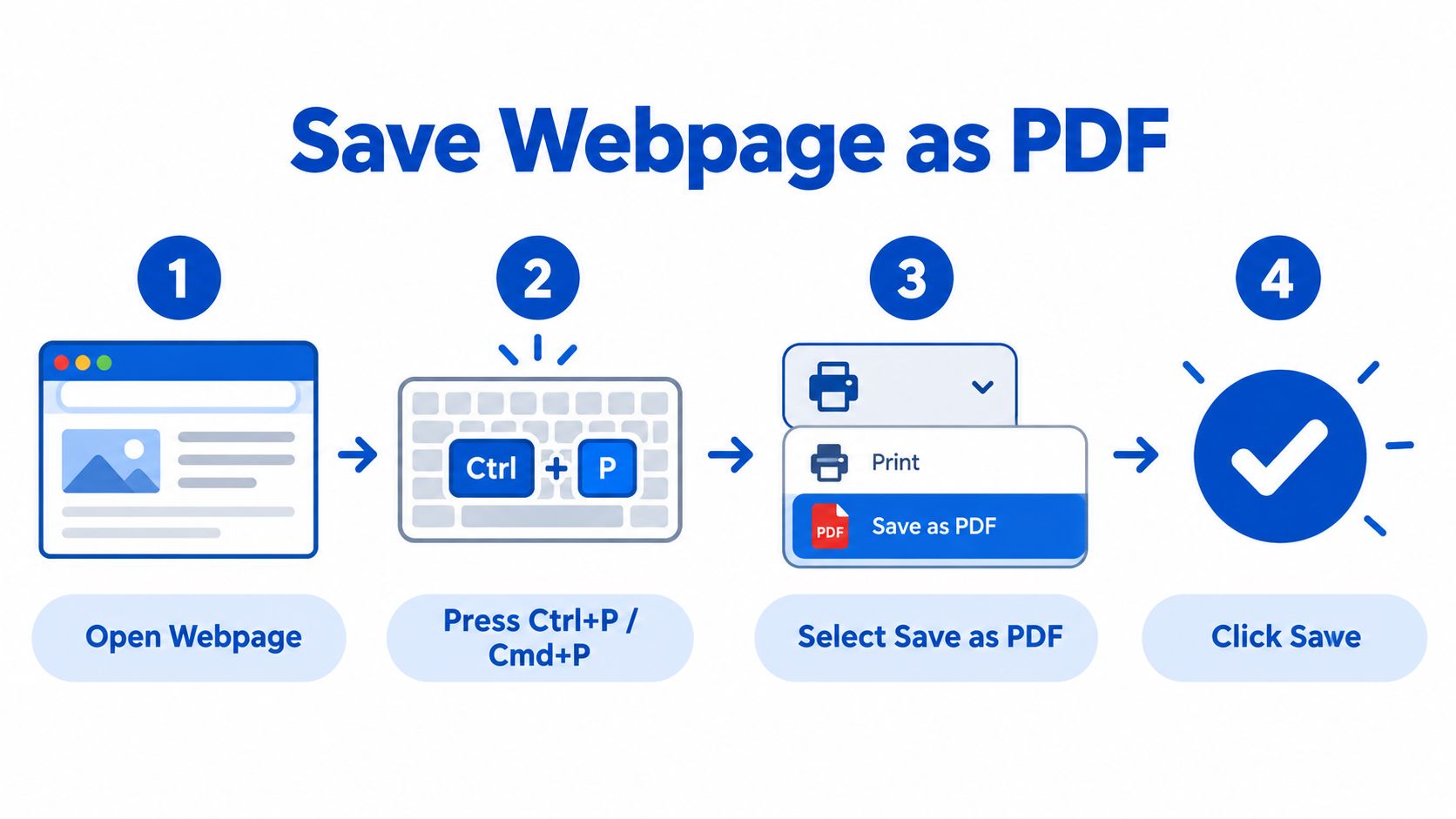
For most pages, the browser's built-in Print command is the fastest route. Open the webpage, press Ctrl+P on Windows or Linux, or Cmd+P on macOS, select Save as PDF, and save the file. Windows may also show Microsoft Print to PDF as the destination. This workflow is documented in public Save as PDF instructions from the Consumer Financial Protection Bureau and applies across common desktop browsers.
Suppose you've found a long cooking guide before boarding a train. You want to read it without an internet connection, but you don't want the ads, sticky menus, and sign-in prompts that clutter the live page. The Print dialog can preserve the article quickly, but it captures the page as the browser has rendered it. If the page uses unusual columns, lazy-loaded images, or an infinite scroll, the result may need cleanup.
You'll use three practical routes:
- Browser printing, which is best for a short page with a layout that already looks correct.
- System PDF printers, useful when an application doesn't offer a browser-style Save as PDF option.
- A dedicated HTML to PDF converter, helpful when a page needs cleaner pagination, better mobile handling, or fewer layout problems.
Save a Webpage as a PDF From Your Browser's Print Menu
The browser method works across Chrome, Edge, Firefox, and Safari, though the labels differ slightly.
Chrome and Edge on desktop
In Chrome, open the page and press Ctrl+P on Windows or Cmd+P on macOS. Select Save as PDF from the Destination menu, choose your layout settings, click Save, and select a folder. Chrome also provides a shortcut through Ctrl+Shift+P, which opens the Save as PDF preview directly in supported configurations.
Edge follows nearly the same path because it uses Chromium's print system. Open Print with Ctrl+P, select Save as PDF, or choose Microsoft Print to PDF if that's the destination available on your Windows installation. Then review the preview before saving.
Firefox
In Firefox, press Ctrl+P, or open File and select Print. In the print sidebar, choose Save to PDF under the Print to File area, set the file name and location, then select Save. Firefox's print window doesn't present the same live preview thumbnail you'll see in Chrome, so inspect the saved file afterward if page breaks matter.
Safari on Mac, iPhone, and iPad
On macOS, press Cmd+P, then select the PDF button at the bottom-left of the dialog. Choose Save PDF, select a folder, and confirm. On iPhone or iPad, Safari's Share sheet can also create a PDF. Open Options, choose PDF, and save it to Files. Enable Background Graphics when you need the page's colors and styling preserved.
Small setting people miss: In Chrome, open More settings and review the Pages option. This lets you limit the output to the page range you need instead of accidentally including unrelated printed pages.
Use Microsoft Print to PDF or the macOS PDF Menu Instead
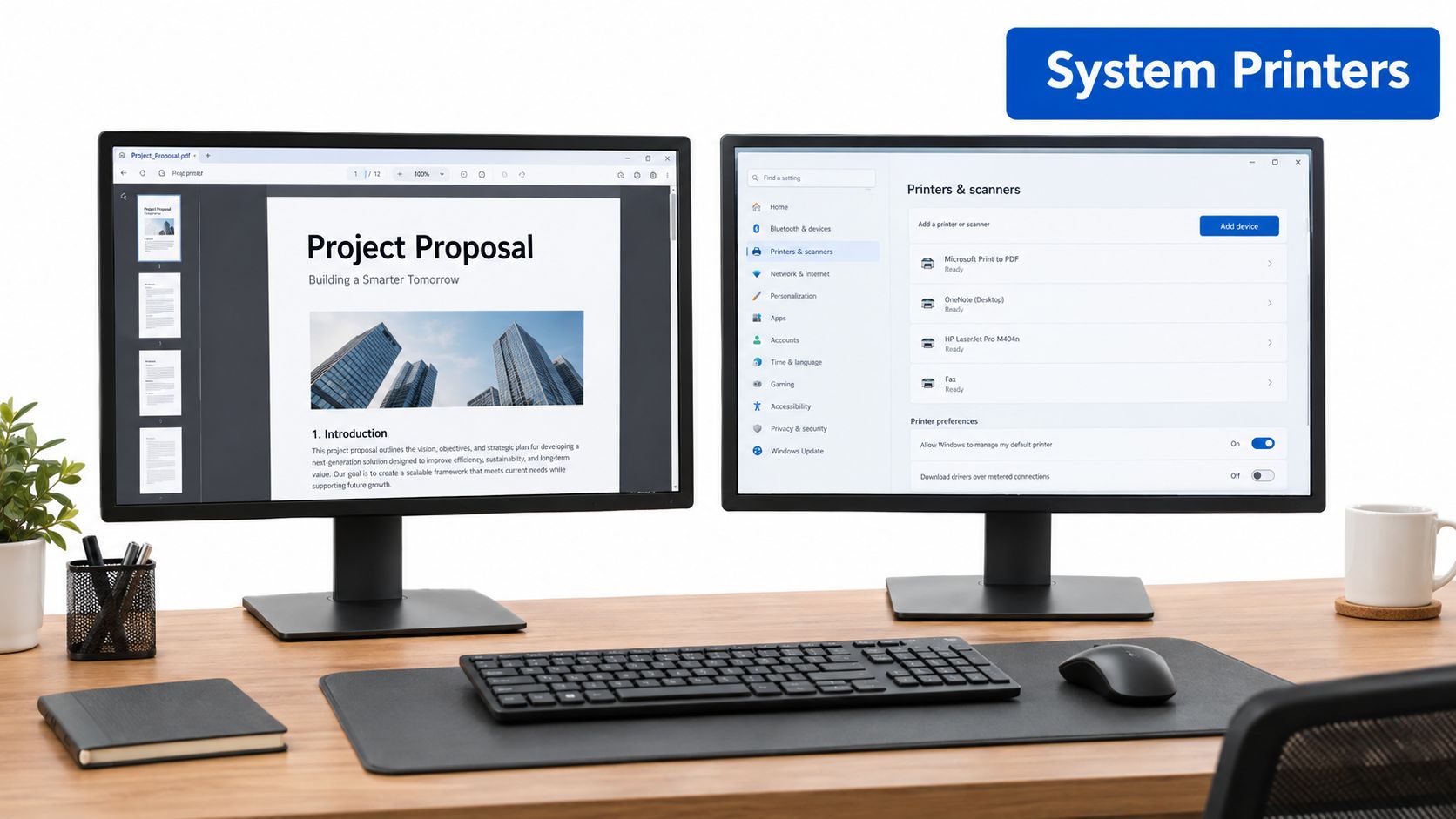
A system PDF printer is useful when you're printing from an application that doesn't expose a direct Save as PDF option. On Windows, open the app's Print dialog with Ctrl+P, select Microsoft Print to PDF, choose the paper size and orientation, click Print, and name the file when Windows opens the save window.
This works in Edge, Word, Notepad, and other applications with a print command. It can also help when a work-managed browser hides or restricts the browser's usual PDF destination. Choose Letter for common US documents, or A4 when the source is designed for that paper format.
macOS places PDF actions inside the Print dialog rather than presenting them as a separate printer. Select the PDF dropdown at the bottom-left to choose Save as PDF, Open in Preview, or another available action. Opening the document in Preview gives you a chance to reorder, annotate, or crop pages before exporting the finished file.
Safari also provides an All Tabs option in the Print dialog for certain multi-tab workflows. After selecting the tabs you need, use File > Print > PDF > Save PDF to create a combined file.
For additional file cleanup after saving, see this guide on making PDF files smaller on Mac.
Print Settings That Change How the PDF Looks
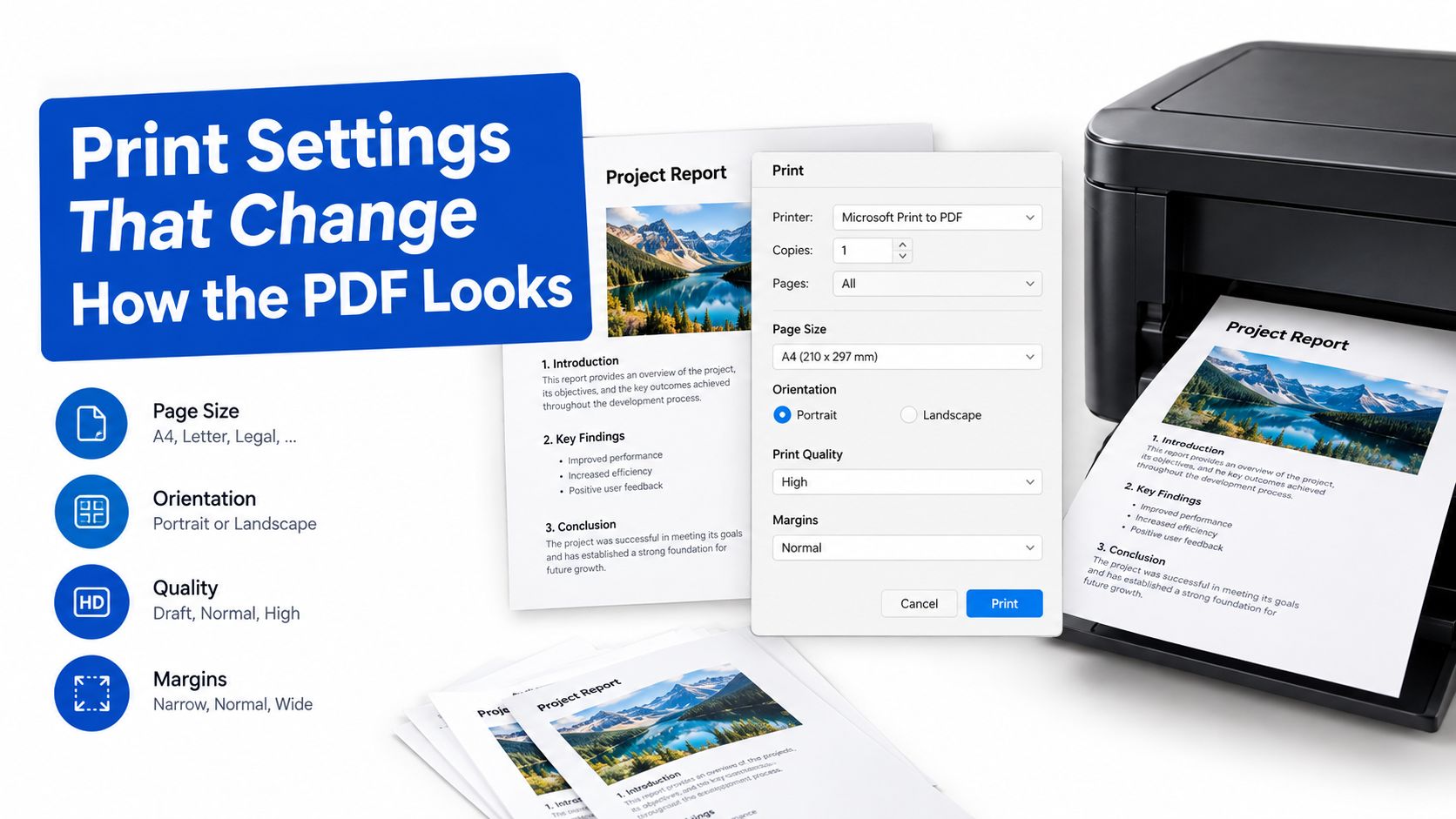
The Print dialog controls much more than the destination. It decides how the browser divides content across pages, which visual elements it keeps, and whether the file resembles the page you saw on screen.
Adjust the page before saving
Start with the preview. Then check these settings:
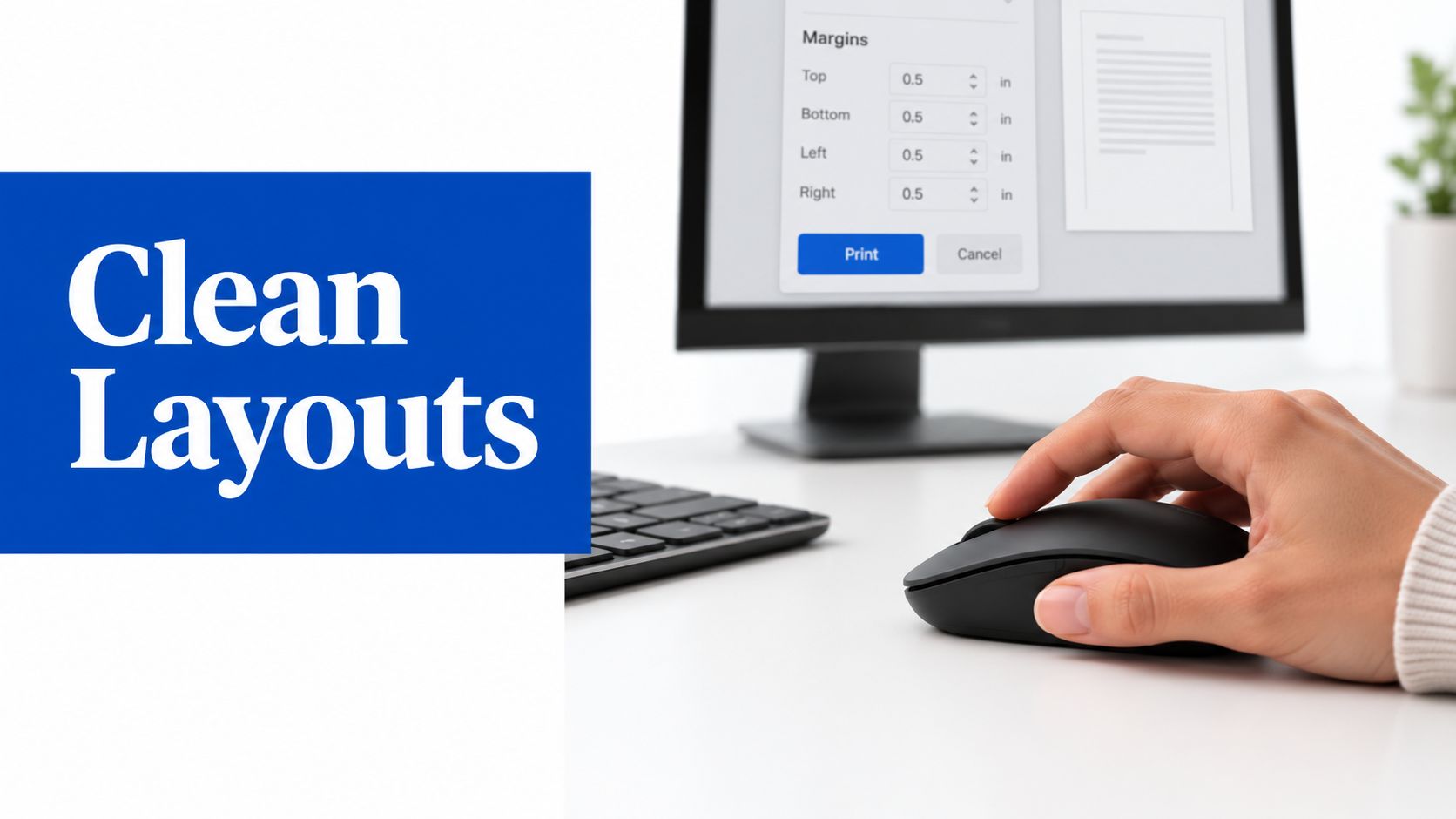
- Margins: The Default setting may leave large blank areas. Choose Minimum when you want more text on each page.
- Scale: Reduce the scale when a wide table or code block runs beyond the right edge. A smaller value can keep the full line visible, but check that the text remains readable.
- Headers and footers: Turn this off to remove the URL, date, and page numbers added by the browser. Leave it on when you need a basic citation trail.
- Background graphics: Turn this on when the article loses its colors, shaded boxes, or background images. Chrome's print settings guidance for preserving page styling highlights this control as an important output option.
- Paper size: Choose Letter or A4 based on the intended document. The wrong size can shift tables and create awkward page breaks.
- Orientation: Use Landscape for wide tables, diagrams, or code that gets cut off in Portrait mode.
The browser print workflow is fast, but it inherits the weaknesses of the live webpage. An infinite-scroll article may include only the content loaded before printing. Lazy-loaded images may be absent, while cookie banners, sticky headers, and paywall overlays can become permanent parts of the PDF.
Know when browser printing has reached its limit
Complex CSS columns and flexible layouts can overlap or leave empty spaces when converted. A mobile page may collapse into a narrow single column, even when you're trying to create a document for desktop reading. The browser also can't request a clean server-rendered version of a page from a different device or screen width.
Practical rule: If the preview already looks wrong, saving the file won't fix the layout. Change the print settings first, or use a dedicated HTML to PDF workflow.
For files that need finishing touches after export, add page numbers to a PDF after you've confirmed the page order and margins.
Save a Webpage as a Cleaner PDF With PDFKing's HTML to PDF Tool
When browser printing produces missing content or awkward pagination, an HTML to PDF converter gives you a separate route. With PDFKing's HTML to PDF tool, you paste the full webpage URL into the input field and start the conversion.
The service loads the page through its own conversion engine and creates a paginated PDF from the URL. That approach can be more practical when you're working from a phone and want the output to follow a consistent desktop-style page width.
The basic process is short:
- Copy the complete URL from the webpage.
- Open the HTML to PDF tool and paste the URL.
- ClickHTML to PDF.
- Review the result and download the PDF.
PDFKing's tools are 100% free, require nothing to install, and add no watermark to the output. You don't need to sign up or provide an email address for this workflow. As with any URL-based converter, pages that require authentication may need special handling, and the converter can only access content that the URL makes available to it.
Fixing Blank Pages, Broken Layout, and Missing Images
A failed PDF usually points to a rendering or print-setting problem, not a problem with the Save command itself. Start by identifying what went wrong.
Blank or partially blank pages
Blank output can appear when Background graphics is disabled, especially on pages that place important content inside styled containers. Turn the setting on and print again. Lazy-loaded images can also fail if they haven't loaded before you start printing, so scroll through the entire page first and wait for visible images to appear.
Browser cache, extensions, printer settings, and page-specific rendering conflicts are recurring troubleshooting areas in Microsoft's support discussion about webpages that won't save correctly as PDFs.
Overlapping text or broken columns
Check the paper size, margins, scale, and orientation. A wide page may need the horizontal orientation, while a dense article may benefit from the minimum margins. If changing the scale makes text too small, return it to a comfortable setting and adjust the page design another way.
Missing images can result from an ad blocker interfering with the page's print stylesheet. Temporarily whitelist the site, disable the extension for that page, or switch to Reader view before printing. If the page still fails, use the HTML to PDF method described above.
Mobile steps
Desktop instructions don't transfer perfectly to phones. Use these focused paths:
- iPhone Safari: Open the Share sheet, select Options, switch the format from Auto to PDF, then choose Share to Files and select a destination. If Options isn't visible, swipe the app icons to reveal it.
- Android Chrome: Open the three-dot menu, choose Share, select Print, set the printer to Save as PDF, and tap the PDF icon to save. Some Android devices show a direct Save as PDF shortcut in the Share sheet.
For long, image-heavy pages, a dedicated converter can avoid repeated mobile print adjustments. Also review why a PDF can become unusually large before sending the file through email or an upload portal.
Choosing the Right Method and Getting Started
Use the browser Print menu when you need a quick local copy of a short article, receipt, ticket, or reference page and the preview already looks correct. Choose Microsoft Print to PDF or the macOS PDF menu when you're printing from a desktop application, need a specific local destination, or want to pass pages through Preview before exporting.
Choose an HTML to PDF converter when the page is long, image-heavy, mobile-only, or crowded with ads and sidebars. It's also the better choice when the browser preview contains broken columns, missing images, or awkward page breaks that settings don't resolve.
| Situation | Best Method | Why It Wins |
|---|---|---|
| A short page already looks correct | Browser Print and Save as PDF | Fast local capture |
| An app lacks a browser PDF option | Microsoft Print to PDF | Available through the system Print dialog |
| You need to inspect or edit pages first | macOS PDF menu and Preview | Lets you review pages before exporting |
| A long or complex page prints badly | HTML to PDF converter | Re-renders the URL independently |
| You're working from a phone | Browser sharing or HTML to PDF | Avoids desktop-only controls |
For more document tasks after saving, explore these free PDF tools for everyday file work.
Frequently asked questions
Can I save a webpage as a searchable PDF?
Yes. Browser Print to PDF and Microsoft Print to PDF generally create text-based PDFs, so you can search and highlight the text. Use an HTML to PDF converter when you specifically need accessibility tags, and verify the output with the software or accessibility workflow required for your document.
Why is my saved PDF so large?
Images and background graphics are common causes. Turn off Background graphics when those visual elements aren't necessary, or use a converter that offers file-size optimization. The exact reduction depends on the page content.
Can I save a webpage behind a login or paywall?
Only if you're currently signed in and the content is visible to the capture method. Browser printing captures what your browser can see. A URL-based converter may not share your logged-in session, so private content may not appear.
Is it legal to save any webpage as a PDF?
Saving a page for personal offline reading is generally different from redistributing it. Copyright restrictions can apply when you share or republish the file, so keep copies private unless you have permission or another legal right to distribute them.
For the cleanest result when the browser preview is messy, start with the PDFKing HTML to PDF tool.
PDFKing gives you a free, browser-based way to convert webpages into PDFs with no watermark and nothing to install. When Print to PDF leaves broken pages or missing images, visit PDFKing and try the HTML to PDF tool from your phone or computer.
Ready to try HTML to PDF?
Convert web pages into clean, printable PDF documents.