ON THIS PAGE
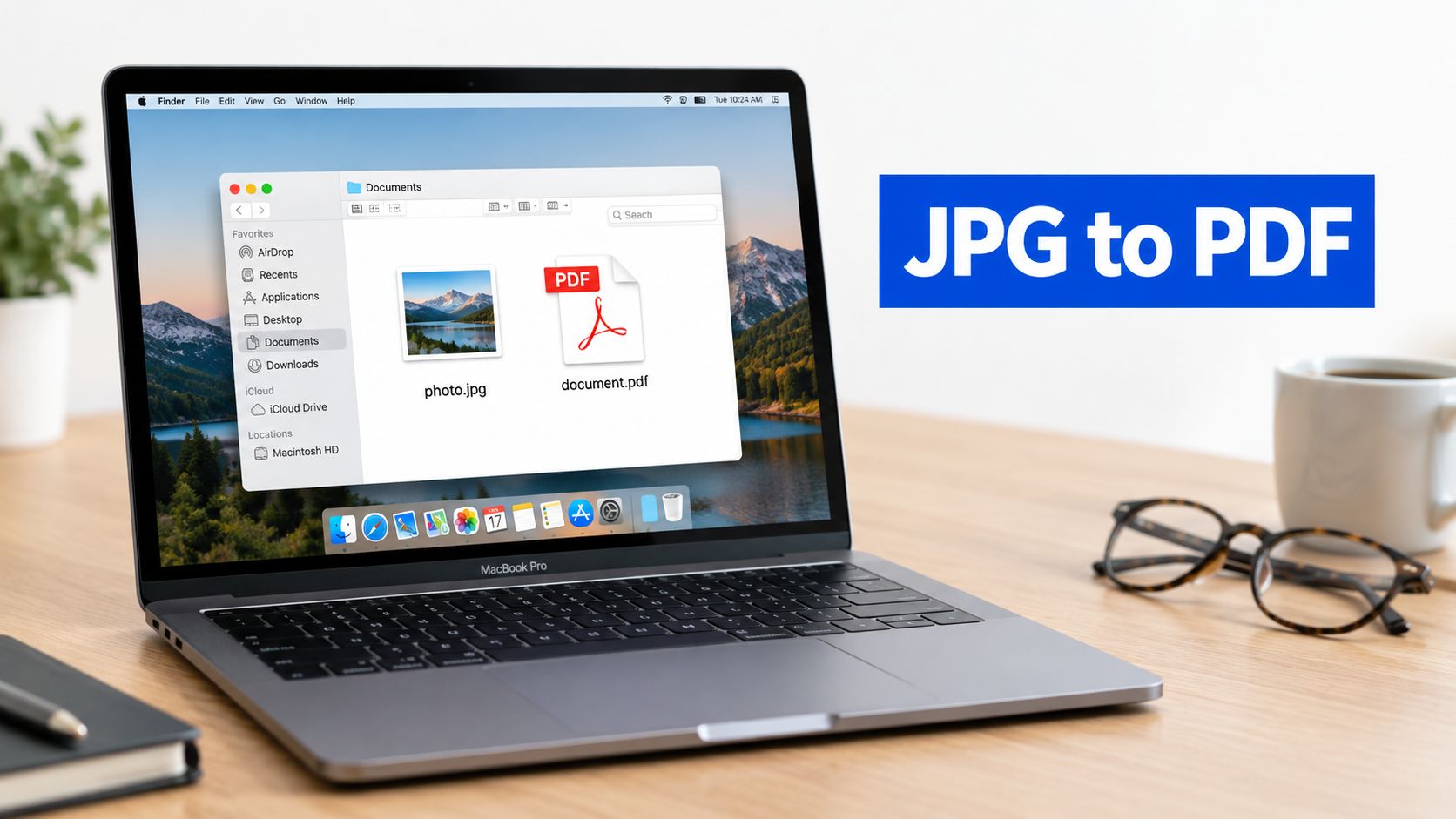
You can convert a JPG to PDF on a Mac natively using Preview's Export feature or Finder's Quick Actions, or use a free browser tool like PDFKing for multi-page batching without installing software. macOS already includes the tools needed for basic conversion, but the safest workflow also checks page order, image quality, file size, and metadata.
You may only need to submit a single receipt, scan, or signed form. In that case, Preview is usually enough. If you're assembling a packet from several images, Finder and Preview can handle the job, while a browser-based option can be more convenient when you need to arrange or process multiple files quickly.
Table of Contents
- Converting a Single Image Using Preview
- Batch Processing Multiple Images in Finder
- Using Print to PDF and Browser Alternatives
- Managing Image Quality and File Size Limits
- Protecting Privacy and Handling Metadata
- Frequently Asked Questions About Mac Conversions
- Can I convert multiple JPGs into one PDF on a Mac?
- Can I combine JPG files with an existing PDF?
- How do I rotate one page without rotating the entire PDF?
- What should I do if PDF export is unavailable?
- Does converting a JPG create searchable text?
- Should I use a browser tool for private documents?
- Can I convert images without installing software?
Converting a Single Image Using Preview
Preview is the simplest offline method for a one-page conversion. Apple's documented workflow is to open the image in Preview, choose File > Export, select PDF from the Format menu, and save the result. You don't need to install third-party software for this process. (Apple's Preview export instructions{target="_blank"})
Before editing, make a copy of the JPG if the original matters. Preview can save document changes automatically, so working from a duplicate reduces the chance of overwriting or altering the source file.
Export the JPG as a PDF
- Locate the JPG in Finder.
- Control-click the file and choose Open With > Preview.
- In Preview, select File > Export.
- Open the Format menu and choose PDF.
- Enter a clear filename and select the destination folder.
- Choose Save.
The exported PDF contains the JPG as page content. It changes the file wrapper and makes the image easier to submit as a document, but it doesn't automatically create selectable text or apply optical character recognition. If the source is a scan, the PDF may remain image-only.
You can also preserve the JPG while creating a separate PDF copy by holding the Option key and choosing File > Save As. Use a different filename and confirm that the output format is PDF.
Practical rule: Export first, then reopen the saved PDF. Check that the page orientation and visible content match the original before sharing it.
For related image workflows, see this guide to converting PNG files to PDF on a Mac.
Batch Processing Multiple Images in Finder
Multiple JPGs need more care because the file order becomes the page order. A scanned contract, application packet, or photo collection can look complete while still placing pages in the wrong sequence.
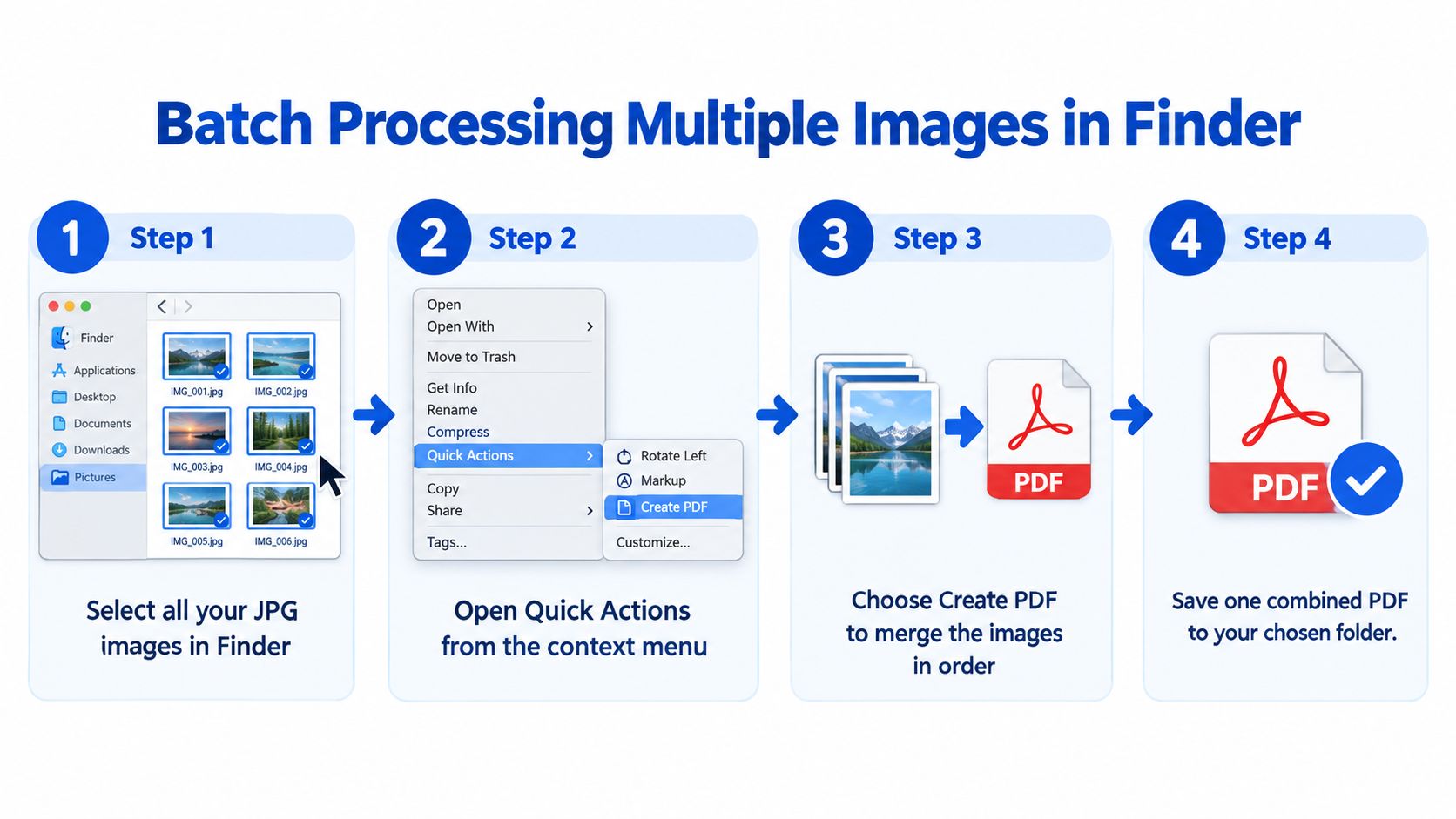
Start in Finder and rename the images with sortable prefixes such as 001, 002, and 003. This gives the files a predictable order before you select them. Finder's built-in Create PDF action uses the order in which the files are selected, so relying on arbitrary filenames can create a scrambled document. (Apple's Finder PDF workflow{target="_blank"})
Create and verify the combined file
- Put all source JPGs in one Finder folder.
- Rename them with sortable prefixes, such as
001,002, and003. - Select the images in the intended page order.
- Control-click the selection.
- Choose Quick Actions > Create PDF.
- Open the resulting PDF in Preview.
- Choose View > Thumbnails.
- Drag thumbnails to correct any misplaced pages.
- Choose File > Export as PDF and save a clearly named final copy.
The thumbnail sidebar is your quality-control checkpoint. Look for a portrait page that should be horizontal, a missing scan, or a duplicate image. Open the final export again rather than assuming that the first generated file is ready to submit.
Preview can automatically save changes to a document. If you reorder or delete thumbnails in the working file, those changes may affect that file immediately. Duplicate the source PDF before reorganizing pages, especially when the original batch needs to remain untouched.
Check the sequence visually: Numeric filenames reduce ordering errors, but the thumbnails are the final authority.
If the packet includes existing PDFs as well as images, a dedicated merge PDF tool can be easier than repeatedly moving pages between Preview windows.
Using Print to PDF and Browser Alternatives
The Print dialog is useful when you care about the document's printed appearance. Open the JPG in an application that supports printing, choose File > Print, or press Command + P. In the lower-left corner of the dialog, select the PDF button and choose Save as PDF. macOS creates a PDF that preserves the document's printed appearance. (Apple's print-to-PDF instructions{target="_blank"})
This route works well when the print preview shows the exact page layout you need. It can also be more predictable than Export when page sizing, margins, or orientation are important. Inspect the preview before saving, because a print workflow may scale an image to fit the selected page settings.
Choosing between native and browser workflows
Use the native Mac workflow when:
- Confidentiality matters: Your files remain on the Mac instead of being uploaded.
- The batch is small: Finder and Preview provide enough control for a limited set of images.
- You need offline access: The conversion doesn't depend on an internet connection.
A browser workflow can be more practical when you're assembling many images, need an easier page-order interface, or don't have convenient access to Preview. PDFKing is a free online toolkit that can assemble JPG images into a downloadable PDF in a browser. Its tools require nothing to install, add no watermark, and are available without turning a basic conversion into a desktop software project.
For another print-oriented workflow, this guide explains how to save a webpage as a PDF. The same principle applies: preview the output and verify that the saved page looks the way the recipient expects.
Managing Image Quality and File Size Limits
Converting a JPG to PDF is a packaging operation, not a quality-recovery operation. If the original image is blurry, heavily compressed, or too small to show fine detail, placing it inside a PDF won't restore that detail. The Library of Congress recommends retaining the highest available resolution without rescaling or interpolation for preservation-oriented imaging. (Library of Congress technical guidance{target="_blank"})
Keep the highest-quality original available and avoid repeatedly exporting the same image as a new JPG. Each unnecessary JPEG export can introduce another generation of compression. A PDF may package the image more conveniently, but it can't turn a poor scan into a sharp one.
Balance readability against size
Aggressive compression can make a PDF easier to upload while damaging the details that matter. Small text on receipts, signatures, diagrams, and scanned forms often becomes difficult to read before a photograph looks obviously degraded.
Preview supports export and Quartz filter workflows, but don't treat every compression setting as interchangeable. Choose based on the document's purpose:
- Screen sharing: Reduce size only after confirming that text remains readable.
- Printing: Preserve enough detail for fine text and signatures.
- Archiving: Keep the highest-quality source and avoid unnecessary rescaling.
- Portal submission: Check the final size against the recipient's stated upload limit.
Open the exported PDF at 100% zoom and compare it with the original JPG. Check small text, signatures, edges, and image orientation. Then confirm the PDF's file size before sending it by email or uploading it to a portal.
If the PDF is too large, use a controlled compression workflow rather than repeatedly converting the source image. This guide to compressing a PDF in Preview covers the next step, but compression should always be followed by another legibility check.
Protecting Privacy and Handling Metadata
Local conversion is often the right starting point for sensitive files because Preview can process the JPG without uploading it. That matters for identity documents, legal exhibits, student records, and client files. Still, local processing doesn't automatically make the finished PDF privacy-safe. (Apple's Preview information guidance{target="_blank"})
Image files may contain EXIF metadata, and the finished PDF can expose document details such as the author, file size, or image resolution. Use a neutral filename rather than including unnecessary personal information. Before sharing, inspect both the source image and the resulting PDF in their information or inspector panels.
Separate access control from redaction
Password protection controls who can open a file. It doesn't remove information that remains visible inside the image. macOS supports security options when saving a PDF, but a password won't protect you from sending the wrong recipient a document that still contains sensitive details.
Redaction is different. Covering a Social Security number with a white shape, cropping around it, or placing an annotation over it may not permanently remove the underlying content. For true removal, edit the source before conversion or use a workflow that permanently redacts PDF content, then save and inspect the result.
Use this checklist before sending a confidential PDF:
- Review metadata: Check author, title, resolution, and other document properties.
- Use a neutral filename: Avoid names that reveal a person's identity or case details.
- Inspect visible content: Confirm that no extra image, page, or sensitive region was included.
- Apply a password when appropriate: Treat it as access control, not sanitization.
- Verify redactions: Reopen the final file and confirm that removed content cannot be selected or recovered.
For a focused cleanup workflow, see this guide to removing metadata from a PDF.
Frequently Asked Questions About Mac Conversions
Can I convert multiple JPGs into one PDF on a Mac?
Yes. Rename the images with sortable prefixes, select them in Finder, choose Quick Actions > Create PDF, and verify the result in Preview. The thumbnails should be checked before you save the final copy.
Can I combine JPG files with an existing PDF?
Yes, but Preview may require more manual page management. Open the files, display the thumbnail sidebar, and drag pages into the required document. For a larger mixed packet, a browser-based merge workflow can reduce the amount of manual rearranging.
How do I rotate one page without rotating the entire PDF?
Open the PDF in Preview, select the specific page thumbnail, and use the rotate control. Confirm that only the selected page changed before exporting a separate final copy.
What should I do if PDF export is unavailable?
Use File > Print, then choose the PDF button in the lower-left corner and select Save as PDF. This uses macOS's print system and doesn't depend on the Export menu being available in the current application.
Does converting a JPG create searchable text?
Not by itself. A JPG placed into a PDF remains image content unless you apply OCR in a separate workflow. Conversion improves packaging and pagination, but it doesn't automatically create selectable text.
Should I use a browser tool for private documents?
Use an offline Preview workflow when avoiding uploads is important. If you use a browser tool for ordinary, non-sensitive images, review the output and its metadata before sharing. People preparing photo collections may also want a separate service to collect guest photos before organizing the final images into a PDF.
Can I convert images without installing software?
Yes. Preview, Finder Quick Actions, and macOS Print to PDF are built in. A browser option such as PDFKing also works without installation when a multi-image workflow is easier online.
PDFKing provides free browser-based tools for converting JPG images into one-page or multi-page PDFs, arranging page order, and handling routine PDF operations without installation or watermarks. Visit PDFKing to convert your images, review the document order, and prepare a clean PDF for sharing or submission.