ON THIS PAGE
You can save a PDF as a Word document in a browser, open it directly in Microsoft Word, or use OCR when the PDF is scanned. The right method depends on whether the file contains real text, page images, or a complex visual layout. Always open the converted DOCX and compare it with the original before you edit, share, or archive it.
Table of Contents
- Why You Need to Save a PDF as a Word Doc
- Converting a PDF to Word in Your Browser
- Using Microsoft Word to Open a PDF Directly
- Handling Scanned PDFs With OCR
- Keeping Your Formatting Intact After Conversion
- Fixing Common Conversion Problems
- Choosing the Right Method for Any PDF
Why You Need to Save a PDF as a Word Doc
You're probably here because a PDF contains one small detail you need to change, but the file won't let you type into it. Maybe a date is wrong, a form needs updating, or you need to reuse several paragraphs in a new document. A PDF is designed to preserve how a page looks, while a Word document is designed for editing and drafting.
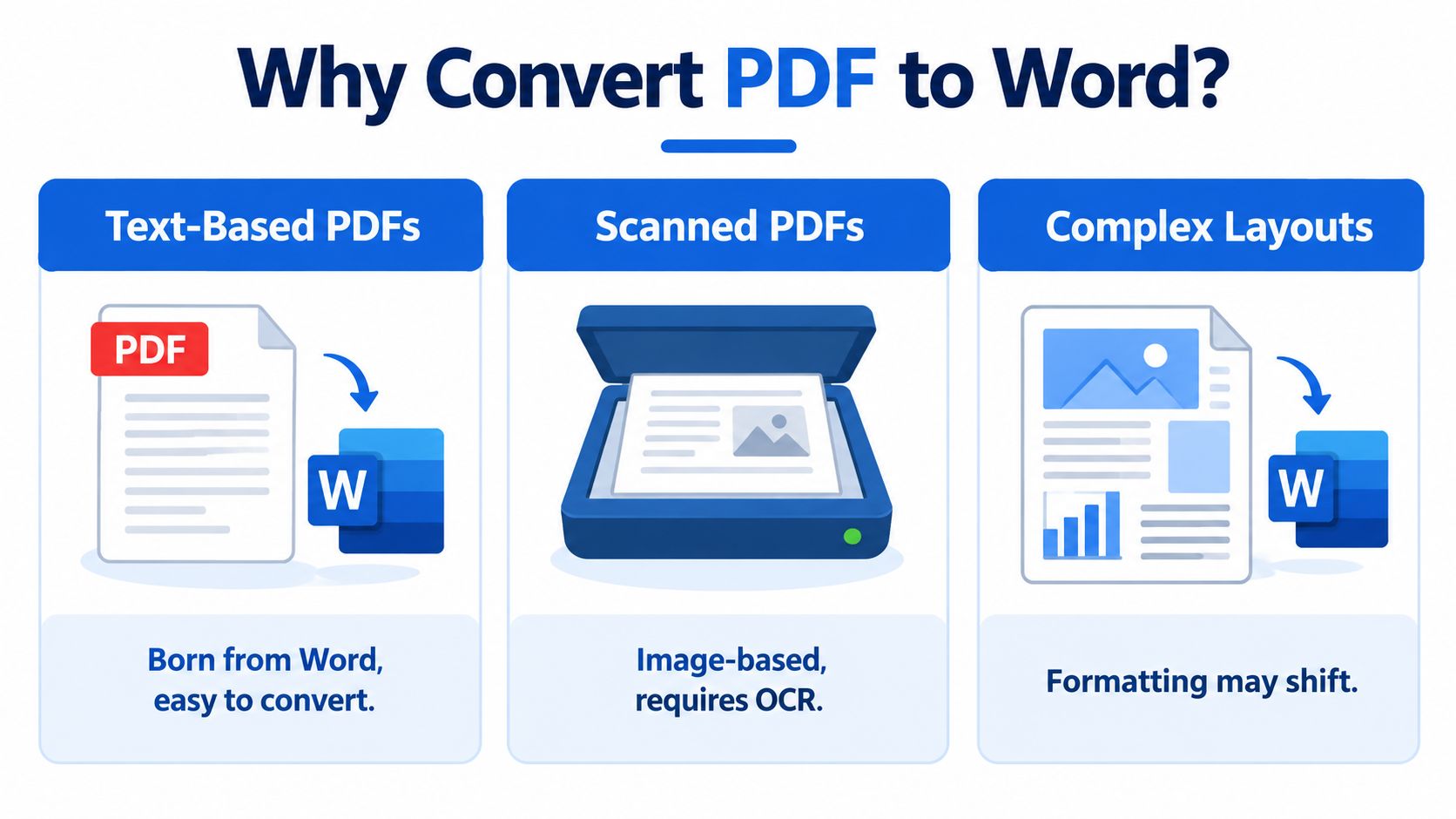
That difference creates three practical PDF categories:
- Text-based PDFs: These were created from Word, Google Docs, or another document editor. You can usually highlight individual characters, copy text, and search the file. A standard PDF-to-Word converter or Word's built-in opening method generally works well.
- Scanned PDFs: These contain page images from a scanner, printer, or fax. You may see a page, but you can't highlight individual letters. The file needs optical character recognition, or OCR, before the result becomes editable.
- Layout-heavy PDFs: These use columns, sidebars, text boxes, floating images, tables, custom fonts, or embedded graphics. They may contain selectable text, but the visual structure can still shift during conversion.
The wrong method produces the familiar mess: missing text, disconnected text boxes, broken tables, or a DOCX that contains only images. The document's appearance tells you more than its file extension.
A sensible workflow has four paths:
- Use a browser converter for a straightforward text-based file.
- Open the PDF directly in Word when you need offline processing.
- Use OCR for scanned pages.
- Check the PDF type and test the output before converting the full document.
That small amount of diagnosis saves more time than repeatedly uploading the same file to different tools.
Converting a PDF to Word in Your Browser
A browser converter is usually the quickest route for an ordinary PDF. You don't need to install software, and the result is typically downloaded as a DOCX file that you can open in Microsoft Word or another compatible editor.
Follow the browser workflow
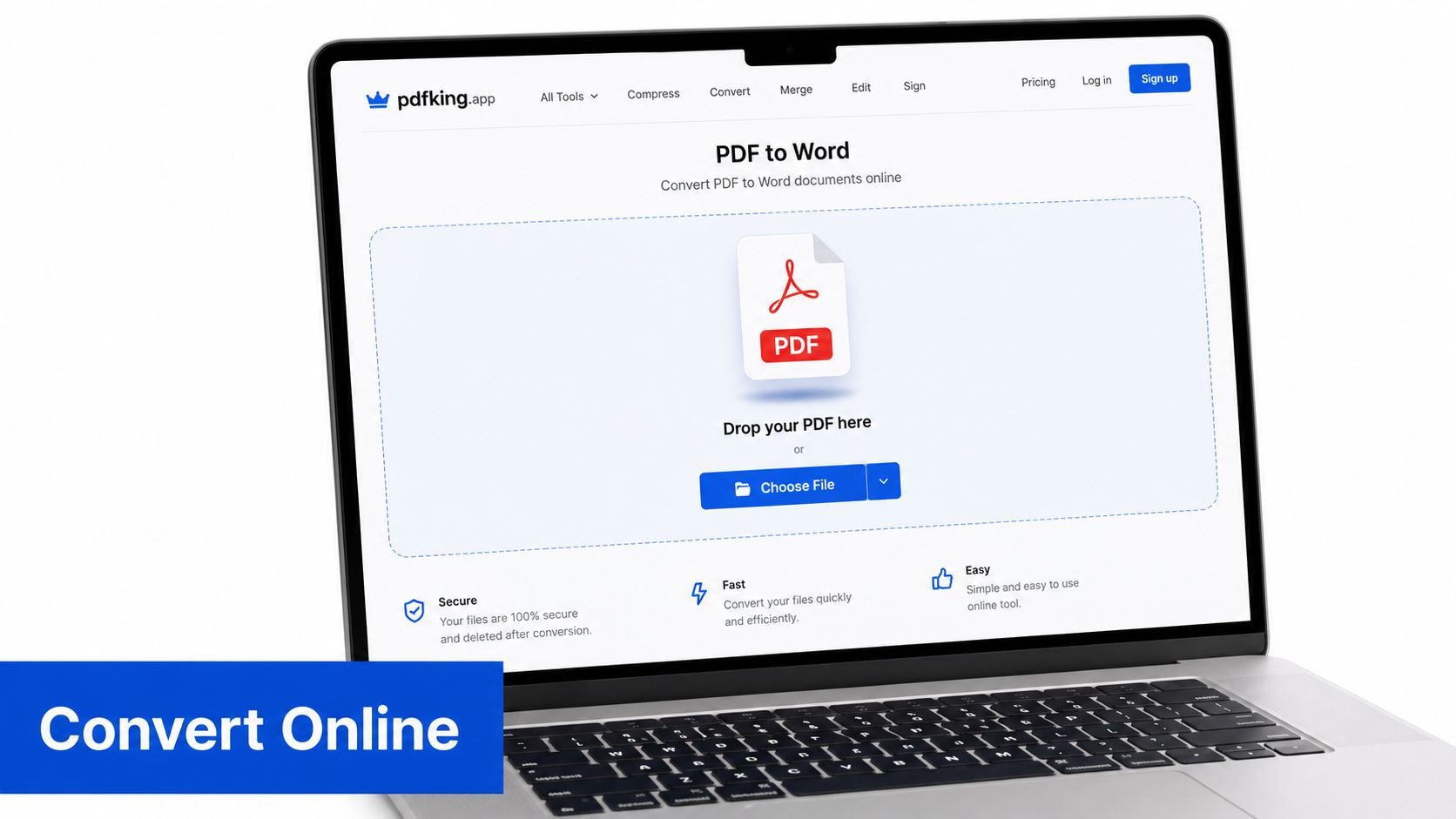
- Open the PDF-to-Word converter page.
- Drag your PDF into the upload area, or select the browse button and choose the file.
- Wait while the service processes the document.
- Select the download link for the DOCX file.
- Open the Word document and compare several pages with the source PDF.
For files under 20 pages, the upload and conversion typically takes 10 to 30 seconds. That timing can vary with the file, browser, connection, and service load. The file is processed on the converter's server, so don't upload confidential contracts, medical records, or private client documents unless the provider clearly explains its retention and deletion policy.
Two browser problems catch people off guard. A file larger than the tool's limit may fail without a useful explanation, so check the file requirements if nothing happens. Also inspect the downloaded file carefully. Some unreliable sites package the output in a ZIP archive that includes an installer. You should receive a clean DOCX, not a program you need to run.
For a plain text-based file, convert a PDF to a Word document for free with PDFKing's browser-based PDF-to-Word tool. It's free, requires no sign-up, adds no watermark, and has nothing to install.
Using Microsoft Word to Open a PDF Directly
Microsoft Word can convert a PDF without sending it to a browser service. This is useful when the document contains sensitive information or you're working without an internet connection.
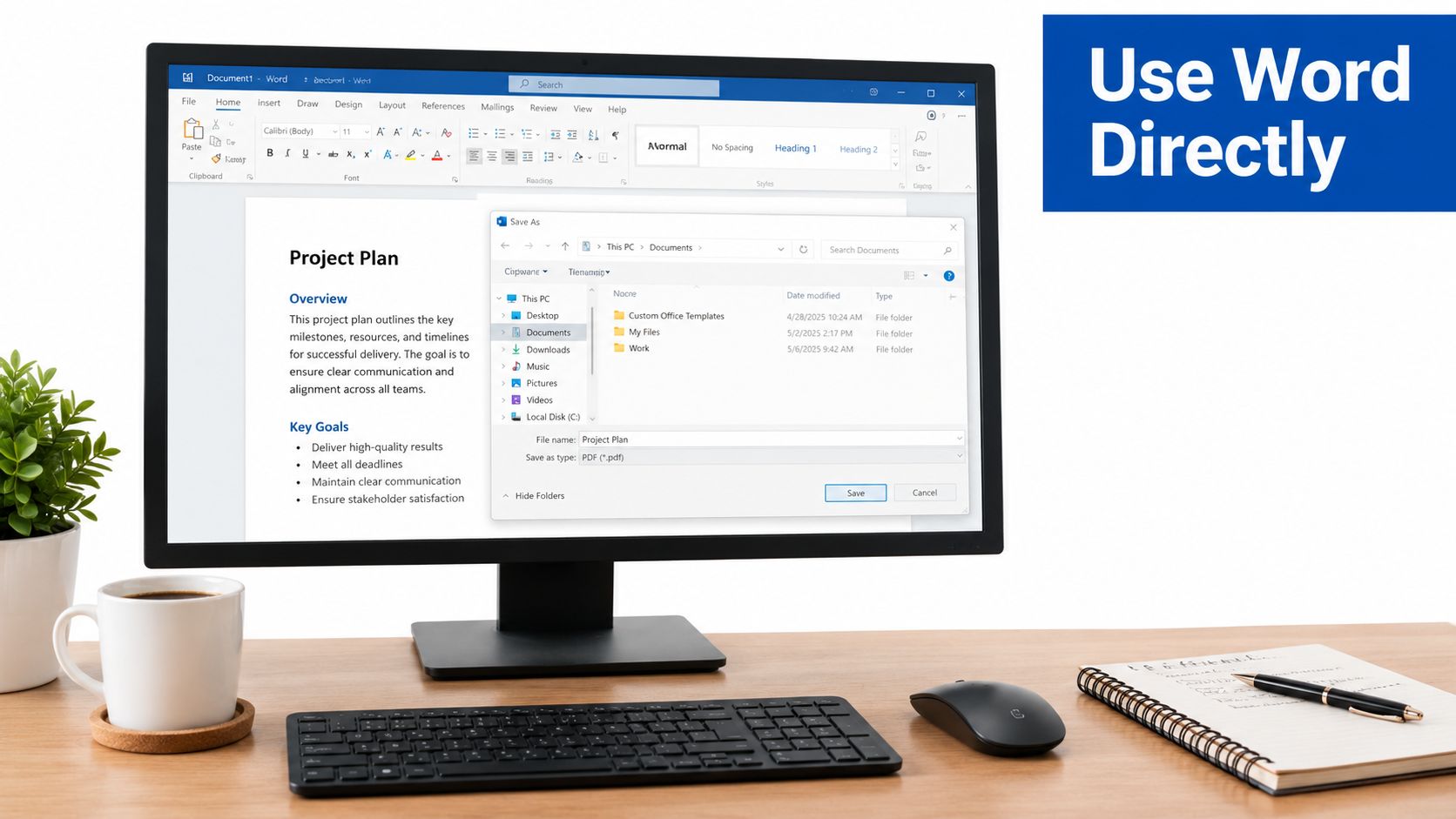
Open Word, choose File, select Open, and browse to the PDF. Word will display a warning explaining that it will convert the PDF into an editable document. Accept the prompt, then wait for the file to open. The warning also notes that conversion can take some time and that the result may not match the original perfectly.
Practical rule: Treat Word's converted file as a working copy, not as a finished replica of the PDF.
This method works best with a text-based PDF that uses ordinary paragraphs, familiar fonts, and a simple page structure. It's less reliable with brochures, forms, multi-column reports, floating images, and other documents where visual positioning matters. Word may preserve most text and formatting, but small changes can appear around images and columns.
Word's direct-open route also has a practical limit with scanned files. If the PDF is made from page images, Word may place those images into the document instead of creating editable text. You'll be able to view the pages, but typing into the original words won't work unless OCR is applied.
Use Word when you want offline processing, need to keep a confidential file on your computer, or have a simple PDF that needs a quick edit. Use a browser converter when you want a fast DOCX without opening desktop software. In either case, review headings, page breaks, tables, and images before relying on the result.
Handling Scanned PDFs With OCR
OCR is the necessary step when a PDF is a stack of images. A converter that only extracts existing text can't extract words that aren't stored as text in the file.
Start with a simple test. Open the PDF and try to highlight one sentence. If you can select individual characters, the page likely contains text. If you can only select the entire page or drag a rectangle around it, you're probably looking at an image. You can also zoom in closely. Scanned characters often show jagged edges, while digitally created text stays crisp.
Prepare the scan before conversion
A scan at 300 DPI or higher is often a better baseline for OCR recognition. Lower-resolution images give the recognition engine less detail, which can lead to missing words, incorrect letters, and confused punctuation. Skewed pages, faint ink, unusual fonts, low contrast, and handwriting can cause problems even when the page looks readable to a person.
Upload the file to an OCR-enabled converter, select the document language if the tool offers that option, and export the result as DOCX. If the PDF mixes born-digital pages with scanned pages, inspect both types separately. Some pages may convert cleanly while others need OCR or manual correction.
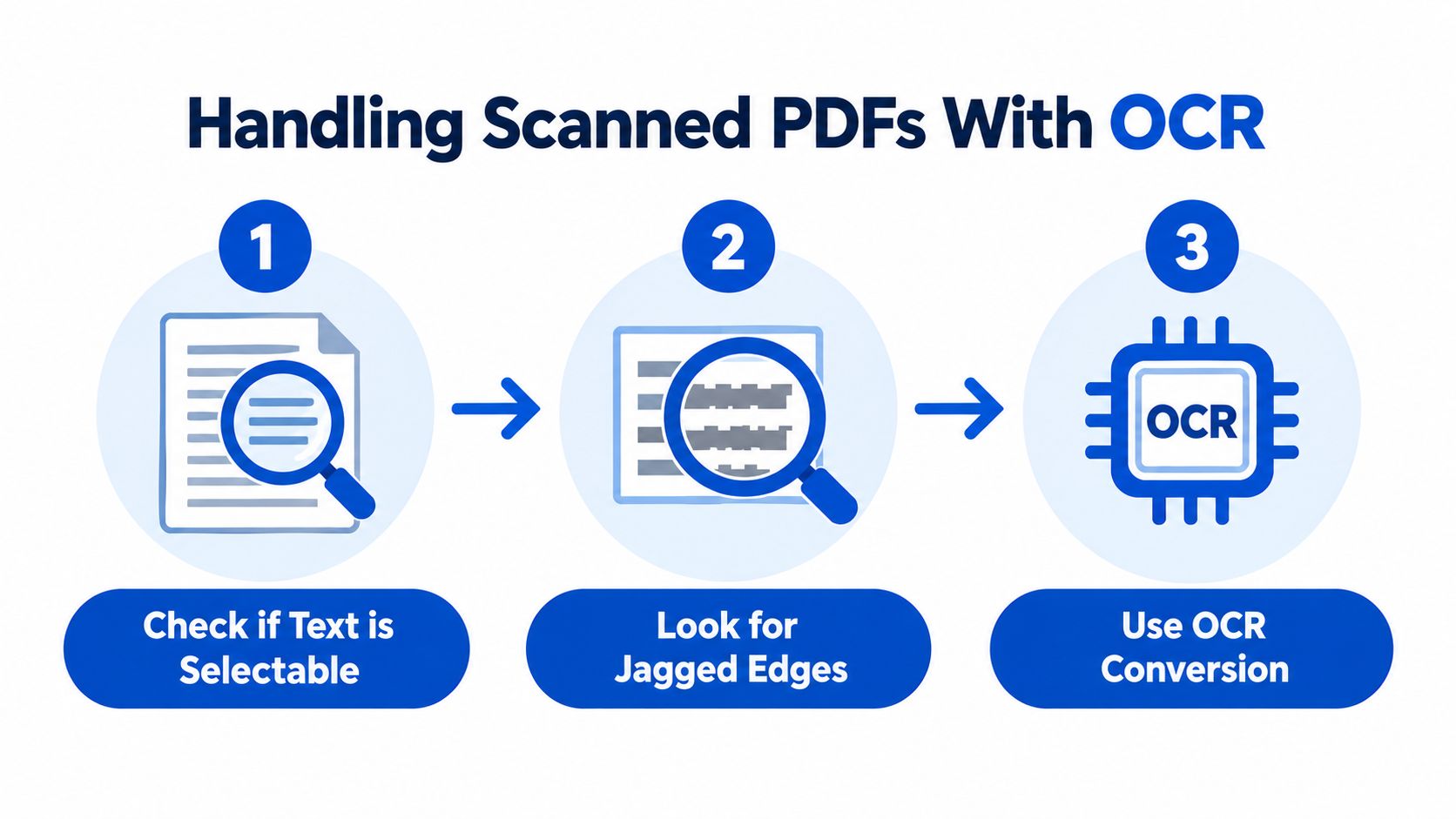
Tables with ruled lines, multi-column scans, stamps, handwritten notes, and marginal annotations deserve extra attention. OCR can recognize the words while still placing them in the wrong order or breaking a table into unrelated lines.
Before sending the DOCX to someone else, compare three random pages with the original. Check names, dates, numbers, headings, table cells, and footnotes. The guide to converting a scanned PDF to Word covers the same diagnosis in more detail, but the core principle is simple: searchable text is not automatically accurate text.
Keeping Your Formatting Intact After Conversion
Conversion works by reconstructing a document from the way objects appear on a page. A text-based PDF may preserve paragraphs and headings reasonably well. A layout-heavy PDF may contain positioned text runs, drawing instructions, text boxes, and images that only look like a coherent document when rendered.
That's why a brochure can convert into a Word file with correct words but incorrect reading order. A sidebar may appear between two paragraphs. A table may become separate text boxes. An anchored image may move to another page.
Check the source before you start
Look for these risk factors:
- Embedded fonts: If the original font isn't available to the converter or your computer, Word may substitute another font and change line breaks.
- Forms: Flatten interactive forms when appropriate, especially if fields might be interpreted as separate objects.
- Floating elements: Mark pages with sidebars, callout boxes, logos, or images that sit beside text.
- Mixed structures: Headings beside tables and inline images are more difficult to rebuild than continuous paragraphs.
For a long or important file, convert one or two representative pages first. Choose a normal page, a table page, and a page with the most complicated layout. If those pages fail, you can change methods before processing the entire document.
Manual cleanup is often faster than forcing automation to preserve a highly designed page. A Word document is useful because its content can be edited, not because every visual coordinate remains identical. Use the PDF formatting preservation guide when the original page must stay close to the source.
Before uploading, ask:
- Can I select individual text?
- Does the file contain columns, tables, or floating images?
- Are the fonts standard or unusual?
- Does the document include scans or handwriting?
- Which pages will I compare after conversion?
Fixing Common Conversion Problems
Most failed conversions fall into a small group of recognizable errors. Diagnose the output before you start manually rebuilding the entire document.
| Problem | Likely Cause | Targeted Fix |
|---|---|---|
| Missing fonts | The original font isn't available | Install the original font if you have it, or reapply a Word style using a substitute font |
| Broken tables | The converter treated cells as positioned objects | Rebuild the table from the converted text while using the PDF as a visual reference |
| Empty output | The PDF contains scanned images rather than text | Run the file through an OCR-enabled converter |
| Image-only pages | OCR was disabled or unavailable | Retry with the OCR option enabled and confirm the result is searchable |
| Garbled characters | The document language or encoding was misread | Set the correct document language, then convert again |
Missing fonts usually show up as changed line breaks, unexpected page counts, or text that no longer fits inside headings. Installing the original font is the fastest fix when you have permission and access to it. Otherwise, apply a consistent replacement style rather than correcting every line separately.
Broken tables need a judgment call. If the table is short, rebuilding it in Word may take less time than repairing dozens of misaligned boxes. If it's large, try another converter before doing manual work. An empty DOCX is rarely a mysterious software failure. It usually means the source has no selectable text.
For legal or compliance documents, you can use AI document review as a separate review aid after conversion, but it shouldn't replace comparing the DOCX with the original PDF. First fix the source text, then review the document's meaning and structure.
If you need to check whether content changed between versions, compare two PDF documents after making the edits. Re-convert with a different method when the first output has widespread errors. Patching isolated issues makes sense. Rebuilding a document full of structural errors usually doesn't.
Choosing the Right Method for Any PDF
You can identify the right conversion path in under a minute.
First, test one sentence. Open the PDF and drag across a line of text. If individual letters highlight, the file is text-based. Use a browser converter for a quick result, or open it directly in Word when you want to work offline. For brochures, forms, and other layout-heavy files, test Word as well because it may interpret the page structure differently.
Next, test for an image scan. If nothing highlights, or the selection tool grabs a whole page rectangle, use OCR. Choose an OCR-capable browser tool, confirm that the source scan is around 300 DPI or higher, and search the resulting DOCX for a word you can clearly see in the original. Searchability confirms that text was created, but it doesn't confirm that every word is accurate.
Then check protection. A password-protected PDF may be refused by browser tools. If you own the file and have permission, remove the password first, or open it in desktop Word and supply the password when prompted.
Finally, decide how close the output must be. If you only need editable paragraphs, text extraction may be enough. If the new Word file must resemble the original page, choose a layout-aware method and inspect columns, tables, headers, footers, and images before editing.
The safest default is to identify the PDF type first, convert a representative page, and verify the DOCX. For text-based files and supported OCR conversions, PDFKing's PDF-to-Word tool provides a browser-based starting point with no installation, no watermark, and no sign-up.
Use PDFKing to save your PDF as an editable Word document directly in your browser. Upload the file, download the DOCX, and check the converted pages against the original before you begin editing.