ON THIS PAGE
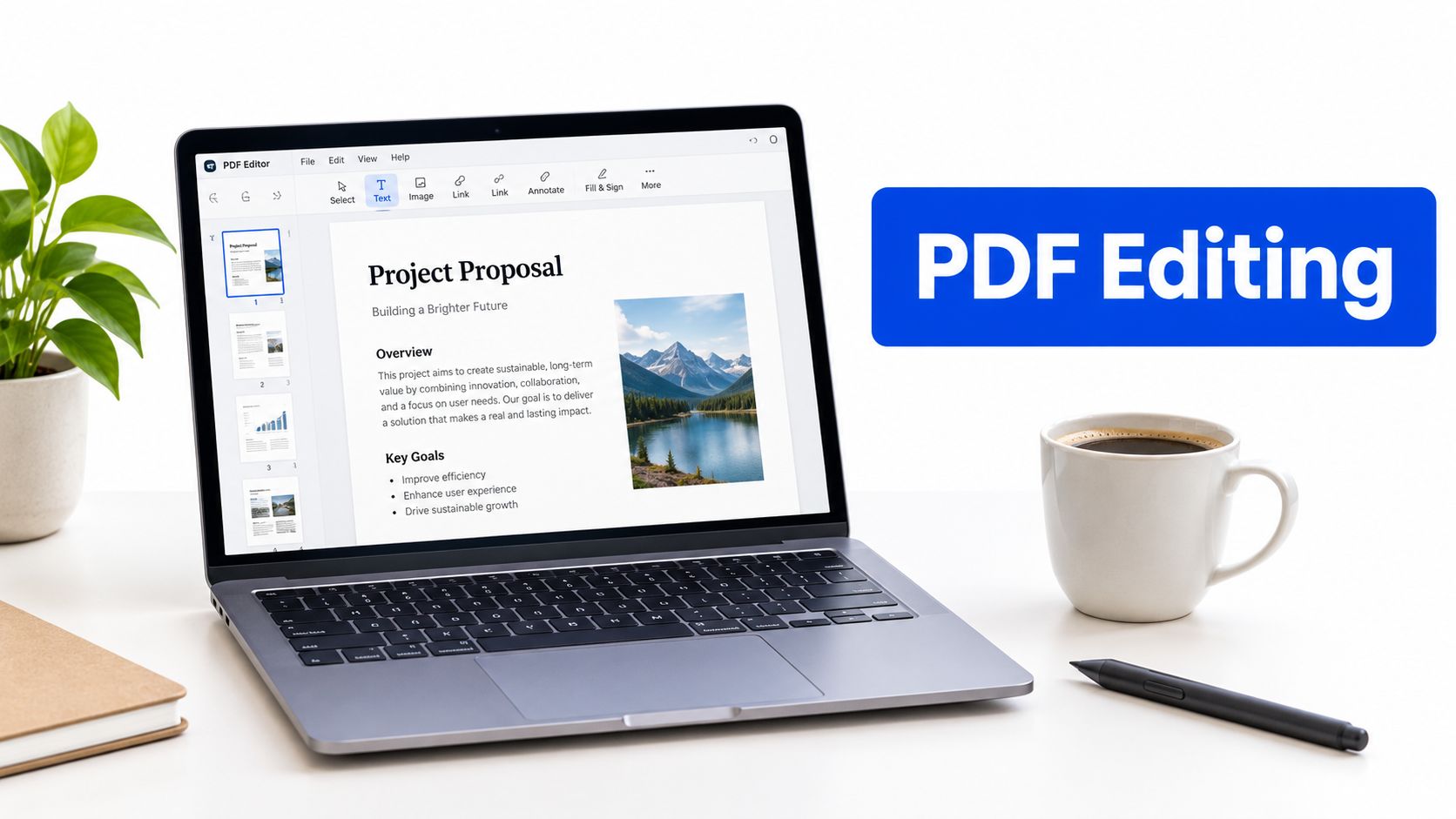
You need to change a date in a contract, correct a typo in a report, or add a signature before sending a file. The PDF opens in your browser, but the text won't select, the formatting shifts when you type, or the only available tools add comments instead of changing the document itself. Editing a PDF document depends on whether you need an overlay, a true content edit, or a structural change to the file.
A browser editor can add text, images, highlights, shapes, and annotations without installing software. For existing text, scanned pages, sensitive information, or accessibility requirements, you need to understand what the PDF stores beneath the visible page.
Table of Contents
- Understanding How PDF Editing Actually Works
- Adding and Editing Text and Images
- Applying Annotations, Shapes, and Highlights
- Reorganizing, Cropping, and Redacting Pages
- Handling Scanned Files and PDF Metadata
- Ensuring Quality, Accessibility, and Structure
Understanding How PDF Editing Actually Works
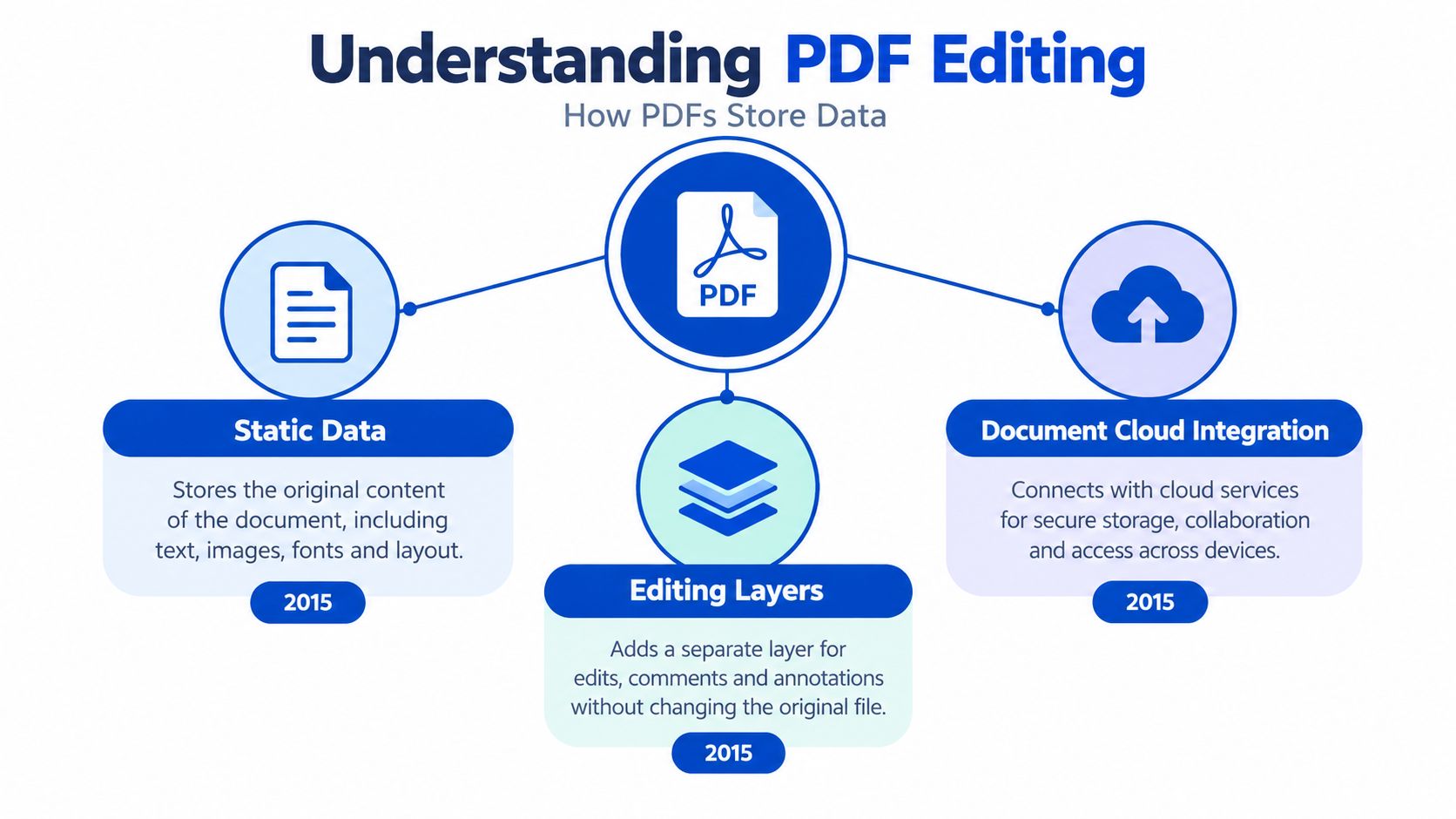
A PDF isn't a Word document frozen in place. It stores page content, fonts, images, drawing instructions, annotations, and structural information as separate elements. That design makes PDFs reliable for sharing, but it also explains why changing one word can affect spacing, reading order, or accessibility.
PDF editing became a mainstream business workflow after Adobe introduced PDF editing capabilities in 2001. Adobe later expanded document workflows with Document Cloud in 2015 and Acrobat Pro and Standard in 2017. The PDF format launched in 1993, became an ISO standard in 2008, and evolved with PDF 2.0 in 2017. This history is summarized in the documented history of PDF editing.
Usage now extends far beyond occasional corrections. Acrobat users edit more than 18 billion PDF documents each year, and 98% of U.S. financial professionals regularly edit, sign, convert, combine, or collaborate on PDFs, according to the same PDF history and usage overview.
Browser markup versus actual editing
A browser's built-in PDF viewer usually works as a markup layer. You can highlight text, draw, add a simple note, or type text over an empty area, but you generally can't select an existing sentence and rewrite it in place. The browser is placing an object above the page content, not rebuilding the original text structure. This distinction is explained in this guide to editing PDFs in a browser.
That overlay approach works well for review comments, classroom feedback, arrows, signatures, and visual reminders. It isn't enough when you need to replace a company address, correct a clause, update a table, or preserve a document's reading order after a substantial change.
A practical way to choose your method is to ask what must remain unchanged:
- Visual appearance: Use an editor that preserves page dimensions, spacing, fonts, and image placement.
- Original content: Use annotations when you want to leave the underlying wording intact.
- Page structure: Use page organization tools when the problem involves order, rotation, deletion, or extraction.
- Editable wording: Use a true PDF editor or convert the file to an editable document when the existing text can't be changed directly.
If you regularly work with contracts, academic submissions, or office packets, the PDF editor app guide can help you compare the editing approach with the document problem before you start.
Adding and Editing Text and Images
Start by opening the browser editor and uploading a copy of the PDF. Work from a duplicate when the original may be needed for records, legal review, or comparison. The browser workflow is useful for routine changes because every tool is 100% free, adds no watermark, and requires nothing to install.
Add new text
Use the text tool when you need to place wording in a blank area, complete a visible form, add a label, or insert a short correction beside existing content.
- Select the text tool from the editing toolbar.
- Click the location where the new wording should appear.
- Type the content and adjust its size, color, alignment, or style.
- Drag the text box until it lines up with nearby content.
- Review the page at normal size and at a closer zoom before saving.
Text added in this way is an editing object placed on the page. It may look exactly right, but it doesn't necessarily replace the original text underneath. If the old wording remains visible, cover or remove it using the appropriate editing or redaction method rather than placing a correction over an unchanged sentence.
For a more focused walkthrough, see the guide to adding text to a PDF.
Change existing text
Select the existing text element if the editor supports direct content rewriting. Make the smallest possible change first. A short replacement may fit cleanly, while a longer sentence can push nearby words, lines, or table cells out of position.
Check the font family, weight, size, color, and line spacing. If the original font isn't embedded or available, the editor may substitute another font. That can alter character width and cause wrapping. A visually similar font may be acceptable for a simple office memo, but it deserves closer review in a legal filing, form, or branded document.
Insert an image
Choose the image tool, upload the replacement graphic, and place it on the page. Resize from a corner rather than stretching one side, and align the image with the surrounding margins or grid. Check whether the image covers selectable content, a signature, or a form field.
Practical rule: If an edit changes the meaning of the document, don't judge it only by appearance. Confirm that the old content is gone and that the new content can be found, read, and exported as intended.
After saving, reopen the downloaded file in a different viewer. This catches missing fonts, shifted images, hidden objects, and changes that weren't visible in the editor.
Applying Annotations, Shapes, and Highlights
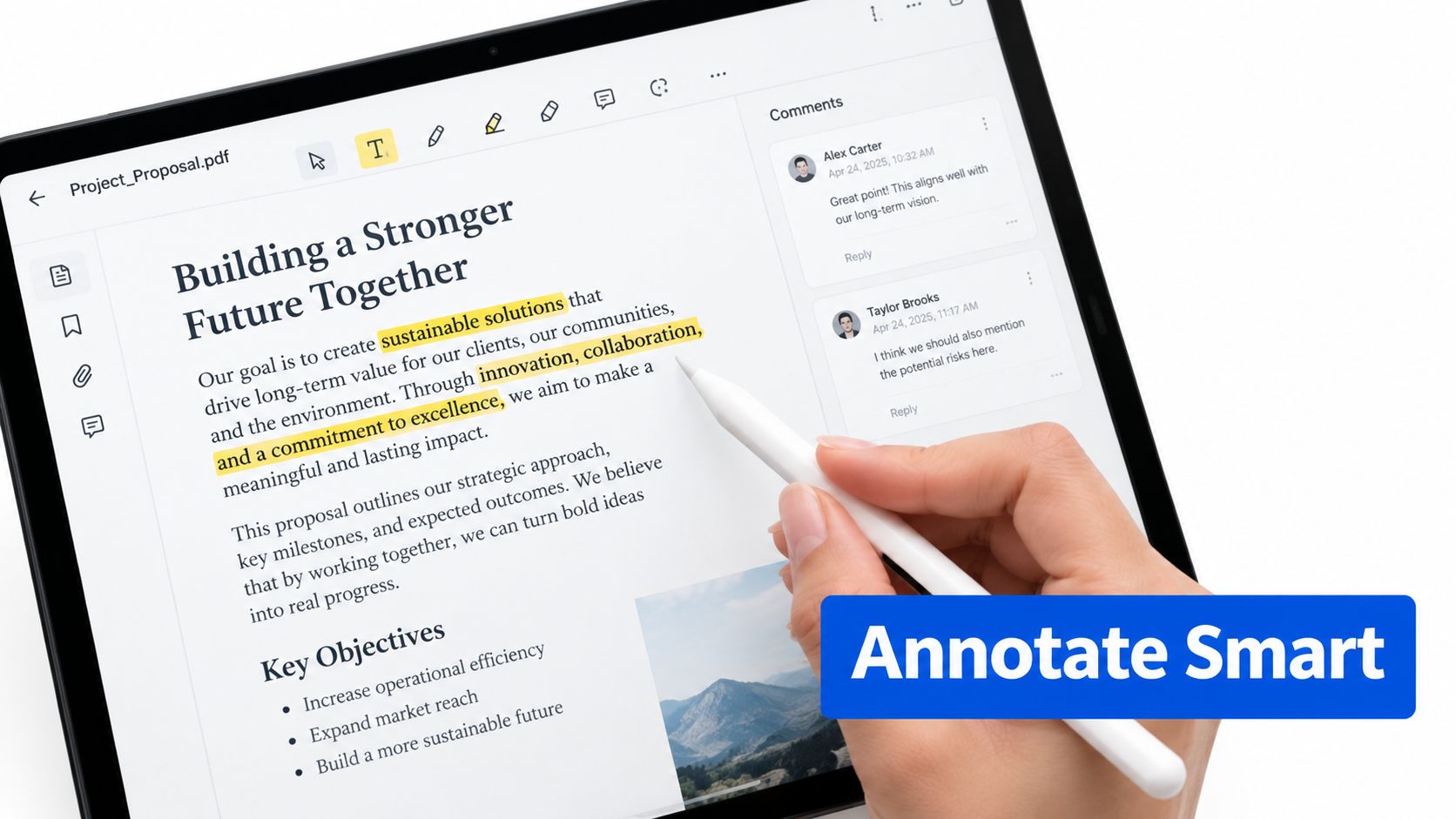
Annotations are often the right answer when the document should remain unchanged while reviewers add context. A highlight, underline, note, arrow, or freehand mark communicates feedback without rewriting the source page.
PDF annotations are stored in the PDF itself, so the markup travels with the document after saving. Common annotation actions include highlighting text, underlining, dropping notes, and drawing directly on the page, as described in this explanation of how PDF annotations work.
Choose the right markup
Use highlights for passages that need attention, not for permanent deletion. Underlines can identify specific wording, while notes work better for explanations that would clutter the page. Arrows and shapes are useful when a reviewer needs to point to a field, chart, signature line, or layout problem.
Color can support a review system, but only if everyone knows what each color means. For example, one color might identify a factual correction, another might mark a question, and another might indicate approved content. Don't rely on color alone when the file may be read by people with color-vision differences. Add a short note or use distinct symbols as well.
The PDF highlighting guide provides a practical starting point for selecting and marking passages.
Know what annotations don't do
An annotation doesn't automatically replace, remove, or correct the underlying page content. A yellow highlight over an outdated address still leaves the address in the document. A note saying “delete this” doesn't delete it. If the file is going to a client, court, regulator, or public audience, resolve review marks before distribution.
Annotations also have a visibility problem. Some viewers show them prominently, while others display them in a side panel or with a small icon. Save a review copy with annotations, then create a clean delivery copy after the changes are accepted.
For collaborative work, name the purpose of the file clearly. A marked-up draft, an approved proof, and a final distribution copy should not be confused. This simple distinction prevents someone from sending review notes as though they were part of the finished document.
Reorganizing, Cropping, and Redacting Pages
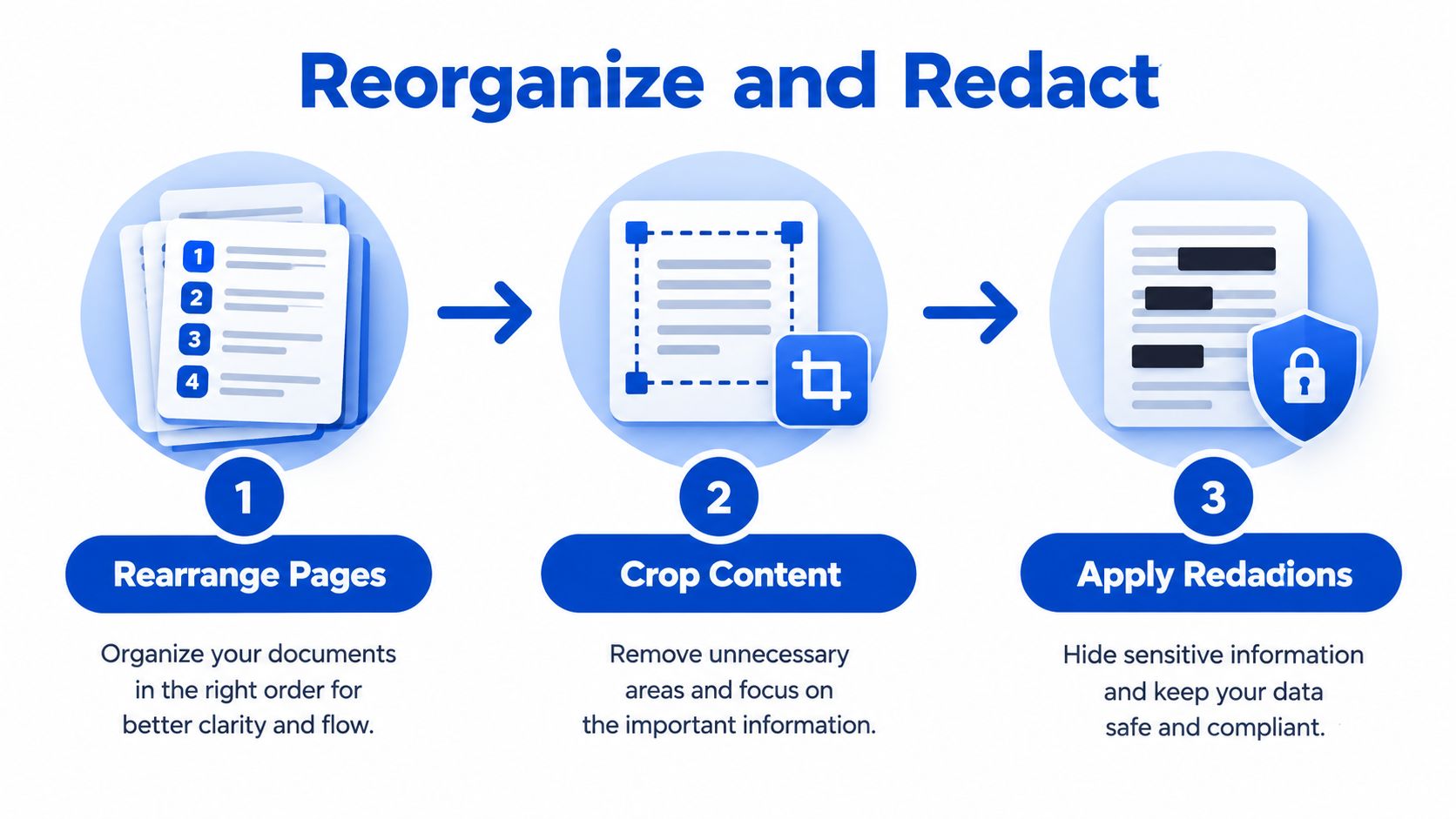
Text editing won't fix a PDF with pages in the wrong order, excessive margins, sideways scans, or confidential information that should never be shared. Page-level tools change the document's composition rather than its wording.
Put pages in the correct order
Open the page organizer and review the thumbnail sequence. Drag pages into position, rotate pages that face the wrong direction, and remove duplicates or blank sheets. If the final file needs only selected pages, extract those pages into a new PDF instead of deleting them from your working original.
The PDF page organization tool is suited to this visual workflow because page order is easier to verify from thumbnails than from a text list.
After rearranging, check page numbers, headers, references, and table of contents entries. A page move can make printed numbering inaccurate even when the PDF's internal page sequence is correct.
Crop without hiding sensitive content
Cropping trims the visible page area. It can remove uneven scan margins, excess whitespace, or a dark edge from a scanned sheet. Cropping isn't the same as deleting content. Depending on the viewer and file structure, content outside the crop boundary may still exist and could be revealed later.
Use cropping for presentation and layout. Use redaction when information must be permanently removed.
Redact and verify
Select the sensitive text or region, apply the redaction, and save a new copy. Then reopen the result and try to search for the removed term, select the covered area, copy the surrounding text, and inspect the page at high zoom. A black rectangle placed over information isn't automatically a secure redaction if the original content remains underneath.
Keep the unredacted original in a controlled location when retention rules require it. Share only the redacted version, and review document properties or comments for information that could disclose what the visible page no longer shows.
Handling Scanned Files and PDF Metadata
A scanned PDF behaves more like a stack of photographs than a text document. The words are part of the page image, so a regular editor can't select a sentence and replace it. Optical character recognition, or OCR, must first identify the characters and create a text layer before normal text editing can work. This limitation is also covered in the explanation of how to edit a scanned PDF.
Use OCR carefully
Convert the scan with an OCR workflow, then inspect the result instead of assuming every character was recognized correctly. Low contrast, skewed pages, unusual fonts, handwriting, stamps, and tables can produce errors. Search for names, dates, totals, and legal terms that matter to the document's meaning.
A practical sequence looks like this:
- Rotate and crop the scanned pages.
- Run OCR to create selectable text.
- Search for important terms and compare them with the page image.
- Edit the recognized text or convert the file to an editable document.
- Export to PDF and inspect the final layout.
The scanned PDF to Word conversion guide is useful when the document needs extensive rewriting rather than a small correction.
For academic work, examples such as Thesis Book Project's PDFs can also help you compare page structure, headings, references, and visual organization before converting a research document.
Update document properties
Metadata describes the file independently of the visible page. Review the title, author, subject, and keywords before you distribute a revised PDF. A file may display a new title on its cover while retaining an old author name or project description in its properties.
Use metadata to make files easier to identify in folders and search results. Keep the values accurate and avoid placing confidential information in keywords or author fields. If a document came from a template, check whether template metadata remains after editing.
A clean file name, accurate metadata, correct page order, and verified text give you a better result than visual editing alone.
Ensuring Quality, Accessibility, and Structure
A PDF can look perfect and still be difficult to use with assistive technology. The visible page and the logical structure are separate. Reading order, headings, lists, links, alternate text, and annotations need to be represented correctly in the document structure, not merely positioned in the right place on screen.
The PDF Association's accessibility terminology guide explains why annotations and editorial marks are separate objects from page content and why meaningful annotations need to be included in the structure tree or identified as artifacts.
Check the reading order
Start by asking whether the edit changed how a person should read the page. Adding a text box beside a paragraph may look natural visually, but a screen reader could encounter it before the heading, after the footer, or in an unrelated location.
Use this review sequence:
- Identify whether the edit changes reading order, hierarchy, or navigation.
- Apply the text, image, link, or annotation update.
- Confirm heading tags, paragraph order, list structure, and alternate text.
- Mark decorative shapes and visual elements as artifacts when appropriate.
- Validate the finished file against PDF/UA or applicable WCAG techniques.
Test the finished document
Don't rely on a screenshot. Select and copy text from several pages, search for the revised wording, inspect links, and read the file with an assistive technology workflow when accessibility matters. Check that highlights, comments, inserted text, and shapes aren't exposed as confusing content when they're decorative or purely visual.
Accessibility check: A small visual change can create a major structural defect if the tag tree and reading order aren't repaired afterward.
Fidelity also matters across devices. Open the final PDF in a desktop viewer, a browser, and a mobile viewer. Look for changed line wraps, missing annotations, shifted images, altered form fields, and unexpected page breaks. Cross-platform consistency is especially important for legal documents, academic submissions, and office forms where a minor layout change can create rework.
Frequently asked questions
Can you edit a PDF directly in a browser?
Yes, but the available action depends on the browser tool. Basic viewers can add highlights, drawings, notes, and simple text overlays. Changing existing text, preserving structure, or correcting a scanned page usually requires a dedicated editor or conversion workflow.
Why can't I select text in my PDF?
The file may be scanned or image-based, which means the words are part of an image. Run OCR first to create a selectable text layer, then check the recognized wording before editing.
Is adding text the same as editing existing text?
No. Adding text places a new object on the page. Editing existing text changes the original content element when the tool supports that operation. If you cover old text with a white box, the old content may still remain in the file.
Will annotations stay in the PDF after I save it?
PDF annotations are stored in the document, so highlights, underlines, notes, and drawings can travel with the file. Check the saved copy in another viewer because annotation display can vary.
How can I keep formatting intact?
Make small changes, match the original font and spacing, align images from their corners, and review the result in more than one viewer. Save a new version so you can compare the edited file with the original.
How do I remove confidential information safely?
Use a dedicated redaction action, not a colored shape or black rectangle. Save a separate redacted copy, then search, select, copy, and inspect the covered area to confirm the underlying information is no longer available.
Use PDFKing to add text, images, highlights, shapes, annotations, crop pages, organize documents, and redact sensitive content in your browser. Every tool is 100% free, produces files without a watermark, and requires nothing to install, so upload a copy of your PDF and complete the edit online.