ON THIS PAGE
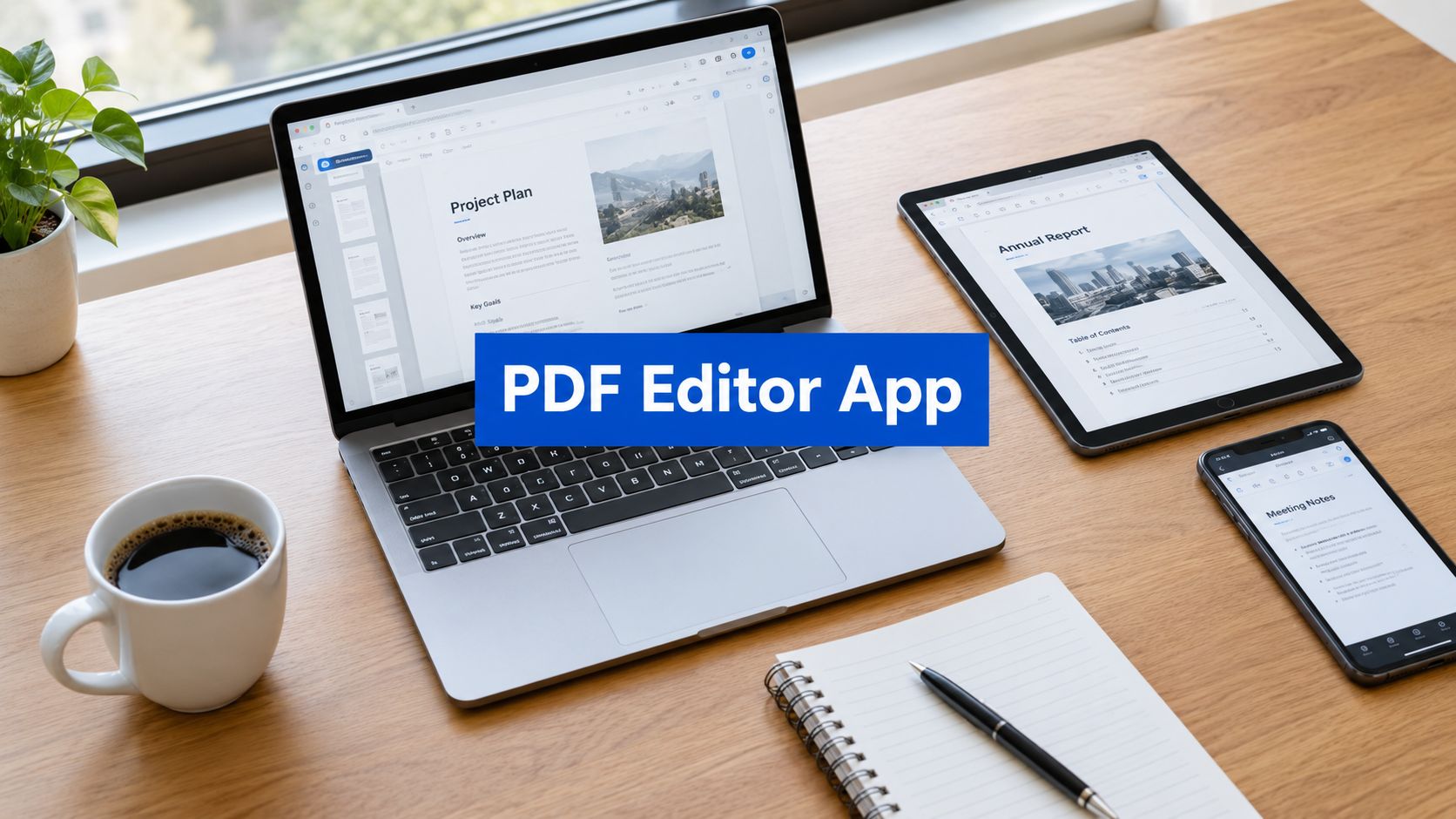
A practical PDF editor app can be free, browser-based, and require no installation or signup. The PDF editor software market is forecast at about USD 5.29 billion in 2026, showing how central PDF work has become for everyday documents.
But what makes an editor worth trusting? A familiar toolbar isn't enough. You need to know whether the app can handle your file, preserve its structure, protect sensitive information, and let you export the finished document without an unexpected barrier. PDFKing is a useful example of the browser-first approach, with free PDF and file-conversion tools that require nothing to install.
Table of Contents
- What to Look for in a PDF Editor App
- Essential Editing and Conversion Features
- Browser-Based vs Desktop Software
- Understanding OCR Technology
- Security and Accessibility Balance
- Avoiding Hidden Costs and Paywalls
- Getting Started with PDFKing
What to Look for in a PDF Editor App
You're halfway to a meeting when someone sends a form that needs one correction and a signature. You open it on your phone, find a tool that requires an account, then discover that the export step is restricted. By the time you locate another app, the simple edit has become a software problem.
A good PDF editor app should reduce that friction. Start by separating viewing, annotation, and editing. A viewer lets you read, search, and perhaps sign. An annotation tool lets you add comments, highlights, shapes, or text boxes. A true editor should also support practical changes such as adding text, inserting images, organizing pages, and preparing the file for sharing.
Match the tool to the document
Ask what you need to do:
- Quick corrections: Add text, shapes, arrows, highlights, or notes.
- Document organization: Rotate, delete, extract, split, merge, or reorder pages.
- Format changes: Convert a PDF to Word, JPG, or plain text when another application is better suited to editing.
- Administrative work: Add page numbers, update metadata, protect a file, or sign a form.
- Sensitive documents: Redact information permanently and verify the result before sending it.
Your device matters, too. A browser-based editor works well when you move between a school computer, office laptop, Chromebook, and phone. For a helpful overview of how digital tools fit into broader work routines, the 1chat blog offers practical workflow material.
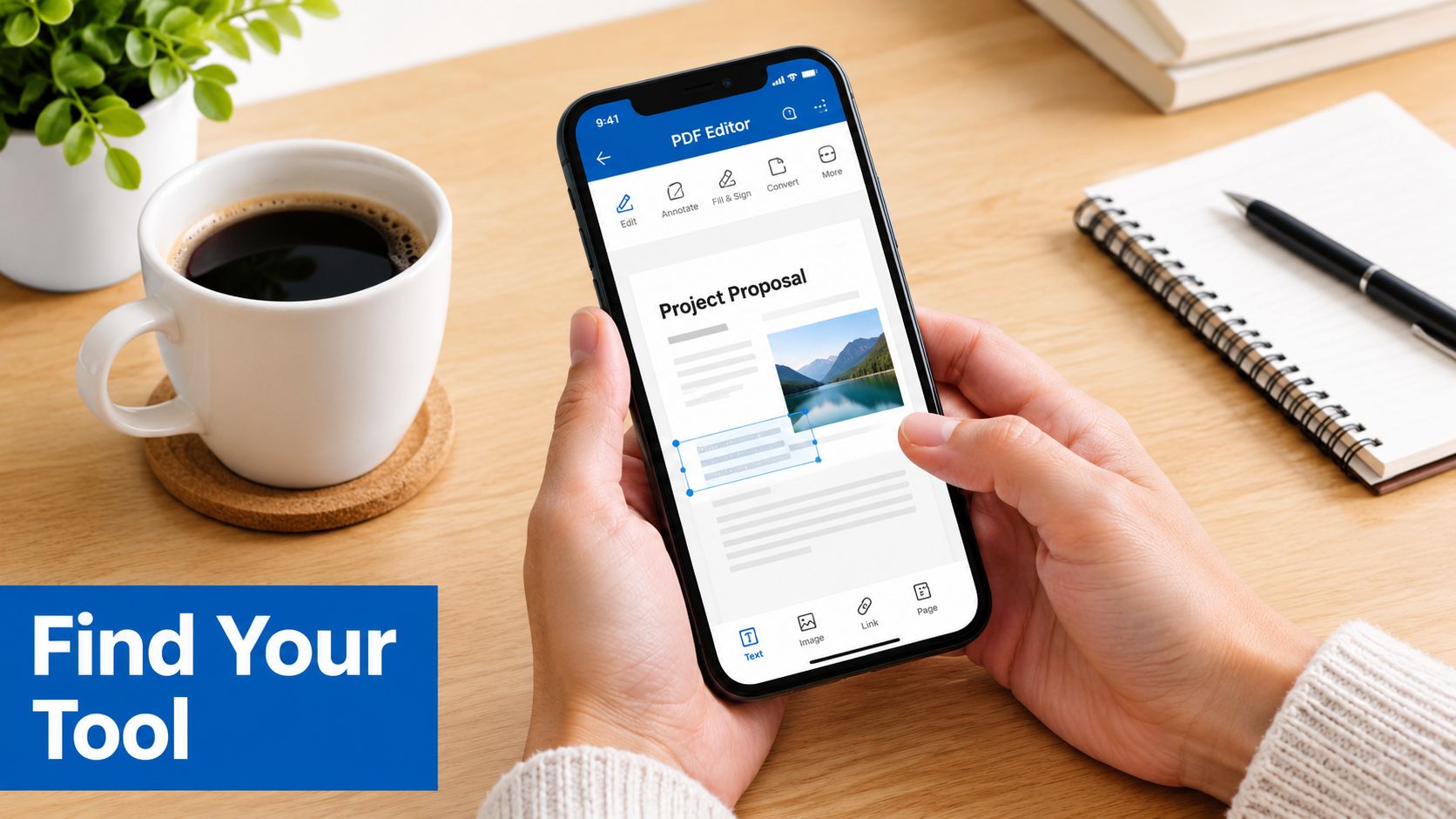
Before choosing a tool, also check whether it works without installation, watermarking, or forced signup. PDFKing's guide to Adobe PDF alternatives is useful if you're comparing a full desktop suite with a lighter browser workflow.
Essential Editing and Conversion Features
A PDF editor app earns its place by handling the parts of a document you need to change, not merely displaying them. Text editing is useful for correcting a name, updating a date, or fixing a typo. Image support matters when you need to replace a logo, add a scanned signature, or insert a supporting graphic.
Page management is just as important. A tool may let you edit text but still make it difficult to remove a blank page or move an appendix. Look for controls that let you reorder, rotate, delete, split, merge, and extract pages without rebuilding the entire file.
The core functions
Use this checklist when you test an app:
| Feature | Why It Matters |
|---|---|
| Text editing | Correct wording, dates, labels, and form content directly in the PDF. |
| Image insertion | Add logos, signatures, diagrams, or scanned material. |
| Annotations | Mark up drafts with highlights, arrows, shapes, comments, and drawings. |
| Page organization | Put pages in the right order, remove unwanted pages, or extract a section. |
| Signing | Add a drawn, typed, or uploaded signature to forms and agreements. |
| Conversion | Move content into Word, JPG, HTML, or text when another format is more practical. |
| Metadata editing | Update the title, author, subject, and keywords before distribution. |
| Protection and redaction | Restrict access and remove confidential content before sharing. |
Conversion deserves special attention because PDFs are designed for consistent viewing, not easy rewriting. A student may need to turn a scanned handout into an editable document. An office worker may need to move a table into Word. A teacher may want to convert selected pages into images for a presentation.
The conversion result still needs review. Check headings, line breaks, tables, page breaks, and images. A conversion tool can create an editable file, but you remain responsible for confirming that the content survived accurately. For practical guidance, see this explanation of how to convert a PDF to Word without losing formatting.
Every tool in a fully transparent toolkit should be 100% free, produce no watermark, and require nothing to install. That promise matters most at export, when you've already invested time in the document.
Browser-Based vs Desktop Software
Desktop software and browser-based tools solve different problems. A desktop application can be useful when you work offline, need advanced controls, or handle the same document type every day. A browser-based PDF editor app is often more convenient for occasional tasks because you can open it on a modern device without installation or software maintenance.
| Consideration | Browser-Based | Desktop Software |
|---|---|---|
| Setup | Open the tool in a browser | Download and install an application |
| Access | Available across compatible desktop and mobile browsers | Limited to installed devices |
| Updates | Managed by the service | May require downloads or manual updates |
| Offline work | Usually limited when processing depends on the browser or server | Often available after installation |
| Quick edits | Convenient for routine changes | Can involve more setup |
| Advanced workflows | Depends on the web tool | May provide deeper controls |
The file matters more than its size
A document's page count or file size doesn't tell the whole story. A scanned PDF with high-resolution images can demand more browser memory than a larger text-based document. Complex files may contain embedded fonts, OCR layers, and image-heavy pages that increase rendering work.
Guidance on handling large PDF files in web apps recommends selective page rendering, chunked delivery, and server-side processing. In practical terms, you should process a difficult document in smaller ranges when possible. Split the file, edit the needed pages, then merge the finished sections.
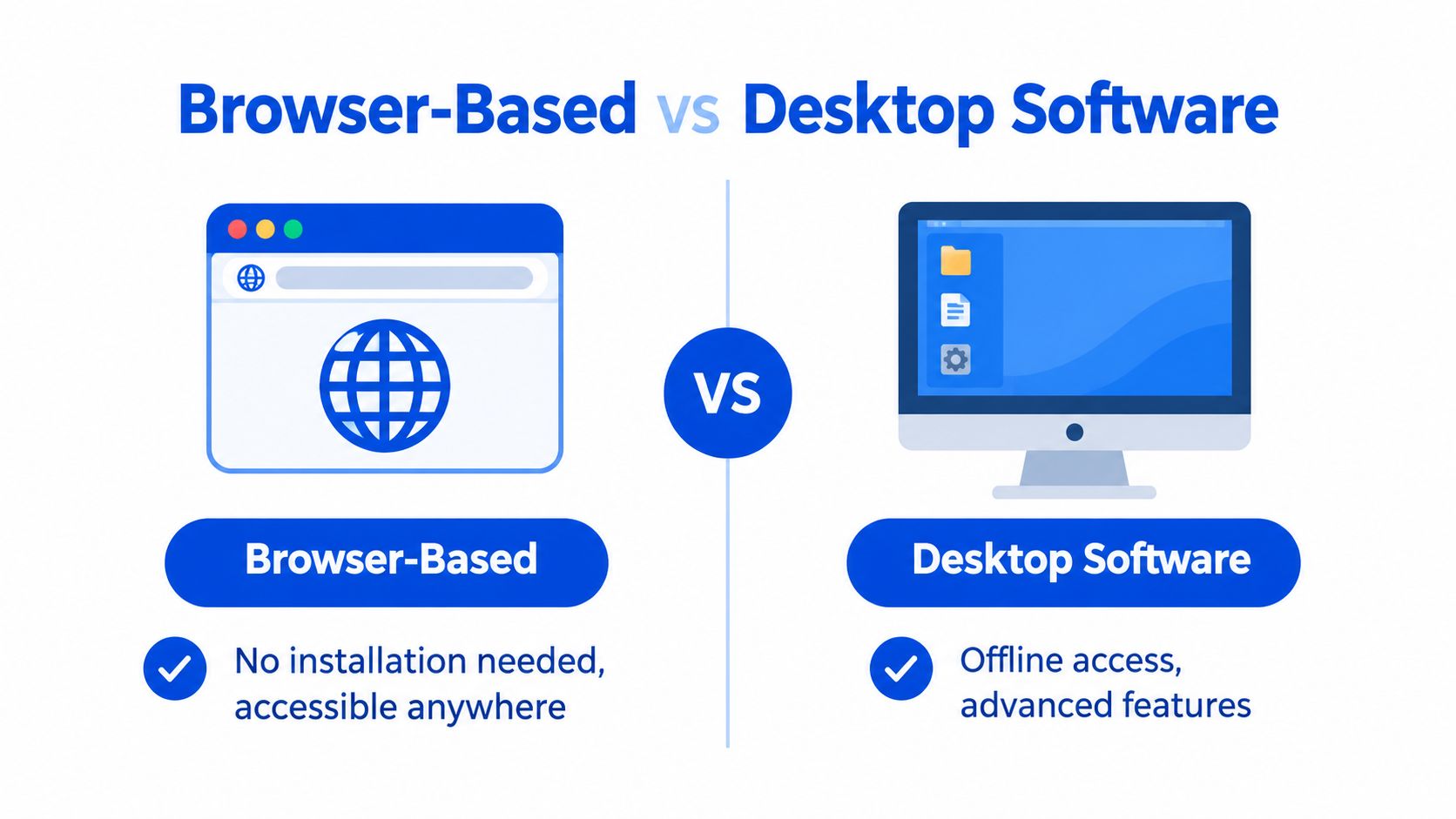
For a Chromebook or shared computer, browser access is especially useful. You can edit a PDF on a Chromebook without installing a desktop package that you may not be allowed to add.
Understanding OCR Technology
A scanned document often looks like text but behaves like a photograph. You can see the words, yet you can't select a sentence, search for a name, or correct a typo. Optical Character Recognition, or OCR, analyzes the shapes in an image and creates a text layer that software can read.
How OCR changes a scan
Use this simple process:
- Upload or open the scan. Make sure the pages are upright and clear enough to read.
- Run OCR. The tool identifies letters, numbers, words, and layout elements.
- Review the text. Check names, dates, addresses, decimal points, and unusual terms.
- Edit the recognized content. Correct errors before converting or sharing the document.
- Export and inspect the result. Confirm that the new file retains the intended order and appearance.
OCR works best when the source has clear contrast and a consistent layout. Skewed pages, shadows, handwriting, decorative fonts, and low-resolution images can confuse recognition. A single character error in a legal name or account number can change the meaning of a document.
OCR also doesn't automatically make a PDF accessible. It may create searchable text while leaving the document without a logical heading structure or reading order. Treat OCR as the beginning of the editing process, not a substitute for review.
If you need an editable version of a scan, use PDFKing's guide to convert a scanned PDF to Word. After conversion, compare the original and new files page by page, especially where the scan contains tables, columns, or handwritten notes.
Security and Accessibility Balance
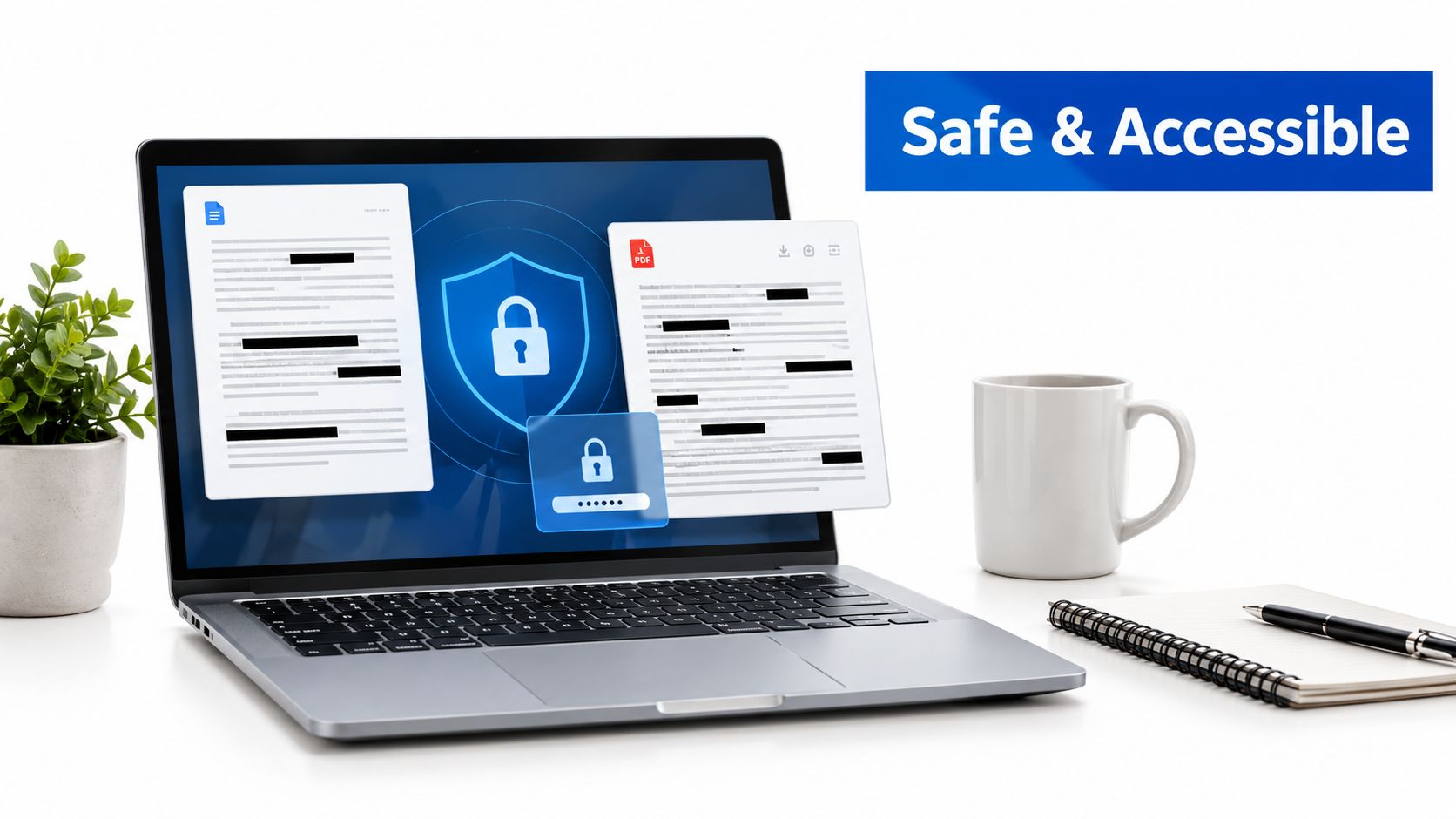
Security settings affect more than confidentiality. They can also determine whether a legitimate reader can copy text, print a document, edit a form, or use a screen reader. The W3C PDF accessibility notes explain that PDF permissions can control modifying content, copying text and graphics, printing, and access for assistive technology.
That creates a practical balancing act. A contract may need password protection, but a password setting shouldn't accidentally block accessibility tools. A school form may need restricted editing while still allowing keyboard navigation and screen-reader access.
Redaction must remove content
Redaction isn't the same as drawing a black rectangle over text. A visual overlay can leave the original words, metadata, hidden text, or glyph-position information inside the file. A government examination found that some redacted PDFs allowed information to be recovered, while files produced by Adobe Acrobat, Adobe Distiller, or Microsoft Word didn't expose recovered redacted text in that test set. Later academic work showed that subpixel glyph-position information alone can help reconstruct redacted names. The Australian Signals Directorate examination of PDF redaction.pdf) explains why this deserves careful testing.
Practical rule: If confidential text must disappear, use a true redaction workflow, sanitize hidden information, remove metadata where appropriate, and inspect the exported file before sending it.
Preserve the document's structure
The W3C identifies Tagged PDF as the most reliable way to create an accessible PDF. Tags define logical structure and reading order for screen readers. If you insert text, change headings, reorder pages, or convert a file, check that the tag tree still makes sense.
North Carolina's PDF accessibility checklist recommends optimizing the source, saving a tagged PDF, setting document language, editing tags, verifying reading order and tab order, and using both automated and manual testing. That process applies to lesson materials, contracts, forms, and internal office documents.
Legal teams can also benefit from documenting who edits, signs, and distributes each version. Guidance on legal workflow efficiency strategies can help teams connect PDF handling with broader document-control practices.
Avoiding Hidden Costs and Paywalls
The word “free” should describe the complete task, not only the upload screen. Users often discover the restriction after editing, when export requires a card, a watermark appears, or a trial prompt interrupts the workflow. Recent reviews across app marketplaces and review platforms repeatedly mention surprise charges, card prompts, subscription traps, and paid-only export. That makes pricing transparency a feature, not a minor detail.
Test the entire path
Before trusting a PDF editor app with important work, check these points:
- Access: Can you open the tool without creating an account?
- Editing: Can you perform the specific change you need?
- Export: Can you download the finished file without a payment prompt?
- Output: Does the file contain a watermark or altered layout?
- Privacy: Does the service explain how uploaded documents are handled?
- Limits: Are pages, file size, or tasks restricted at a stage you won't discover until later?
Students, freelancers, and small teams often edit PDFs only when a deadline arrives. They shouldn't have to install a large program or commit to an ongoing arrangement for a simple correction or signature. A no-install workflow also helps when you use a school computer, a shared office device, or a phone with limited storage.
A transparent service should state its terms plainly. PDFKing provides free browser-based PDF and file-conversion tools with no watermark and nothing to install. For a broader checklist of no-cost document options, read the guide to free PDF tools, then test the complete open, edit, export, and download process before using a tool for sensitive work.
Getting Started with PDFKing
Start with the smallest task that matches your goal. If you need to correct a page, choose an editing tool. If several files belong in one submission, merge them first. If the document is too large to upload elsewhere, compress it after checking that the text and images remain readable.
A practical browser workflow
- Choose the operation. Edit text or add annotations, organize pages, convert formats, sign, protect, or redact.
- Upload the file. Use a copy when the original is important.
- Make the change. Add text, highlights, shapes, arrows, images, page numbers, or a signature as needed.
- Review the result. Check spelling, page order, orientation, layout, accessibility, and sensitive content.
- Download the finished PDF. Open it again before sharing it with a client, teacher, colleague, or legal contact.
For a signature, draw or type it, place it on the correct line, and confirm that it doesn't cover nearby instructions. For a conversion, compare the new document with the original. For redaction, verify that the sensitive text isn't selectable or recoverable after export.
Frequently asked questions
Is a browser-based PDF editor app safe to use?
It can be appropriate for routine work when the service explains its handling practices and provides security tools. For confidential documents, use password protection or redaction where needed, and review the exported file before sharing it.
Can I edit a scanned PDF?
Yes, but a scan usually needs OCR before its text can be selected or changed. Always check names, numbers, tables, and unusual terms because recognition errors can occur.
Is editing text the same as annotating a PDF?
No. Annotation adds a layer of comments, highlights, shapes, or text boxes. Editing changes the document's underlying content, depending on the tool and file structure.
Will a PDF remain accessible after editing?
Not automatically. Check whether the file retains Tagged PDF structure, logical reading order, document language, and keyboard navigation. Visual accuracy alone doesn't confirm accessibility.
Should I use a browser tool or desktop software?
Choose a browser tool for quick access across devices and routine tasks. Choose desktop software when offline work or deeper controls are central to your workflow.
What should I check before downloading an edited PDF?
Confirm the text, images, page order, signatures, metadata, permissions, and redactions. Also verify that the output has no unexpected watermark or export restriction.
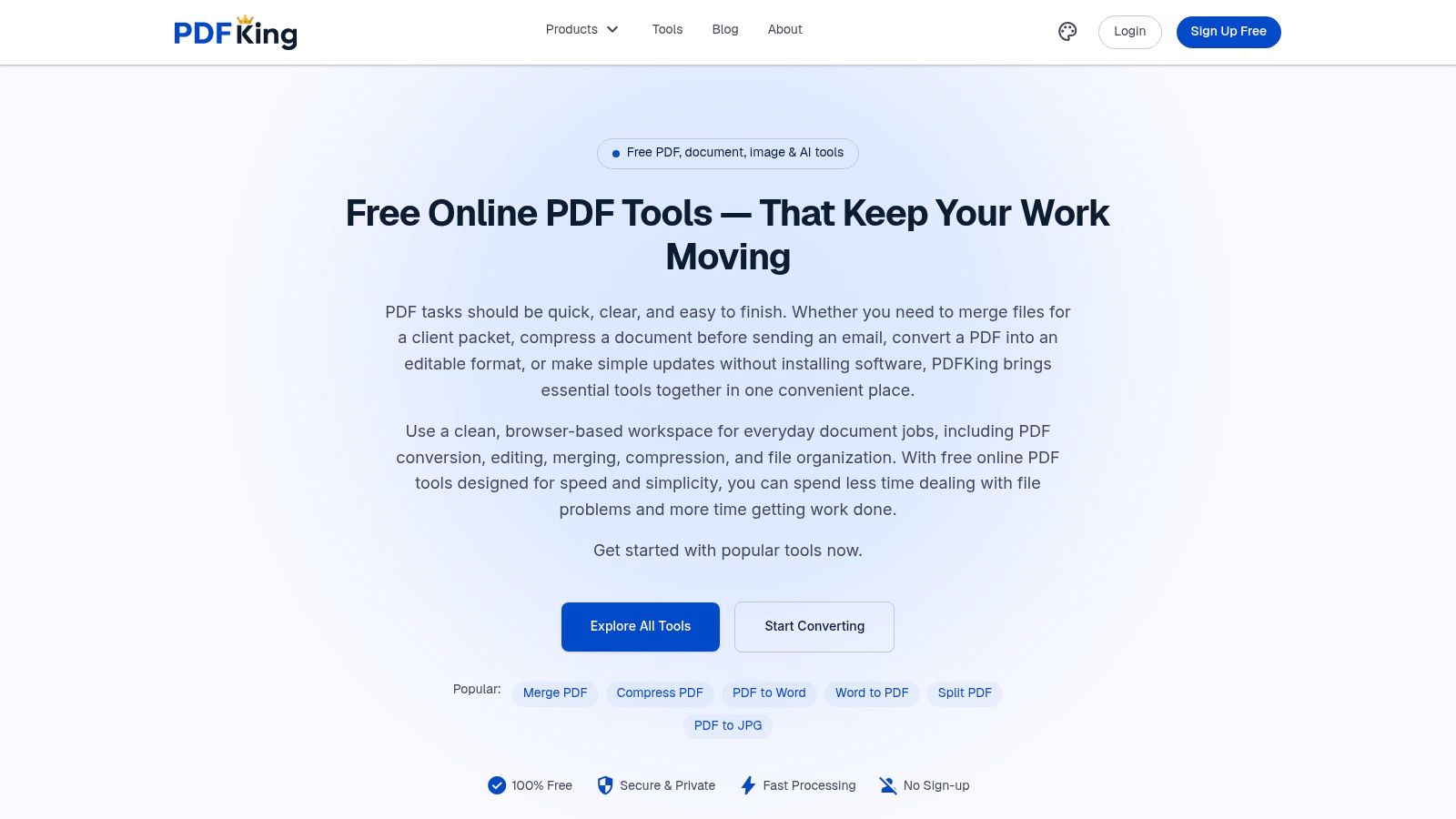
PDFKing gives you free browser-based tools to edit, organize, convert, sign, protect, and redact PDF files without installing software or adding a watermark. Visit PDFKing to edit your next document directly in your browser.