ON THIS PAGE
Use Sign PDF now
Drag & drop a PDF here
or click to browse · No file size limit
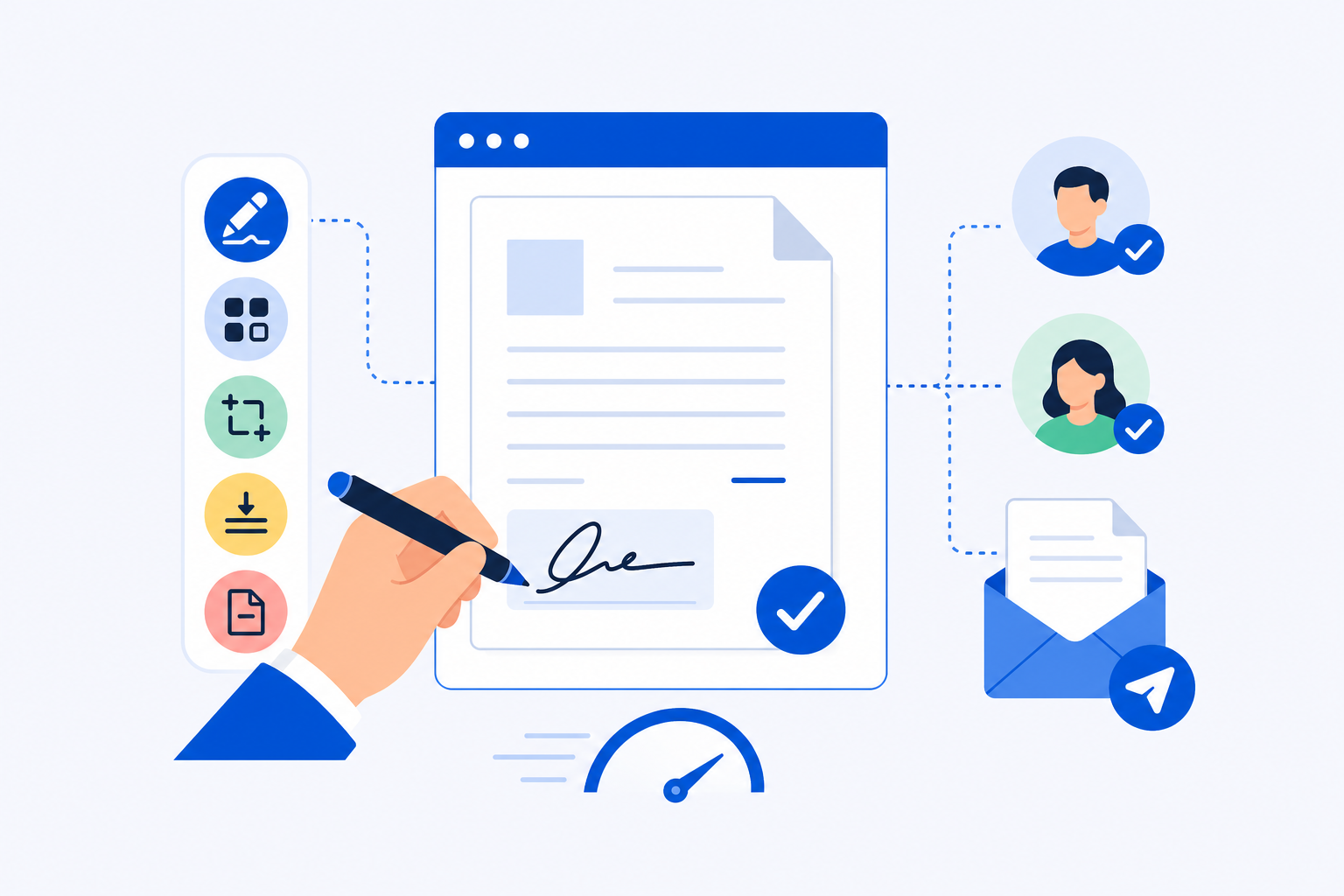
When a client is waiting on a signed contract, you need to sign a PDF and get it back within minutes — not after installing software or creating another account. This article covers the best free browser-based tools for signing and sending PDFs fast in 2026, with an honest look at what each one can and cannot do. The important decision is whether you need to sign a document yourself or send it to someone else for their signature, because those are two different workflows requiring different tools.
Quick answer: For signing a PDF yourself and sending it by email, PDFKing, PDF24, Sejda, Smallpdf, and iLovePDF all work in the browser without software installs. For requesting signatures from other parties with audit trails and legal-compliance records, you need a dedicated e-signature platform like DocuSign or Dropbox Sign.
Comparison Table: Free PDF Signing Tools at a Glance
| Tool | Account required | Watermark on free tier | Free limits | Can send to others for signature |
|---|---|---|---|---|
| PDFKing | No | No | No limits | No |
| PDF24 | No | No | Described as free with no stated limits | No |
| Sejda | No | No | 3 tasks per hour, 200 pages or 50 MB per file | No |
| Smallpdf | No (limited) | No | Roughly 2 tasks per day on free tier | No |
| iLovePDF | No (limited) | No | Limited tasks per day on free tier | No |
| DocuSign | Yes | N/A | Free account lets you sign and return documents; paid plans for send-to-sign | Yes |
| Dropbox Sign | Yes | N/A | Limited free sends per month | Yes |
PDFKing: Fastest Way to Sign a PDF Yourself
PDFKing is built for exactly this scenario: you have a PDF, you need your signature on it, and you need the file back within two minutes. It runs entirely in the browser, requires no account, adds no watermark, and charges nothing. There are no usage limits, no file size limit, no page limit, no subscription, and no pricing tiers.
What PDFKing handles
PDFKing covers 22+ PDF tasks — signing, compressing, merging, splitting, converting, editing, redacting, and protecting files. For the sign-and-send workflow, the two relevant tools are the sign tool (place a drawn, typed, or image-based signature) and the compress tool (reduce file size before attaching to email).
Files are processed in the browser. No account is required, and no watermark is added to the saved file.
Sign and send in under 2 minutes using PDFKing
This sequence works for any standard business document:
- Go to PDFKing and open the sign tool — no login screen will appear.
- Upload your PDF and place your signature where the document requires it; you can draw, type, or upload a signature image.
- Download the signed file.
- If the file is over 5 MB, run it through the compress tool before attaching it to email — large PDFs bounce or get flagged by some mail servers.
- Attach the signed, compressed PDF to your email and send.
The whole sequence takes under two minutes for a typical one-page contract or service agreement. The important decision at step 2 is whether your signature placement is visually accurate — zoom in before confirming, because repositioning after download means re-running the tool.
Practical rule: Sign first, compress second. Running compression before signing can occasionally shift page rendering in some tools; doing it after guarantees the signed version is what gets compressed.
PDF24: Free, No Account, No Stated Limits
PDF24 describes itself as free with no limits, which makes it a reasonable fallback when you need to process several documents in quick succession. It handles signing through its online suite and also offers a desktop app if you prefer local processing.
The browser-based version requires no account for basic tasks and adds no watermark to free-tier output. The interface is more cluttered than PDFKing's, but the signing tool is functional for placing a drawn or typed signature.
Like PDFKing, PDF24 is a self-signing tool. It does not send documents to others for signature.
Sejda: Clean Interface with Free-Tier Limits
Sejda's free tier caps usage at 3 tasks per hour, 200 pages or 50 MB per file. The signing interface is clean and handles multi-page documents without much friction.
No account is required on the free tier, and output files carry no watermark. Check their current pricing page for the latest on what the free tier covers.
Smallpdf: Polished but Tighter Free Limits
Smallpdf's free tier is roughly 2 tasks per day according to third-party sources — a real constraint if you're processing multiple client documents in a single session. The interface is polished and the signing tool works well, but the daily cap will stop you on a busy day.
An account isn't strictly required for the first task, but Smallpdf prompts sign-up quickly. Free-tier output carries no watermark, and the signing tool supports drawn, typed, and uploaded signatures.
For occasional use, Smallpdf is fine. For several contracts moving through in one afternoon, the daily limit becomes a problem. Check their current pricing page for the latest free-tier terms.
iLovePDF: Wide Tool Coverage, Similar Free Constraints
iLovePDF offers 25+ tools — a wider range than PDFKing's 22+. The signing tool is part of that suite and works without an account for a limited number of daily tasks. Like Smallpdf, iLovePDF imposes a daily task limit on free users and prompts account creation after the first few uses.
No watermark is added to signed output on the free tier. The interface is straightforward for placing a signature, and iLovePDF handles batch operations well within the free limits. Check their current pricing page for the latest on usage caps.
iLovePDF does not send documents to others for signature. It is a self-signing tool.
When You Need a Full E-Signature Tool Instead
The tools above are all self-signing tools. You sign the document, download it, and send it by email. That covers a large share of small business signing needs: signing your own quotes, countersigning contracts a client has already signed, or adding your mark to a supplier agreement.
What they cannot do is send a document to a client through a guided signing workflow and receive the completed copy back with a timestamped audit trail. For that, you need a dedicated e-signature platform.
DocuSign
DocuSign is the most widely recognized e-signature platform. It supports multi-party signing, audit trails, and legal-compliance records that meet requirements in most jurisdictions. A free account lets you sign and return documents; sending documents to others for signature requires a paid plan. DocuSign is not a fast free option, but it is the right tool when a counterpart specifically requests a DocuSign envelope or when the transaction requires a verifiable audit trail.
Dropbox Sign
Dropbox Sign (formerly HelloSign) offers a limited number of free document sends per month, making it more accessible than DocuSign for occasional send-to-sign use. It integrates with Dropbox and Google Drive, which is useful if your documents already live there. Volume above the free send limit requires a paid plan.
Xodo Sign and DigiSigner
Xodo Sign and DigiSigner operate on a similar model: a free tier with a small number of monthly signature requests, paid plans for higher volume. Both are worth considering if you regularly need clients to sign documents through a tracked workflow rather than by email attachment.
Practical rule: If the question is "I need to sign this and email it back," use PDFKing or PDF24. If the question is "I need my client to sign this and I need a record of when and how," use DocuSign, Dropbox Sign, or a similar e-signature platform.
How to Choose the Right Tool for Your Situation
The right tool comes down to two variables: how many documents you're signing per day, and whether the other party needs to sign through a tracked workflow.
For self-signing with no account and no watermark:
- PDFKing is the fastest starting point — clean interface, completely free with no usage limits, no file size limit, no page limit, and no watermark.
- PDF24 is a solid alternative when you want a second option with no stated limits.
- Sejda is worth using when a document requires separate signature and initials fields, though its free tier does carry hourly and file-size caps.
For send-to-sign workflows with audit trails:
- DocuSign when the counterpart expects it or legal compliance is the priority.
- Dropbox Sign when you're already working in the Dropbox or Google ecosystem.
- Xodo Sign or DigiSigner for lightweight, occasional send-to-sign needs.
For volume: If you're signing more than 10–15 documents per day on a regular basis, the daily and hourly caps on tools like Sejda, Smallpdf, and iLovePDF will slow you down. PDFKing and PDF24 impose no such caps, making them the more practical choice for higher throughput on the free tier.
Ready to try Sign PDF?
Draw, type, or upload your signature to sign PDF documents.