ON THIS PAGE
Use Merge PDF now
Upload Files
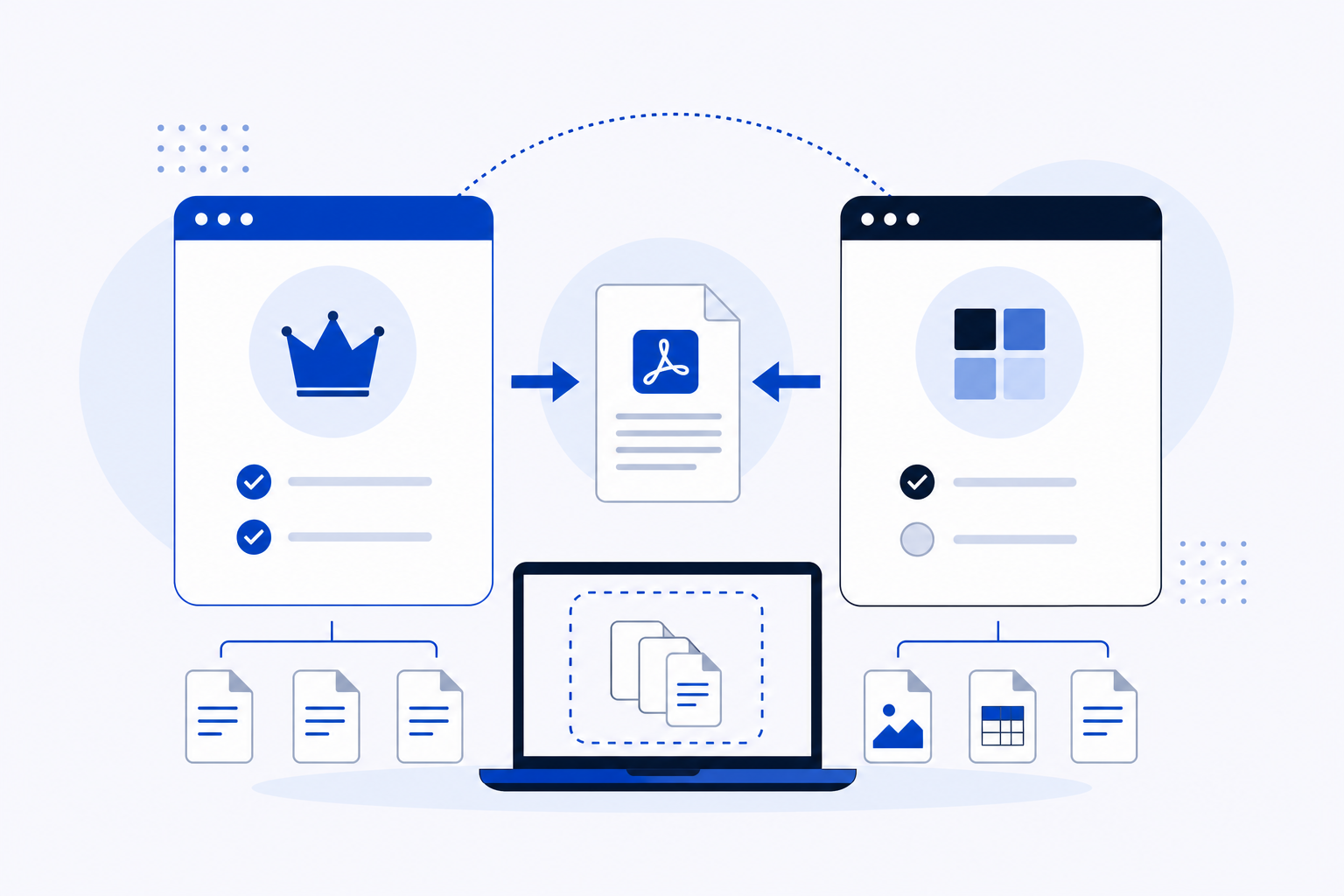
You can merge multiple PDF files online without installing software by using a browser-based tool — no download, no account, and no desktop application required. This article walks through how to do it in three steps, then compares PDFKing and Smallpdf directly so you can choose the right tool for your situation. The important decision is whether you need unlimited merges at no cost, or whether a broader toolset with a paid tier better fits your workflow.
How to Merge PDF Files Online Without Installing Software
Any modern browser is enough. Here is the sequence:
- Open a browser-based merge tool — go to PDFKing's merge PDF tool or Smallpdf's merge page. No installation, no account, no plugin.
- Upload your files — select the PDFs you want to combine. Drag them into the order you need before confirming, because the sequence you set here becomes the final page order in the merged file.
- Download the result — once processing finishes, download the merged PDF to your device. The file is ready to use immediately.
Both tools follow this same three-step pattern. The practical differences come down to limits, pricing, and what happens when your needs grow.
PDFKing vs Smallpdf: Direct Comparison
| Feature | PDFKing | Smallpdf |
|---|---|---|
| Cost to merge | Free, unlimited | Free tier: roughly 2 tasks per day |
| Account required | No | No (free tier); account needed for Pro |
| File size limit | None | Not publicly specified for free tier |
| Daily merge limit | None | Approximately 2 tasks per day on free tier |
| Files you can combine | Unlimited | PDF, Word, Excel, PowerPoint, images |
| Watermark on output | None | None |
| Software to install | None | None |
| Works on mobile / Chromebook | Yes | Yes |
| File processing | Processed in the browser | Files encrypted with TLS, deleted from servers after one hour |
| Number of tools available | 22+ | 40+ |
| Paid plan | Not required | Pro plan available (third-party listings place it roughly in the $9–$15/month range as of October 2026) |
A few things worth noting. PDFKing processes files in the browser, meaning your documents do not leave your device during the merge. Smallpdf handles files on its servers, but uses TLS encryption and deletes files after one hour, as stated on its merge page. Neither approach is inherently wrong — the right one depends on how sensitive your documents are and how you weigh convenience against data handling.
Smallpdf's free tier caps usage at roughly 2 tasks per day, with a daily download limit shown on its pricing page. If you merge PDFs occasionally, that cap may never matter. If you work with PDFs throughout the day, you will hit it.
When PDFKing Makes More Sense
PDFKing is the better fit when you need to merge files repeatedly without tracking a daily limit or paying for a subscription. There is no account to create, no watermark added to the output, and no cap on how many files you can combine or how many times you can run the tool in a day.
It works on any device with a browser — including Chromebooks and mobile phones — without any app installation. The workflow is the same regardless of device: open the tool, upload, download.
For anyone who needs a straightforward merge without friction, PDFKing covers that task completely at no cost.
When Smallpdf Makes More Sense
Smallpdf has a broader toolset — 40+ tools compared to PDFKing's 22+ — and it supports merging non-PDF files directly, including Word documents, Excel spreadsheets, PowerPoint presentations, and images. If your starting files are not already PDFs, Smallpdf can convert and merge in a single workflow.
It also has a dedicated mobile app, which is useful if most of your PDF work happens on a phone rather than a browser. The Pro plan removes the daily task cap and adds features for heavier use.
If your workflow regularly involves mixed file types, or you want a single subscription covering a wide range of PDF tasks, Smallpdf is a reasonable choice.
What to Check Before You Merge
A few preparation steps prevent the most common problems, regardless of which tool you use.
Page order matters more than most people expect. The tool merges files in the sequence you set during upload. If the order is wrong going in, it will be wrong in the output. Check it before you confirm.
File names can mislead you. When several drafts of the same document share similar names, read each filename carefully before it loads. Uploading an outdated draft into a merge does not fix itself during the process.
Password-protected PDFs need to be unlocked first. Most browser-based merge tools, including PDFKing, require files to be unprotected before combining. Remove any password protection before uploading.
Verify the output page count. After downloading the merged file, open it and confirm the total page count matches what you expected. A file that appeared to upload correctly can sometimes produce a shorter output if a page was corrupted in the source document.
Practical rule: Set the file order, check the filenames, and verify the output page count. Those three steps catch nearly every merge error before it causes a problem downstream.
A Note on Broader Comparisons
If you are deciding between several PDF tools — not just PDFKing and Smallpdf — a broader comparison covering iLovePDF, PDF24, and others may be more useful than a head-to-head. That kind of side-by-side evaluation covers account requirements, tool counts, and daily limits across the main free options in one place.
Ready to try Merge PDF?
Combine multiple PDFs into one document in the order you choose.