ON THIS PAGE
You can sign a PDF free online without printing it, installing desktop software, or scanning a paper copy. The practical workflow is simple: upload the file, draw, type, or upload a signature, place it on the correct page, then download the finished PDF. The important question is not only whether the signature looks right, but whether the completed file provides enough evidence for the document you're signing.
Table of Contents
- Why Signing a PDF in the Browser Just Works Now
- Uploading Your File and Picking a Signature Method
- Placing and Adjusting Your Signature on the Page
- Saving and Exporting the Signed PDF
- What a Well-Signed PDF Looks Like
- Choosing the Right Signing Strength for the Job
- Troubleshooting and Your Next Step with PDFKing
Why Signing a PDF in the Browser Just Works Now
You're probably dealing with a form that arrived by email, a contract waiting for your signature, or a school document that needs to go back before a deadline. Opening a browser is often faster and more practical than finding a desktop PDF application, installing software, or using a computer where you don't have administrator rights.
The basic browser workflow has become dependable for routine paperwork. You open a current browser, upload the PDF, create a signature, place it, and download a new copy. The result is a portable PDF that can be emailed, uploaded to a portal, or opened in a standard PDF reader.
That makes browser signing useful for tax forms, NDAs, offer letters, vendor agreements, school paperwork, and internal approvals. It also works well for freelancers who need to return a signed client agreement from a laptop or phone.
What browser signing does well
Modern browser tools can render PDF pages accurately, accept drawn or typed marks, and place those marks without changing the rest of the document. You don't need a license key, a desktop installation, or a specialized workstation. For everyday documents, that removes most of the friction from signing.
A practical PDF editing guide can help when the document needs initials, checkboxes, dates, or other small changes before you sign it.
Practical rule: Treat a browser signer as a document workflow tool, not as proof that every signature has the same legal strength.
A signature drawn with a mouse or added as an image is generally an electronic signature mark. It isn't automatically the same as a cryptographic digital signature tied to a verified certificate. A free browser tool can produce a signed-looking PDF that reads clearly and travels well, but it may not create the identity evidence or tamper-evident audit record required for a higher-risk transaction.
That distinction helps you avoid two mistakes. You won't overtrust a simple image signature for a document that needs stronger verification, and you won't reject a convenient browser workflow when a basic signed PDF is appropriate.
Uploading Your File and Picking a Signature Method
Start with the original PDF, not a screenshot or a page saved as an image. Open the free online signing tool in a current browser, then drag the file onto the upload area or choose it through the file picker. Wait for the first page to render before making any changes.
The upload step matters because the signer needs the actual page structure. A screenshot can lose selectable text, page dimensions, and document metadata. A true PDF gives the tool a better chance of preserving the layout during export.
Choose the mark that fits the document
Once the file appears in the viewer, choose how you want to create the signature:
Draw the signature if you want a handwritten appearance. A touchscreen usually produces the most natural result, but a mouse or touchpad works for a simple mark. This option suits client agreements, release forms, and documents where the visual character of the signature matters.
Type the signature when speed and legibility matter more than matching a handwritten signature. A script-style font can look appropriate for routine HR acknowledgments, expense approvals, and internal forms. Add a typed name elsewhere if the recipient needs to identify the signer clearly.
Upload a signature image if you already have a clean PNG or another supported image file. This keeps your signature consistent across documents. Check whether the tool can remove a white background. Otherwise, the image may appear as a visible rectangle on a colored page.
The signature method affects appearance, not automatically the legal strength of the transaction. A typed name, drawn mark, and uploaded image can all be part of an electronic signing process, but the surrounding evidence still matters.
Before you continue, inspect the available controls for color, stroke thickness, background removal, and preview size. Dark blue or black usually fits business forms. Avoid a mark so thin that it disappears when printed, or so large that it competes with the document text.
For mobile instructions and touch-based placement advice, see this guide to signing a PDF on an iPad. Every tool is 100% free, adds no watermark, and requires nothing to install, so you can complete this step in the browser.
Placing and Adjusting Your Signature on the Page
A contract may open on page one even though the signature block sits on page four. Use the page thumbnails or scroll controls to reach the correct page, then check the page number, nearby names, and the wording around the signing area before placing anything. This simple check prevents a signature from landing on the wrong page in a document with several signers or repeated fields.
After you create the signature, select it so the tool displays its placement box. Click the designated signature line or open space, then drag the mark into position. If the document has multiple pages, confirm that the signature remains attached to the intended page rather than an overlay on the viewer.
Keep the signature inside the field with a small margin from its border. Resize it from a corner, and lock the aspect ratio if that control is available. A stretched handwritten mark looks artificial, while an oversized one can cover nearby text. For a printed line, place the bottom of the signature on or just above the line. Move it with the arrow controls when a small adjustment is easier than dragging.
Use this quick visual review:
- Signature block: Check that the mark stays within the box and does not touch its border.
- Printed name: Add the signer's name below a typed or hard-to-read mark when the form does not identify the signer clearly.
- Date: Add a date only where requested, using the date of the actual signing event.
- Initials: Place initials beside the relevant clause or page when the document requires them.
- Multiple pages: Review each page for misplaced marks, especially when fields repeat.
Judge the result at normal viewing size, not only while zoomed in. If one mark is slightly misaligned, use undo, select the signature again, and reposition it. Re-uploading the whole file can create another placement error.
For fields, annotations, or typed details, follow this PDF form filling guide. It explains how to place text without covering the wrong document layer, which helps the signed file remain readable when it reaches the recipient.
Saving and Exporting the Signed PDF
A signed file is not ready to send the moment the signature appears in the browser. Select Download or Export PDF, then save the result as a new file. Keeping the unsigned original gives you a clean fallback if the placement is wrong or another signer needs a separate copy.
Rename the download before it gets buried in your Downloads folder. Lease-Agreement-signed.pdf identifies the completed version immediately, while a name such as document-final2.pdf leaves room for mistakes when several files circulate.
Open the exported file in a standard PDF reader, not only in the signing tool. Check that the signature is present, the text still displays, and the pages remain in the expected order. Confirm that the file behaves like a PDF rather than an image carrying a .pdf extension. If the reader cannot select or display the document normally, export it again instead of sending it.
Before attaching the file, confirm these details in one pass:
- The filename identifies the signed version.
- The file ends in
.pdf. - Every expected page is present.
- The signature and document text remain readable.
- The unsigned source is stored separately.
- The recipient receives the file as a direct attachment when that is the expected delivery method.
Choose Save a copy if the tool asks whether to replace the source. A timestamped backup can help when a recipient reports that the document differs in another PDF reader. It also gives you a clear record of which export you sent.
For confidential paperwork, review the PDF password protection tool before delivery. A password can restrict access to the completed file, but it does not establish the signer's identity or prove that the signer intended to approve the document. That distinction matters when a browser signature must withstand basic review.
What a Well-Signed PDF Looks Like
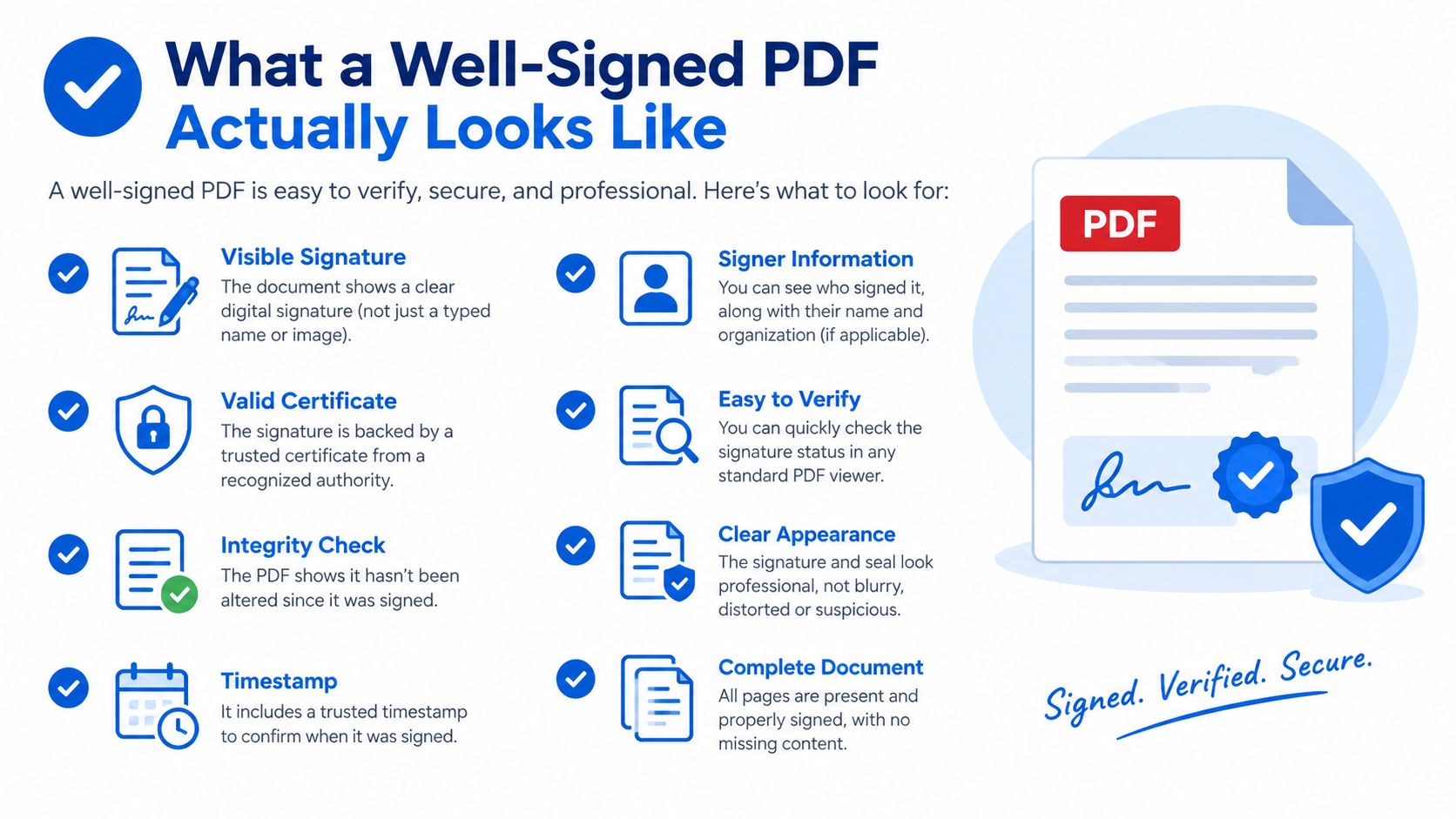
A signed PDF should look like the document was completed, not altered in a hurry. The signature belongs in the intended block, matches the printed line, and leaves nearby clauses, names, and dates visible. The page count and layout should remain stable, with no blank pages, missing fonts, or export warnings.
Inspect the mark at normal zoom and at the size someone will print it. A dark color usually suits standard forms, but the main test is clarity. A low-quality source image may look sharp in the editor and pixelated on paper. A white background around an uploaded signature can also create an obvious box that makes the file look less finished.
Look for context, not decoration
A signature mark is easier to review when the document identifies who signed, what they intended to sign, and when the signing occurred. A printed name and date beside the mark provide useful context, particularly when the signature is typed or difficult to read.
A visible mark alone does not prove identity, intent, or an auditable signing event. For workflows that need stronger evidence, a reference on the identity, intent, and audit records that strengthen an electronic signature explains why those details matter, including records showing who signed, when, and from which IP address.
Use this quick visual review before sending the file:
- The signature is inside the designated field.
- The mark does not cover a clause, name, or date.
- Text remains readable and selectable where it was selectable before.
- No page is blank or visibly displaced.
- The file opens without warnings or missing-font messages.
- The document still looks like a PDF, not a stack of page images.
These checks improve the file's appearance and consistency, but they do not turn an image signature into a certificate-based digital signature. They confirm that the recipient receives a complete, legible document that matches the version you meant to sign.
Choosing the Right Signing Strength for the Job
A free browser signer adds a visible signature mark to a PDF. That works for routine documents such as internal forms, school paperwork, vendor onboarding, freelance agreements between known parties, and simple HR acknowledgments. The trade-off is evidence. A visible mark can show approval, but it may not establish who signed or prove that the file stayed unchanged.
The legal context depends on the country and the document. In the United States, the ESIGN Act and state UETA laws give electronic signatures legal effect. A signature cannot be rejected solely because it is electronic. Practical validity also depends on intent, consent to conduct business electronically, association between the signature and the record, and retention of a record that can be accurately reproduced, as described in U.S. electronic-signature guidance.
The EU uses the eIDAS framework. Electronic signatures cannot be denied legal effect solely because they are electronic, but only a qualified electronic signature has the explicit equivalent legal effect of a handwritten signature across EU member states, according to the European Commission's eSignature FAQ.
Signing Method vs. Document Type
| Document Type | Recommended Signing Method | Why |
|---|---|---|
| Internal approval | Draw or type in a browser | The team needs a readable approval record. |
| School form | Draw, type, or upload an image | The office usually needs a completed PDF that is easy to review. |
| Freelance agreement | Browser signature with retained copies | A known relationship and preserved records may suit a basic workflow. |
| Long-term lease | Higher-assurance electronic signature when required | The parties may need identity evidence, verification, or an audit trail. |
| Notarized filing | Required notarization or approved signing process | A signature image may not satisfy filing rules. |
| Regulated financial document | Certificate-backed or organization-approved method | The institution may require defined identity and integrity controls. |
Ask whether the recipient could reject the file because the signature is “just an image.” If that is possible, follow the method specified by the recipient, attorney, regulator, landlord, or government office. If the file is locked or restricted, read this guide to editing a protected PDF before adding your signature.
Document authenticity also matters. One 2026 report links document fraud with these findings:
- 6% of analyzed documents were fraudulent, according to document-fraud coverage.
- AI-generated fraud grew 5x in eight months.
- Digital forgeries represented 35% of document fraud in 2025.
- The reported average was 29% from 2022 through 2024.
A signature image alone does not prove that a document is authentic or unchanged. For a basic workflow, keep the original, retain the signed copy, and use a stronger signing method when the recipient requires identity verification or an audit trail.
Troubleshooting and Your Next Step with PDFKing
Most browser signing problems come from the export or placement step, not from creating the signature. If the recipient sees a blank page, reopen the downloaded PDF and check whether the signature was added to the visible document layer. Export the file again as a PDF rather than as a low-resolution image.
If the signature drifts on a smaller screen, switch from automatic sizing to manual resizing. Lock the aspect ratio, reduce the mark slightly, and position it again while viewing the entire signature block.
Fix the issues that cause rejected files
- Blank recipient view: Open the downloaded file yourself first. If the mark is missing, undo the placement and export a fresh copy.
- Misaligned signature: Use manual resize and keep the proportions locked. Review the page at normal zoom.
- Upload portal rejection: Confirm that the file is a true PDF, rename it clearly, and check the portal's size and format requirements.
- Wrong typed font: Choose a script-style font, or switch to a drawn or uploaded signature.
- Missing date or initials: Add the requested fields before the final export, then inspect every page.
- Unexpected page changes: Compare the signed file with the original and keep the source available for another attempt.
PDFKing's browser toolkit supports drawing, typing, or uploading a signature, then placing it on a PDF and downloading the completed copy. It's 100% free, produces no watermark, and requires nothing to install, which makes it suitable for students, freelancers, small businesses, and routine office documents.
Frequently asked questions
Can I sign a PDF without installing software?
Yes. A browser-based workflow lets you upload the PDF, create a signature, place it on the page, and download the signed copy without installing a desktop application.
Is a typed name a real electronic signature?
A typed name can function as an electronic signature when it forms part of a process showing intent to sign. The typed mark alone doesn't establish every fact needed for a dispute or higher-assurance transaction.
Is an image of my signature enough for a lease?
It might not be. The answer depends on the lease, the jurisdiction, the landlord's requirements, and the available evidence of identity, intent, and document integrity. Ask the recipient what signing method they accept before sending the file.
Should I keep the unsigned PDF?
Yes. Keep the original separately from the signed copy. This lets you compare versions, correct a placement problem, or prepare another copy without altering the source.
How do I know the signed PDF exported correctly?
Open the downloaded file in a PDF reader. Check the signature, page order, text, file extension, and overall layout. If the file looks blank, distorted, or incomplete, export it again before sending it.
Use PDFKing to upload your document, draw, type, or add a signature image, and download a clean signed PDF without installing software or adding a watermark. Visit PDFKing to complete your next routine signing task in the browser.