ON THIS PAGE
You've opened a form, clicked every blank line, and nothing happens. That usually means the PDF isn't a true fillable form, so the right fix isn't more clicking. To fill out a PDF form, first identify whether it has interactive fields, then either complete those fields in your browser or place text and marks over a flat document.
PDF forms have supported interactive controls since Adobe added fill-in forms in 1996, several years after the PDF format was first defined in 1993. Adobe's PDF timeline helps explain why newer forms may behave like applications while older files still act like scanned pages.
Table of Contents
- Identifying Interactive Versus Flat PDF Forms
- Completing Interactive Forms in Your Browser
- Working Around Flat and Scanned Documents
- Adding Signatures and Converting Stubborn Files
- Saving, Flattening, and Securing Your Submission
- Frequently Asked Questions About PDF Forms
Identifying Interactive Versus Flat PDF Forms
A PDF can look like a form without functioning like one. You may see printed lines, boxes, and checkmarks, but those visual elements might be part of a static page image. If your cursor never changes when you move over a blank, or clicking only selects the page, you're probably dealing with a flat PDF.
An interactive form behaves differently. Click inside a field and you'll usually see a text cursor, a highlighted box, a checkmark option, a radio button, or a dropdown menu. Pressing Tab should move focus from one field to another. Those controls are part of the document's underlying form structure, not merely printed decoration.
The quick diagnostic
Use this short test before choosing a tool:
- Text field: Click inside a blank area and try typing.
- Checkbox: Select it and look for a checkmark or crossmark.
- Radio button: Choose one option and see whether another choice becomes unselected.
- Dropdown: Click the field and check whether a menu opens.
- Tab order: Press Tab and watch whether focus advances to the next logical field.
If none of these actions work, don't waste time trying different browsers. A flat file needs manual text placement, conversion, or rebuilding.
The problem is widespread. In a peer-reviewed accessibility study summarized by Adobe, 51.4% of 856 PDF forms had no fillable fields, while about 1% were completely images. Adobe's PDF accessibility guidance also describes common defects such as missing labels, poor reading order, and input-format problems. That's why a form can appear complete visually but still fail for keyboard users or assistive technology.
Practical rule: Diagnose the file before editing it. The document type determines the workflow.
If the form is flat but you need a reusable interactive version, turn a PDF into a fillable form by adding fields, labels, and a logical tab sequence rather than repeatedly typing over the page.
Completing Interactive Forms in Your Browser
A properly built interactive PDF can often be completed directly in Chrome, Microsoft Edge, or Safari. You won't need to install desktop software for a straightforward form, although complex files may behave differently depending on how they were created.
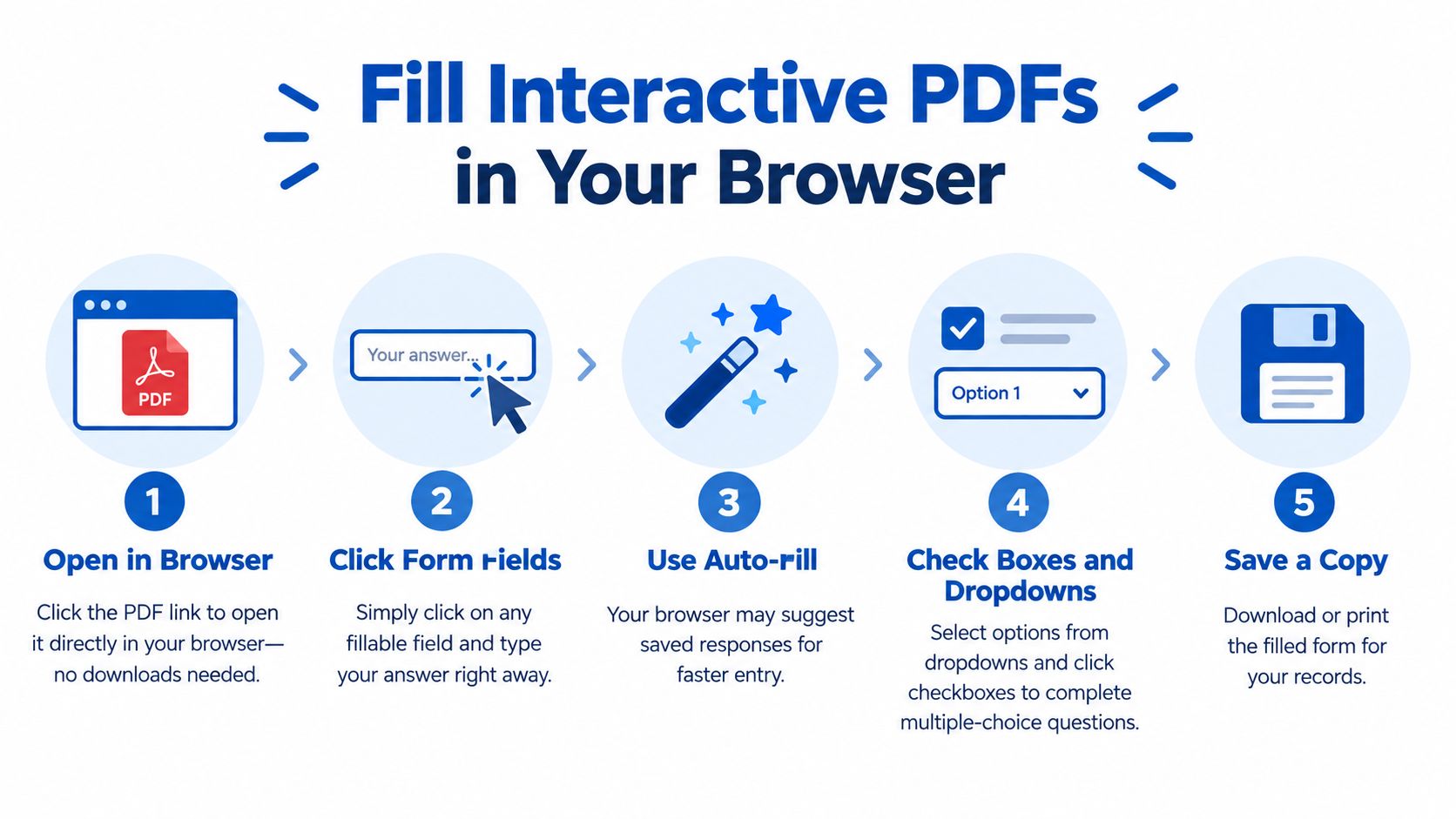
Use this browser workflow
Open the original file. Click the PDF link or drag the file into your browser window. If it opens in a preview pane, choose the browser's download or open option so you're working with the actual document.
Test the first field. Click a visible text box and type a small amount of information. Then delete the test entry if needed. This confirms that the browser recognizes the field instead of displaying only the page.
Move with the keyboard. Press Tab to move forward and Shift+Tab to move backward. This is faster than clicking every field and can reveal controls that are easy to miss. A logical form should move in the same order as the page.
Complete each control according to its type. Type into text fields, select checkboxes, choose one radio button, and use dropdown menus where provided. Don't type over a label unless the document has no actual field there.
Review before saving. Start at the top and check names, dates, contact details, selected options, and required fields. Then save a new copy with a clear filename, such as
completed-application.pdf.
When the browser viewer gets in the way
Some files render correctly in one viewer but not another. A checkbox may appear blank, a dropdown may not open, or a complex form may refuse keyboard input. If that happens, download the file and try a dedicated PDF application, or use a browser-based editor for manual placement.
For construction and payment paperwork, the Drawra G702 guide is useful context because these forms often include detailed project and billing fields that need careful review. If you only need to add text to a document rather than use native fields, add text to a PDF with an editor that places text directly on the page.
Don't assume a form is complete because you managed to type into one box. Check the entire tab sequence, especially on long applications. A broken sequence can jump backward, skip fields, or place focus on unrelated page elements.
Working Around Flat and Scanned Documents
A flat PDF has no usable field layer, so your editor needs to place new content over the existing page. This approach works well for a one-time application, school form, office document, or scanned government form. It's different from creating a reusable form because your typed answers become visual additions rather than native fields.
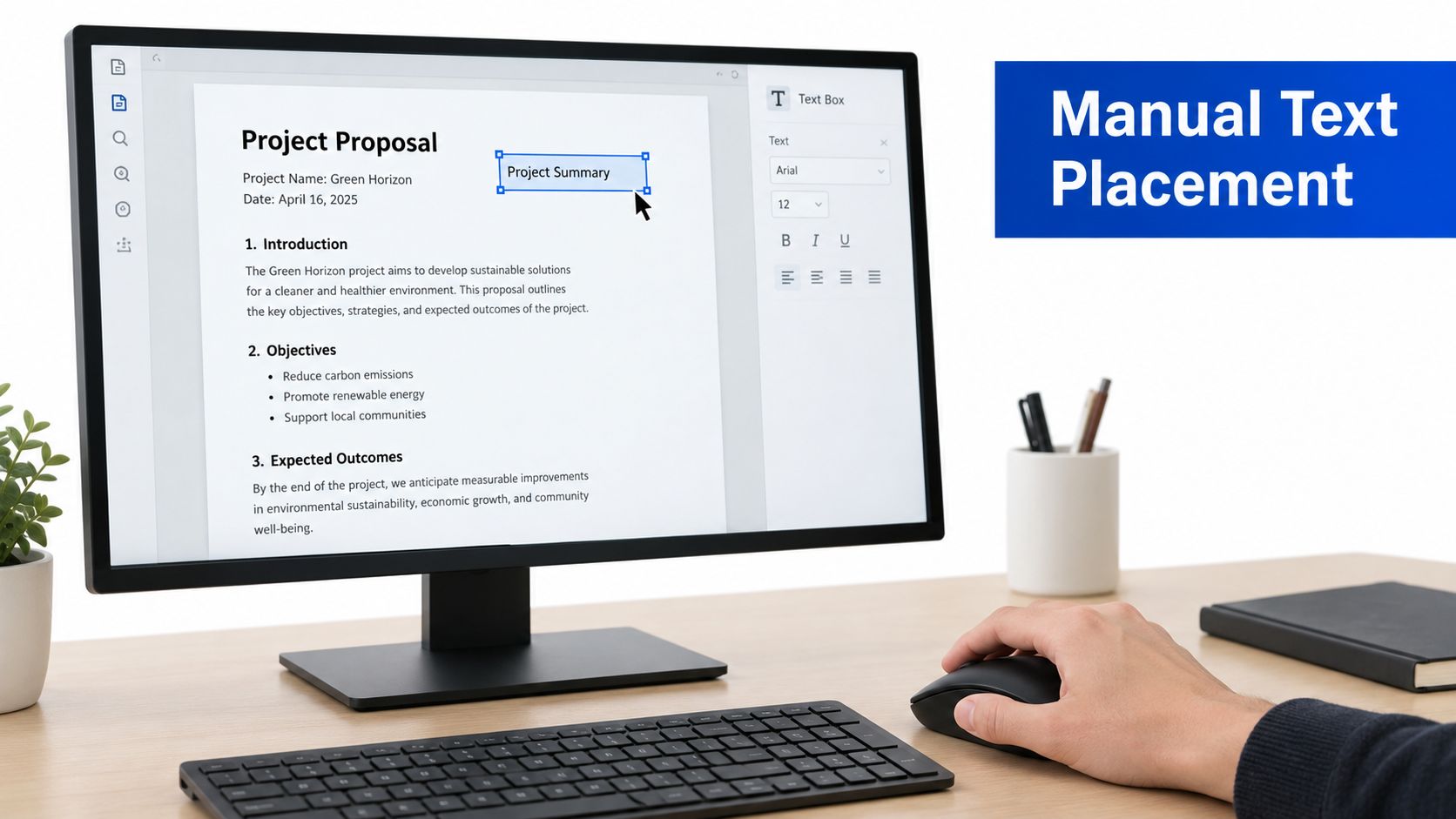
Place answers over the page
Make a working copy first. Keep the original untouched. If the scan is crooked or has unnecessary margins, rotate or crop it before adding answers.
Open the file in an online PDF editor. Choose a text tool, then click near the first printed line. Drag the text box so it sits inside the intended area instead of covering the label.
Match the document's appearance. Use a readable font, adjust the size to fit the available space, and keep the text aligned with the printed baseline. Short answers may need smaller text, while long answers may require a separate text box or an attached page.
Add marks manually. Use a checkmark, crossmark, circle, or simple shape for boxes that aren't interactive. Place the mark in the center of the printed control and check it at normal viewing size.
Review at high zoom, then normal zoom. High zoom helps you align text. Normal zoom tells you whether the completed page still looks natural and whether any answer overlaps nearby instructions.
A scanned page may also need text recognition if you want to extract or convert its contents. For a broader comparison of OCR approaches, Snyp reviews OCR options can help you evaluate whether recognition is appropriate before you edit.
Know when manual placement isn't enough
Manual editing isn't ideal for a form that many people will complete. It can create inconsistent alignment, make accessibility difficult, and leave recipients unable to move through answers with the keyboard. For a single submission, though, it's often more practical than rebuilding the entire document.
If the scan contains substantial editable content, convert a PDF to a Word document and revise the text in a word processor. Expect the layout to need cleanup, especially when the source uses columns, tables, or unusual spacing.
Adding Signatures and Converting Stubborn Files
Many forms aren't finished when the answers are entered. They also require a signature, initials, or a date. A browser-based signing tool can usually let you draw a signature, type one, or upload an image, depending on the workflow and the document's requirements.
Apply a signature carefully
Open the completed PDF in a signing tool and choose the signature option. Place the signature on the designated line, then add initials or the signing date if the form requests them. Before saving, confirm that the signature doesn't cover instructions, nearby fields, or a second signature block.
A typed signature may be acceptable for some routine workflows, but it isn't automatically equivalent to every organization's signing requirement. If the recipient specifies a particular signature method, follow that requirement rather than choosing the quickest option. For a browser-based workflow, sign a PDF for free after completing the form and review the result before sending it.
Convert when the PDF is fighting you
Conversion makes sense when the PDF is heavily restricted, badly formatted, or impossible to edit without covering large portions of the page. Convert it to Word, make the changes in the word processor, correct the spacing, and export the revised document back to PDF.
This route has a trade-off. Word conversion makes text easier to revise, but it may disturb tables, line breaks, headers, or page placement. Compare the exported PDF with the original before submission, especially if the form includes legal language, signature lines, or fields that must remain in precise locations.
For documents intended to be edited repeatedly, PDF may not be the right source format. GOV.UK guidance recommends turning existing PDFs into HTML for viewing, or using an OpenDocument file when the document needs editing, such as a form. The accessible-document publishing guidance supports choosing a format based on how people need to use the document, not only how it looks.
Saving, Flattening, and Securing Your Submission
Save your editable working copy before you flatten anything. A working copy preserves fields and placed objects so you can correct a spelling error, update a date, or fix an alignment problem. Your final submission may need a separate locked version that looks the same wherever it's opened.
Saving preserves your current document. Flattening converts interactive fields and annotations into fixed page content, so recipients generally can't click into the fields and change the answers. Flatten only after you've checked every page, because edits become more difficult afterward.
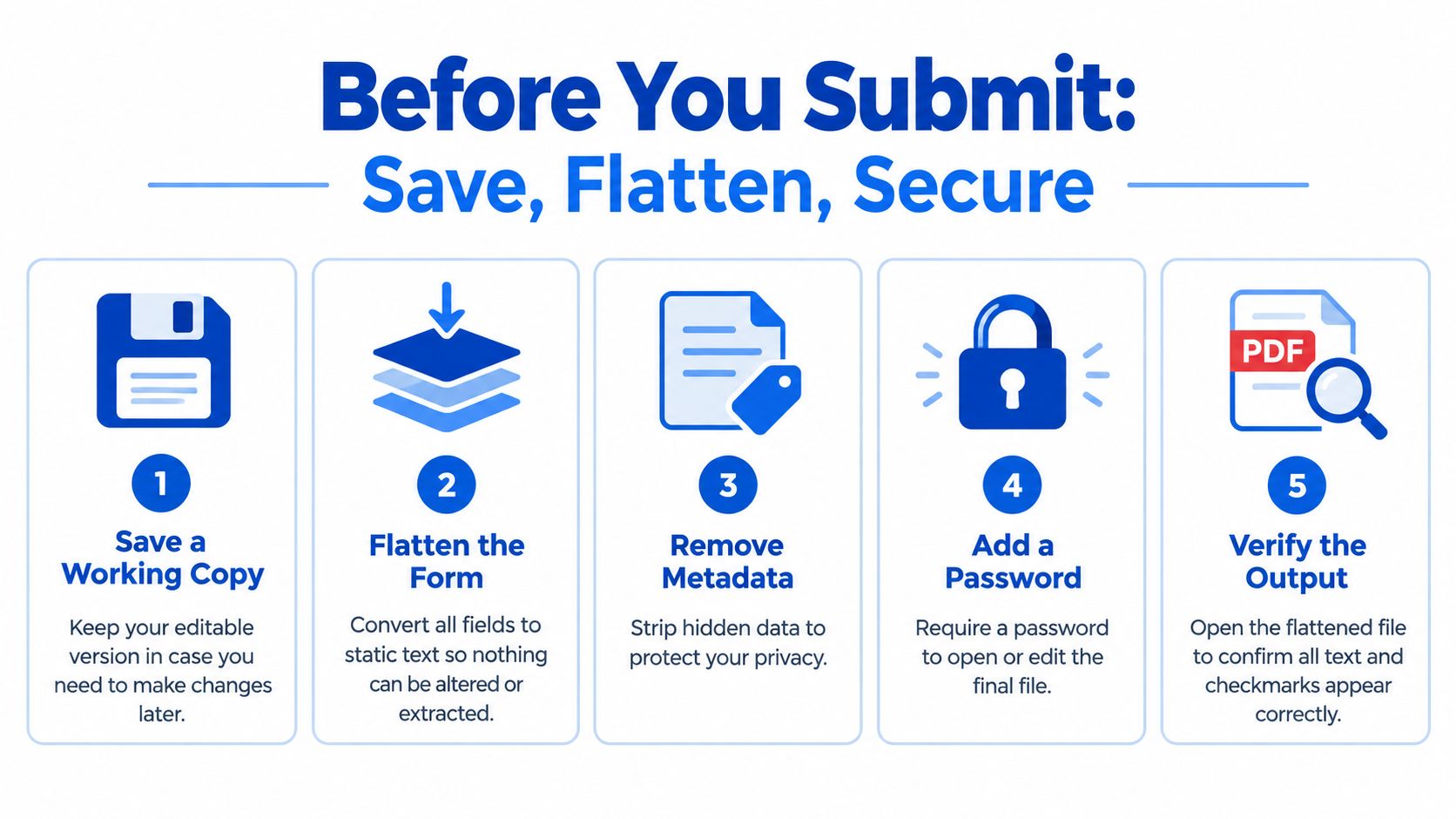
Use this final review sequence
- Save a working copy: Keep the editable file under a different name.
- Check the output: Reopen the saved PDF and inspect every answer, mark, and signature.
- Flatten when appropriate: Use a flattened copy when the recipient should see fixed content rather than editable controls.
- Protect sensitive information: If the form contains personal or financial details, add a password before sharing.
- Send the correct file: Confirm that you're attaching the final version, not the untouched original or an unfinished draft.
Adobe notes that saving typed data for users in free readers can depend on Reader Extended PDF rights. In Acrobat, the relevant path is File, Save As Other, Reader Extended PDF, then Enable More Tools, including Form Fill-in and Save. That's different from merely saving your own completed copy.
You can use password protection for a PDF when the recipient expects a protected file. Share the password through a separate channel, and reopen the protected output yourself before sending it.
Final check: Never trust the preview alone. Close the file, open the saved copy, and verify that the answers and marks are still visible.
Frequently Asked Questions About PDF Forms
Can I fill out a PDF form on a phone?
Sometimes. Interactive forms may work in a mobile browser or PDF app, but complex forms, scanned files, locked documents, and some mobile-incompatible workflows can fail. State guidance also warns that fillable forms may require Adobe Acrobat Reader on certain platforms, so use a desktop browser when mobile controls don't respond.
Why can't I type into the PDF?
The file may be flat, scanned, restricted, or open in a viewer without editing support. Click a suspected field and press Tab. If there's no cursor or focus movement, use manual text placement or convert the document instead.
What should I do if the Tab key skips fields?
A broken tab order is a document-design problem, not something you can reliably fix while filling the form. Complete the fields by clicking them, then tell the sender that the form needs correction. Accessible guidance says tab order should follow the visual and logical order, and fields should have tooltips that match their labels and instructions. Poor structure can also slow completion. GOV.UK reports that inaccessible, hard-to-use forms are on average 8 minutes slower to process than online forms. Its form-accessibility guidance describes the field-labeling and keyboard checks that form creators should use.
Why didn't my typed answers save?
The PDF may not grant saving rights to the reader, or the browser may have saved only a temporary view. Use Save As to create a new file, reopen it, and verify the entries. If the answers disappear, use a PDF editor or request a properly prepared form from the sender.
PDFKing provides free browser-based tools for adding text, signing, converting, protecting, and editing PDFs, with no watermark and nothing to install. Visit PDFKing to complete a flat form, sign the finished file, or convert a stubborn PDF into an editable document before you submit it.