ON THIS PAGE
A BMP file is easy to store but awkward to share, print, and archive. Converting BMP to PDF places the image inside a standardized document container, and the right settings can reduce file size without visibly changing the image. The important choices are page layout, compression type, and whether you need OCR for searchable text.
Table of Contents
- Converting BMP to PDF Without the Headache
- How to Convert BMP to PDF Using PDFKing
- Understanding File Size and Quality After Conversion
- Tips for Multi-Page PDFs and Custom Layouts
- Frequently Asked Questions About BMP to PDF
- Does converting BMP to PDF preserve the original quality?
- Will a PDF made from BMP files contain searchable text?
- Can I combine several BMP files into one PDF?
- Why is my converted PDF still large?
- Why does the converted image look washed out?
- Does BMP to PDF improve a blurry or low-resolution image?
- Is an image-only PDF suitable for records?
Converting BMP to PDF Without the Headache
You may have a folder of old screenshots, scanned forms, or Windows-era image backups that still use BMP. The files open on your computer, but they may be too large for email, inconvenient to print, or poorly supported by the person receiving them. A browser-based converter gives you a quicker way to turn those images into pages you can share and organize.
BMP is one of the earliest mainstream digital image formats. Microsoft developed it for Windows in the 1980s, and it became associated with Windows 1.0-era image handling in 1985. Its straightforward, usually uncompressed raster structure makes it dependable for local storage, but it also produces much larger files than many compressed image formats, as explained in this BMP format reference.
The practical answer is simple:
- Open a browser-based image-to-PDF tool.
- Add one or more BMP files.
- Check their order and orientation.
- Create the PDF.
- Open the result and inspect quality, page size, and searchability.
A converted PDF doesn't automatically contain editable or searchable text. If the BMP is only an image, the PDF usually remains image-only unless you run a separate OCR process. That distinction matters for scanned contracts, school records, forms, and screenshots containing text.
You also don't need a desktop editor for routine work. PDF tools can handle common tasks such as rearranging pages, rotating a scan, and preparing a document for sharing. If you need to make changes after conversion, a browser-based PDF editor guide can help you choose the right next step.
How to Convert BMP to PDF Using PDFKing
The practical route is to use an image-to-PDF converter that accepts BMP files as image input. The browser-based JPG-to-PDF workflow is suitable because BMP is a widely supported image format, and the resulting document can contain one image per page or several images arranged as a document sequence.
1. Open the image-to-PDF tool
Start at the JPG to PDF tool. You don't need to install software, add a browser extension, or prepare a desktop application. The tool is designed for ordinary image-to-PDF conversion, so you can use it for a single BMP or a group of images.
2. Add your BMP files
Upload the BMP files from your computer. For a single image, the process is straightforward. For multiple files, select the complete group if your operating system supports multi-select, or add them one at a time.
Before creating the PDF, check the file names and thumbnails. File names often reveal the intended sequence, but you shouldn't rely on them if the document has a specific page order. A scanned application, evidence packet, or class handout can become confusing if the pages are shuffled.
3. Review page order and orientation
Use the preview to identify sideways images, upside-down scans, or pages with inconsistent proportions. If the tool provides layout choices, choose a page size that doesn't crop the image. Preserving the original dimensions is often the safest option for diagrams, screenshots, and records where exact positioning matters.
A very large BMP can create an unnecessarily heavy PDF if the image is placed at full dimensions without efficient re-encoding. On the other hand, shrinking it too aggressively can make fine lines or small text harder to read. The goal isn't to change the source image. It's to place it cleanly on a PDF page.
4. Create and inspect the PDF
Generate the document, then open it before sending or archiving it. Check the first page, a middle page if the file is multi-page, and the final page. Look for blank pages, unexpected rotation, clipped edges, and color changes.
Remember that conversion alone doesn't create selectable text. If you need to search, copy, or extract words from the result, plan an OCR step after conversion. For a visual record such as a photograph or a screenshot that doesn't need text selection, an image-only PDF may be exactly what you want.
Every PDFKing tool is 100% free, adds no watermark, and requires nothing to install. The key decision is not whether you need complicated software. It's whether your final PDF should prioritize original image fidelity, smaller storage, or searchable content.
Understanding File Size and Quality After Conversion
BMP files are often large because they store pixel data without compression. The format can also use four-byte row padding and a bottom-up row order, which affects how conversion software reads and places the image. A PDF can be smaller than the original BMP when the converter applies compression during export, but the result depends on how the image is encoded.
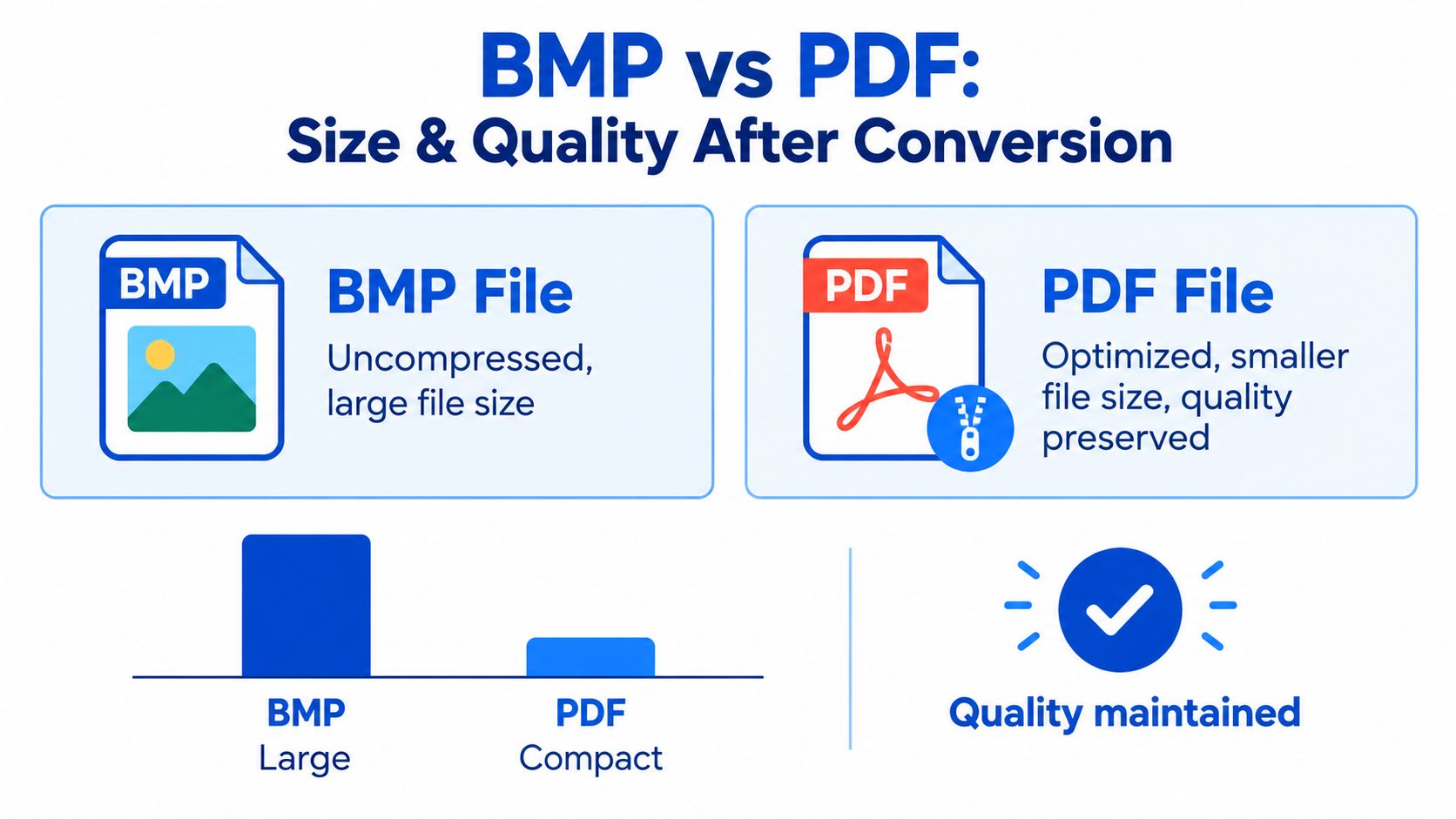
The basic workflow is a direct raster embed. The converter loads the BMP, creates a PDF page, places the image, and saves the document. If it applies ZIP or another lossless method, the visual pixels can remain intact. If it re-encodes the image as JPEG, the file may become much smaller, but JPEG is lossy and can introduce softness, block artifacts, or color changes.
Practical rule: Use lossless compression for text-heavy scans, diagrams, screenshots, and images that must remain exact. Consider JPEG encoding for ordinary photographs when a smaller document matters more than pixel-level preservation.
A technical guide on BMP-to-PDF conversion notes that mixed raster content optimization can reduce file size by up to 99% in some cases, though that result depends on the source, content mix, and conversion settings. The same guide warns that reducing a 24-bit BMP to 8-bit color can cause banding or a washed-out appearance, so preserving the original color depth is important when color accuracy matters. You can also consult this fact-checkers guide from AI Image Detector for broader file-format context.
Don't assume that PDF conversion improves resolution. A low-resolution BMP stays low-resolution when placed into a PDF. Before exporting, check the image dimensions and decide whether the document is meant for screen viewing, printing, or long-term filing. For more ways to reduce the final document size, see this guide to making a file size smaller.
PDF became a stable choice for this kind of distribution because Adobe introduced it in 1993, and ISO later published PDF 1.7 as ISO 32000-1:2008 after an 18-month fast-track process. PDF/A also became the first standard file format designed specifically for long-term digital preservation when ISO 19005-1:2005 was published in October 2005. Those standards help explain why PDF is widely used for sharing, printing, business records, education, and archiving. (PDF history discussion)
Tips for Multi-Page PDFs and Custom Layouts
A collection of BMP files becomes useful when the pages appear in the right order and fit the intended document. Start by naming or sorting the source files before upload. If the images represent pages, use a consistent sequence such as cover, form, supporting page, and signature page. If the files are unrelated images, decide whether they belong in one PDF at all.
Check the layout before export
Look at each preview rather than assuming every BMP has the same dimensions. A screenshot may be wide, while a scanned form may be portrait-oriented. If the converter places every image on a fixed page without respecting proportions, you may see oversized margins or unwanted cropping.
Use these checks for a multi-image job:
- Page order: Confirm that the first and last pages are correct, then scan the middle of the sequence.
- Orientation: Rotate sideways or upside-down images before creating the final document.
- Proportions: Keep the image aspect ratio so circles remain round and text isn't stretched.
- Margins: Avoid layouts that trim signatures, borders, or annotations near an edge.
- Page purpose: Use one image per page for records, and consider grouped layouts only for reference sheets or visual collections.
If you need to make a page-level correction after conversion, a PDF organizer can help you rotate, remove, or reorder pages without rebuilding the source collection. For quality control, exporting a PDF page back to an image can also make visual comparison easier, especially when the original BMP is still available.
Choose compression deliberately
PDF image compression can be lossless or lossy. The GdPicture optimization guide identifies RLE as lossless and JPEG as a lossy compression type commonly used for digital images. It also explains that PDF software may convert lossless images to JPEG at a selected quality level, so two PDFs containing the same BMP can differ in both size and appearance. (PDF image optimization guide)
For forms, line art, and screenshots, inspect small text at normal viewing size after export. For photographs, compare faces, gradients, and fine textures. A smaller PDF isn't automatically a better PDF if the recipient needs to read tiny labels or verify exact colors.
Preserve the source BMP until you've checked the PDF on the device and application where it will be used.
Frequently Asked Questions About BMP to PDF
Does converting BMP to PDF preserve the original quality?
It can, provided the converter uses a lossless path or doesn't reduce color depth and image dimensions. If the PDF tool re-encodes the image as JPEG, quality can change because JPEG compression is lossy. Open the finished PDF and compare fine text, edges, gradients, and colors before deleting the original BMP.
Will a PDF made from BMP files contain searchable text?
Not automatically. A direct conversion embeds the BMP as an image, so visible words remain unsearchable and unselectable. OCR is required when you need text search or extraction. OCR accuracy can also depend on image orientation, scan quality, and the selected recognition language, so review important results rather than trusting every recognized word.
Can I combine several BMP files into one PDF?
Yes. Add the files to an image-to-PDF workflow, then verify the order before export. This works well for scanned packets, screenshots arranged as instructions, and image-based records. If you already have PDFs and need to combine them with the converted document, use a PDF conversion workflow for BMP images to check the formats and organize the final set.
Why is my converted PDF still large?
The source BMP may contain a lot of uncompressed pixel data, and the converter may preserve it without strong re-encoding. Large dimensions, full-color images, and lossless settings can all keep the PDF heavy. Try a suitable compression option, but inspect the result for JPEG artifacts or reduced color quality.
Why does the converted image look washed out?
The converter may have reduced color depth, changed the color handling, or applied lossy compression. A 24-bit BMP converted to 8-bit color can show banding or weaker color transitions. Re-export with original color depth preserved and use a lossless option when the image contains important color detail.
Does BMP to PDF improve a blurry or low-resolution image?
No. PDF changes the container and page structure, not the underlying sharpness. A blurry BMP remains blurry, even if the PDF is easier to share, print, or archive. If the source is a scan, capture it again at an appropriate quality when the original image isn't adequate.
Is an image-only PDF suitable for records?
It depends on how you'll use it. Image-only output is suitable when visual fidelity matters and you don't need text search. For legal, administrative, education, or archival workflows that require retrieval by words, add OCR and review the recognized text before filing the document.
PDFKing provides free browser-based tools for converting and organizing document files, including BMP image workflows through its image-to-PDF tools. Upload your BMP files, check the page order and quality, and visit PDFKing to create a shareable PDF with no watermark and nothing to install.