ON THIS PAGE
You need to send a PDF to a client, school, agency, or coworker, and the obvious move is to click Attach. That's only part of the job. A PDF can bounce because it's too large, expose information through metadata, open with unreadable scans, or reach the wrong person through a badly configured link.
The reliable answer to how to send a PDF is simple: prepare the file, choose a channel that fits its size and sensitivity, protect confidential content, and verify that the intended recipient can open and read it.
Table of Contents
- What Sending a PDF Actually Involves
- Send the PDF by Email Attachment
- Share the PDF Through a Cloud Link Instead
- Compress the PDF So It Fits the Limit
- Protect the PDF With a Password and Redaction
- Verify the PDF Actually Arrived and Opens
- Quick Answers and a Pre-Send Checklist
What Sending a PDF Actually Involves
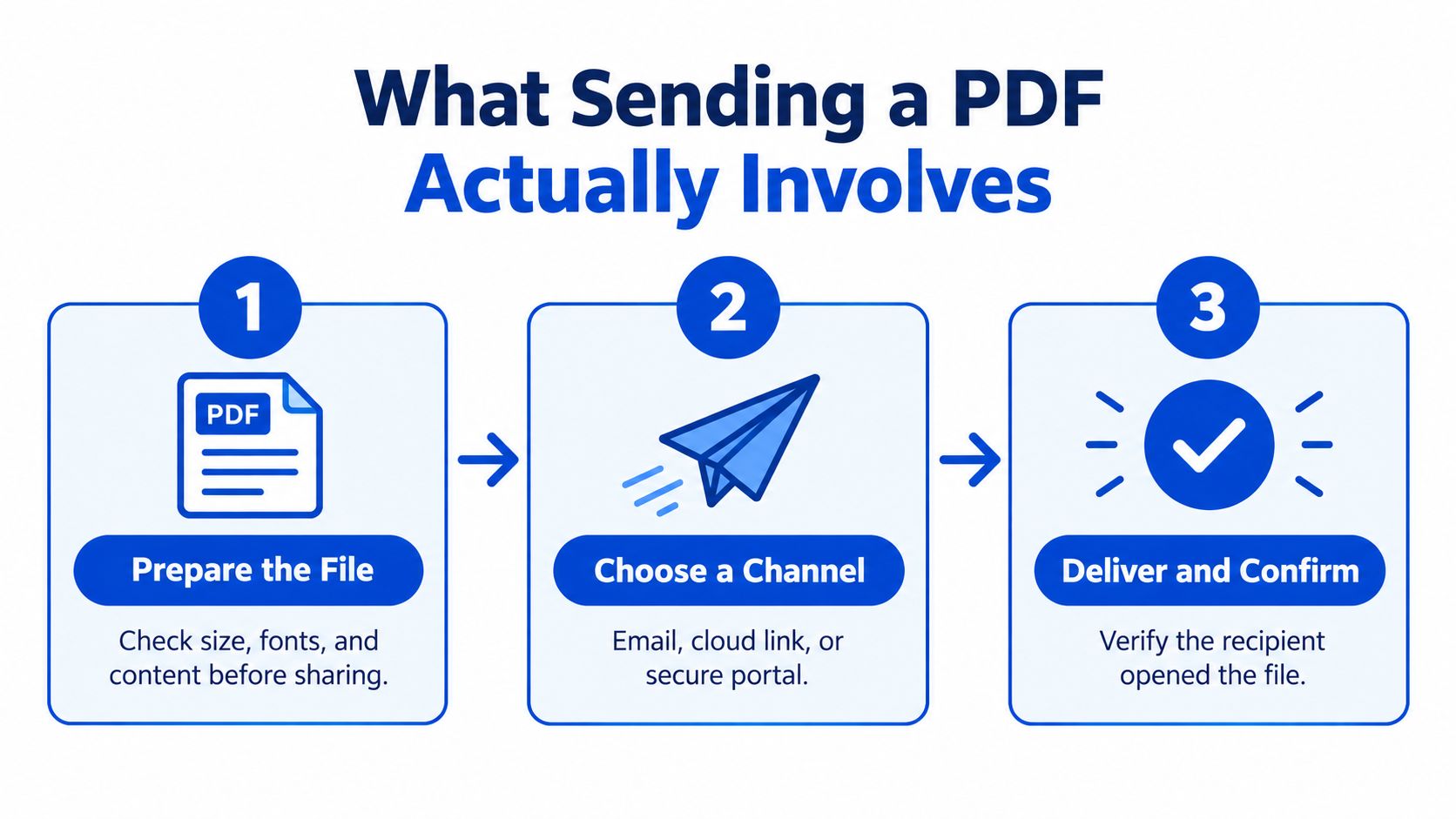
Sending a PDF is a four-part decision: size, channel, security, and verification. You need a file that's correct and readable, a delivery method that can carry it, permissions that match the information inside it, and proof that the right person received a usable copy.
PDFs are suited to this job because they're standardized final-form documents rather than editable working files. Adobe made the first PDF specification available in 1993, and the format later became ISO 32000-1:2008, helping preserve page layout, fonts, and graphics across operating systems (Adobe's PDF accessibility overview{target="_blank"}). That's why people use PDFs for contracts, invoices, academic submissions, legal filings, and business records.
Before transmission, run a short audit.
Prepare the file before you share it
- Check page order. Open the document and move through it from the first page to the last. Confirm that exhibits, signatures, appendices, and attachments appear where they should.
- Remove waste. Delete blank pages, duplicate scans, unnecessary cover sheets, and image-heavy pages the recipient doesn't need.
- Inspect readability. Zoom in on small print, tables, signatures, and diagrams. A file that opens successfully but can't be read has not been delivered successfully.
- Clean metadata. Authors, comments, hidden layers, and revision details can reveal information that wasn't meant for the recipient.
- Redact permanently. If you need to hide a Social Security number, account number, address, or legal detail, remove the underlying content. A black rectangle placed over selectable text isn't a real redaction.
If the source is a Word document, convert it through a Word to PDF conversion tool. Then inspect the exported PDF, because conversion can alter page breaks, fonts, hyperlinks, and spacing.
Practical rule: “Sent” means the file arrived, opened cleanly, preserved its intended layout, and reached only the people who should have it.
Password protection and redaction solve different problems. A password controls access to the file. Redaction removes information from the document itself. Use redaction when the recipient doesn't need to see particular content, and use protection when the recipient is authorized to see the complete file but the delivery channel needs additional control.
Send the PDF by Email Attachment
Email works well for an ordinary PDF that fits comfortably within the recipient's limits. Open a new message, write a clear subject, attach the file, and name the document so the recipient knows what it is without opening it. A filename such as ClientName_Project_2026-03-24.pdf is much better than scan_final_final2.pdf.
Keep the message short. State what you attached and what action you need. Before sending it to someone else, send a test copy to an independent address and confirm that the attachment opens.
The size limit belongs to the whole message, not just the PDF. Microsoft reports that many major providers cap attachments at roughly 20–25 MB, with Outlook and iCloud commonly stopping at 20 MB, while Gmail, Yahoo, ProtonMail, and AOL commonly stop at 25 MB (provider attachment-limit summary{target="_blank"}).
Common email limits
| Provider | Typical attachment limit | Behavior when exceeded |
|---|---|---|
| Outlook.com | 20 MB in Microsoft's internet-email guidance | The message may trigger an attachment-size error |
| iCloud Mail | 20 MB | Delivery can fail or the service may use a cloud link |
| Gmail | 25 MB for personal accounts | Gmail replaces oversized attachments with a Google Drive link |
| Yahoo | 25 MB | The message may be rejected or handled through a link |
| ProtonMail | 25 MB | The message may be rejected or handled through a link |
| AOL | 25 MB | The message may be rejected or handled through a link |
These are typical provider limits, not guarantees. Corporate mail systems, recipient servers, and security gateways can impose smaller limits. Message formatting, signatures, and inline images also consume capacity.
Use a descriptive subject, avoid unexplained links in the body, and follow practical guidance to keep emails out of Gmail spam{target="_blank"} when sending routine business documents. For additional email workflows, see this guide to embedding a PDF in an email.
Share the PDF Through a Cloud Link Instead
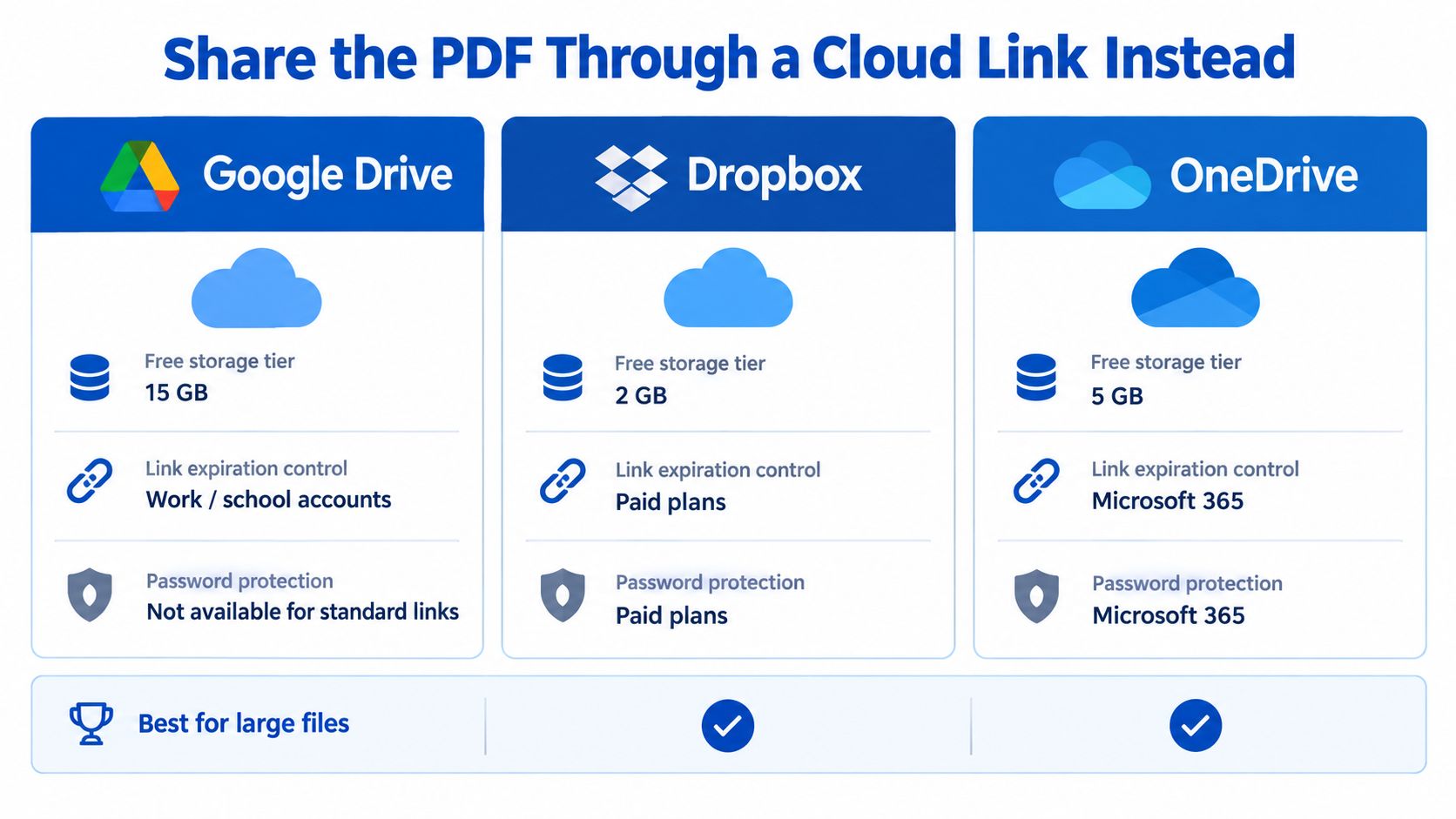
Use a cloud link when the PDF is too large for dependable email delivery, when several people need access, or when you need to control permissions after sending. Google Drive, Dropbox, and OneDrive can all work, but the service matters less than the settings you choose.
Upload the file, select named recipients where possible, assign the smallest permission they need, and test the link in a private browser window. Don't use “Anyone with the link” for a confidential document unless your organization explicitly permits it. After delivery, remove access or set an expiration date if the service supports it.
| Use an email attachment when | Use a cloud link when |
|---|---|
| The document is small and routine | The file is large or image-heavy |
| The recipient expects an attachment | The recipient needs controlled access |
| You want a fixed copy in the message | You may need to revoke or update access |
| The file contains ordinary business material | The document contains sensitive information |
Gmail handles oversized personal-account attachments automatically. It allows up to 25 MB of total attachments per message, and when the total exceeds that limit, Gmail removes the files from the message and inserts a Google Drive link instead (Google's Gmail attachment guidance{target="_blank"}).
That conversion changes the task. You're no longer only sending a file. You're granting access to a stored document. Check the recipient permissions, confirm that the file isn't publicly exposed, and make sure the recipient can open the service without requesting access from you.
Compress the PDF So It Fits the Limit
Compression helps most when a PDF contains scanned pages, photographs, presentation slides, or other embedded images. It won't fix a document that contains unnecessary pages, and excessive compression can turn small print into a blur.
Start with content, not compression.
- Remove pages first. Delete blanks, duplicates, and material the recipient doesn't need.
- Compress the remaining file. Image-heavy scans usually offer the most room for reduction.
- Open every page at 100% zoom. Check small text, signatures, charts, and fine lines.
- Rename the result clearly. Add a version or date so you don't accidentally send the original oversized copy.
- Split large packets when needed. Separate logical sections into files such as
Contract.pdf,Exhibits.pdf, andInvoices.pdf.
A common pre-send rule is to keep the PDF materially below the recipient's advertised limit, preferably under 15–18 MB for ordinary email, because MIME Base64 converts every three input bytes into four output characters, adding roughly 33% before other message overhead (email MIME and attachment guidance{target="_blank"}). A file that looks acceptable on your computer can occupy more space inside the email message.
Use a browser-based PDF compression tool when the file is too large but still contains useful content. PDFKing offers free browser tools with no watermark and nothing to install, including compression and splitting for routine file preparation. Don't compress a legal exhibit or engineering diagram until you've confirmed that the recipient can still inspect every detail.
If the document remains too large after sensible compression, stop forcing it through email. Split it logically or send it through an approved cloud or file-transfer service.
Protect the PDF With a Password and Redaction
Treat sensitive PDF delivery as an access-control task. First classify what the document contains. Personal data, financial records, health information, legal files, and confidential business material deserve more care than a public brochure or ordinary meeting agenda.
Redaction comes before password protection. If the recipient doesn't need a piece of information, remove it permanently from the file. Don't cover text with a black shape and assume it's gone. Test the redaction by trying to select, copy, and search the affected text.
Use protection deliberately
- Remove unnecessary content. Share only what the recipient needs.
- Apply permanent redactions. Flatten or finalize the redacted document according to the tool's process.
- Set a strong password. Avoid names, dates, predictable phrases, and passwords reused elsewhere.
- Use an approved channel. Organizational email encryption, S/MIME, an approved secure-transfer service, or an encrypted archive may fit your policy.
- Send the password separately. Use a phone call or an independently authenticated messaging channel.
- Avoid duplicate exposure. Never send an unprotected copy in the same thread as the protected copy.
NIST recommends encryption for sensitive email and identifies S/MIME, built-in email encryption, third-party encryption services, and encrypted compressed files as possible approaches. It also advises sending the password or decryption key through a separate channel such as a phone call (NIST email security guidance{target="_blank"}).
Before dispatch, open the protected file in a separate viewer. Test the password, inspect the redactions, review metadata, and confirm the recipient's address character by character. If you're using a link, restrict access to named users and set an expiration date where appropriate.
Verify the PDF Actually Arrived and Opens
The send button isn't the finish line. A delivery is complete only after you confirm that the recipient received the intended file and can use it.
For an email attachment, send a test copy to yourself or an independent address. Open the received version, not the original sitting on your computer. Check the page count, fonts, hyperlinks, signatures, images, and file name.
Outlook limits vary by account type. Microsoft documents a default 20 MB limit for internet email accounts such as Outlook.com or Gmail, including the attachment and the message itself. Exchange business accounts can use a lower default, and Outlook may display an attachment-size error when the applicable limit is exceeded (Microsoft attachment-size guidance{target="_blank"}).
Confirm the recipient can use it
Ask the recipient to confirm the page count and whether signatures or hyperlinks work. For a cloud link, open it while signed out or in a private browser window, then verify that the link grants no more access than intended.
Watch for bounced messages, automatic link conversions, unexpected permission requests, and attachments that are unusually large for their contents. Unexpected PDF attachments and links can carry malware, so the FTC recommends confirming the sender through contact information you already know is genuine rather than using details in a suspicious message (FTC phishing guidance{target="_blank"}).
If a hyperlink fails after delivery, check the document itself with this guide to fixing a hyperlink in a PDF. Don't keep resending the same broken file and hope the next attempt works.
Quick Answers and a Pre-Send Checklist
Use this checklist before you send:
- Prepare: Confirm page order, remove blank pages, inspect metadata, and apply permanent redactions.
- Choose: Use email for small routine files, and a controlled cloud link or secure transfer for larger or more sensitive documents.
- Protect: Apply encryption or password protection when policy and content require it. Send credentials through a separate channel.
- Verify: Test the received file, check permissions, and ask the recipient to confirm that it opens correctly.
Frequently asked questions
How do I send a PDF that is too large for email?
Remove unnecessary pages, compress image-heavy scans, and verify readability. If the file still exceeds the recipient's limit, split it into logical parts or use an approved cloud link.
Can I send a PDF safely by email?
You can, if the content and channel match your organization's security requirements. For sensitive material, use encryption or an approved secure-transfer method, and never send the password in the same email.
Is a scanned PDF accessible?
Not always. An image-only scan may lack selectable text and a logical reading order. OCR, tagged headings, structured tables, sufficient contrast, and labeled form fields may be needed for screen-reader users. Federal Section 508 guidance says agencies should prioritize HTML and use PDFs only when necessary.
Should I trust an unexpected PDF attachment?
No. The FTC warns that unexpected attachments and links may install malware. Verify the sender through a known phone number, website, or email address before opening the file.
What should I do if a portal rejects the PDF?
Check the portal's file-size and format requirements, remove unnecessary pages, compress the document carefully, or split it into logical files. Keep the original untouched so you can make another version if needed.
How do I send one PDF to people with different permissions?
Use named-recipient access rather than one public link. Create separate links or separate copies when recipients need different content, and review permissions before and after delivery.
For most oversized attachments, the next practical step is to compress the file before choosing a different delivery channel.
PDFKing gives you free browser-based tools to compress, split, organize, protect, redact, and convert PDFs, with no watermark and nothing to install. Prepare the document, check the received copy, and visit PDFKing to make the file ready for dependable sharing.