ON THIS PAGE
You can compress a PDF in Preview on a Mac without installing software. Open the file in Preview, choose File > Export, select Reduce File Size from the Quartz Filter menu, and save the result as a new copy. If the file is still too large or the quality drops too much, an online compressor can give you a more practical fallback.
Table of Contents
- Why Your PDF Is Too Large for Email
- How to Compress PDF in Preview on Mac
- Understanding the Reduce File Size Filter
- When Preview Fails and What to Do Next
- The Best Free Alternative PDFKing
- Frequently Asked Questions About PDF Compression
Why Your PDF Is Too Large for Email
You finish a report, scan a contract, or export an invoice, then the attachment fails before the message sends. The error may appear immediately, or only after you have written the email and clicked Send. Either way, the file needs attention before you keep trying.
Images, scanned pages, and exported graphics usually account for much of a PDF's size. A document can contain only a few pages while storing large image data on each one. Scans are especially likely to create oversized files, particularly when they were saved at high resolution. For a closer explanation of the common causes, see why a PDF is so big.
Email limits turn compression into a practical delivery issue. Microsoft says internet mail accounts such as Outlook.com or Gmail have a 20 MB attachment limit, while Exchange business accounts default to 10 MB. The limit covers the attachment and the rest of the email, so a PDF near the stated threshold may still fail once the message is encoded. Microsoft's Outlook attachment size guidance explains the limits and related options.
Start with the built-in Mac option
Preview is a sensible first attempt because it comes with macOS, works locally, and avoids uploading a document that may contain private information. Its reduction filter often helps with scanned or image-heavy PDFs.
The trade-off is control. Preview may reduce image quality more than you expect, while text-heavy PDFs or files already optimized by their source application may shrink very little. Check the output size and inspect small text, signatures, diagrams, and scanned pages before sending. If the built-in filter does not produce a usable file, a specialized online compressor such as PDFKing can provide another route, provided the document is suitable for upload.
Microsoft 365 notes that files above 18 MB generally work better when shared by link, and that PDFs may already be compressed, limiting further reduction. Its large-file sharing guidance supports a practical rule: compress image-heavy files first, then share a link when the result remains too large.
How to Compress PDF in Preview on Mac
The quickest way to compress PDF in Preview is through the Export dialog. The important detail is choosing Export, not the separate command labeled Export as PDF, because the latter doesn't provide the Quartz Filter control you need.
Follow these steps
Open the original file in Preview. In Finder, right-click the PDF, choose Open With, and select Preview. You can also open Preview first and then select the document.
Open the Export dialog. From the menu bar at the top of the screen, select File, then choose Export.
Find the Quartz Filter menu. In the dialog box, look for the dropdown labeled Quartz Filter. It may be set to None by default.
Choose Reduce File Size. Select Reduce File Size from the filter list. Preview will apply its built-in compression settings to the exported copy.
Save a new file. Give the compressed PDF a different name, then save it to your Desktop, Documents folder, or another easy-to-find location. Keeping the original protects you if the new version looks too soft or loses useful detail.
Check the result. Compare the file sizes in Finder. Open the compressed PDF and review small text, signatures, diagrams, and scanned pages before you send it.
Avoid overwriting the source
Saving a new copy matters. The exported version may be smaller, but the filter can also reduce image clarity. If you overwrite the original, you'll lose the easy way to return to the higher-quality file.
A descriptive name makes the workflow safer. Try a format such as contract-compressed.pdf or report-email-copy.pdf. For more file-size ideas, see this practical guide on how to make a file size smaller.
Preview usually processes the export quickly, but the important test isn't how fast it finishes. It's whether the recipient can read every page and whether the result meets the upload limit.
Understanding the Reduce File Size Filter
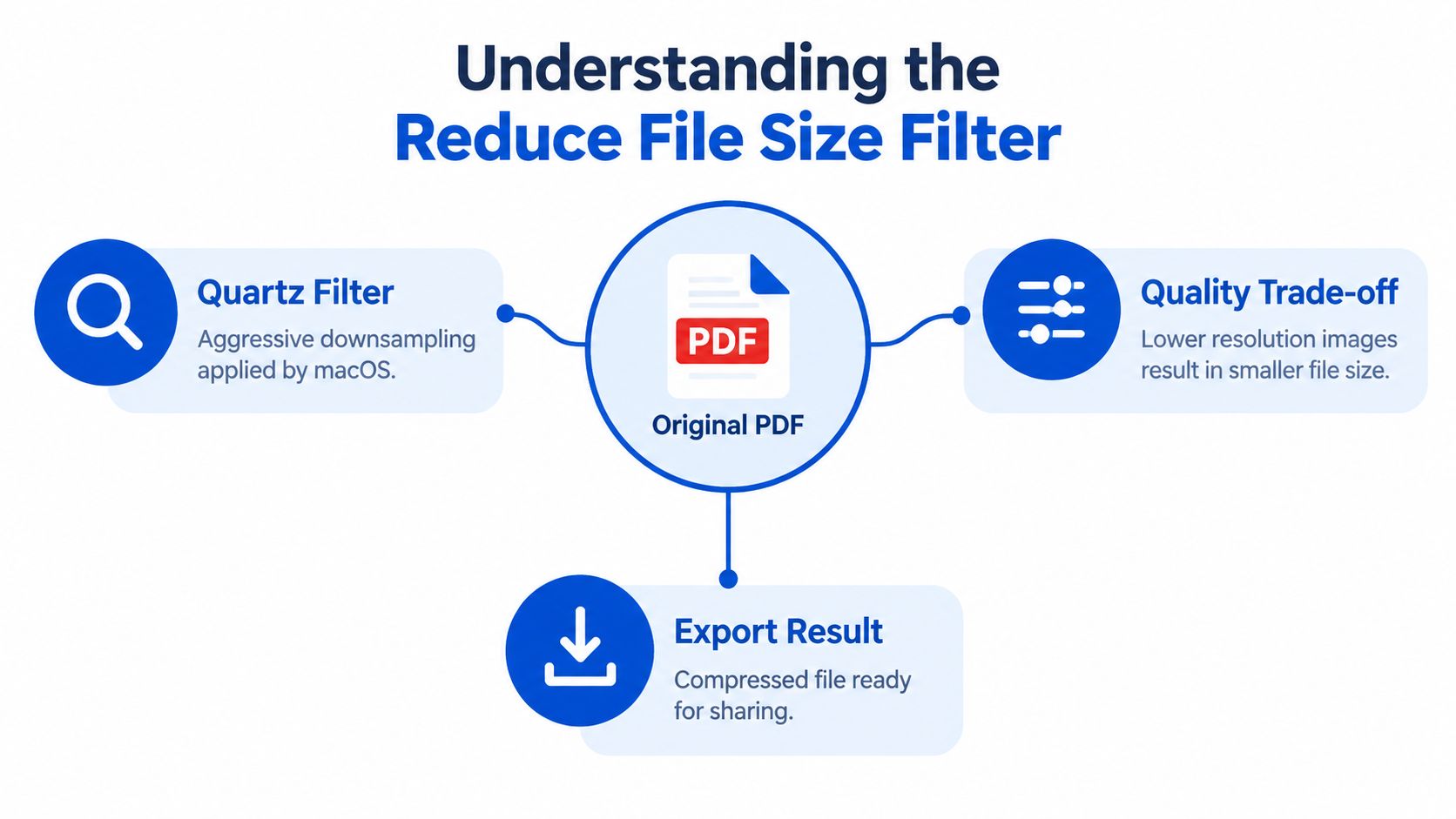
A scanned contract, photographed receipt, or image-heavy report gives Preview more data to remove than a text-only PDF. The Reduce File Size option uses a Quartz Filter to process that data, mainly by downsampling and recompressing images. The result depends on the source, so a scan may shrink substantially while a text-only document may change very little.
The filter is designed to reduce PDF size without losing quality by downsampling images, but “without losing quality” depends on how much detail the document needs. Fine print, stamps, signatures, and diagrams are more sensitive than ordinary body text. Check the source before exporting by opening Tools > Show Inspector in Preview and reviewing the image dimensions or effective DPI where that information is available. Very high-resolution scans are better candidates for reduction than pages that are already optimized.
What Preview can and can't control
Preview gives you a preset rather than a custom compression workflow. You cannot set a target resolution or choose a precise compression level from the standard filter. That keeps the process quick, but it also means you should test the exported copy instead of assuming the smallest file is acceptable.
The filter does not split pages into separate PDFs. It also may produce little change if the file was already optimized, contains mostly text, or stores its size in document structure rather than large images. If the file still exceeds an upload limit after export, a tool with more compression choices may be a better fit. The planned guide on reducing PDF size without losing quality covers that decision in more detail.
Practical rule: Judge the compressed copy at its intended viewing size. Confirm that small text, stamps, signatures, and diagrams remain readable before sending it.
Apple documents other export controls, including Create Linearized PDF for faster web viewing, Optimize images for screen to reduce size, and Save images as JPEG. These settings support both smaller files and browser-friendly delivery, as explained in Apple's PDF size reduction documentation.
When Preview Fails and What to Do Next
Preview is a good first stop, but it isn't a universal fix. You may export the file and find that it remains too large for the portal, or you may dislike the loss of detail in photos and scans. A preset filter can't always make the quality decision you need.
The right next step depends on the document. If the PDF contains sensitive information, keeping the process local may matter more than reaching the smallest possible file. If you're preparing a general report for email or a routine upload, a browser-based compressor can be more convenient.
Preview versus an online compressor
| Need | Preview | Browser-based tool |
|---|---|---|
| No installation | Yes | Yes |
| Works without uploading the file | Yes | No, the file is processed through the browser service |
| Adjustable compression choices | Limited | May offer selectable levels |
| Preserve the original automatically | Yes, if you export a new copy | Usually, because a new result is created |
| Useful for routine sharing | Often | Often, especially when Preview isn't enough |
Before choosing any Mac utility, it can help to review a neutral list of Tintd recommended Mac tools and compare whether you need a general system utility or a focused PDF workflow.
PDFKing provides a browser-based option when the built-in filter doesn't meet the target. You can also review this guide to how to compress a PDF file for another practical workflow. The key trade-off is straightforward: Preview keeps the file on your Mac, while an online tool can offer more control but requires you to upload the document.
The Best Free Alternative PDFKing
When Preview leaves your file above the required limit, PDFKing gives you another route without installing desktop software. It's a 100% free online toolkit with no watermark and nothing to install. You can use its browser-based compression workflow on a Mac, Windows computer, or supported mobile browser.
The process is simple. Select the PDF, apply compression, and download the resulting file. The available workflow is intended for documents that need to fit an email, online form, document portal, or messaging app while keeping the content readable.
Choose based on the document
Preview is often enough for a quick, local export. Use it when privacy requirements favor keeping the file on your Mac and the resulting quality is acceptable.
An online compressor is more useful when the preset filter doesn't reduce the file enough or when you want a clearer choice between compression levels. PDFKing's workflow can show the original size and compressed result, helping you inspect the outcome before sending it.
The same toolkit also supports routine PDF operations such as merging files, splitting pages, organizing documents, and converting common file formats. Those tools are useful when compression is only one step in preparing a submission, although you should use the operation that matches the actual problem instead of repeatedly compressing the same file.
For the direct workflow, use the PDFKing compress PDF tool. It's free to use, requires no account, adds no watermark, and doesn't require software installation.
The decision is simple. Try Preview first for a private, one-file export. Switch to PDFKing when the file is still too large or the preset result doesn't give you enough control. In either case, open the final PDF and check the pages before sharing it.
Frequently Asked Questions About PDF Compression
Is it safe to compress a PDF?
Compression affects the exported copy, so keep the original file. Before sending the smaller version, check that text remains readable, images are clear, pages are complete, and signatures are visible.
Does Preview delete my original PDF?
No, provided you use File > Export and save the result with a new name. Preview creates a separate compressed copy and leaves the source file unchanged.
Why did Preview barely reduce the size?
The document may contain mostly text, or its images may already be compressed. In those cases, Preview has little image data left to remove, so the size reduction can be modest.
Can I adjust the compression quality in Preview?
Preview's Reduce File Size filter uses preset settings. It does not offer the same compression-level choices as a specialized online tool, so you may need another method when image quality or file size needs closer control.
Can Preview compress multiple PDFs at once?
The standard Preview process handles one document at a time. For several PDFs, repeat the export workflow or choose a browser-based tool that supports your file-handling needs.
Will compression reduce image quality?
It can lower image resolution. Inspect scans, photos, diagrams, and small print after exporting. If the result is too blurry, return to the original and try a different compression approach.
Should I compress or send a link?
If compression still leaves the file above your email provider's limit, sharing a link may be more reliable than compressing it again. Microsoft's large-file sharing guidance explains when links are preferable to direct attachments.
PDFKing provides a free browser-based option when Preview is not enough. It adds no watermark and requires no installation. Visit PDFKing to reduce the file size, then open the finished PDF and check it before uploading or sending.