ON THIS PAGE
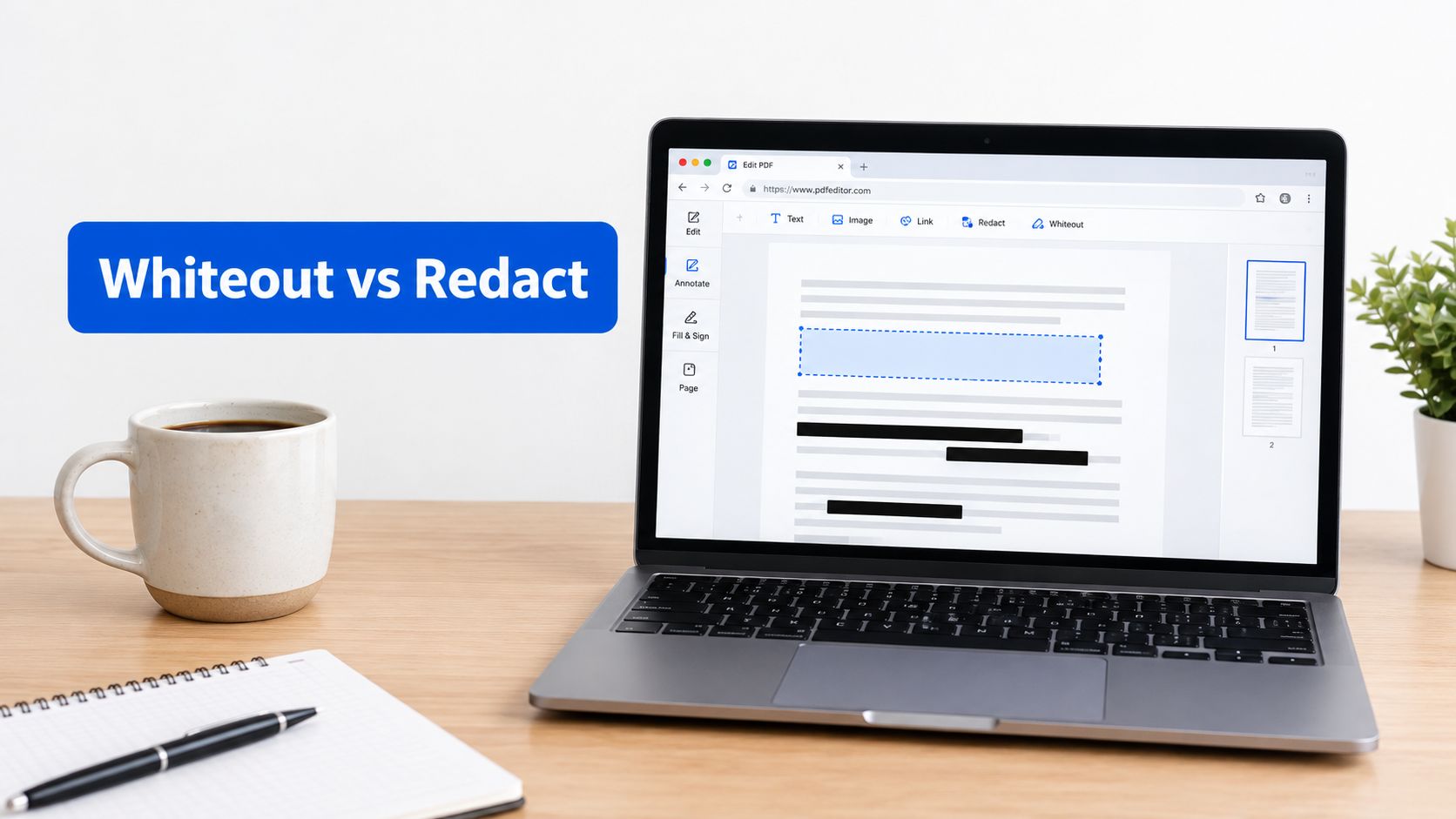
You need to send a PDF, but one line contains a private name, account number, or outdated detail. A white rectangle can make that information disappear on screen, but it may still exist inside the file. To whiteout a PDF safely, first decide whether you need a visual cover for a non-sensitive layout or permanent redaction for confidential data. Use a shape only for cosmetic editing, and use a dedicated redact function when the information must not be recoverable.
Table of Contents
- The Critical Difference Between Covering and Removing Content
- Quick Visual Fixes for Non-Sensitive Layouts
- Using the Redact Tool for Secure Document Editing
- Verifying Your Redactions Are Actually Secure
- Handling Scanned Documents and Hidden Layers
- Your Secure PDF Workflow Finalized
The Critical Difference Between Covering and Removing Content
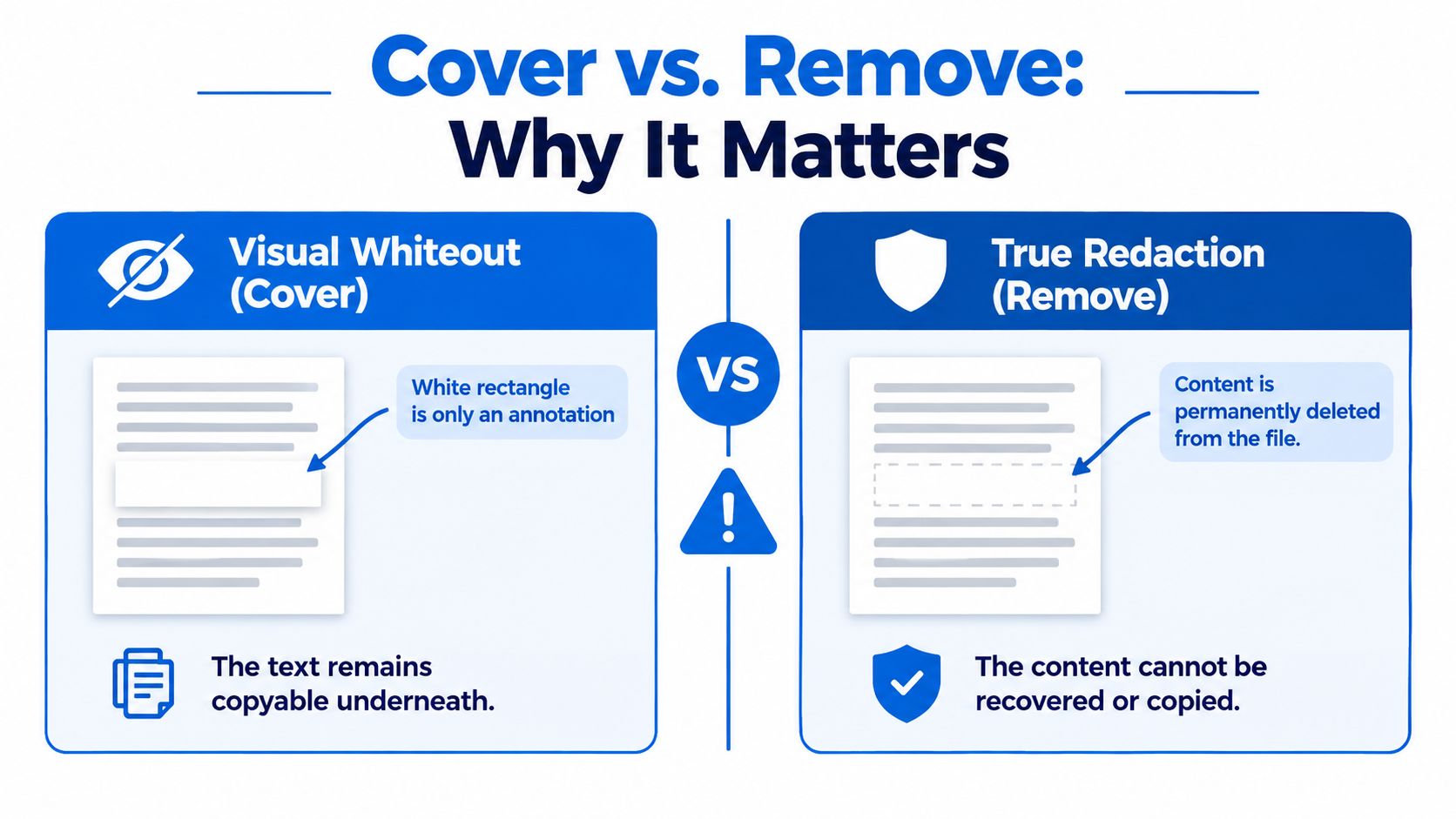
PDF “whiteout” has two distinctly different meanings: visual covering and permanent redaction. A white rectangle or shape is an annotation layered over existing PDF content. It changes what viewers see, but it doesn't necessarily remove the original text, image, metadata, or embedded objects. The covered information may remain searchable, selectable, copyable, or recoverable through another viewer or extraction process, as explained in Adobe's guide to whiteout and redaction{target="_blank"}.
Permanent redaction takes a different approach. It modifies the document structure by removing selected content before the file is saved. Adobe's documented workflow lets you mark text or images, choose a white fill color for the redacted area, apply the redaction, and save the result. The critical difference is not how the page looks. It's whether the underlying objects still exist.
| Feature | Visual Whiteout (Annotation) | Permanent Redaction |
|---|---|---|
| Main function | Covers content on the page | Removes selected content from the file |
| Best use | Draft cleanup and non-sensitive layouts | Confidential information and external sharing |
| Search and copy risk | Covered text may remain available | Removed content should no longer be available |
| Underlying layers | May remain intact | Targeted content is removed, with hidden data sanitized where supported |
| Reversibility | The shape can often be moved or removed | Applied redactions are permanent in the saved output |
For a personal draft, classroom handout, or presentation cleanup, a white box may be appropriate. For names, addresses, account numbers, medical information, student records, or case details, it isn't confidentiality protection. If someone can search, select, copy, or extract the covered text, you haven't redacted it, regardless of how clean the page looks.
Practical rule: If the PDF is leaving your control, treat visual whiteout as unsafe unless the content is genuinely non-sensitive.
Quick Visual Fixes for Non-Sensitive Layouts
A visual whiteout works when you're correcting appearance rather than protecting information. You might cover an outdated date in a personal working copy, hide a placeholder image in a draft, or mask an internal note before showing a layout preview. In these cases, the shape changes the page's appearance without pretending to provide secure deletion.
PDFKing's browser-based editor supports standard PDF edits such as text, shapes, highlights, arrows, images, and annotations. The tools are 100% free, add no watermark, and require nothing to install. You can also review the broader workflow in PDFKing's guide to editing a PDF document.
How to add a white cover
- Open the Edit PDF tool. Upload the working copy of your document in your browser.
- Choose the shape tool. Select a rectangle or another filled shape.
- Set the fill and border to white. Use full opacity so the underlying page doesn't show through visually.
- Draw over the area. Zoom in and cover the complete line, image, or layout artifact.
- Add replacement text if needed. Place a text element over the white shape and match the surrounding font as closely as practical.
- Review every page. Scroll through the exported file and check that the shape hasn't shifted or left a visible edge.
This method hides content from ordinary visual view, but the original text may remain in the PDF structure. Don't use it for a document containing confidential names, addresses, account details, medical information, or anything else intended for external sharing.
Using the Redact Tool for Secure Document Editing
For sensitive material, use a dedicated redaction workflow rather than drawing a white rectangle. The objective is irreversible removal, not a convincing visual cover. PDFKing provides a browser-based Redact PDF tool for removing sensitive areas from a PDF. It's free, leaves no watermark, and requires no installation.
A safer redaction sequence
- Preserve the original. Store the pristine file separately in an access-controlled location. Don't overwrite the only copy.
- Open a working copy. Use the copy for all marking and export operations.
- Select the redaction tool. Mark each sensitive text or image region.
- Review the marks at high zoom. Check the edges and make sure the entire target is included.
- Apply the redactions. Applying a redaction removes the selected underlying content instead of placing an annotation over it.
- Sanitize hidden information. Where the workflow provides the option, remove metadata, comments, and other hidden data.
- Save as a new output. Keep the original separate from the sanitized document.
- Reopen the output. Perform content and structure checks before sharing it.
Redaction can involve more than selectable words. Sensitive information may appear in scanned images, signatures, diagrams, repeated fields, OCR text, comments, or attachments. Common mistakes include missing repeated occurrences, covering only visible text while leaving an OCR layer, selecting too small an area, or overwriting the original.
Teams that handle confidential files should also define access, retention, and review procedures alongside the editing step. A practical overview of broader customer data protection for enterprises can help place PDF handling within a wider information-security process.
Verifying Your Redactions Are Actually Secure
Applying a redaction is not the final quality check. You need to verify the exported file because a visible white or black block doesn't prove that every related object has been removed.
Use content tests, not appearance alone
Reopen the new PDF and inspect every affected page at normal and high zoom. Look for clipped text, readable edges, partial names, or fragments that appear beside the marked area. Then test the document itself:
- Search the exact terms. Look for removed names, account numbers, addresses, and distinctive fragments.
- Select and copy the covered region. Try copy-and-paste into a plain text editor.
- Run full-text extraction. Confirm that sensitive strings don't appear in the extracted output.
- Inspect document structure. Check comments, attachments, form fields, layers, bookmarks, metadata, and embedded files where the software provides those controls.
- Test another viewer. Reopen the exported file in a separate PDF application to catch viewer-specific behavior.
PDF pages can contain independent text, image, vector, annotation, and metadata objects. Removing or covering one visible layer doesn't necessarily affect the others. For a text-focused check, you can use a PDF-to-text converter guide to help identify whether supposedly removed strings remain extractable.
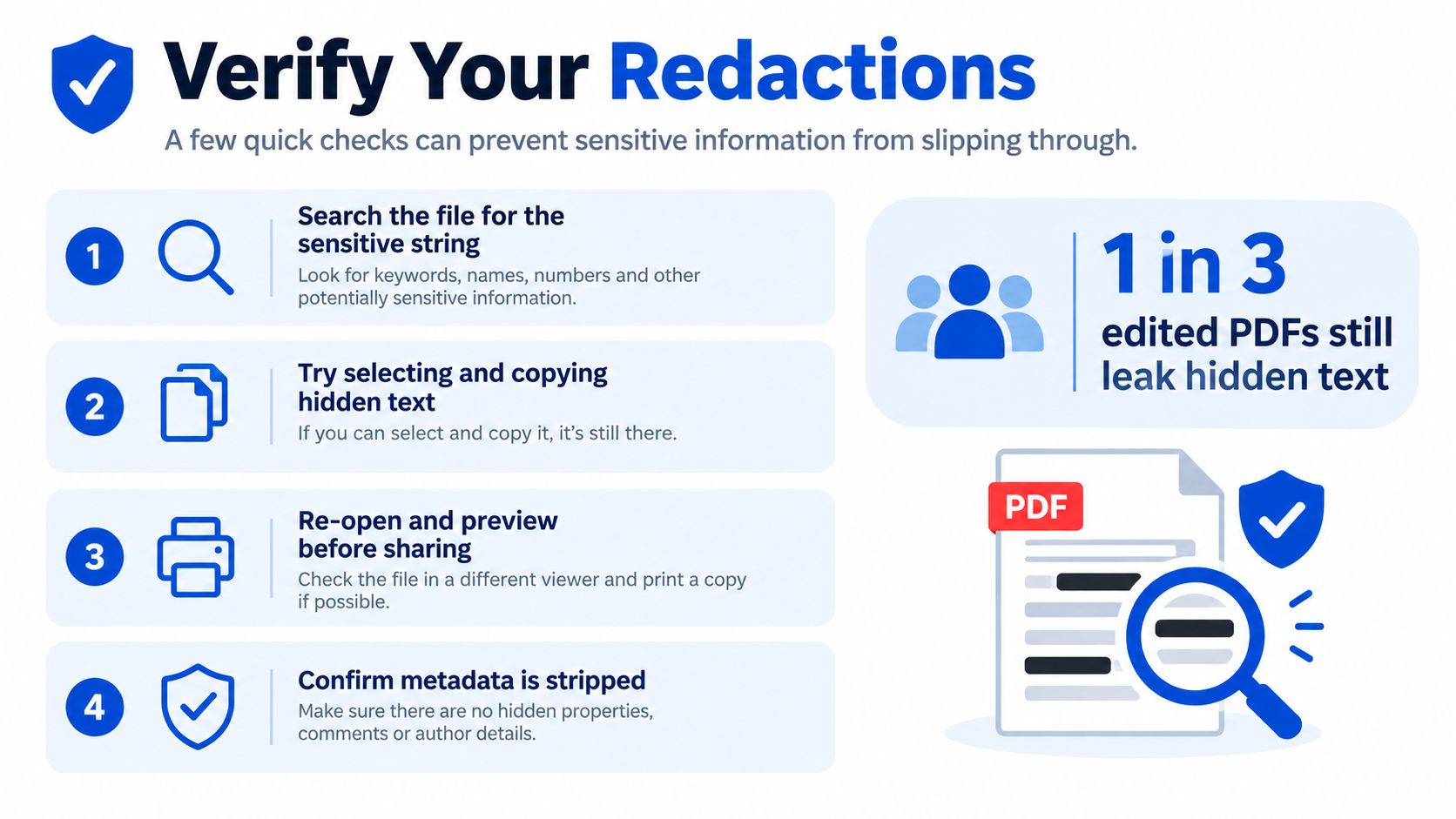
A documented forensic example found 719 recoverable text fragments across 280 pages of supposedly redacted PDFs because the information had been visually hidden rather than structurally removed (forensic PDF redaction demonstration{target="_blank"}). That result shows why visual inspection alone is inadequate.
For legal, medical, financial, personal, or student records, use a second-person review. One reviewer can apply the redactions, while another checks the exported file for leakage, missing repeated occurrences, metadata, and unintended disclosures. Broader guidance on the forensic risks of deleted files can also help teams think beyond what appears on the page.
Verification is the release gate. Don't share the file until search, copy, extraction, visual, and hidden-content checks pass.
Handling Scanned Documents and Hidden Layers
Scanned PDFs need extra care because the visible page may be an image rather than editable text. Some files contain only a page image. Others include an OCR text layer, annotations, form fields, metadata, attachments, or accessibility structure behind the image. A white shape placed over the scan may hide the picture while leaving an OCR layer searchable.
First determine what kind of file you have:
| PDF condition | Suitable first step | Main concern |
|---|---|---|
| Native text with no sensitive data | Visual edit | The overlay remains a cosmetic layer |
| Native text containing confidential data | True redaction | Check repeated text and hidden objects |
| Image-only scan | OCR and human review | Text may be invisible to selection tools |
| Scanned record for accessibility | OCR, tagging, and structure review | Untagged graphics may confuse screen readers |
| High-risk scanned record | True redaction plus verification | Automated detection needs human approval |
OCR may be necessary before reliable text detection and review. If the file will be searched, translated, archived, or used with a screen reader, preserving or rebuilding the text layer and reading order matters. A clean-looking page can still be difficult for assistive technology if a new white graphic is untagged or the underlying text remains exposed.
For an editable version of an image-based file, see how to convert a scanned PDF to Word. Treat conversion as a preparation step, not proof that confidential content has been removed.
Your Secure PDF Workflow Finalized
The safest workflow is simple because each action has a defined purpose:
- Keep the original separate. Preserve the untouched source before editing.
- Classify the task. Use a visual shape for a non-sensitive layout change. Use redaction for confidential information.
- Review all content forms. Check visible text, images, repeated fields, OCR layers, comments, attachments, and metadata.
- Apply the correct operation. A shape covers. A redact function removes selected content from the output.
- Export a new file. Don't overwrite the only original.
- Verify the result. Search, copy, extract, inspect, and reopen the file before sharing.
If the document only needs access control rather than content removal, you can also review how to password protect a PDF for free. Password protection and redaction solve different problems. A password can restrict access to a file, while redaction removes selected information from the version you intend to distribute.
PDFKing provides free browser-based PDF and file-conversion tools for editing, redacting, converting, organizing, securing, and preparing documents. The tools require no installation and add no watermark, but you should still follow the verification protocol for sensitive files.
Use PDFKing to cover non-sensitive PDF content with the Edit PDF tool or permanently remove confidential areas with Redact PDF. Upload a working copy, export a new file, and verify the result before you share it.