ON THIS PAGE
A PDF to text converter online extracts selectable text directly when a text layer exists and uses OCR when the PDF is scanned or image-only, with accuracy and privacy depending on document type. Clean digital PDFs can reach about 97–99.5% field accuracy, while noisy scans may fall to roughly 60–85% when OCR has to recognize the page image (document-type accuracy guidance).
You may be holding a contract you need to search, a scanned report that won't let you copy a sentence, or a PDF attachment that needs to become editable text. The right conversion method depends on what's inside the file, not just how the page looks. In about five seconds, you can test that difference and avoid sending a clean text PDF through OCR unnecessarily.
Table of Contents
- What a PDF to Text Converter Online Does in Seconds
- How Online PDF to Text Conversion Works
- Accuracy Trade Offs You Should Expect
- How to Convert PDF to Text Online in Your Browser
- Common Misconceptions That Cause Bad Conversions
- Privacy and Smart Workflows for Sensitive PDFs
- Frequently Asked Questions About PDF to Text Conversion
What a PDF to Text Converter Online Does in Seconds
A PDF to text converter online turns the words inside a PDF into a plain-text file you can search, copy, edit, or reuse. If the PDF has a working text layer, the converter extracts the existing characters. If each page is only a scan or image, the converter uses optical character recognition, or OCR, to identify the visible letters and create machine-readable text.
The fastest test is simple. Try selecting a word with your cursor or search for a visible phrase with Ctrl+F on Windows, or Cmd+F on a Mac. If the search finds the phrase and you can copy it, direct extraction is usually the appropriate path. If the page behaves like one large picture, OCR is required (this searchable-text test).
PDFs became a practical document container at enormous scale. The format was first created in 1993, and a PDF Association statistics paper reported 2.2 billion PDF files on the web, 20 billion PDFs in Dropbox, and 73 million new PDF files generated every day by Google Drive and Mail during the period it covered (the PDF scale analysis). That volume helps explain why text extraction supports everyday search, indexing, accessibility, and document editing.
PDFKing provides a 100% free browser-based workflow, with no watermark and nothing to install. If you're also cleaning extracted writing for a more natural reading experience, this AI to human converter guide offers useful context about revising machine-generated text.
How Online PDF to Text Conversion Works
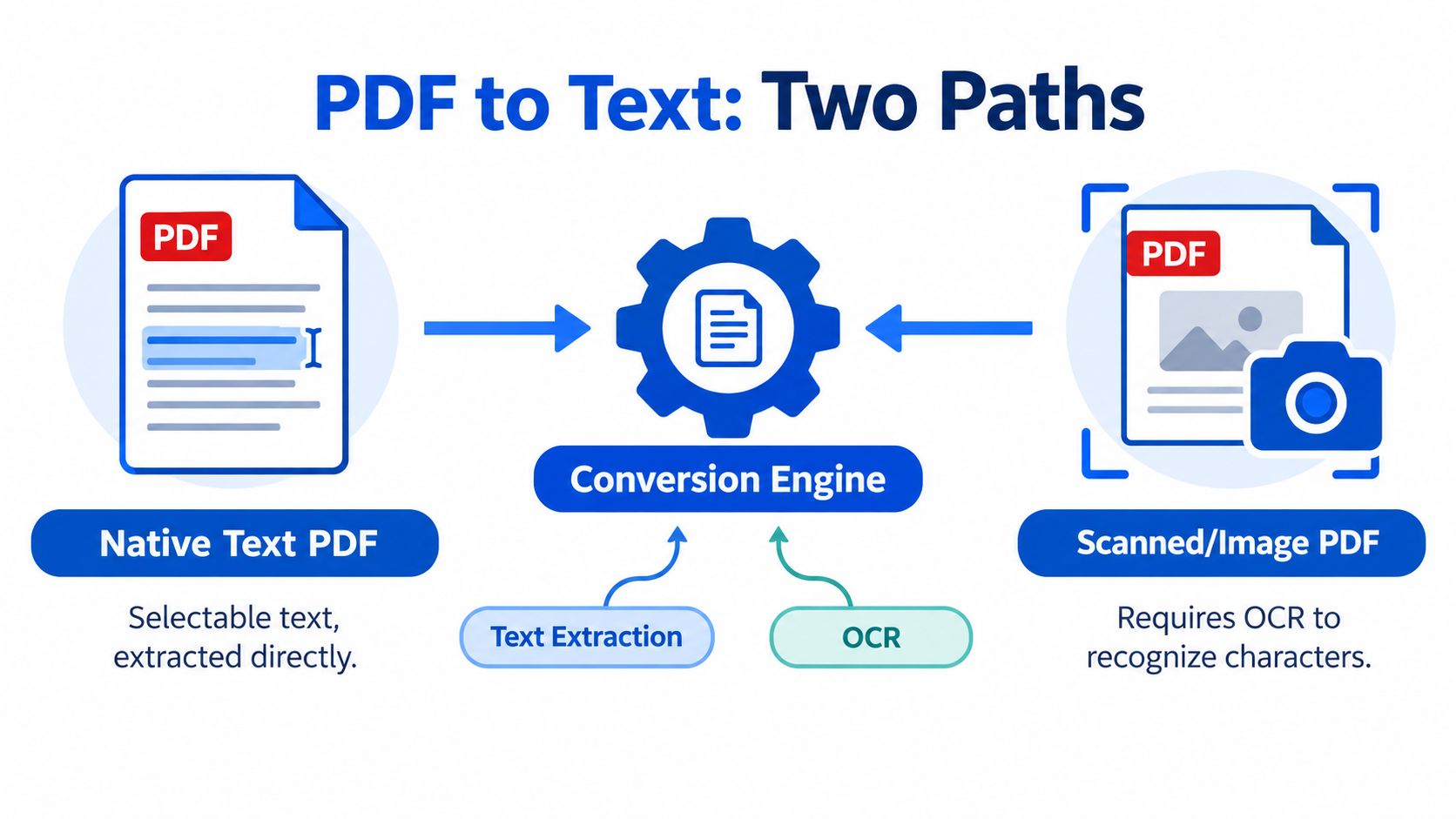
Every PDF stores its words in one of two ways: as characters in a text layer, or as pixels in a page image. A text layer gives software characters to copy. An image gives software only visible shapes, so the words are not searchable until OCR recognizes them.
The direct extraction path
A text-based PDF can look like a scan while having a very different internal structure. Direct extraction reads its stored character information and places those characters into a text stream. Since it reads existing data instead of interpreting a picture, this route is usually quicker and avoids many recognition errors.
The hidden complication is character mapping. PDF files may store references to glyphs, the visual shapes drawn by a font, rather than ordinary Unicode characters. Mappings such as ToUnicode and CMap connect each glyph with the character it represents (this explanation of Unicode in PDF files).
Practical rule: A PDF may look digital and still extract badly when its internal character mapping is missing or damaged.
Two files with identical visible pages can therefore produce different text. One may return readable words, while another produces unusual symbols, missing characters, or an unreadable stream.
The OCR path
OCR examines page images and estimates which shapes form letters, numbers, words, and lines. It can make a scanned contract searchable or turn a photographed form into text. Its output depends on the image quality. Blur, skew, unusual fonts, handwriting, and dense tables give the recognition engine less reliable information.
OCR must also estimate reading order. A person can follow a two-column page immediately, while software may read across columns, attach a header to body text, or split a table into separate lines. The correct choice is visible in seconds: selectable, searchable words usually call for direct extraction; a page that behaves like one large picture requires OCR. That choice affects accuracy, privacy, and workflow because OCR processes page images rather than an existing text layer.
For another image-based workflow, see this guide to converting PDF pages into BMP images.
Accuracy Trade Offs You Should Expect
Accuracy depends first on the file's starting point. A clean digital PDF with a valid text layer can produce text needing little correction. A scanned receipt, handwritten form, or low-quality photocopy requires OCR to judge each character, so results can vary across the same document.
As noted earlier, clean digital PDFs can reach about 97–99.5% field accuracy, while receipts, handwritten forms, and other noisy layouts may fall to roughly 60–85%. Treat these figures as working expectations, not guarantees for every page.
| PDF Type | Extraction Method | Typical Accuracy |
|---|---|---|
| Clean digital PDF | Direct text extraction | About 97–99.5% field accuracy |
| Clear scanned document | OCR | Often high, but dependent on scan quality |
| Receipt or noisy form | OCR | Roughly 60–85% field accuracy |
| Handwritten document | OCR | Can be substantially less reliable than typed text |
Why layout creates errors
Plain text cannot reliably preserve a PDF's visual arrangement. A two-column report may become one left-column paragraph followed by the right column, or lines from both columns may interleave. Tables can lose their cells and appear as separated words, with spacing only partly showing the original structure.
Headers and footers may also repeat throughout the extracted file. A page number that looked separate on the page can land inside a paragraph. These problems do not always come from incorrect character recognition. They often result from reading order and layout interpretation.
How to judge the output
Review the beginning, middle, and end of the converted file. Search for names, dates, totals, and technical terms that would be costly to misread. Check the decision you made at the start as well. Selectable text generally suits direct extraction, while an image-only page needs OCR. Choosing the wrong route can reduce accuracy and add unnecessary processing.
If the text is mostly correct but the layout is unusable, reducing PDF size without losing quality will not repair reading order. It can help prepare a cleaner file for sharing after review.
How to Convert PDF to Text Online in Your Browser
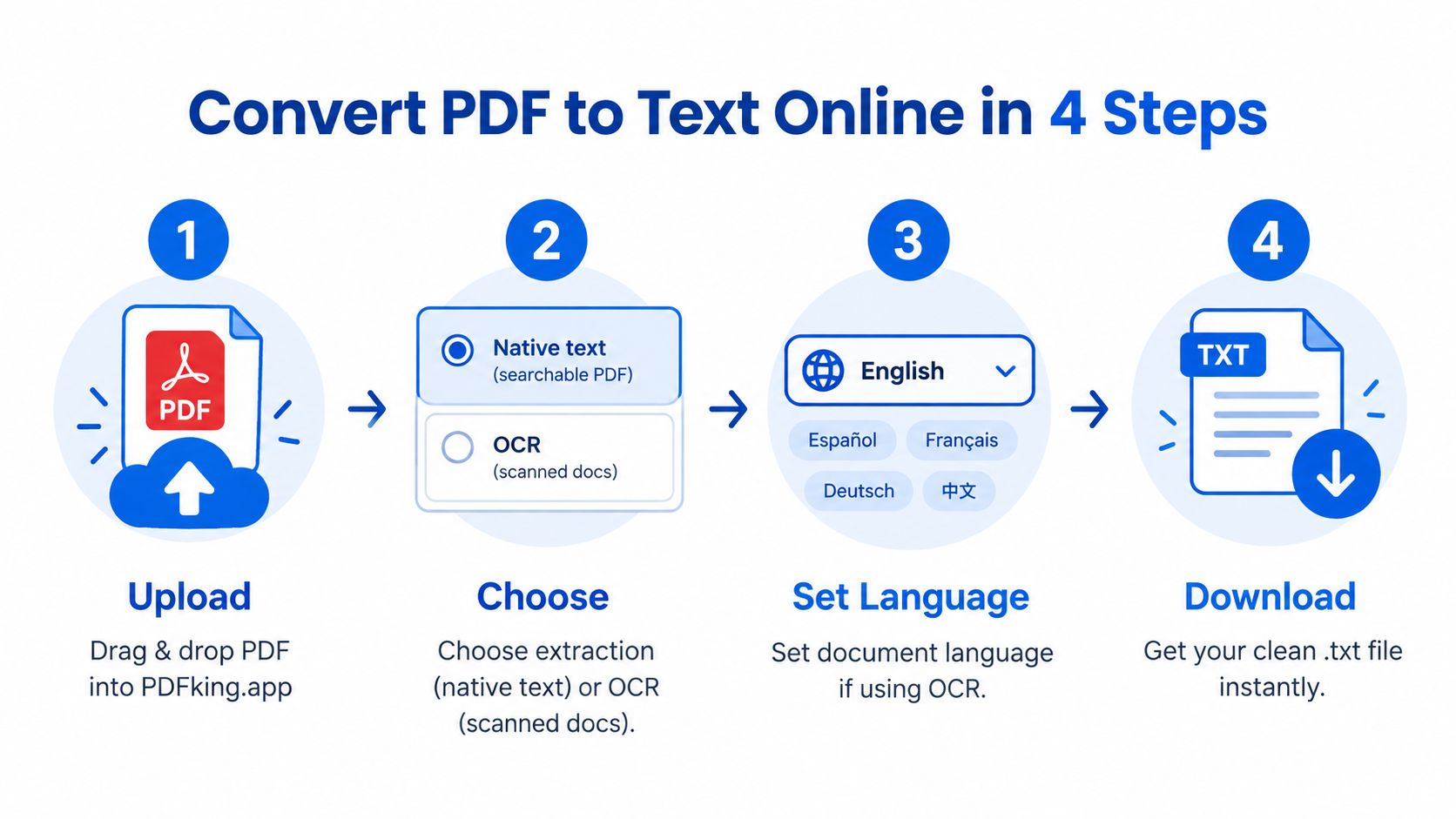
You can handle the conversion in a few clear steps. The important choice happens before you upload the file, when you decide whether it contains selectable text or needs OCR.
Step 1, test the PDF
Open the file and select a word. Then use Ctrl+F or Cmd+F to search for a phrase you can see. If both actions work, use native extraction. If neither works, treat the PDF as scanned or image-only and choose OCR.
Step 2, upload the file
Open PDFKing in your browser and upload the PDF. The service is 100% free, adds no watermark, and requires nothing to install. You don't need a desktop application just to create a plain-text copy.
Step 3, choose the conversion route
Select direct extraction for a PDF with a text layer. Choose OCR for scanned pages, photographed documents, or files where search and selection fail. If OCR asks for a language, choose the language used in the document, especially when accents or special characters appear.
A practical guide to fast and accurate PDF text extraction can also help you compare the preparation and review steps for different document types.
Step 4, download and inspect the TXT file
Download the plain-text output and open it in a text editor. Search for a phrase from the original, check whether paragraphs break sensibly, and inspect any table or multi-column section separately.
Before you reuse the text: Verify names, figures, dates, legal wording, and headings manually, especially when OCR handled the file.
If you need to preserve a document's layout while editing, use a PDF to Word conversion workflow instead. TXT is ideal when the words matter more than the original page design.
Common Misconceptions That Cause Bad Conversions
The biggest mistake is assuming that every PDF contains words in the same way. A contract exported from a word processor may contain a clean text layer. A scanned copy of that same contract may contain only page images. Both look like PDFs, but the converter receives very different information.
Misconception one, visible text is searchable text
If Ctrl+F finds nothing for words you can clearly see, the file probably has no usable text layer. Direct extraction cannot pull characters from a page that stores only an image. OCR must first recognize the shapes and add a text layer (this guide to scanned PDF behavior).
OCR can also improve access for people who use assistive technologies. Screen readers need machine-readable text, not just a visual page image. A scan that looks complete to a sighted reader may remain inaccessible until recognition creates usable text.
Misconception two, OCR fixes every layout
OCR can recognize words without perfectly rebuilding the page. Lecture slides with text over images, reports with columns, and forms with boxes can all produce an output that needs rearranging. A language mismatch can cause similar trouble, particularly with accented characters and non-English words.
Misconception three, a bad result always means the tool failed
Sometimes the input is the problem. A crooked photograph, a faded photocopy, a page with shadows, or a table with faint lines gives the recognition process weak evidence. For a document you'll reuse often, improve the scan, rotate pages upright, or isolate the relevant pages before converting. After extraction, you can use PDFKing's PDF highlighting tool to mark areas that need a manual check.
Privacy and Smart Workflows for Sensitive PDFs
Uploading a document to any browser-based service deserves a deliberate decision. Student records, legal files, financial documents, and internal business material may contain information that shouldn't be shared casually. Use a copy when possible, remove unnecessary pages, and check the service's current handling practices before processing sensitive content.
Redaction is different from covering text with a shape. If confidential words must be removed permanently, use a proper redaction process before sharing the final file. You can also review data protection for content creators when building a broader document-handling routine.
A safer working sequence
- Prepare a working copy: Keep the original in a controlled location and use only the pages needed for extraction.
- Convert and review: Compare important names, dates, amounts, and clauses with the source PDF.
- Remove exposure: Redact sensitive content or apply protection before sending the finished document.
- Clean the file: Review metadata if the document will leave your organization. PDFKing's PDF metadata removal guidance covers that follow-up task.
Scan quality affects both accuracy and the amount of review you'll need. Guidance reports that clean documents can exceed 99% accuracy, while imperfect scans can fall below 85%. Well-scanned documents often reach 95% or higher, but low-resolution photocopies or faxes can drop to 70–85% (scan-quality guidance).
For routine, non-sensitive files, a free browser workflow can be practical because there's no installation or watermark. For confidential originals, first decide whether online processing fits your organization's rules.
Frequently Asked Questions About PDF to Text Conversion
When do I need OCR?
Use OCR when you can't select visible words and Ctrl+F doesn't find them. That usually means the PDF contains page images rather than an embedded text layer.
Can OCR handle a multilingual PDF?
It can, but choose the document's language before processing when the tool offers that setting. Mixed languages, accents, and special characters deserve extra review after conversion.
Why does my extracted text contain strange symbols?
The PDF may have damaged or missing Unicode mappings, or the file may be a scan with recognition errors. Try OCR for an image-only file, select the correct language, and compare unusual passages with the original.
Will a TXT file preserve the PDF's formatting?
No. Plain text focuses on words and basic line breaks, not fonts, columns, page positions, or tidy table cells. Use a PDF to Word tool when preserving an editable document structure matters.
What should I do if the reading order is wrong?
Check whether the page uses columns, tables, sidebars, or floating text. If the layout is important, convert to an editable document and correct the structure before reusing the content.
Is PDFKing free to use?
PDFKing's online tools are 100% free, have no watermark, and require nothing to install. For plain text, choose the PDF to Text tool and review the output before using it elsewhere.
Should I convert every PDF with OCR?
No. OCR adds recognition work that a text-based PDF doesn't need. Test the file first, then use direct extraction when the text layer works and OCR only when the page is image-based or the embedded text is unusable.
Use PDFKing to convert your PDF into plain text directly in your browser, with no installation and no watermark. Test the file first, choose direct extraction or OCR as appropriate, and download a text copy you can search and reuse.