ON THIS PAGE
You can merge PDF files on a Mac natively with Preview or Finder's Quick Actions, and you can also use a free browser tool like PDFKing when you need to preserve bookmarks, links, or handle large files without installing anything. If you're staring at a contract, a cover sheet, and an appendix that all need to become one clean packet, the right method depends less on the Mac you have and more on what those PDFs contain.
A lot of people only need a fast merge. Others need page-level control. And some run into a frustrating problem after the merge: links stop working, bookmarks disappear, or the final file gets awkwardly large. That's where choosing the method first saves time later.
Main image title: Merge PDFs on Mac Without Losing Document Structure
Main image description: A clean workspace scene showing a Mac-based document workflow with multiple PDF pages being combined into one organized file, highlighting browser and built-in macOS options for PDF assembly. Learn more at PDFKing.
Table of Contents
- Choosing the Right Method for Your Mac
- Combining Documents Using the Preview App
- Merging Files Directly from the Finder
- Using PDFKing to Preserve Links and Bookmarks
- Organizing Pages and Managing Large Files
- Frequently Asked Questions About Mac PDF Merging
- Can I merge PDFs on a Mac without installing anything
- Why did my merged PDF end up missing pages
- Can I merge only certain pages instead of whole files
- What if the file order is wrong after merging in Finder
- Can I batch this with Automator
- Why do bookmarks or links sometimes break after merging
- Is there a free PDF merger program if I don't want to use Preview
Choosing the Right Method for Your Mac
If your files are simple, macOS already gives you two built-in ways to merge them. Apple documents both methods. You can combine PDFs in Preview by turning on thumbnails and dragging pages from one PDF into another, and you can also combine files in Finder with Quick Actions > Create PDF using a built-in system tool (Apple Preview combine guide{target="_blank"}).
That gives you three practical paths:
- Preview for page-by-page control
- Finder Quick Actions for fast whole-file combining
- A browser-based tool when you need better handling for interactive PDFs
When Preview makes sense
Preview is the right choice when you need to pull only certain pages from each file. Apple's current instructions also note that you can Command-click nonadjacent pages, which matters when you're building a packet from selected sections instead of combining entire files end to end (Apple Preview page handling{target="_blank"}).
When Finder is faster
Finder is better when you just want to stack full files together in order. No window juggling. No page sorting inside the app. Select the files, run the Quick Action, and macOS creates one PDF.
Practical rule: If you need to choose pages, use Preview. If you need to combine complete files quickly, use Finder.
When a browser tool is the safer option
Native Mac tools are convenient, but they aren't always ideal for interactive documents. If your PDF contains bookmarks, hyperlinks, form elements, or navigation that needs to stay intact, a browser workflow is often the better fit. It also helps when the merged file becomes too large to email or upload easily.
That's the answer to how to merge PDF files on Mac. The Mac already gives you working tools. The trick is picking the one that matches the document you have.
Combining Documents Using the Preview App
Preview has been the standard no-install method on Mac for a long time. Historical Apple community posts show people were already merging PDFs in Preview in 2012, using the thumbnail sidebar and dragging one document into another, and community guidance from 2013 also referenced exporting the finished result as a PDF after editing (Apple Discussions thread{target="_blank"}).
That long continuity is useful because the workflow still feels familiar today.
Open both PDFs and show thumbnails
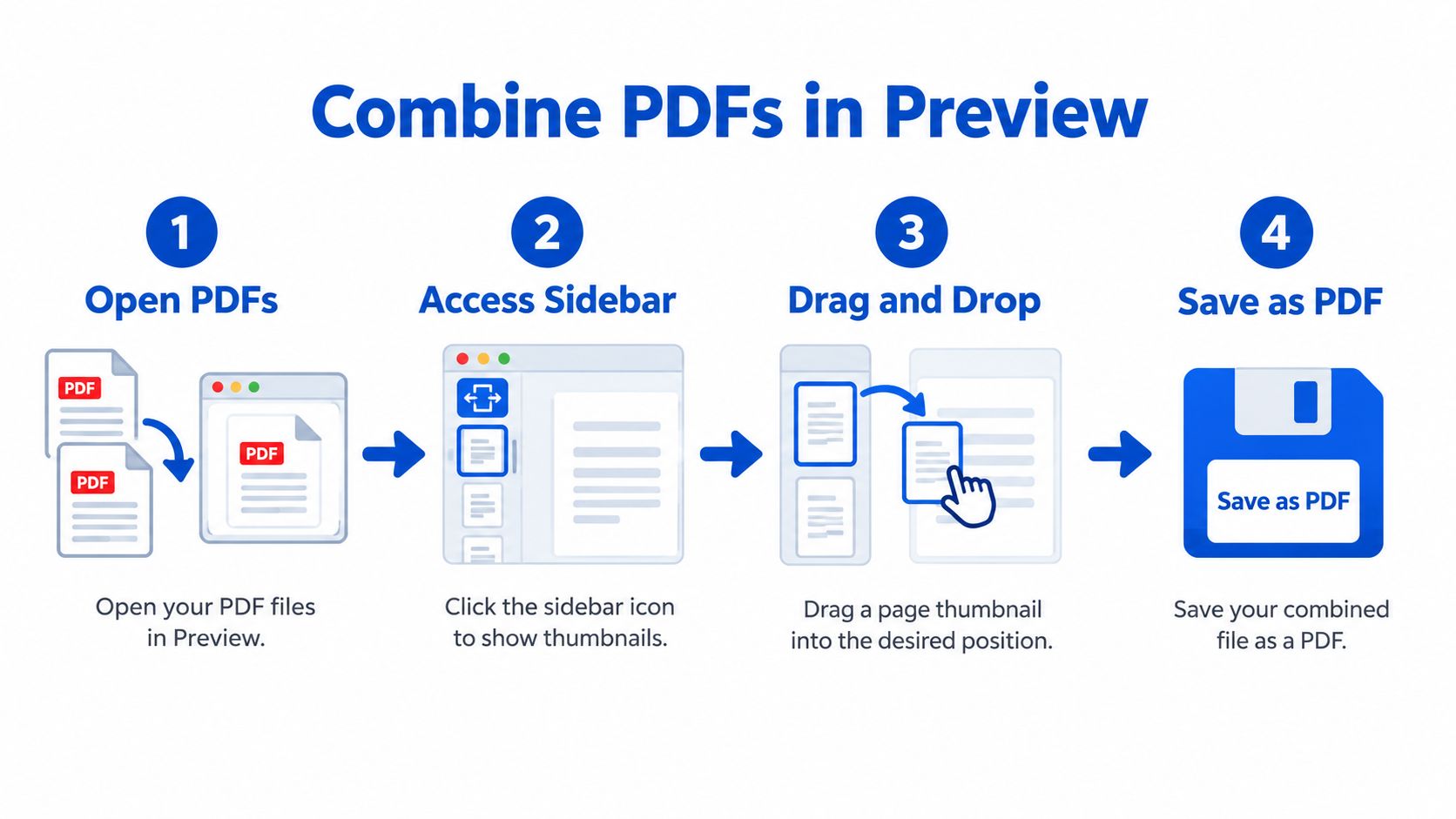
Start by opening the PDFs in Preview. In each window, turn on View > Thumbnails. Apple's guidance is built around the sidebar, not a separate import wizard. You move pages by dragging thumbnail images between documents (Apple page move instructions{target="_blank"}).
If you don't see the sidebar, stop there and turn it on first. Most failed merges in Preview come down to dragging in the wrong place.
Drag pages into the destination file
Use one PDF as the destination. Then drag pages from the other PDF's thumbnail sidebar into that document's sidebar.
Follow this order:
- Open both files in Preview
- Turn on Thumbnails
- Select the pages you want
- Drag them into the destination sidebar
- Reorder pages inside the sidebar if needed
- Save a new copy
Apple notes that you can Command-click nonadjacent pages before dragging, which is helpful when you only need selected exhibits, appendices, or signed pages from a larger file (Apple combine instructions for Preview{target="_blank"}).
Drop pages into the thumbnail sidebar, not loosely into the page view. The sidebar controls the final page order.
What works well in Preview
Preview is strong when you need to assemble a custom document by hand. You can move, insert, and rearrange pages in one place. That makes it useful for office packets, school submissions, and legal bundles where sequence matters.
A few habits make Preview much more reliable:
- Use the sidebar visually: You can see exactly where each page will land.
- Check order before saving: The selected file or page order becomes the final order.
- Save under a new filename: That keeps the source PDFs untouched in case you need to rebuild the packet.
If you also need to insert spacing pages or separators between sections, this guide on how to add a blank page to a PDF can help.
Where Preview can become awkward
Preview starts to feel clumsy when you're merging a lot of files at once or when the document contains interactive elements that need to survive intact. It's also easy to misplace a page if you're dragging quickly between windows.
For straightforward static PDFs, though, it's still one of the fastest ways to get a working result on a Mac.
Merging Files Directly from the Finder
A common Mac workflow is simple: you have five scanned receipts on the desktop, they are already in the right order, and you just need one PDF to send before the next meeting. Finder is often the fastest way to do that. Apple's Mac Help documents the Create PDF option in Finder's Preview pane for combining selected files into one document (Apple Mac Help for combining files{target="_blank"}).
Finder works best for whole-file merging. It is a quick assembly tool, not a page editor, and that trade-off matters.
Best use case for Finder
Use Finder when the job is straightforward:
- Receipts and invoices: Group a batch into one expense PDF.
- Scanned sections: Join separate scans into one file for sharing.
- Simple submissions: Combine finished PDFs without changing any individual pages.
It is also a good choice when you want to stay inside macOS and avoid opening each file one by one.
How to do it cleanly
Select the PDFs in Finder, then use Quick Actions or the Create PDF control in the Preview pane, depending on your view settings. macOS builds a new combined PDF from the selected files.
Order is the part to watch closely. Finder follows file order, so a messy filename set usually produces a messy merged document. If the sequence matters, sort that out before you click anything.
A simple naming pattern keeps the result predictable:
| File name | Why it helps |
|---|---|
| 01 Cover Letter.pdf | Forces first position |
| 02 Contract.pdf | Keeps the main document in place |
| 03 Appendix.pdf | Prevents accidental resorting |
One practical limitation is easy to miss. Finder is fine for static PDFs, but it is not the method I'd choose for files with bookmarks, form fields, or clickable links that need to stay intact after the merge. For that kind of document, a browser-based tool is usually the safer pick.
If you need to remove a page, rotate a scan, add a separator, or preserve interactive elements, use Preview for page editing or a browser-based merger for link- and bookmark-heavy PDFs.
If one file is protected and will not open, handle that first. This guide on how to open a password-protected PDF covers the usual workflow.
Using PDFKing to Preserve Links and Bookmarks
Native Mac tools are convenient, but they're built around page thumbnails and visual page movement. That's fine for static documents. It's less ideal when the file includes clickable navigation, internal links, or bookmark structures you want to keep usable after the merge.
That's the main trade-off. Preview and Finder are fast. A browser-based merge is often safer for interactive PDFs.
When this method is the better choice
Use a browser tool when your document includes:
- Bookmarks: Common in reports, court filings, and manuals
- Hyperlinks: Internal jumps, references, and web links
- Forms: Fillable sections you don't want flattened
- Large grouped packets: Files that are easier to reorder in one browser tab than across multiple Preview windows
PDFKing is one option for this. Its merge workflow runs in the browser on Mac, needs nothing installed, and every tool is 100% free with no watermark. That makes it practical when you want a quick merge without changing your Mac setup or adding another app.
The workflow is simple
The browser approach is usually:
- Upload the PDFs
- Arrange them in the right order
- Merge the file
- Download the finished PDF
That sounds basic, but in practice it solves two common problems. First, it avoids the window juggling that happens in Preview. Second, it gives you a cleaner path when preserving interactive behavior matters more than native integration.
If you've ever merged a document and then found that a clickable table of contents or internal reference links no longer behave the way you expected, this explains why the method matters. If that's already happened to you, this article on a hyperlink in PDF that does not work is worth reviewing.
What native tools do better
To be fair, Preview still wins for quick page surgery. If you need to remove page 4, move page 9 ahead of page 3, and then save immediately, Preview is direct and already on your Mac.
But if your priority is preserving document behavior rather than just stacking pages, the browser route is usually the one to choose.
Organizing Pages and Managing Large Files
Merging the files is only half the job. The part that usually causes trouble is the cleanup afterward. A merged PDF can still be hard to use if the pages are out of order, sideways, padded with blanks, or too large to send.
Fix the page order first
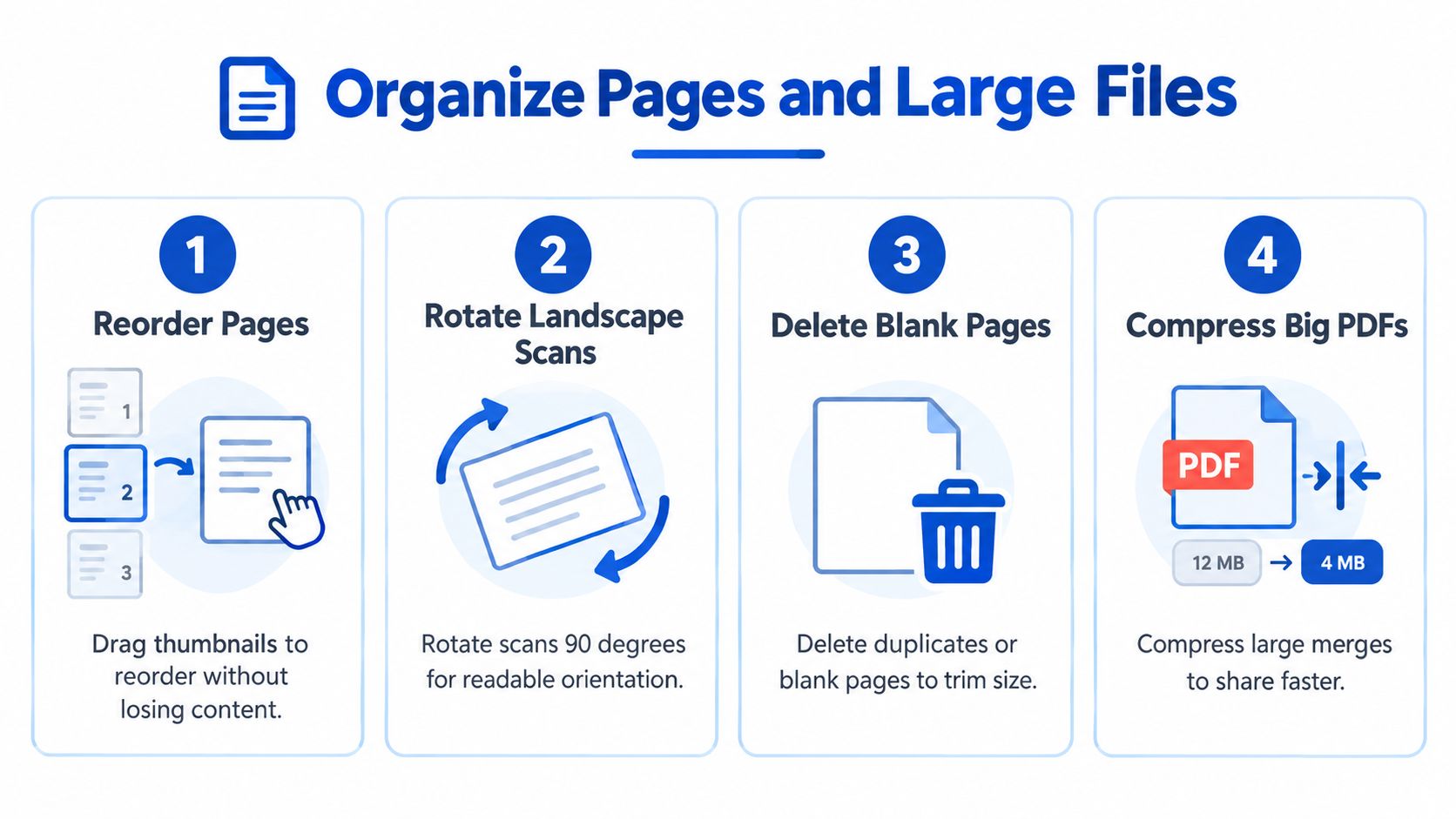
Always check the sequence before you share the file. This matters even more when you combined several exhibits, scans, or signed pages from different sources.
A good review pass looks like this:
- Scroll thumbnail by thumbnail: Don't rely on the full-page view alone.
- Check section starts: Make sure each part begins where you expect.
- Look for duplicates: Double inserts happen often during drag-and-drop merges.
If you need more control after the merge, use a tool built for organizing PDF pages so you can reorder, rotate, or remove problem pages without rebuilding the whole file.
Clean up scans before finalizing
Scanned PDFs often introduce layout problems that make the merged file look sloppy.
| Problem | Fix |
|---|---|
| Landscape page turned sideways | Rotate it before sending |
| Blank scan between sections | Delete it |
| Duplicate cover page | Remove the extra copy |
| Mixed sequence from several scans | Reorder pages visually |
A merged PDF should read like one intentional document, not a pile of attachments pushed together.
Deal with large output files
Big merged PDFs are common when scans, images, and multiple source files get bundled together. That doesn't mean the merge failed. It just means the final document may need one more pass.
When the file feels too heavy to share comfortably, compress it after you confirm the page order is correct. Compressing too early can slow down troubleshooting because you're editing a version you may later replace.
A practical workflow is simple. Merge first. Organize second. Compress last.
Frequently Asked Questions About Mac PDF Merging
Can I merge PDFs on a Mac without installing anything
Yes. Apple documents two native methods on Mac. You can merge PDFs in Preview by dragging page thumbnails between documents, and you can combine selected files in Finder using the built-in PDF creation action, as noted earlier.
Why did my merged PDF end up missing pages
The most common cause is dropping pages into the wrong area in Preview. Use the thumbnail sidebar, not just the main page view. Also confirm you selected every needed page before dragging.
Can I merge only certain pages instead of whole files
Yes. In Preview, Apple notes that you can Command-click nonadjacent pages, then drag those selected thumbnails into another PDF. That's the easiest native method for partial merges.
What if the file order is wrong after merging in Finder
Finder is best for whole-file combining, but it won't give you much page-level control. Sort or rename the files before combining them, or switch to Preview if you need to rearrange pages manually.
Can I batch this with Automator
Yes, if you repeat the same kind of merge often. Apple Support guidance has long noted that Automator can use the Combine PDF Pages action and accept selected PDF files from Finder, which makes repeated merges more efficient through a saved workflow (Automator PDF merge workflow summary{target="_blank"}).
Why do bookmarks or links sometimes break after merging
That usually comes down to the method used. Native page-based merging is convenient, but interactive elements don't always carry over the way you expect. If navigation matters, a browser-based merge workflow is usually the safer choice.
Is there a free PDF merger program if I don't want to use Preview
Yes. If you want a browser workflow instead of a built-in Mac app, this guide to a free PDF merger program walks through what to look for and when it makes sense.
If you want a simple browser option for Mac, PDFKing gives you free PDF and file tools with no watermark and nothing to install. For this job, it's a practical way to merge PDFs, keep the workflow in your browser, and move on without wrestling with app windows or extra software.