ON THIS PAGE
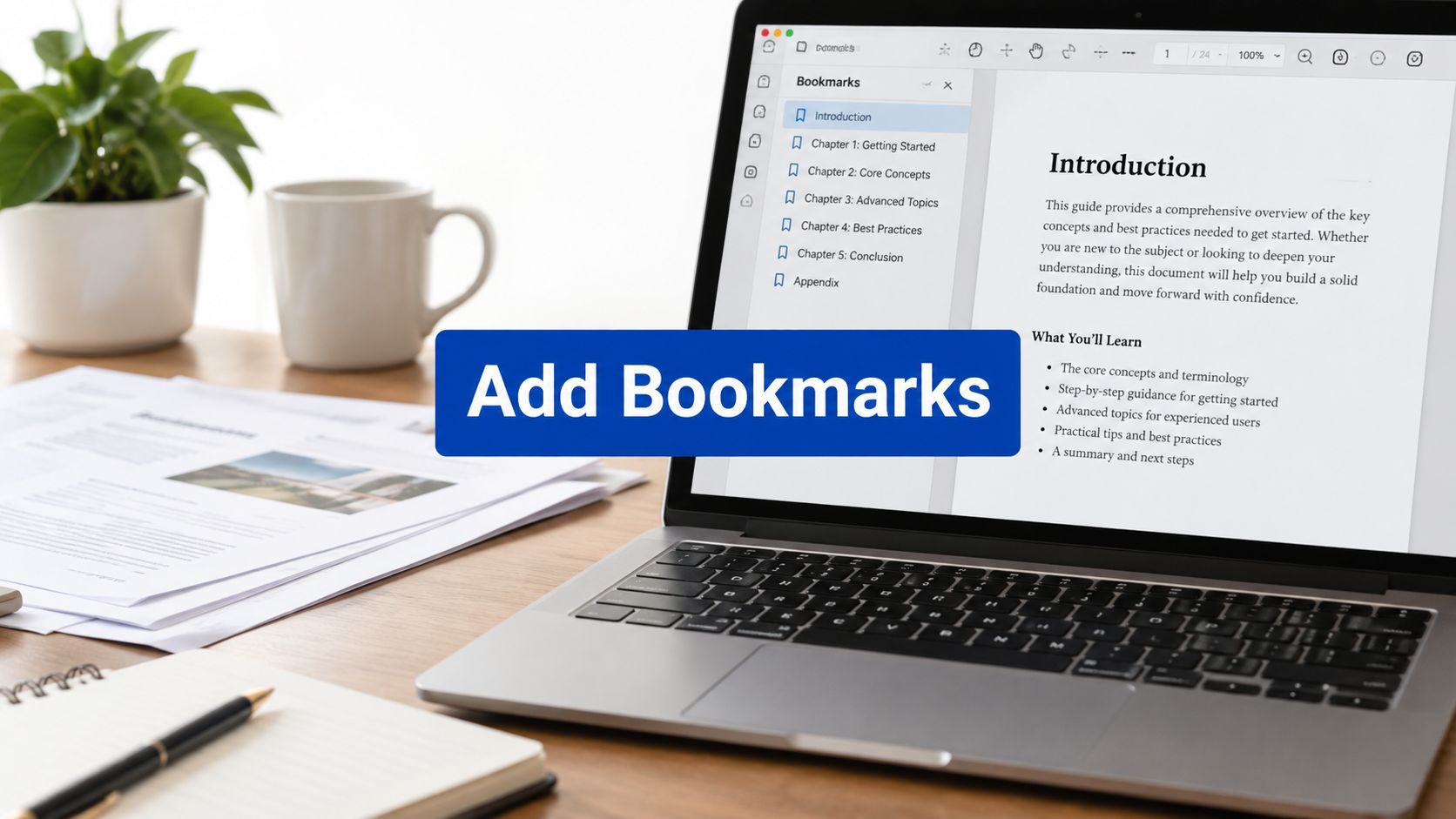
You're staring at a long PDF, scrolling through page after page, trying to find the contract clause, thesis chapter, or report section you need. To add bookmarks to a PDF, create a clickable outline in the document's navigation pane, then link each label to the right page and view. The best method depends on whether you still have the original Word or Google Docs file, already have a finished PDF, or need to bookmark a scan manually.
Table of Contents
- What a PDF Bookmark Actually Does
- Generating Bookmarks from Word or Google Docs
- Adding Bookmarks with PDFKing
- Structuring a Clean Bookmark Hierarchy
- Accessibility and the Limits of Bookmarks Alone
- Keeping Bookmarks Working After Edits
- Frequently Asked Questions About PDF Bookmarks
What a PDF Bookmark Actually Does
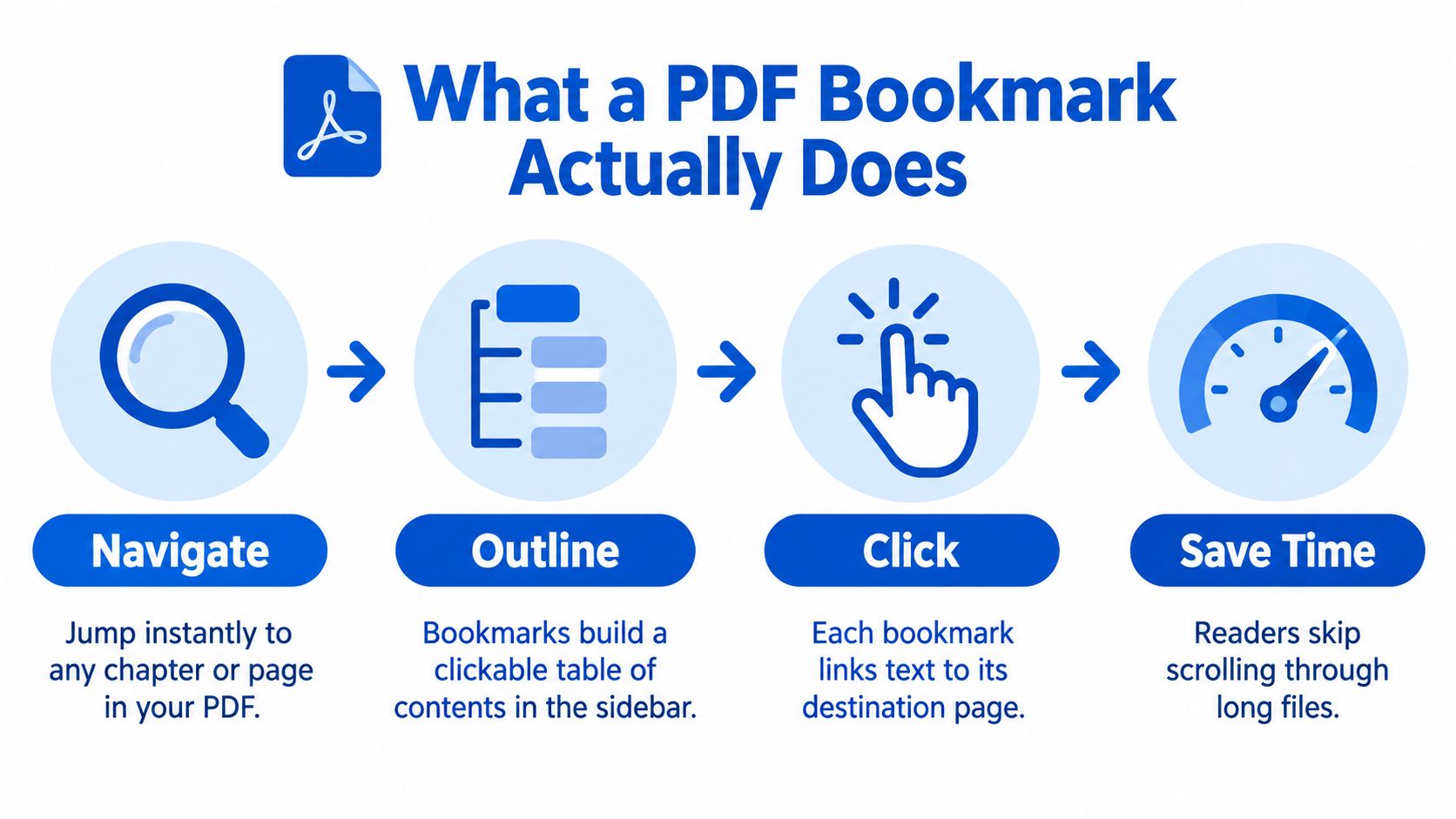
A PDF bookmark is a navigation link displayed in a document sidebar. Select it, and the viewer takes you to a specific section, page, or text location instead of making you scroll manually. Bookmarks are the user-facing form of the PDF Document Outline, a tree-structured hierarchy that can represent chapters, sections, appendices, and exhibits. Microsoft's PDF standards documentation{:target="_blank"} describes bookmarks as part of PDF's foundational navigation features.
A bookmark isn't the same as a highlight or sticky note. A highlight marks text on the page, while a sticky note adds an annotation. A bookmark stays in the navigation pane and provides a route through the file. Unlike a printed table of contents, it remains available while you view another page.
Choose the right creation path
Before you open a tool, identify the file you have:
- Original Word or Google Docs file: Apply heading styles and generate bookmarks during PDF export. This usually produces the cleanest outline because the bookmarks inherit the document's structure.
- Finished PDF with no source file: Add entries directly in a browser-based or desktop PDF editor. This works well for received reports, contracts, and business documents.
- Scanned or one-off PDF: Create bookmarks manually after locating each destination. This is flexible, but it takes more time because the file may not contain usable headings.
Source-generated bookmarks are efficient for documents you produce repeatedly, but they aren't available once the editable source is gone. Manual bookmarks work after the fact, though you must choose labels, destinations, and hierarchy yourself. The same decision matters when you're preparing a sales deck or comparing sales presentation software options{:target="_blank"} and need the final PDF to remain easy to inspect.
A bookmark can preserve more than a page number. Its destination may include a specific view, such as a position partway down a page or a chosen zoom level. That's why you should set the destination view before creating the entry and test it afterward.
Generating Bookmarks from Word or Google Docs
If you still have the original document, generate the outline before creating the PDF. This approach is especially useful for reports, academic theses, contracts, and other files that already have a clear heading structure.
Build the structure first
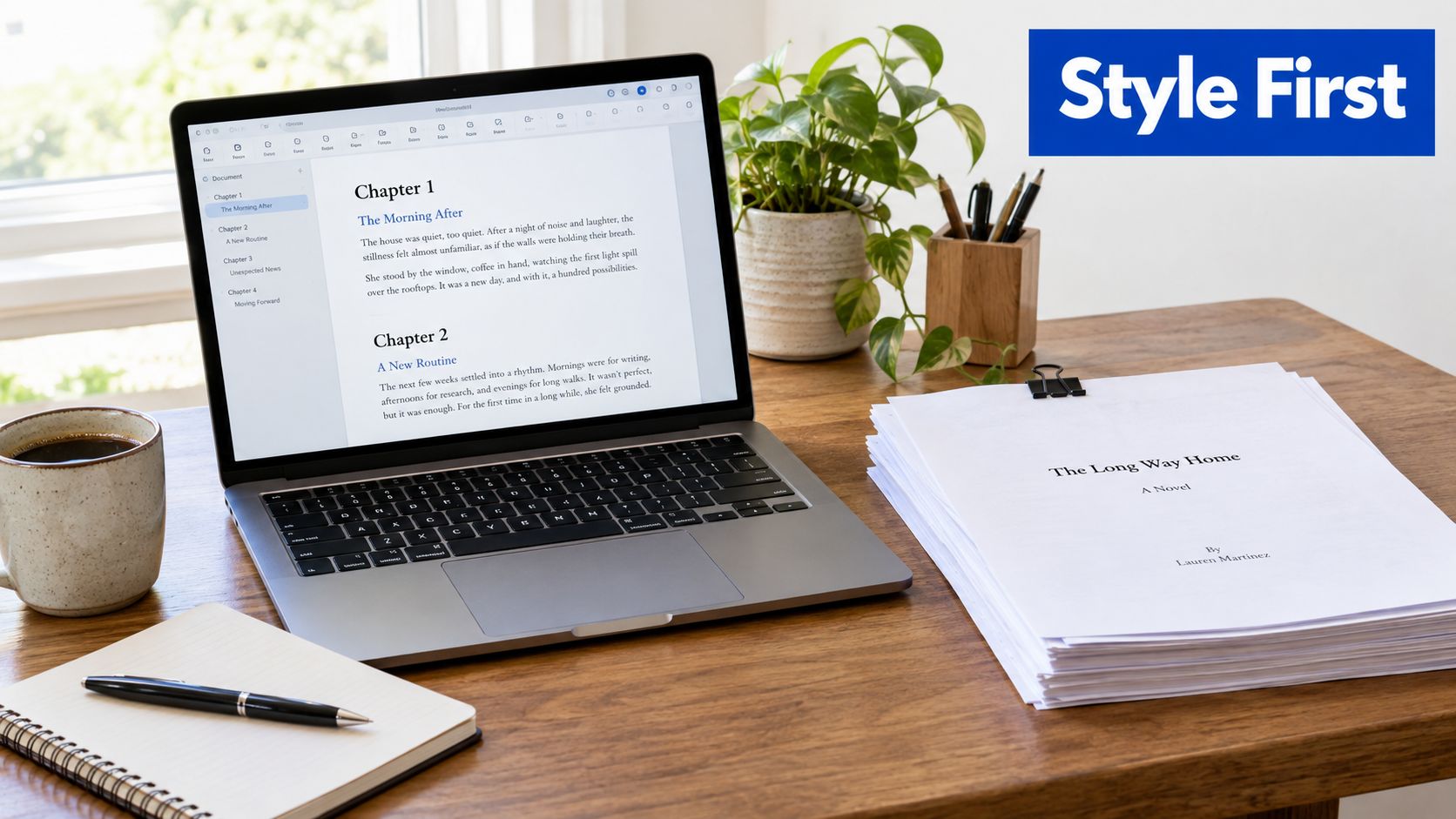
Apply semantic heading styles instead of merely making text larger or bold:
- Heading 1: Chapters or major divisions
- Heading 2: Main sections inside a chapter
- Heading 3: Subsections beneath those sections
Bookmarks should reflect the document's organization, not just its visual appearance. A line that looks like a heading but uses ordinary body text may not become a bookmark during export.
In Microsoft Word, review the Navigation Pane first. If the headings appear in the correct order there, the PDF export has a better structural foundation. In Google Docs, use its built-in heading levels in the same way, then download the document as a PDF.
Export and inspect
In Word, use the PDF export or Save As PDF workflow and enable the option to convert document headings into bookmarks when it appears. In Google Docs, download the file as a PDF, then open the result in a viewer that displays the outline.
Compare the PDF outline with the original heading list. Look for missing entries, incorrect nesting, vague labels, and destinations that land above or below the intended section. If you regularly move between formats, this guide to converting Word to PDF can help you keep the export workflow consistent.
If a heading didn't appear, return to the source document and check its style. Fixing the structure before export is usually easier than repairing a long outline manually. After pagination changes, export again and repeat the outline check.
Adding Bookmarks with PDFKing
A finished PDF often leaves you with three choices. Rebuild the outline in the original file, edit the PDF itself, or leave readers to scroll. If the source file is missing or locked, direct editing is the practical lane, and bookmarking works best when you treat it like placement work, not just a series of clicks.
Start by opening the PDF in a browser-based editor and showing the bookmarks panel the whole time. Then move through the document in reading order. Go to the exact spot a bookmark should open, set the page position and zoom the way a reader should see it, and create the entry with the same wording the section uses on the page. A bookmark is like a tab in a binder. If you place the tab a little too high or too low, the label is still there, but the jump feels wrong.
That is why order matters. Add the big sections first, then place subsections under them. If you create child entries before the parent structure is clear, the outline gets messy fast and you spend more time dragging items around than checking whether the destinations are correct.
For a legal bundle, labels such as “Lease Terms,” “Termination,” and “Evidence” help the reader scan by topic. A research report usually works better with “Introduction,” “Methods,” “Findings,” and “Appendix.” A thesis often needs chapter titles plus selected major sections, not every paragraph heading.
If the PDF needs more than navigation, such as text changes before you finalize the outline, making a PDF editable can be the better first step.
When the outline looks finished, save the file, close it, and reopen it in a fresh view. Test each bookmark from somewhere else in the document. That final check matters because page edits, zoom settings, and viewer behavior can all affect how the bookmark feels in real use, even when the label list itself looks correct.
Structuring a Clean Bookmark Hierarchy
A clean bookmark hierarchy works like a table of contents that has been edited by a careful person, not generated by a button and left alone. Readers should be able to glance at the outline, understand the document's shape, and jump without guessing where a section belongs.
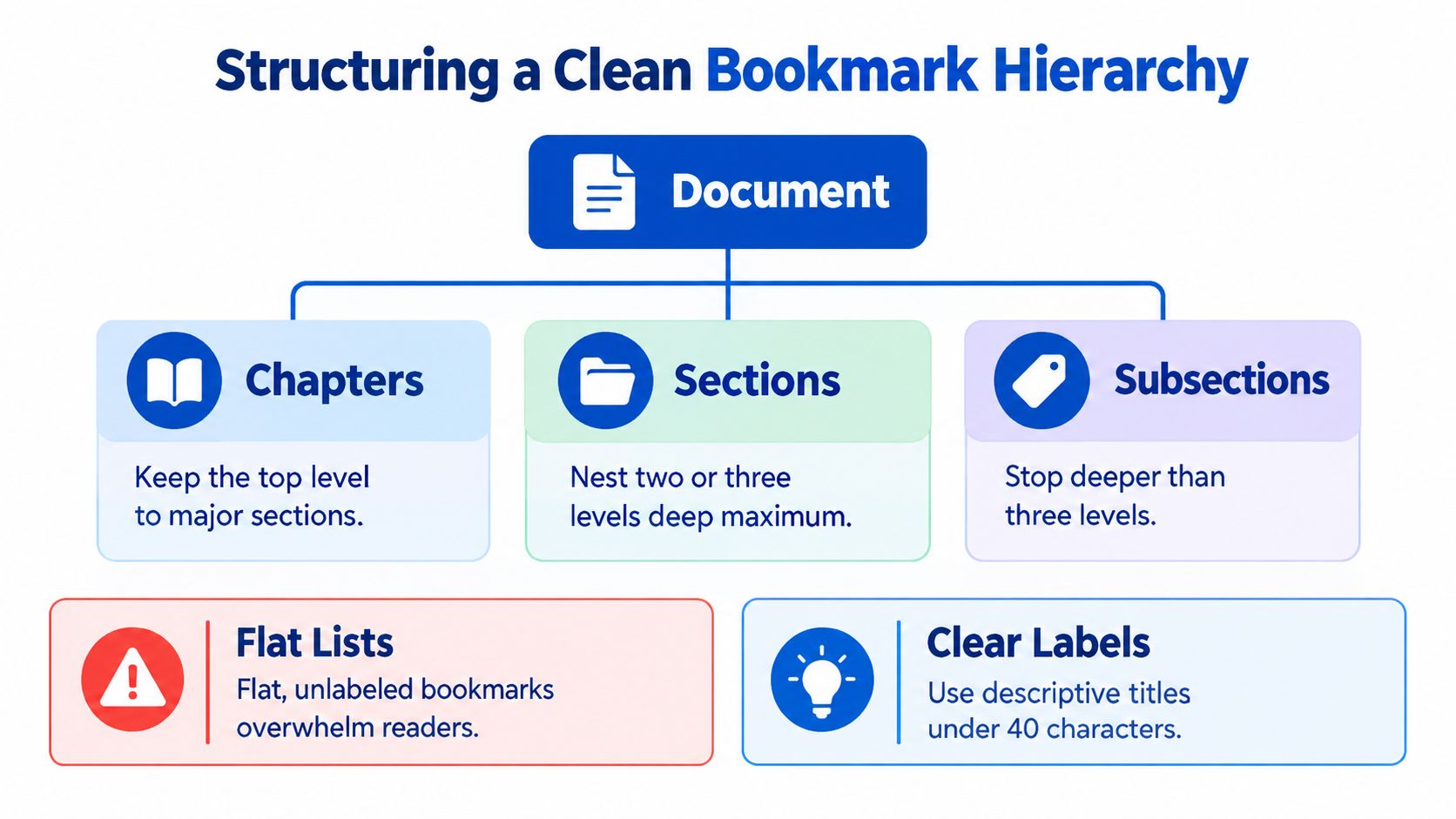
Start with the top level only. Add the big parts of the document first, then decide which of those parts need children. That workflow keeps the outline readable and saves cleanup later if pages move. If you are still reordering spreads, rotating inserts, or combining files, finish that pass first with a tool for organizing PDF pages.
Then shape the labels. The root level should hold major divisions, while nested entries should answer a simpler question: what belongs inside this section?
- 1 Introduction
- 1.1 Scope
- 2 Methods
- Appendix A Supporting Documents
Short labels help, but vague labels slow people down. “Section 1” forces the reader to open and check. “Data Collection Method” tells them where the jump will land. If several parts of the document share the same heading, rename the bookmark so each one is distinct.
Relationship, not indentation alone, is what matters. A subsection under “Methods” should sit under that parent because it is part of the method, not because it happened to be nearby on the page. Misplaced child bookmarks create the same confusion as filing a contract schedule inside the wrong tab.
A simple rule keeps the hierarchy under control. Bookmark the stops a reader is likely to need. In a contract, that may be clauses and schedules. In an academic paper, chapters plus major methods or results sections are often enough. In a business report, readers usually need the executive summary, findings, recommendations, and appendices.
Accessibility and the Limits of Bookmarks Alone
Bookmarks can improve navigation, but bookmarks alone don't make a PDF accessible. A usable accessible file also needs meaningful heading structure, correct tags, logical reading order, document language, and keyboard access. The W3C PDF technique for bookmarks{:target="_blank"} recommends bookmarks for documents that extend beyond a few pages or contain many subdivisions, while also connecting them to tagged structure.
Screen reader behavior can vary when the outline exists but the document's tags are missing or incorrect. A bookmark may still help a sighted keyboard user, yet the file can fail broader accessibility checks if headings, reading order, or focus behavior are wrong.
Use this review sequence:
- Check tags: Confirm the PDF has structural tags where appropriate.
- Compare levels: Make sure bookmark nesting matches the heading hierarchy.
- Test destinations: Activate top-level and nested entries with the keyboard.
- Inspect reading order: Check that text, tables, and images are presented logically.
- Reduce clutter: Remove entries that add noise without helping readers.
A concise hierarchy is often more usable than a long list of every heading. Guidance from the Federal Ministry for the Environment's accessible PDF handbook{:target="_blank"} also connects bookmarks with tagged headings and logical reading order.
If the document includes forms, navigation is only one part of the job. You may also need to turn a PDF into a fillable form and test field labels, tab order, and keyboard operation separately.
Keeping Bookmarks Working After Edits
You finish a clean bookmark outline, then remove a few pages, combine two PDFs, or export a fresh version from Word. The bookmark labels may still look right in the sidebar, but the destinations can now land on the wrong page, open at an awkward zoom, or point to content that no longer exists. That is why bookmark work is best treated as a three-lane process. Prepare the source pages, adjust the bookmarks in the editor, then verify the final file after every structural change.
The easiest way to avoid cleanup is to make page changes before you build or polish the outline. If you already know a handout needs trimming, use a guide to extracting selected PDF pages first, then add or refine bookmarks on the smaller file. If you merge documents, scan the combined outline for repeated section names and child entries that slipped under the wrong parent. If you delete or replace pages, revisit any bookmark that used to target that area.
A quick glance at the bookmark panel is not enough. PDF outlines are tree structures, with root, child, and sibling relationships, so one misplaced node can hide in an otherwise tidy list.
Use a practical spot-check instead of a long ritual. Open each top-level bookmark. Under every major branch, activate at least one nested item. Test the first and last destination in the full outline. Confirm that each jump lands in a useful view, not halfway down a page at an odd magnification. Then save, close, and reopen the file in the PDF viewer your reader is likely to use.
Keep the pre-edit version until the revised file passes this check. If pages move again, repeat the review. Bookmarks are not a one-time click. They are the last checkpoint in a document workflow that keeps changing shape.
Frequently Asked Questions About PDF Bookmarks
Do PDF bookmarks work on mobile devices?
Many mobile PDF viewers can display and activate bookmarks, but the location of the outline panel varies. Test the final file on the device and viewer your audience will use.
Will bookmarks look the same in every PDF viewer?
No. Viewers may place the navigation panel differently, open it automatically, or hide it by default. The links and hierarchy can still be present, so check the file after reopening it.
Can you bookmark a scanned PDF?
Yes, if you can identify the destination pages. Scans may not contain usable heading structure, so manual labels and page-based destinations are often necessary. If you need searchable text, OCR is a separate step.
Should every heading become a bookmark?
No. Bookmark major sections and useful subsections. A long, flat list can overwhelm readers, while a concise hierarchy gives them a clearer route through the file.
What should you do after merging PDFs?
Check for duplicate labels, incorrect nesting, and destinations that shifted during the merge. Open the top-level and nested entries, then save and reopen the result.
Use PDFKing to organize your PDF workflow around the final file, whether you need to prepare pages before bookmarking, edit a received document, or create a clean version for sharing. Visit PDFKing to use its free browser-based PDF tools with no installation and no watermark.