ON THIS PAGE
You need two things right now. A PDF that opens cleanly on any device, and a conversion method that doesn't add friction. The good news is that you can convert Word to PDF for free with no watermark and nothing to install, as long as you choose the right path for your document.
The difference isn't whether the file becomes a PDF. It's whether the PDF keeps your layout, stays readable, and preserves structure for accessibility.
Table of Contents
- Converting Word to PDF Without Spending a Dime
- Comparing Free Conversion Methods
- Using PDFKing for Quick Browser-Based Conversion
- Preserving Quality and Accessibility in Your PDF
- Solving Common Conversion Problems
- Your Conversion Workflow, Simplified
Converting Word to PDF Without Spending a Dime
A resume needs to go out. A form has to be uploaded. A report is ready, but sending a .docx file feels risky because formatting can shift on someone else's device.
You don't need paid software for this. You have three practical options: a browser-based converter, Google Docs, or Word's built-in export. For most everyday jobs, the browser route is the fastest because it works on any device and doesn't interrupt your workflow.
If you spend a lot of time inside Word itself, it also helps to tighten the document before you export it. These top Word add-ins for 2026{target="_blank"} are worth a look because better source documents usually convert more cleanly.
The three paths that actually matter
- Browser-based conversion: Best when you want speed, no setup, and a simple upload-download flow.
- Google Docs: Useful if your file already lives in Google Drive and the formatting is fairly simple.
- Built-in Word export: Strong choice when accessibility tags and document structure matter.
Practical rule: The cleaner your Word document is before conversion, the less fixing you'll do afterward.
If you want a broader view of common document workflows beyond this one task, PDFKing's guide to best free PDF tools is a useful starting point.
Comparing Free Conversion Methods
Not every free method produces the same result. Some prioritize convenience. Others do a better job with document structure, headings, and tables. If you're trying to decide how to convert Word to PDF for free, it helps to compare the methods by what matters in day-to-day use.
Free Word-to-PDF Conversion Methods Compared
| Method | Setup Required | Accessibility Tags | Best For |
|---|---|---|---|
| Browser-based converter | Open in browser and upload file | Varies by workflow and source file | Fast everyday conversion on any device |
| Google Docs | Upload to Drive and open in Docs | Limited control | Simple documents already stored in Google |
| Built-in Word export | Word desktop or Word for Mac | Strongest option when exported correctly | Files that need structure, bookmarks, and accessibility support |
Microsoft confirms that Word supports direct PDF creation through File > Save As or Save a Copy, then choosing PDF as the file type, and on Mac through File > Save As, selecting PDF, and then Export (Microsoft Word save or convert to PDF on Mac{target="_blank"}). That built-in route is dependable when you already have Word open.
Where each method wins
Browser tools win on speed. You don't have to install software, update anything, or work through extra menus. That matters when you're handling a quick submission and just need a clean PDF.
Google Docs can work well, but it adds an extra upload and download cycle. It also tends to be less predictable with custom fonts, dense tables, and mixed layouts.
Word export is the method I trust most for accessibility-sensitive files. Microsoft's PDF guidance says to use Save As or Export, then make sure document structure tags for accessibility are enabled so semantic tags carry into the PDF (Microsoft PDF guidance{target="_blank"}).
A PDF that looks fine visually can still fail when someone uses a screen reader. Structure matters.
If you're preparing a resume and want to avoid formatting problems before export, this guide on building ATS-ready resumes with Resumey.Pro{target="_blank"} is a useful companion read because resume layouts often break for the same reasons other formal documents do.
The practical choice for most people
For quick, standard conversions, browser tools are the least effort. For formal files with accessibility requirements, Word's own export settings deserve the extra minute. Google Docs sits in the middle. It's workable, but I usually reserve it for lighter documents.
Using PDFKing for Quick Browser-Based Conversion
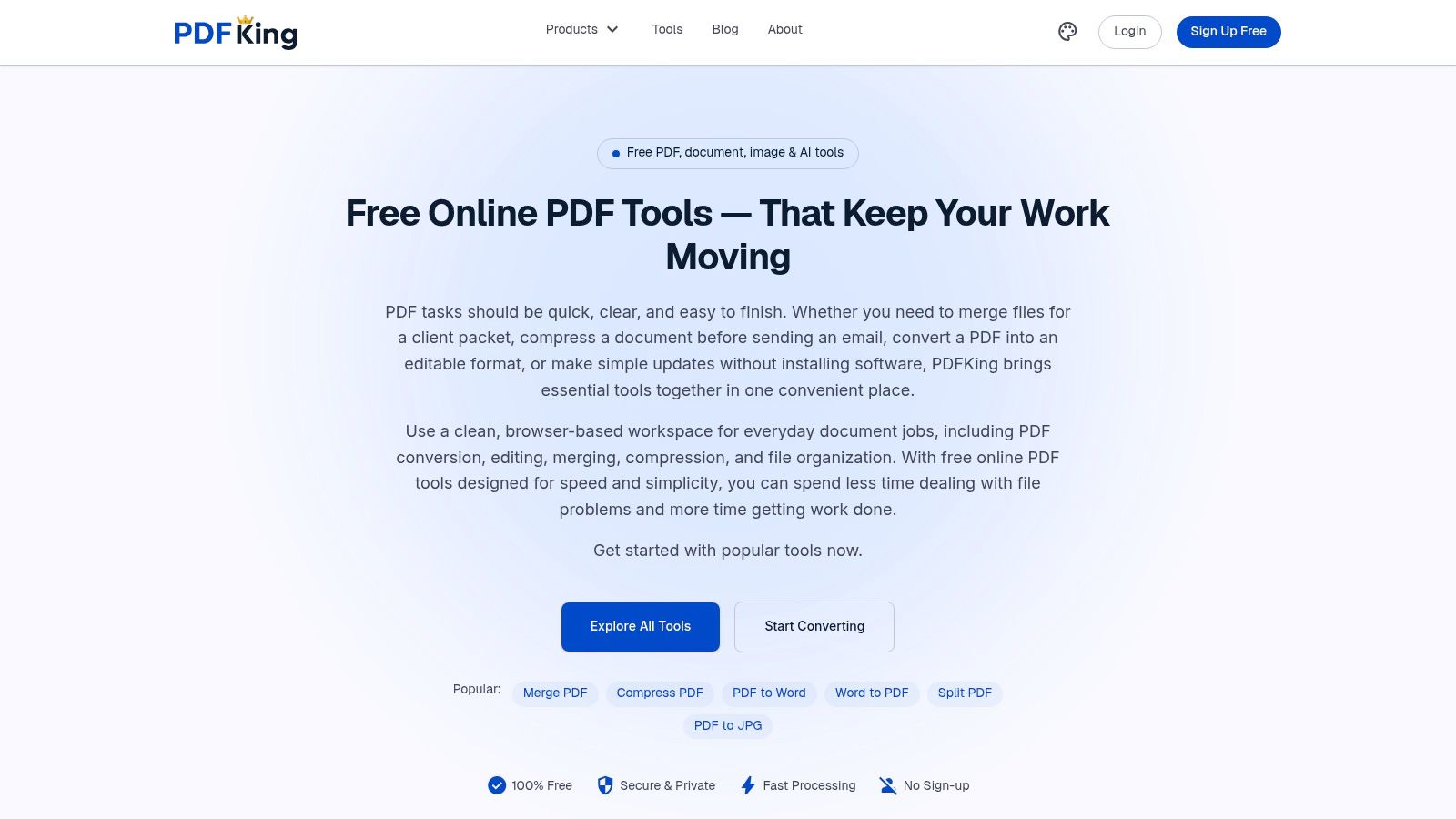
If your goal is simple, this is the shortest path. Open the tool, add your Word file, let the conversion run, and download the PDF. There's nothing to install, no account to create, and every tool is 100% free with no watermark.
A browser workflow is often the easiest option when you're working from a school laptop, a shared office machine, or a phone. That's the main reason browser-based converters became such a common habit for routine document work.
The quick workflow
Start with the Word to PDF tool. Upload your DOC or DOCX file. Once the file is processed, download the finished PDF and open it once before sending it anywhere.
That final check matters more than people think. Don't just confirm that the file exists. Check that page breaks are where you expect them, headings are in the right place, and images haven't shifted.
What to look for before you upload
The quality of the result usually starts with the source file. If your Word document uses unusual fonts, layered text boxes, or tightly packed tables, expect to inspect the output more carefully.
Use this short preflight list:
- Save the latest version: Make sure you're not uploading an older draft by mistake.
- Review page breaks: Manual page breaks tend to survive better than repeated blank lines.
- Check images: Oversized images can push content around if the layout is already tight.
- Scan tables: Narrow columns and merged cells are common trouble spots.
- Keep one original copy: If you need edits later, always keep the .docx file.
The fastest workflow is not “convert and send.” It's “convert, open once, then send.”
For some users, privacy matters as much as speed. Browser-local tooling has also emphasized local processing and no uploads, while noting that very large files can still run into browser memory or hardware limits (Chrome Web Store listing{target="_blank"}). That's an important trade-off to keep in mind when you're dealing with contracts, school records, or image-heavy documents.
A quick walkthrough helps if you want to see the flow before trying it:
When this method makes the most sense
Use a browser converter when you need a clean PDF fast and the document doesn't require deep export settings. That includes resumes, letters, proposals, assignments, and standard office files.
If the file is compliance-sensitive or needs careful accessibility support, prepare it in Word first, then give the PDF a more critical review after conversion.
Preserving Quality and Accessibility in Your PDF
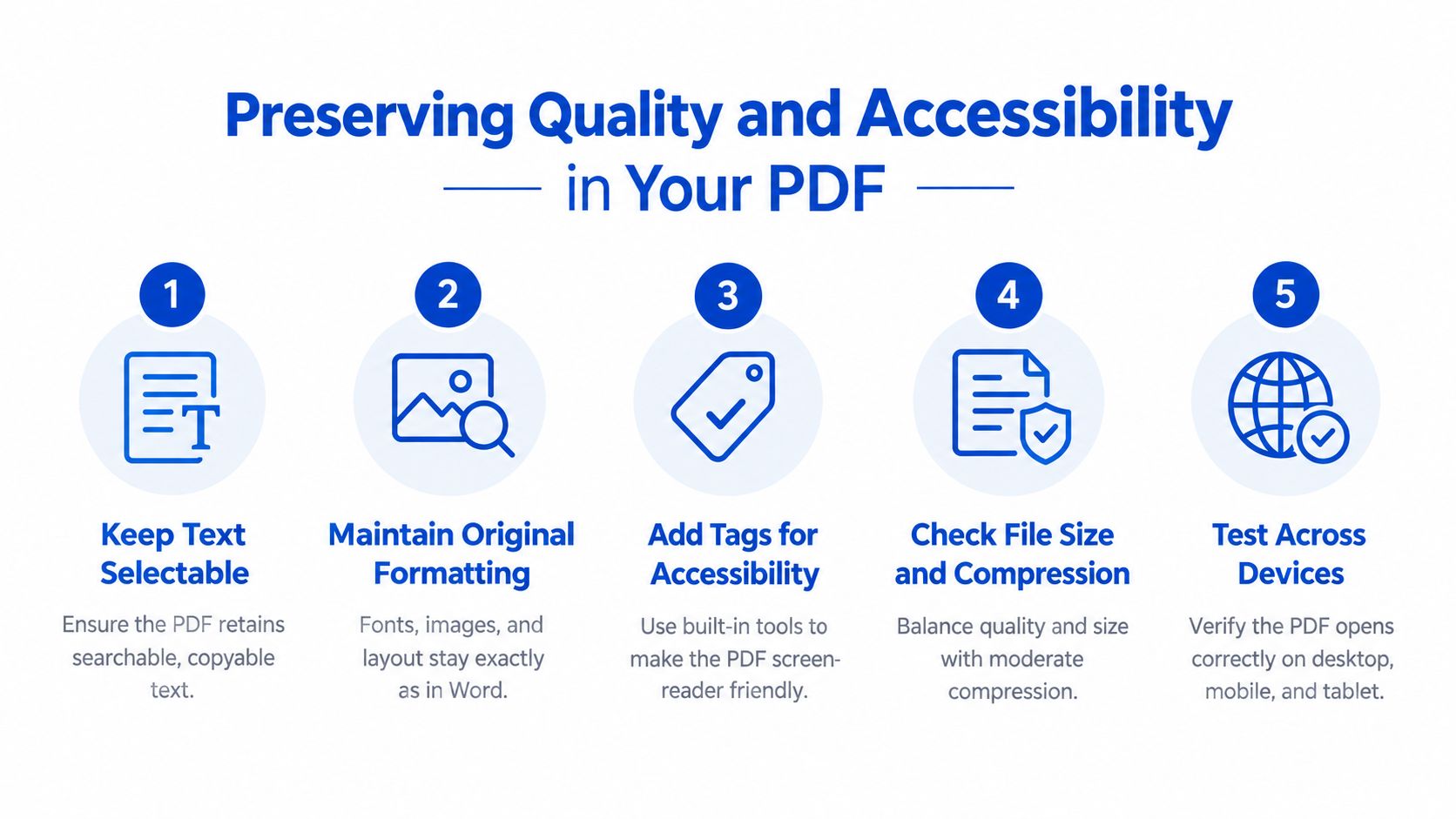
A successful conversion isn't just about making a PDF file. It's about keeping the document usable. That means your text should stay selectable, your layout should hold together, and your headings and tables should still make sense to assistive technology.
Start inside Word, not after export
Microsoft recommends running the Accessibility Checker before creating the PDF. After fixing issues, save as PDF and make sure Document structure tags for accessibility is selected so headings, lists, tables, and other structure carry into the PDF (Microsoft accessible PDFs guidance{target="_blank"}).
That one step prevents a lot of cleanup later. If the Word file is poorly structured, the PDF usually inherits those problems.
A solid checklist looks like this:
- Use heading styles: Don't fake headings with bold text and larger font.
- Add alt text: Every meaningful image should have a short description.
- Mark table headers: Tables need defined headers to read correctly.
- Check reading order: Sidebars, text boxes, and floating objects can create confusion.
- Run the checker: Fix issues in Word before conversion.
Save As beats Print to PDF
This is the mistake that causes the most downstream trouble. If you need accessibility, don't print your Word document to PDF.
Texas Tech University explicitly says never use Print to PDF because it strips accessibility features such as tags, alt text, and document structure, and other university guides warn against print-based PDF creation for the same reason (Texas Tech accessible PDF guide{target="_blank"}).
Important: A print-created PDF may look normal and still be unusable for someone navigating by screen reader.
Quality checks that catch real problems
After conversion, test the PDF like a recipient would.
Look for these three things first:
Font behavior
If line lengths changed or bullets wrapped oddly, a font substitution may have occurred somewhere in the process.Tables and mixed layouts
Recent market coverage points to mixed-content documents as the fastest-growing segment through 2031, which helps explain why basic converter advice often falls short on real documents with tables, images, and layered structure (document AI market coverage and projection{target="_blank"}). In practice, these are the files most likely to reveal layout weaknesses.File size
If the PDF is too large for email or an upload portal, reduce it after conversion instead of crushing image quality too early. This guide on reducing PDF size without losing quality gives a sensible workflow.
Why PDFs became a trusted sharing format
PDF output didn't become standard by accident. ISO 19005-1:2005 was published in October 2005 and defined how to use PDF 1.4 for long-term preservation, which helped move PDF into mainstream archival and institutional use (ISO 19005-1:2005{target="_blank"}). That long standards history is one reason converted PDFs are widely accepted for courts, schools, and formal records.
Solving Common Conversion Problems
Most conversion problems fall into three buckets. The file looks wrong, the file is too large, or the file lost structure. Each issue has a predictable cause.
When formatting breaks
Symptoms usually show up fast. Text boxes drift. Page breaks move. A table that fit neatly in Word now wraps onto a second page.
Common causes include custom fonts, narrow margins, floating objects, and dense tables. The fix is usually in the source file, not the PDF.
Try this sequence:
- Simplify text boxes: If possible, replace floating elements with inline content.
- Widen tight layouts: A tiny margin leaves no room for conversion differences.
- Break up complex tables: Split oversized tables before export if they're close to the page edge.
- Check section breaks: Odd pagination often traces back to hidden formatting.
When the PDF is too large
Large files are often driven by images, not text. A short Word document with several high-resolution images can produce a bulky PDF even if the content itself is simple.
If you need a smaller upload:
- Resize images in the original file: Huge images scaled down visually still carry unnecessary weight.
- Avoid repeated copies of the same graphic: Reused logos and screenshots add up.
- Compress after conversion: This gives you more control over the balance between readability and size.
When accessibility disappears
This problem is usually self-inflicted. The file was created through a print path instead of an export path, or the Word document never had proper structure to begin with.
Microsoft's Word accessibility guidance and CEN-aligned recommendations both point to the same workflow. Prepare the Word document with structured content, image descriptions, accessibility checking, and then save the accessible Word document as PDF (Word PDF accessibility guidance{target="_blank"}).
If the original file has no real headings, no alt text, and no table headers, conversion won't magically create them.
There's another small but frequent issue after conversion. Links sometimes stop working, especially if the source document had broken or oddly formatted hyperlinks. If that happens, this guide on fixing a hyperlink in PDF that does not work is worth keeping handy.
Your Conversion Workflow, Simplified
The cleanest workflow is straightforward. First, prepare the Word file properly. Then convert it with a free tool. Finally, open the PDF once and verify layout, text selection, and basic structure before sharing it.
That order saves time because it catches problems where they start. A messy Word file creates a messy PDF. A clean Word file usually converts with far fewer surprises.
The version worth repeating
- Prepare the source file: Use heading styles, alt text, and table headers where needed.
- Choose the right conversion path: Browser-based for speed, Word export for structure-sensitive files.
- Review the final PDF: Check layout, links, and file size before sending.
If the PDF is headed to email, applications, or client delivery, think one step ahead. Sending it well matters too. This guide on how to embed a PDF in an email can help when the next step is distribution rather than conversion.
FAQ
Is there a free way to convert Word to PDF with no watermark?
Yes. You can use browser-based tools or Word's built-in export, and a free workflow doesn't have to add a watermark. PDFKing tools are 100% free with no watermark and nothing to install.
What is the best method for accessibility?
Use Word's Save As or Export path, not Print to PDF. Microsoft recommends running the Accessibility Checker first and keeping document structure tags enabled during export.
Why did my formatting change after conversion?
This usually comes from the original Word file. Custom fonts, tight tables, floating objects, and crowded page layouts are the most common causes.
Can I convert Word to PDF on a Mac for free?
Yes. Microsoft says Word for Mac supports File > Save As, choosing PDF in the file format box, and then Export.
Does Google Docs work for Word-to-PDF conversion?
Yes, but it's better for simpler files. Documents with custom fonts, detailed tables, or layered formatting are more likely to shift.
Why are my links missing or not clickable in the PDF?
The source file may have broken links, or the conversion path may not have preserved them correctly. Open the final PDF and test each important link before sending.
What should I check before I submit the PDF?
Open the file and review page breaks, headings, images, tables, and links. If the file is for public or academic use, also check that the text is selectable and the structure is preserved.
If you want a simple way to handle this in your browser, PDFKing gives you free document and PDF tools with no watermark and nothing to install. For this job, start with the Word to PDF workflow, convert your file, and do a quick final check before you send it.