ON THIS PAGE
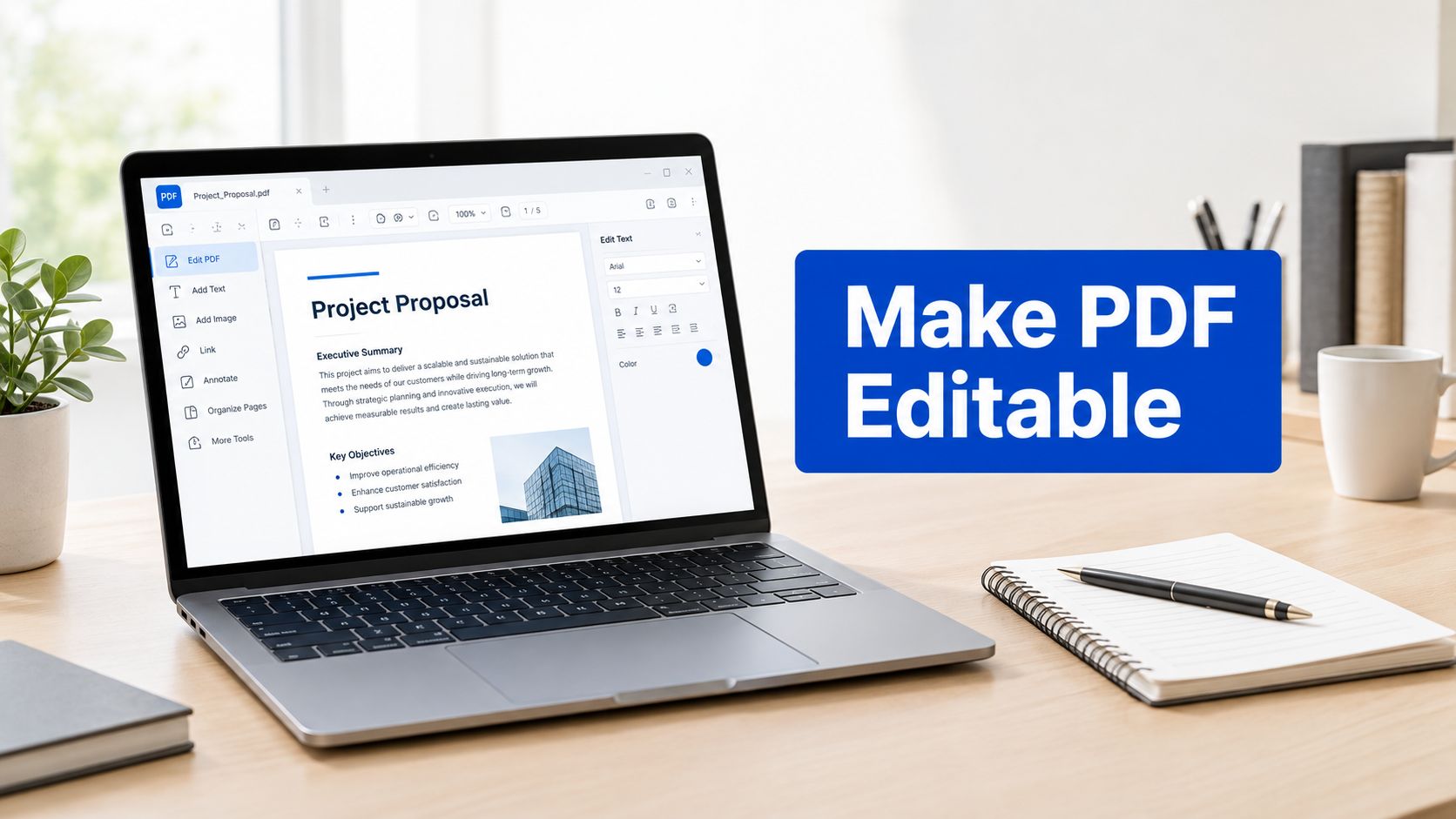
You can make a PDF editable in your browser, but the correct method depends on the file. A text-based PDF can usually be converted to Word for substantial rewriting, while a scanned PDF needs OCR before its words can be selected or changed. For a quick correction, annotation, or added signature, editing the existing PDF may preserve the layout better than conversion.
The important distinction is between visual editability and structural trustworthiness. A file may let you click, type, or highlight while still containing broken reading order, incorrect OCR, fragmented text, or inaccessible tables. Use the workflow below to choose the right method and verify the result before you send or file the document.
Table of Contents
- Identifying Your PDF Type Before Editing
- Converting Text-Based Files to Word
- Using OCR for Scanned Documents
- Making Quick Changes With In-Browser Editors
- Handling Passwords and Digital Signatures
- Verifying Layout and Accessibility After Editing
Identifying Your PDF Type Before Editing
You receive a form, try to highlight a sentence, and nothing happens. The page looks like a normal document, but your cursor treats it like a photograph. That behavior usually means you're working with a scanned PDF, not a PDF containing editable text.
Run this quick test before choosing a tool:
- Open the PDF in your browser.
- Drag across a sentence.
- Copy the selection and paste it into a plain-text field.
- Check whether the pasted content follows the page in a sensible reading order.
If you can select individual words, the file is probably born digital. It stores text and page objects that software can extract or rearrange. If you can only select the whole page, or nothing at all, the file is likely an image-only scan. The Library of Congress explanation of PDF file structure notes that PDF text can be structured or simple, and that visible glyphs don't always correspond cleanly to usable Unicode text.
Choose the workflow from the file type
A born-digital PDF is usually the easier case. Convert it to DOCX when you need to rewrite paragraphs, reorganize sections, or update several parts of the document. Use direct PDF editing when you only need to add a note, correct a small item, highlight content, or place a signature.
A scanned PDF needs optical character recognition, or OCR. OCR analyzes the page image and creates a machine-readable text layer. That layer can make the document searchable and potentially editable, but it doesn't guarantee that every character was recognized correctly.
A PDF can also contain restrictions that prevent copying or modification. That doesn't necessarily mean the file is damaged. It may mean the creator applied permissions that limit text extraction or editing. If the issue is a locked file, review this guide to editing a protected PDF and confirm that you're authorized to change it before proceeding.
Converting Text-Based Files to Word
For extensive revisions, PDF-to-Word conversion is usually more practical than trying to manipulate individual objects on every page. The conversion reconstructs the document as paragraphs, headings, lists, tables, and other Word-compatible elements. It won't always rebuild the source perfectly, so treat the DOCX as a working copy and keep the original PDF untouched.
Use a browser-based conversion workflow
- Keep the source file unchanged. Save the original PDF in a separate folder so you can compare it with the converted document.
- Open a PDF-to-Word tool in your browser. You won't need to install desktop software for a standard conversion.
- Upload the PDF. Select the file from your computer or mobile device.
- Start the conversion. Wait for the DOCX file to be generated.
- Download and open the result. Use Word or another compatible word processor to inspect the structure before editing.
- Save the revised document as DOCX or export it back to PDF.
PDFKing's browser-based PDF-to-Word tool is one option for turning a static PDF into an editable DOCX. Its tools are 100% free, produce no watermark, and require nothing to be installed.
Inspect the structure, not just the appearance
A converted file can look close to the PDF while behaving badly in the word processor. Columns may appear in the wrong order. A paragraph may be divided into separate text boxes. A table may become a collection of positioned objects instead of a real table.
Check these areas before making changes:
- Headings: Confirm that headings are actual heading styles, not enlarged body text.
- Paragraphs: Join sentences that have been split into separate boxes or lines.
- Columns: Read each column from top to bottom and verify that the text doesn't jump across the page.
- Tables: Check cell boundaries, headers, totals, and wrapped text.
- Fonts: Look for substituted fonts that change spacing or line breaks.
- Lists: Make sure bullets and numbering remain in the correct sequence.
If the conversion creates a visual collage of boxes, don't spend time repairing every object blindly. For a short or highly designed document, direct PDF editing may be safer. For a long report that needs real rewriting, rebuilding the affected section in Word often produces a cleaner result than preserving a broken conversion layer. This practical guide to converting PDF to Word without losing formatting covers the layout problems that commonly appear after export.
Using OCR for Scanned Documents
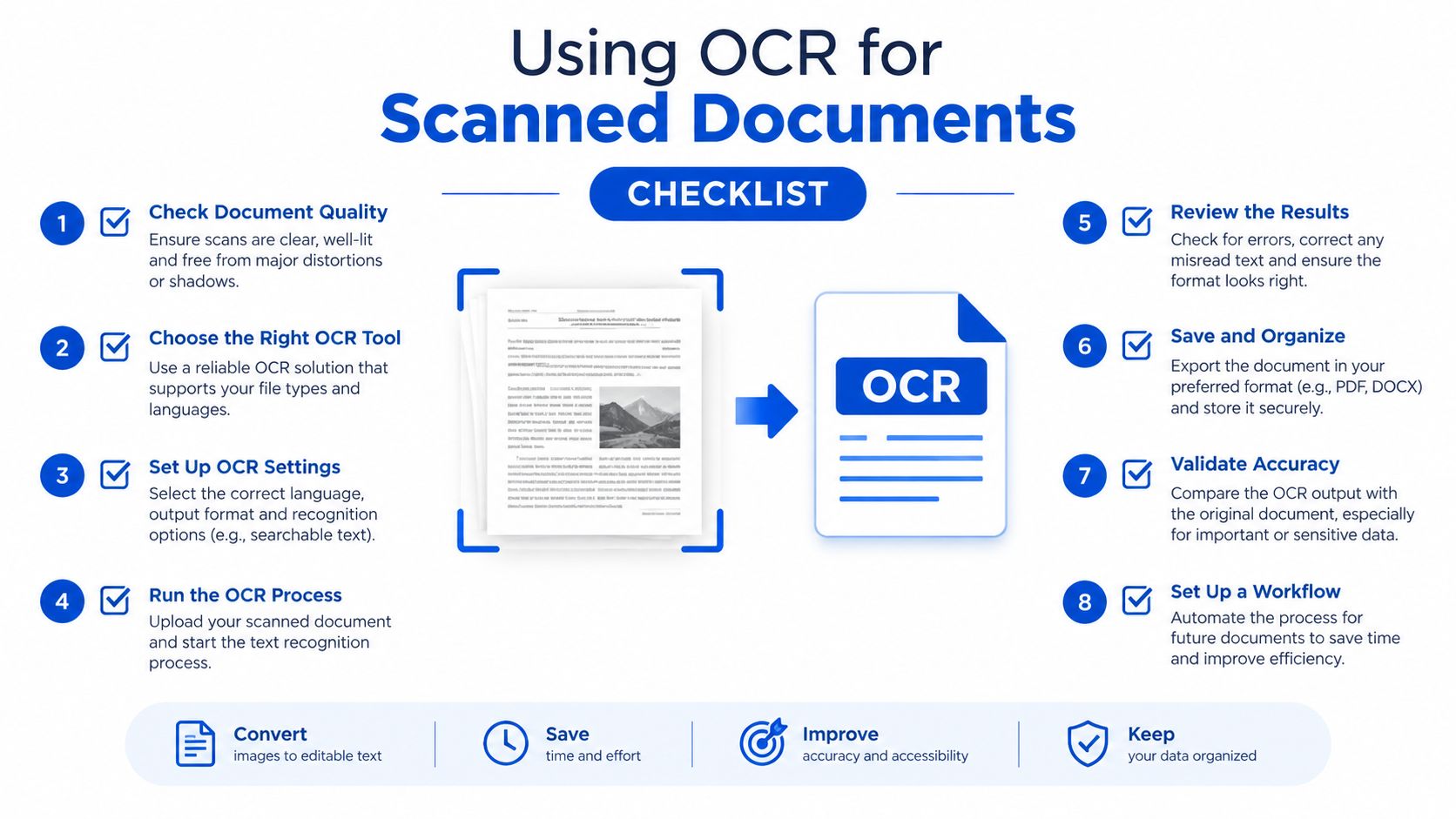
A scanned PDF is a picture of a page. OCR creates a text layer that sits alongside, or over, that image so you can search, copy, and revise the recognized content. Adobe describes OCR processing that can clean and deskew an image before adding text, while an EXACT option preserves the original image and overlays searchable text. The choice is a trade-off between improving recognition and preserving the appearance of the scan. Adobe's OCR documentation explains this distinction.
Recognition quality depends on the source. Clean machine-printed pages tend to be easier to process than skewed scans, noisy backgrounds, unusual fonts, handwriting, multilingual pages, or compressed images. A 2021 benchmark comparing Tesseract, Amazon Textract, and Google Document AI found that the cloud-based systems performed substantially better than Tesseract on noisy documents, with Google Document AI producing the strongest overall results among the systems evaluated. The benchmarking study also helps explain why OCR should be treated as a recognition process, not a perfect recovery of the source.
Reported Tesseract experiments have produced accuracy levels of approximately 70%, 81.9%, and 97%, depending on the dataset, language, and evaluation method, as documented in the same study. A separate 2025 study reported approximately 94% character-level accuracy on high-quality scans, with lower performance on older documents, while other low-quality scan experiments ranged from 85% to 90% (IJSRET study). These figures aren't a guarantee for your file. They show why a successful export doesn't prove factual accuracy.
Review high-risk content first
Treat OCR output as a first draft. Review the parts where one incorrect character can change the meaning:
- Names and addresses: Compare every spelling against the scan or an authoritative record.
- Dates: Check day, month, and year fields, especially where digits touch punctuation.
- Money: Recheck currency symbols, decimal points, commas, totals, and negative values.
- Legal language: Compare clauses, section references, and defined terms line by line.
- Tables: Inspect each row and column. OCR can shift a value into the wrong field.
- Handwritten notes: Assume these require manual transcription unless the writing is exceptionally clear.
- Academic citations: Verify page numbers, initials, publication years, and special characters.
A useful process is to convert the scan, search the DOCX for suspicious characters or blank fields, then compare each page visually with the original. If the document supports records management, accurate OCR can also help teams index case files faster, but indexing should follow verification when the files contain legal, financial, or identity information. For a practical conversion route, use this guide to convert a scanned PDF to Word.
Making Quick Changes With In-Browser Editors
Full conversion is unnecessary when the underlying page already looks correct and you only need a localized change. Converting a complex form, brochure, certificate, or drawing can disturb every surrounding element. In those cases, direct editing keeps the fixed page geometry in place and adds a new object where you need it.
Use an in-browser editor when you need to:
- Add a short line of text to a form.
- Place a signature or date.
- Highlight a passage for review.
- Draw a box around an item.
- Add an arrow, shape, or freehand mark.
- Insert an image or supporting graphic.
- Annotate a page without rewriting its existing paragraphs.
The process is straightforward. Open the edit tool, upload the PDF, select the text or annotation option, place the object on the page, adjust its size and color, and download the revised PDF. Before saving, zoom in around the edited area and check that the new object doesn't cover nearby content.
Decide between direct editing and conversion
Choose direct editing when the change is small and the layout matters more than the underlying text structure. A one-line correction on a branded letterhead is a good example. So is adding a signature to a completed form while leaving the original fields and alignment intact.
Choose conversion when you need to change the document's substance. If you're rewriting several paragraphs, moving sections, creating new list items, or changing a table extensively, a DOCX gives you more control. The trade-off is that conversion can fragment the page into text boxes or alter line wrapping.
Direct editing doesn't magically repair a scanned page or create a clean semantic structure. It adds objects to the existing PDF. For instructions on adding text without rebuilding the entire file, see the PDF text editing guide. Always save a separate edited copy, particularly when the PDF is part of a contract, application packet, or official record.
Handling Passwords and Digital Signatures
A PDF that won't let you copy or edit may be restricted by permissions rather than technically uneditable. The Library of Congress notes that PDF creators can disallow printing and text extraction. First confirm the file's permissions and your authority to modify it. If you own the document or have permission to work on it, a permission-clearing workflow may remove the restriction before you convert or annotate it.
An owner-password restriction and a digitally signed document are different problems. Removing a file's access barrier doesn't make it safe to alter after signing. A digital signature is designed to help verify the signer's identity and the integrity of the signed data. NIST explains that digital-signature assurance includes validation of the public key, the signer's identity, and possession of the corresponding private key (NIST guidance on digital signatures).
Protect the original record
Use this order for sensitive files:
- Save the original PDF in a read-only or clearly labeled reference location.
- Confirm that you're authorized to remove restrictions or make edits.
- Use an unlock tool only for files you legitimately control.
- Make changes in a separate working copy.
- Check the signature status after editing.
- If the signed content changed, send the revised document through the authorized signing process again.
A modified signed contract may no longer carry the original signature's assurance. Don't treat a visible signature image as proof that the revised file remains cryptographically valid. For permission-related work, this guide to unlocking a password-protected PDF is the relevant workflow.
Verifying Layout and Accessibility After Editing
An editable file isn't finished until it remains accurate, readable, and usable. Compare the revised pages with the source at normal viewing size, then inspect the details that conversion and OCR commonly disturb.
Use this final checklist:
- Reading order: Select or read the content from start to finish. Make sure columns, sidebars, and captions appear in a logical sequence.
- Headings: Confirm a consistent heading hierarchy rather than relying only on bold or larger type.
- Tables: Check that tables have real structure, identifiable headers, and correctly aligned cells.
- Fonts: Confirm that fonts are embedded or that substitutions haven't changed line wrapping.
- Images: Add alternative text when an image conveys meaningful information.
- Links: Test every link and make sure its label explains its destination.
- Forms: Check field labels, keyboard navigation, focus order, and whether users can complete the form without a mouse.
- Text layer: Search, copy, and paste representative passages to catch missing or broken characters.
Official accessibility guidance calls for a tagged structure tree, logical reading order, tagged tables, and embedded fonts. A searchable text layer alone doesn't make a PDF accessible to screen readers. The European Accessibility Act became applicable to covered services in June 2025 (PDF accessibility overview), so public-facing documents deserve more than a visual spot check.
Frequently asked questions
Can every PDF be made editable?
No. A text-based PDF can often be converted or edited directly. An image-only scan needs OCR, and a restricted or signed file may require authorization before any changes are appropriate.
Is converting a PDF to Word better than editing it directly?
It depends on the change. Word conversion suits substantial rewriting, while direct PDF editing is usually safer for small corrections, annotations, signatures, and complex fixed layouts.
Can OCR be trusted for contracts and invoices?
OCR can create a useful first editable layer, but you should verify names, dates, totals, clauses, addresses, and tables against the original scan before relying on the result.
Why does converted text appear in separate boxes?
PDFs store page objects rather than a continuous stream of word-processing paragraphs. A converter may preserve positions with separate boxes, which can make the document look accurate while making it difficult to edit.
Does selectable text mean a PDF is accessible?
No. Accessibility also depends on tags, reading order, heading structure, table markup, alternative text, embedded fonts, language settings, and keyboard or assistive-technology support.
What happens to a digital signature after editing?
Changing signed content can invalidate the signature's integrity assurance. Preserve the original and have an authorized signer apply a new signature to the approved revision.
Can I edit a PDF without installing software?
Yes. Browser-based PDF tools can handle standard conversion, annotation, signing, and file operations without a desktop installation. Review the output carefully, especially when OCR or complex layouts are involved.
PDFKing provides free browser-based tools for converting PDFs to Word and making targeted edits such as adding text, highlights, shapes, images, and annotations. Use PDFKing to prepare your document without installing software or adding a watermark, then compare the result with the original before sharing it.