ON THIS PAGE
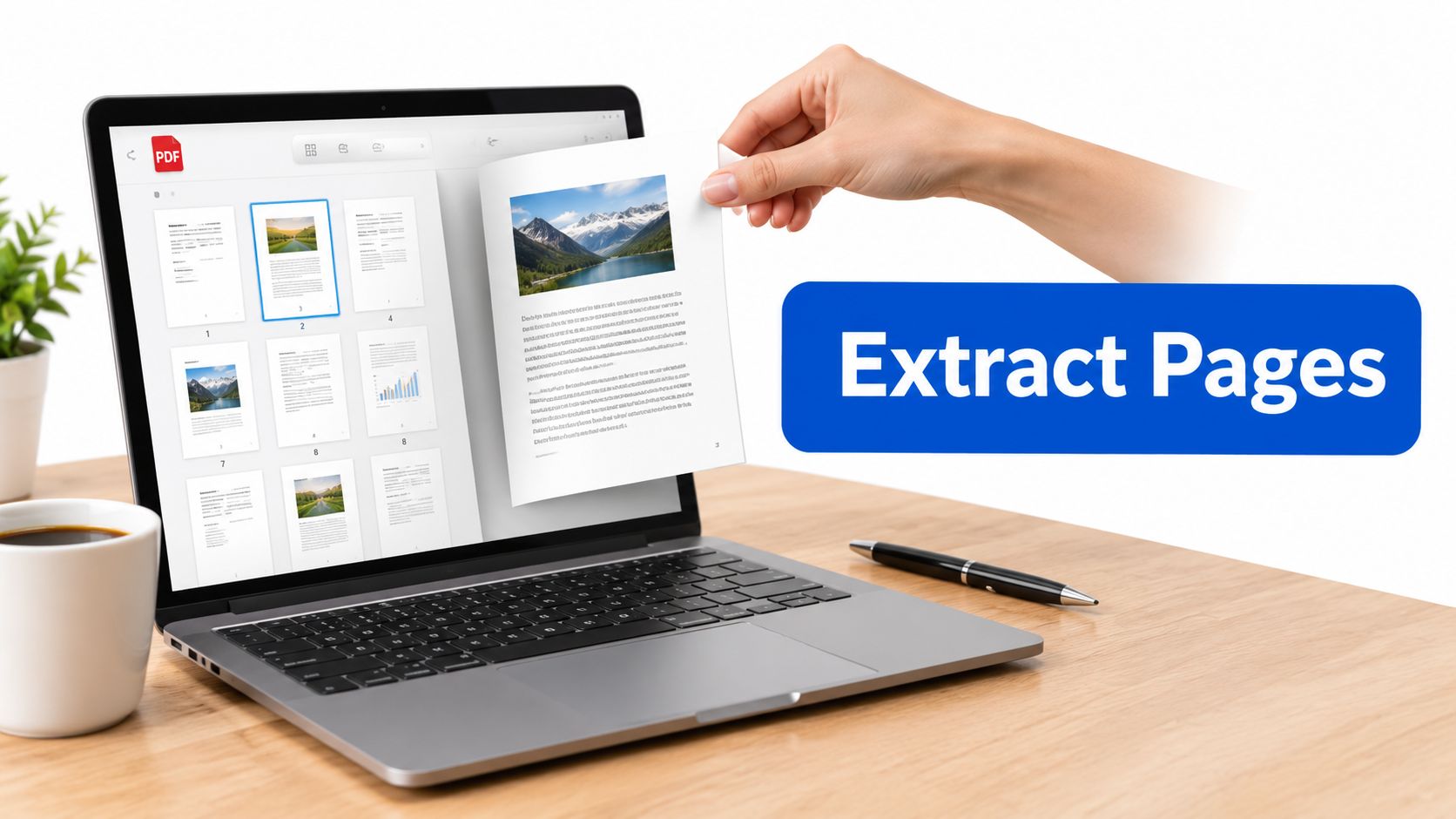
If you need only a few pages from a large PDF, extract those pages into a new file instead of editing the original. You can select one page, a continuous range, or non-consecutive pages, then check the new file for correct order, bookmarks, links, and form fields before sharing it.
Table of Contents
- When You Only Need a Few Pages from a Big PDF
- Extracting Selected Pages Step by Step
- What Survives the Cut and What Does Not
- Useful Page Range Syntax for Tricky Selections
- Real Scenarios Where This Saves the Day
- Wrapping Up with a Clean Ready-to-Share File
- Frequently Asked Questions About Extracting PDF Pages
When You Only Need a Few Pages from a Big PDF
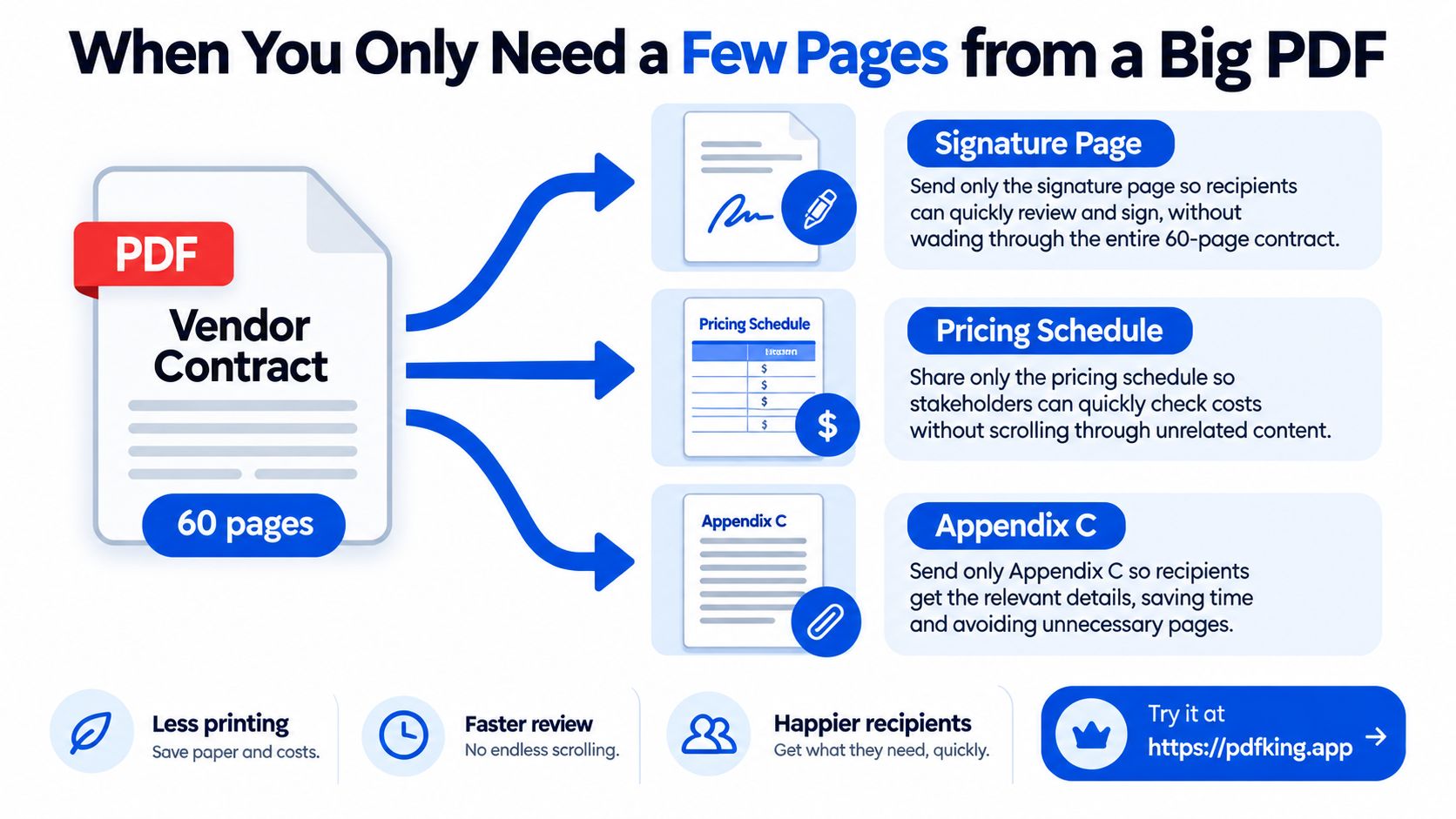
A 60-page vendor contract is open on your desk. The legal team needs the signature page, the pricing schedule, and appendix C. Sending the complete contract creates extra scrolling and printing, and it makes it easier for someone to quote an unrelated clause without the right context.
The cleaner solution is a focused PDF containing only those three pages, arranged in the order the recipient needs. You can extract a single page, a page range, or a scattered list without changing the source document.
Keep the original file safe
Page extraction should create a separate output PDF. Your original contract stays available for the archive, the full record, or a later review. That matters when the source includes signatures, legal notices, or document history that you may need to preserve.
The visible page content normally comes across with the extracted pages, including text, images, and page layout. The quieter parts of a PDF require more care. Bookmarks, internal links, form fields, annotations, metadata, and digital signatures may behave differently after pages are isolated.
Practical rule: Treat the extracted PDF as a new working document. Open it, inspect it, and only then send it to a client, attorney, professor, or filing portal.
The task is simple once you separate two questions. First, which pages do you need? Second, does the new file still behave correctly after those pages are copied? The answer to the first question takes seconds. The second deserves a quick final check.
Extracting Selected Pages Step by Step
Use the browser-based extractor when you want a new PDF containing selected pages without installing software. Upload the source file, select the pages, extract them, and save the result with a name you'll recognize later.
1. Upload the source PDF
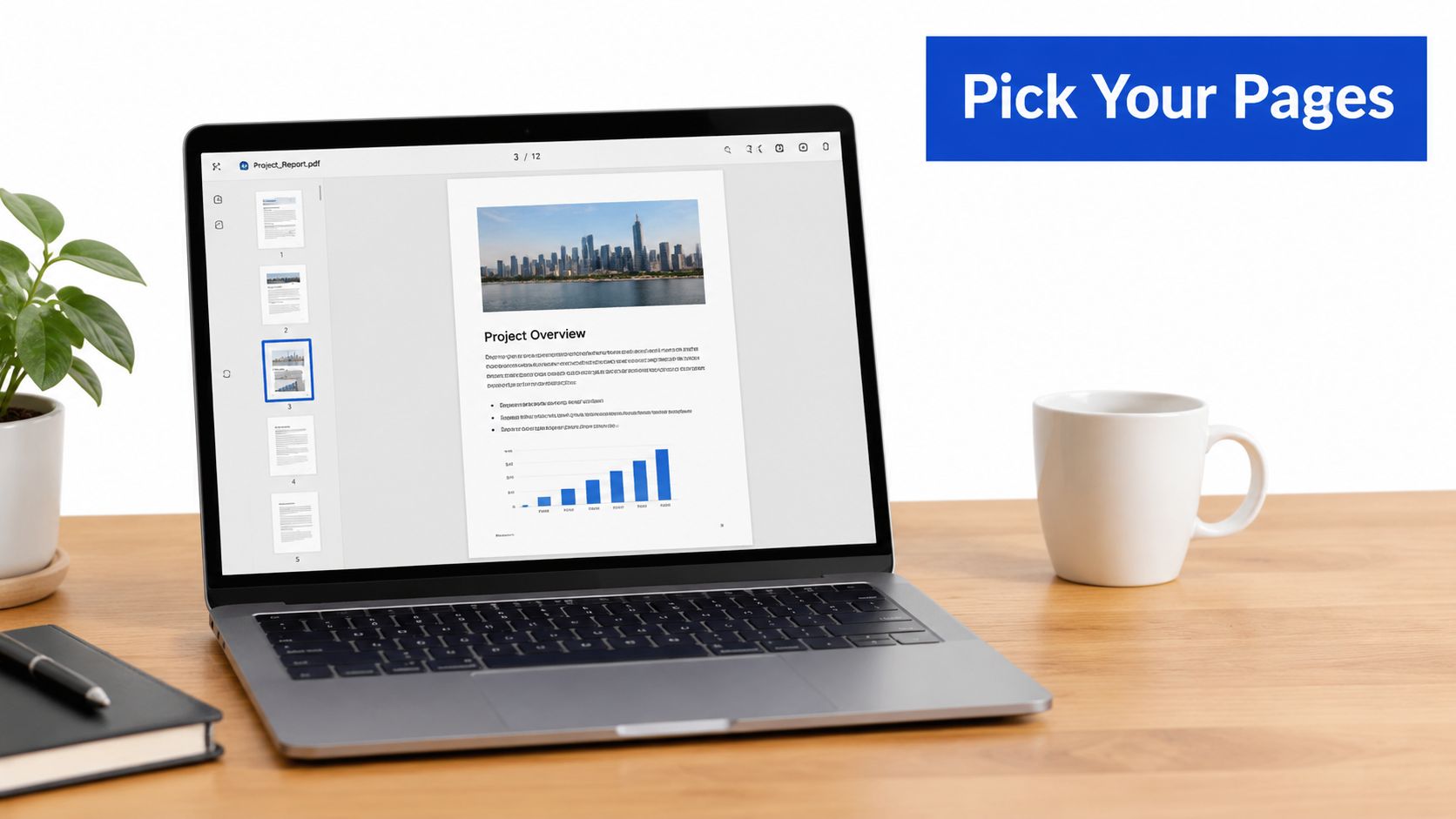
Open the extractor and drag your PDF into the upload area. You can also use the file picker to select it from your device. After upload, page thumbnails appear in a scrollable panel, with each thumbnail labeled by its page number.
Take a moment to identify the source page numbers. A printed page number inside a document may not match the PDF page index. Covers, blank pages, exhibits, and front matter can shift the count.
2. Select the pages you need
For one page, click its thumbnail. The selected page should become visibly highlighted.
For a continuous range, select the first page, hold Shift, and select the last page. For example, selecting page 12 and then page 14 selects pages 12, 13, and 14.
For separate pages, hold Ctrl on Windows or Command on Mac while clicking each thumbnail. This is the right method for a selection such as pages 3, 7, and 12.
The selected-page count gives you a useful confirmation before you continue. If you expected four pages and the counter shows three, stop and review the thumbnails.
3. Extract and name the new file
Click Extract, choose where to save the output, and give it a descriptive filename such as Contract-Pricing-Exhibit.pdf. A useful name tells the recipient what the file contains without requiring them to open it first.
If you often handle multi-page documents, the guide to splitting a PDF online for free can help you choose between extracting selected pages and dividing an entire file into separate documents.
Open the new PDF immediately after saving it. Confirm that the pages appear in the intended order, especially when you combined individual pages with ranges. Keep the original file untouched until you've completed that check.
What Survives the Cut and What Does Not
Extraction copies selected page structures into a new document. It doesn't rebuild every relationship in the source PDF, so the output can look correct while a bookmark or form behaves differently.
The safest assumption is that the visible page itself will remain usable, but connected features need testing. A bookmark pointing to an extracted page may remain available. A bookmark pointing to a removed page may disappear or point somewhere unexpected. Internal links work under the same condition. A link to a page that stayed in the file may work, while a link to a removed page may become inactive.
Form fields and annotations can also require attention. A field on an extracted page may remain, but a field connected to another page may lose part of its context. A signature associated with a page you didn't extract won't appear in the new file.
A quick verification checklist
Open the result and check these items before delivery:
- Page count: Confirm that the output contains every selected page and no extra page.
- Page order: Compare the output sequence with your intended reading order.
- Bookmarks: Open the bookmark panel and test entries that matter.
- Internal links: Click important table-of-contents entries and cross-references.
- Forms: Select fields, type into a test copy if appropriate, and confirm that they respond.
- Annotations: Review comments, highlights, stamps, and drawings.
- Signatures: Check whether visible signatures remain and whether the document reports any signature change.
| Element | After extraction | What to check |
|---|---|---|
| Text and images | Usually remain on the selected pages | Compare the first and last extracted pages with the source |
| Bookmarks | May be filtered or redirected | Open each bookmark that matters |
| Internal links | Links to kept pages may remain active | Test cross-references and table-of-contents entries |
| Form fields | May remain, but connected behavior can change | Click fields and verify their context |
| Annotations | Often travel with the page | Review comments, stamps, and highlights |
| Metadata | May not carry over completely | Check title, author, and document properties |
If the file contains confidential information, inspect it for leftover metadata before sending it. The guide to removing metadata from a PDF covers that separate cleanup step.
Useful Page Range Syntax for Tricky Selections
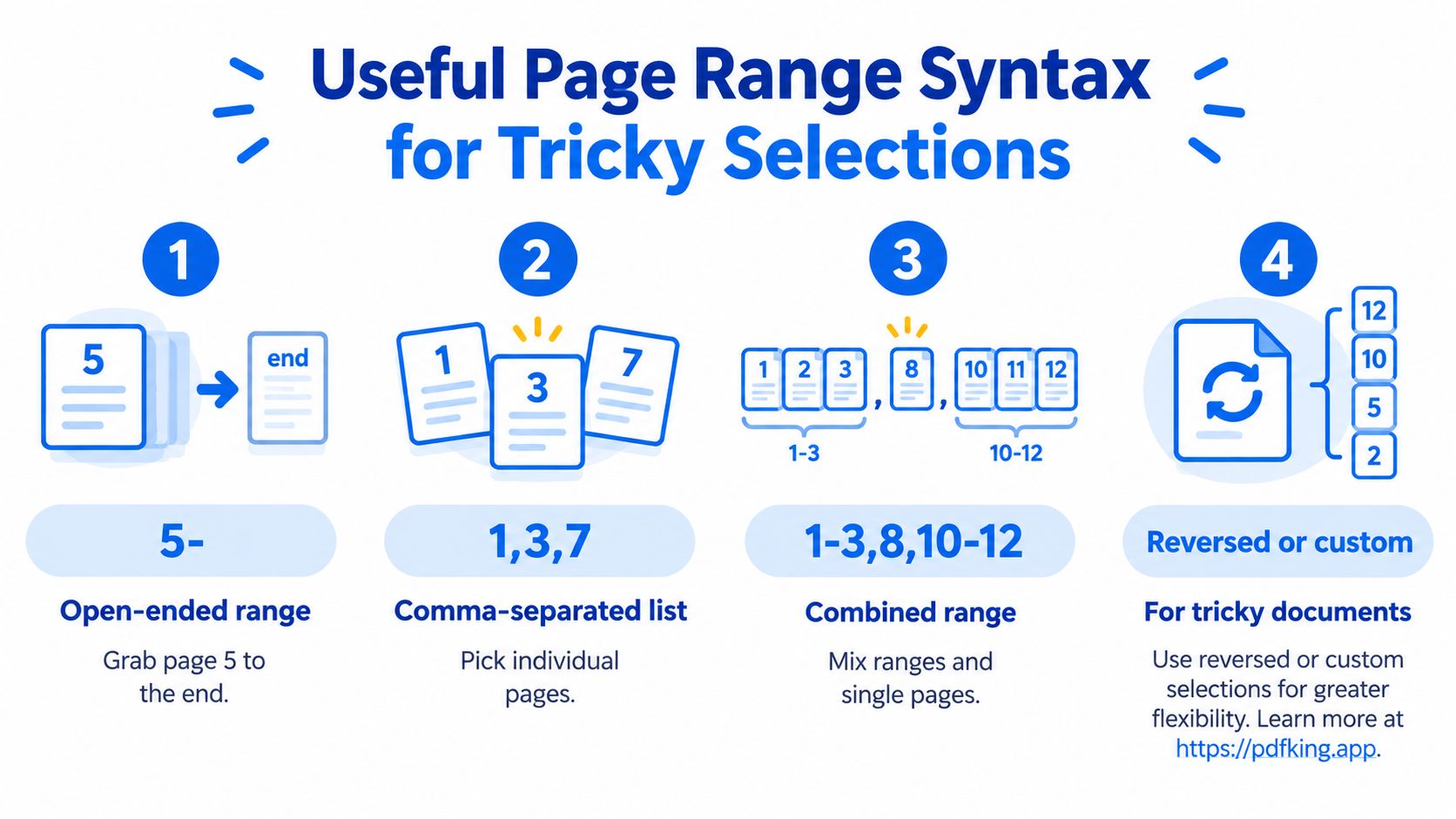
Simple selections are easy to understand, but page ranges become more useful when a document has appendices, repeated sections, or a large scanned batch. Some desktop PDF tools accept expressions such as 2-5, 1-2,4-5, odd, and even.
Open-ended ranges
Type 5- when you need page 5 through the end of the source file. This is useful for extracting the final section of a report without counting its last page.
Type -7 in tools that support an open start when you need the beginning through page 7. Not every browser interface displays this notation, so use the visible page selector if the field doesn't accept it.
Comma-separated pages and ranges
Use commas to combine individual pages and ranges. For example:
1,3,7selects pages 1, 3, and 7.1-3,8,10-12selects pages 1 through 3, page 8, and pages 10 through 12.1-2,4-5skips page 3 while keeping the surrounding pages.
This format is helpful when preparing an exhibit or a course handout from scattered sections.
Odd, even, and reverse counting
Use odd to select odd-numbered pages or even to select even-numbered pages. This can help separate sides of a scanned batch when the source was assembled in alternating order.
Some desktop range systems also support reverse counting. In those systems, ^1 means the last page and ^2 means the second-to-last page. A range such as ^1-^5 refers to the last five pages.
Page syntax refers to the PDF's source order, not the visible number printed in a footer. If a cover is unnumbered, page 1 in the selector may be the cover while the printed page 1 is later. Check the thumbnails before extracting. For documents where printed numbering matters, adding page numbers to a PDF can make the finished file easier to reference.
Real Scenarios Where This Saves the Day
A paralegal preparing a contract exhibit may need pages 12 through 14, plus page 27. The selection expression is 12-14,27. A practical filename is Matter-4821-Signed-Addendum-Exhibit.pdf. Extract the pages in the order they should appear in the exhibit, then open the output to confirm that the signature page follows the addendum.
If the source order doesn't match the filing order, create the extracted file first and use a temporary working folder for any reordering. Don't overwrite the full contract while preparing the exhibit. A separate output file gives you room to correct the sequence without disturbing the record.
A teacher working with a long syllabus may want to send students only the current week's material. The range is 45-52, and a clear filename could be Course-Name-Week-Current-Reading.pdf. Before sending it, check that the first page includes the expected heading and that the last page doesn't cut off a reading list or assignment note.
A researcher sharing methodology may need pages 3 through 6 and page 18 from a journal article. The selection is 3-6,18, and the output might be named Study-Methods-and-References.pdf. Review the extracted file in reading order. If page 18 contains references that refer back to a page you didn't include, add a short note in the email rather than assuming the recipient will have the full article open.
For a packet assembled from several extracted files, use a clear naming pattern and keep temporary versions separate from the final copy. If you later need to combine those files, the tool for merging multiple PDFs into one can place them into a single ordered packet.
Wrapping Up with a Clean Ready-to-Share File
A reliable extraction routine has five beats:
- Open the extractor: Start with the browser tool and keep the source PDF available.
- Upload the source: Select the correct file, especially if several versions have similar names.
- Enter or select pages: Use thumbnails for visual confirmation and range syntax where supported.
- Save the new file: Choose a descriptive filename and a known folder.
- Verify the result: Check page count, order, bookmarks, links, forms, and visible signatures that matter.

The browser workflow creates a separate PDF, so you can preserve the original for your records. It's useful for an email attachment, court exhibit, academic handout, or learning-management-system upload when the recipient needs a focused document rather than the entire source.
Do the final inspection before you close the source file. A few seconds spent testing a bookmark or checking the last page can prevent an awkward replacement email later.
Frequently Asked Questions About Extracting PDF Pages
Does extraction change the original PDF?
No. The intended workflow creates a new PDF from the selected pages. Keep the source file until you've reviewed the output and confirmed that it contains what you need.
Can I extract pages on a phone or tablet?
Yes, a browser-based extractor can work on phones and tablets. A desktop is usually easier when you need to enter several page numbers, compare thumbnails, or test links and form fields.
Will the new PDF be much smaller?
Often, yes, because the output contains only the selected pages. The final size depends on the images, scans, fonts, and other resources stored on those pages, so it may not match the exact proportion of pages removed.
Will formatting stay the same?
The visible layout, text, and images generally remain with the selected pages. Bookmarks, links, form behavior, annotations, metadata, and signatures need a separate check because they can depend on pages outside the selection.
What if the PDF is password-protected?
You may need the document password or permission from the owner before extraction is allowed. Don't try to bypass restrictions on a file you don't own. For a file you're authorized to manage, the online PDF password remover may help when the file's security settings permit that workflow.
Should I use extraction or splitting?
Use extraction when you need one focused file containing chosen pages. Use splitting when you want to divide the document into multiple files or separate broad page groups.
PDFKing provides free browser tools for extracting selected PDF pages, with no watermark and nothing to install. Upload the document you already have open, select the needed pages, verify the new file, and visit PDFKing to start the extraction.