ON THIS PAGE
Use Unlock PDF now
Upload File
Drag & drop a protected PDF here
or click to browse · No file size limit
A free PDF password remover online can remove protection from a PDF you own or are authorized to modify when you provide the correct password. Check privacy practices and usage limits before uploading anything sensitive, and use PDFKing as a no-install, no-sign-up option for routine work.
Need to process a PDF without installing software? The important distinction is whether you know the password and have permission to change the file. Browser tools generally create a usable copy after you provide the correct open or permissions password. They aren't legitimate tools for bypassing encryption on a file you aren't authorized to access.
PDF security has evolved from no built-in security in the first PDF format in 1993 to password protection in 1996, digital signatures and 40-bit RC4 encryption in 1999, stronger encryption in later releases, and 256-bit AES as the standard in PDF 2.0 in 2017. That history explains why legitimate password-removal workflows became routine, especially for archived documents, inherited files, and PDFs that need editing or printing.
This comparison examines ten browser-based and official options by password requirements, workflow, privacy exposure, usage limits, and when a local tool is safer. Every option is presented as free to use, but individual services can still impose their own limits. For everyday files, you can start with the PDFKing Unlock PDF tool. If you need related file preparation guidance, this content-based PDF split guide offers a useful companion workflow.
Table of Contents
- 1. PDFKing
- 2. Smallpdf
- 3. iLovePDF
- 4. Sejda
- 5. PDF Candy
- 6. PDF24 Tools
- 7. PDF2Go
- 8. HiPDF
- 9. Soda PDF
- 10. Adobe Acrobat
- Top 10 Free PDF Password Removers, Quick Comparison
- Choose the Unlock Method That Fits the File
1. PDFKing
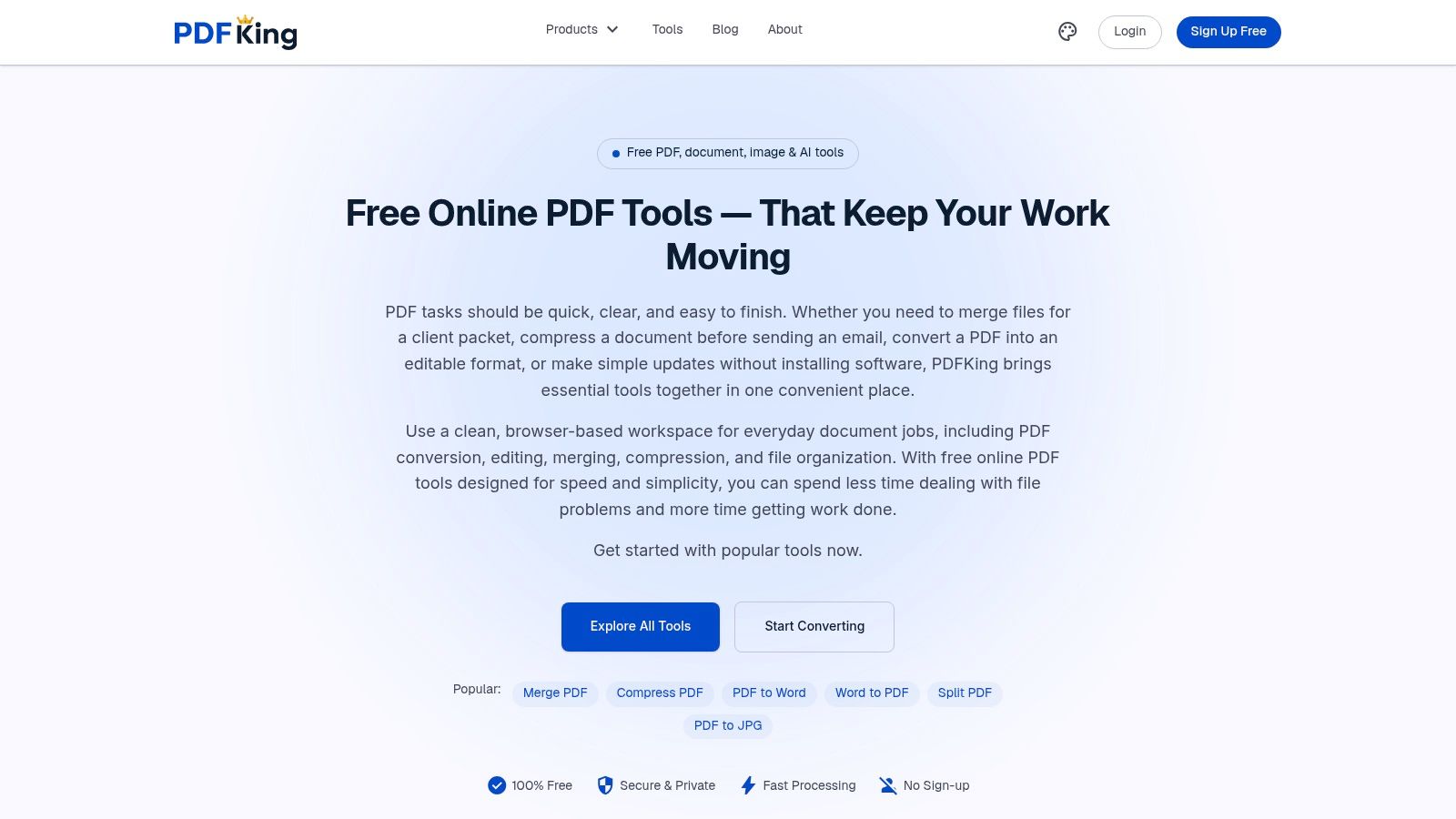
Need a short browser workflow without an account, installation, or watermark? PDFKing accepts a protected file, requests the current password when required, and creates a password-free copy for download. That makes it suitable for students, freelancers, small businesses, office teams, educators, and legal professionals handling routine document administration.
Its broader toolkit is useful because removing a password is often only the first step. PDFKing also supports merging, splitting, compressing, PDF and Word conversion, editing, signing, redacting, protecting, cropping, rotating, page numbering, and metadata changes. A user can get access to a form, edit it, redact a field, and prepare the final file in one browser workspace instead of switching between separate utilities.
Practical rule: Use an online tool only for a file you are authorized to modify. Review its handling practices before uploading confidential material.
PDFKing states that its tools are 100% free, require no payment, card, or sign-up, add no watermarks, and have no stated daily task or file-size caps. It runs in modern desktop and mobile browsers, but an internet connection is required. Very large files may still be limited by the memory available on the device. Enterprise integrations and advanced desktop features are not presented as current options.
Best fit and limitation
PDFKing fits quick browser-based work followed by ordinary PDF preparation. Its three-to-five-step workflow can be easier for nontechnical users than a full desktop editor, and the platform can later help with password protection or permanent redaction. The tradeoff is web processing. A document that must remain entirely on the computer is better handled with a local desktop method.
For password types and authorized removal, see PDFKing's guide to unlocking a password-protected PDF. The product roadmap lists a Chrome extension and native Android and iOS apps as upcoming items, not current features.
Website: PDFKing
2. Smallpdf
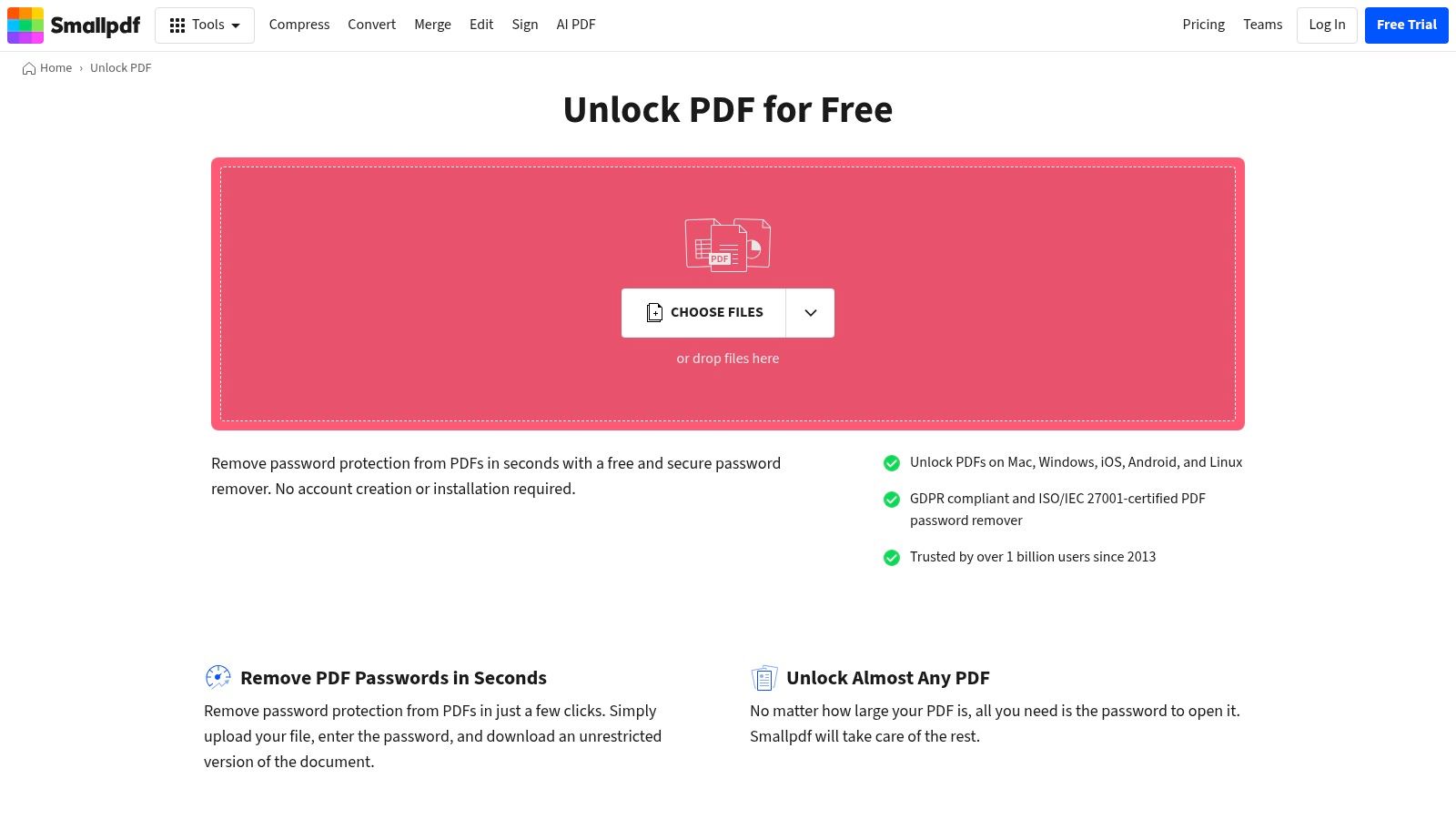
Smallpdf is suited to users who want a familiar, guided interface and a quick handoff to other PDF tasks. Its Unlock PDF workflow supports removing a password or owner-level restriction when you provide the correct password, then returns an unrestricted copy. The service works in desktop and mobile browsers, so it fits a document that you need to process away from your main computer.
The broader Smallpdf suite includes compression, conversion, editing, and electronic signing. That makes it convenient when access is only the first step, such as opening a protected application form before converting or signing it. Its main operational drawback is that the free offering has a strict daily task cap, so repeated work can stop when you reach the service's allowance.
Privacy and usage decision
The workflow requires an upload, which means the file is processed through the service rather than staying entirely on your device. That may be acceptable for routine administrative paperwork, but it deserves more scrutiny for legal, financial, or confidential documents. Adobe's guidance on removing PDF passwords similarly warns that untrusted online tools can create security concerns, especially when the document contains sensitive information. Adobe's explanation of online PDF password removal is useful context for deciding whether convenience outweighs upload exposure.
Smallpdf is a practical choice when you value a polished interface and already use its surrounding PDF tools. It isn't the best fit for high-volume free processing because of the daily task cap, and it isn't the safest choice when your policy requires files to stay local.
Website: Smallpdf Unlock PDF
3. iLovePDF
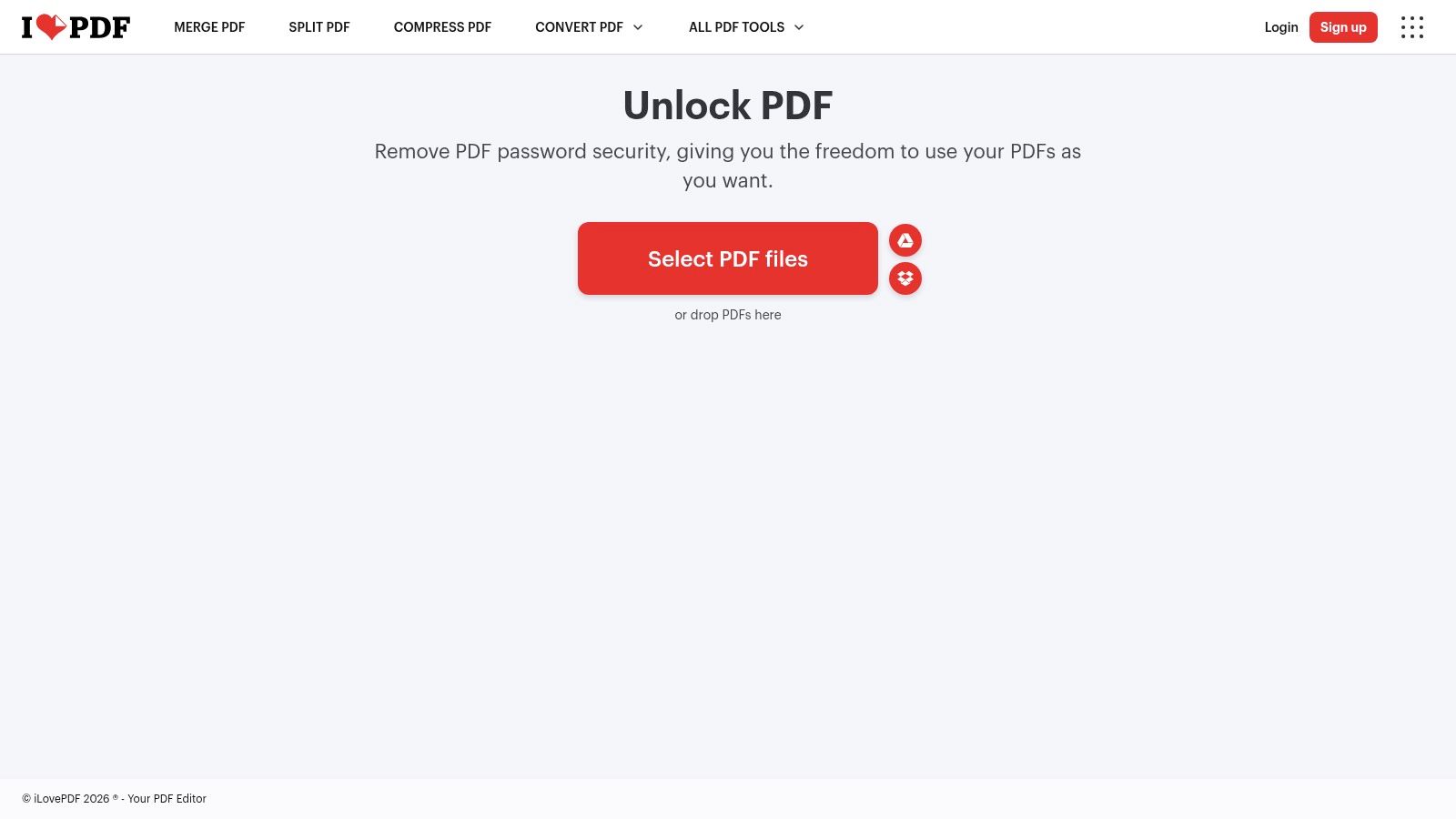
iLovePDF stands out for cloud-storage access. You can bring a PDF from local storage, Google Drive, or Dropbox, provide the required password, and download the resulting copy through a browser workflow. That is useful when the file already lives in a shared cloud folder and you don't want to download it manually before processing.
The service also includes a large collection of everyday PDF tools. After removing protection, you can continue with common tasks such as conversion, compression, or page organization in the same general ecosystem. The interface is designed for a quick operation, and you can begin without installing software or creating an account.
What to check first
The convenience comes with two limits. The free tier has usage limits, although the exact allowance can vary by service policy, and the file is processed on a remote server. Cloud imports also expand the number of places involved in the workflow, because the document moves from its storage provider into the processing service before you download it.
Use iLovePDF for ordinary files where Drive or Dropbox integration saves time. Don't treat its cloud connection as a privacy advantage by itself. A cloud-stored document can still be sensitive, and an upload-based workflow remains different from processing locally.
For users who need to edit after removing restrictions, PDFKing's guide to editing a protected PDF explains why the distinction between opening a file and changing permissions matters.
Website: iLovePDF Unlock PDF
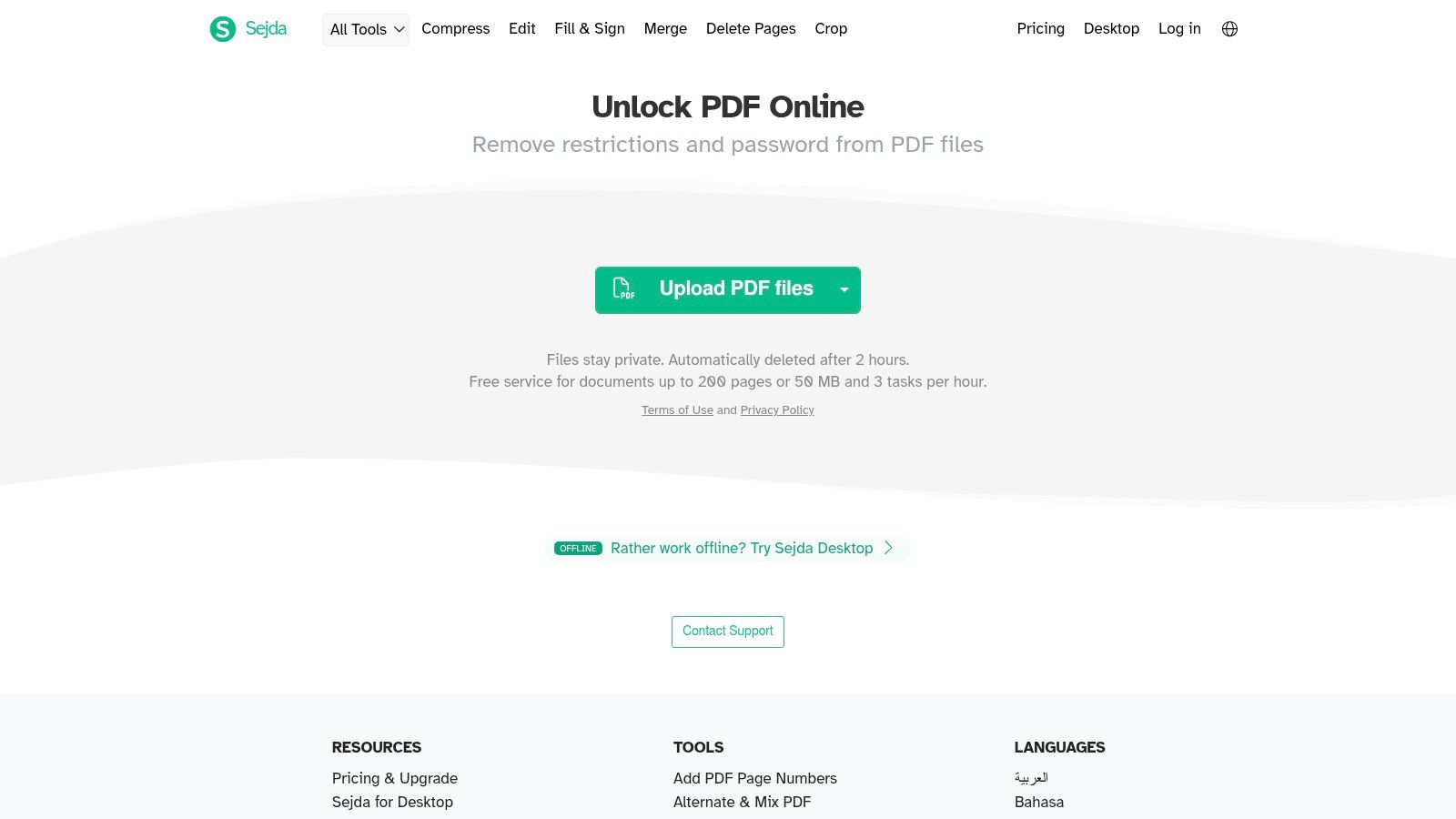
4. Sejda
Sejda is a good middle ground between a browser utility and a local desktop option. Its web tool asks for the correct password, provides status guidance during processing, and returns the file. The service also publishes clear free-tier limits, including metered task allowances, so you can judge whether it fits occasional work before starting a larger batch.
The important difference is Sejda's desktop app. If a document is confidential or your organization doesn't permit uploading files, the desktop route gives you a local alternative. That doesn't make every desktop workflow automatically safe, but it removes the specific exposure created by sending the PDF to a remote processing server.
Best use case
Choose the web tool for casual documents when transparent limits matter more than unlimited access. Choose the desktop app when the file must remain on your machine, the internet connection is unreliable, or the document belongs to a sensitive workflow. The web version still relies on upload-based processing, so the choice between Sejda's two modes should be made before you select the file.
Sejda also covers editing, conversion, and organization. That makes it useful when removing passwords leads directly to page changes or format conversion. Its free web use is metered, however, and the service isn't the right choice if you need unrestricted repeated processing without watching task limits.
Website: Sejda Unlock PDF
5. PDF Candy
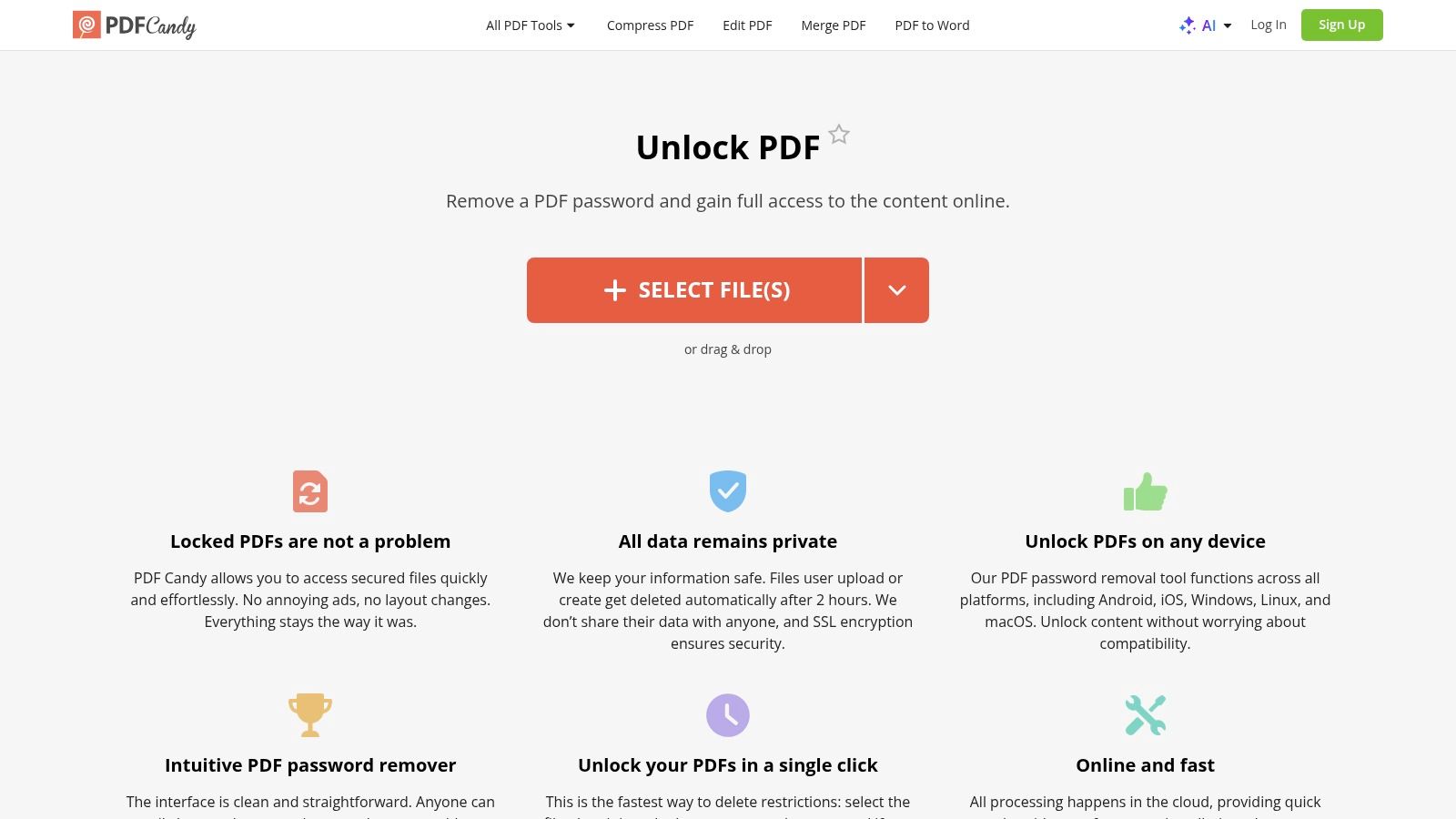
PDF Candy is suited to users who want a broad set of follow-on operations in one browser toolkit. Its workflow handles known owner or open passwords and can be followed by conversion, editing, or OCR. That combination is useful when the PDF is protected but also needs to become editable or searchable after access restrictions are removed.
The process remains straightforward. You upload the file, enter the password when the tool requests it, let the service process the document, and download the new copy. Because it runs in a browser, you don't need a desktop installation, and the workflow can work across operating systems.
Limits and privacy
PDF Candy's free use is limited by task frequency, and its web processing requires an upload. The task limit matters if you're processing many files in one sitting, while the upload requirement matters if the document includes confidential information. A familiar interface doesn't remove the need to evaluate where the document is being processed.
PDF Candy makes sense for occasional password removal followed by OCR or format conversion. It is less suitable for repeated free work when hourly or task-frequency restrictions interrupt the process. It also isn't the preferred option for documents that must stay local.
If you remove protection and prepare the file for sharing, review its hidden document information as well. PDFKing's PDF metadata removal guide covers that separate privacy step.
Website: PDF Candy Unlock PDF
6. PDF24 Tools
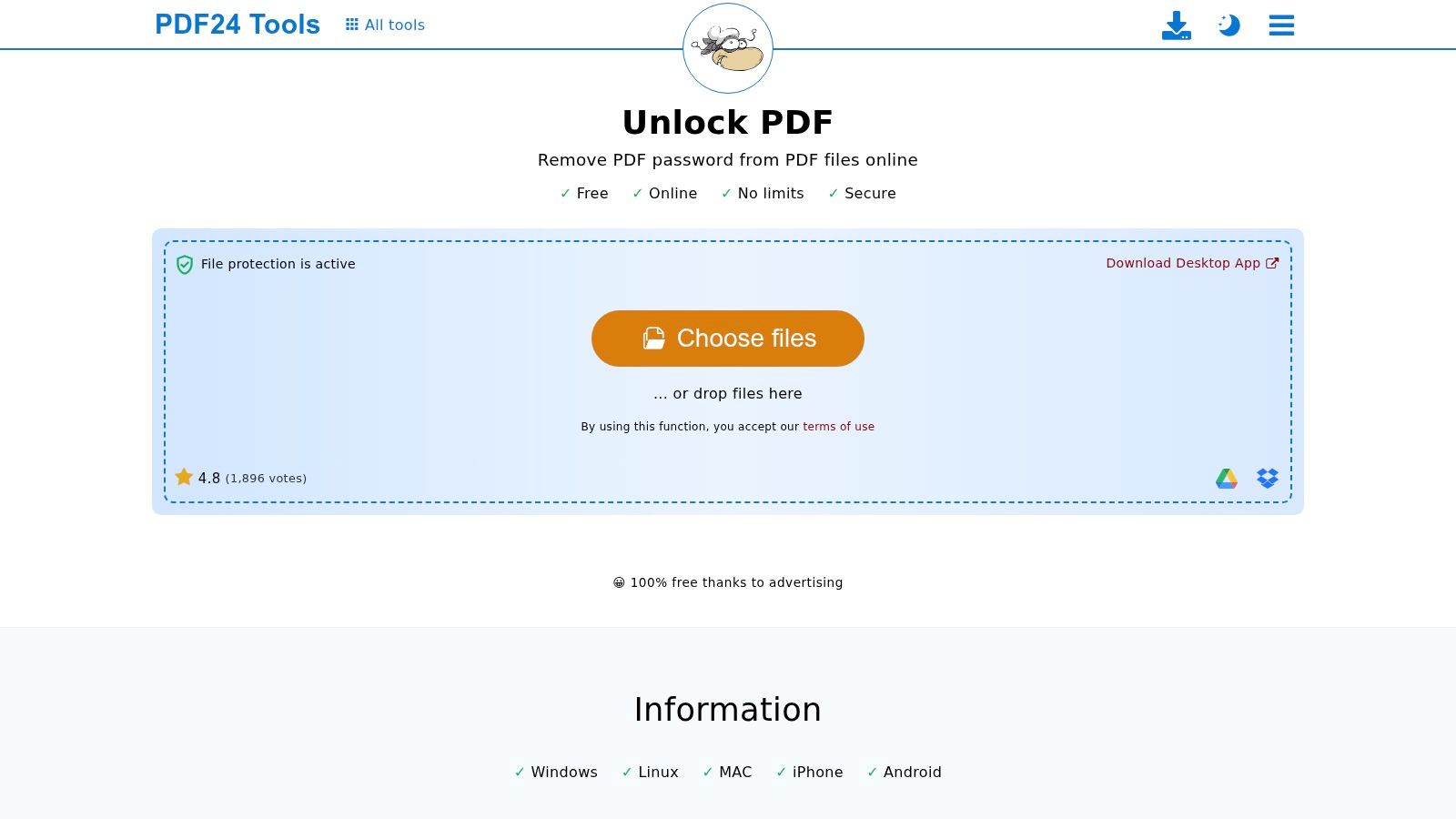
PDF24 Tools is a sensible option when server-location and deletion information influence your choice. The service provides no-registration access, states that its servers are located in Germany, and publishes an automatic deletion policy for uploaded files. Those details don't eliminate upload exposure, but they give you more concrete information than a tool that says little about where processing occurs.
Its PDF tool requires the correct password and follows the familiar browser sequence. You upload the document, enter the password if needed, process it, and download the unprotected copy. PDF24 also provides companion tools for merging, redaction, OCR, and other document operations.
Why it may fit
PDF24 states no usage caps for its password removal tool, which makes it attractive for repeated routine work compared with services that meter tasks. Its interface is functional rather than highly polished, but that can be an advantage when you want a direct utility without extra product navigation.
The privacy decision still belongs to you. A file sent to a server leaves your device during processing, even when a provider states a location and deletion window. Use PDF24 for documents whose sensitivity is compatible with that model, and use a local desktop method when organizational policy requires local handling.
Website: PDF24 Tools Unlock PDF
7. PDF2Go
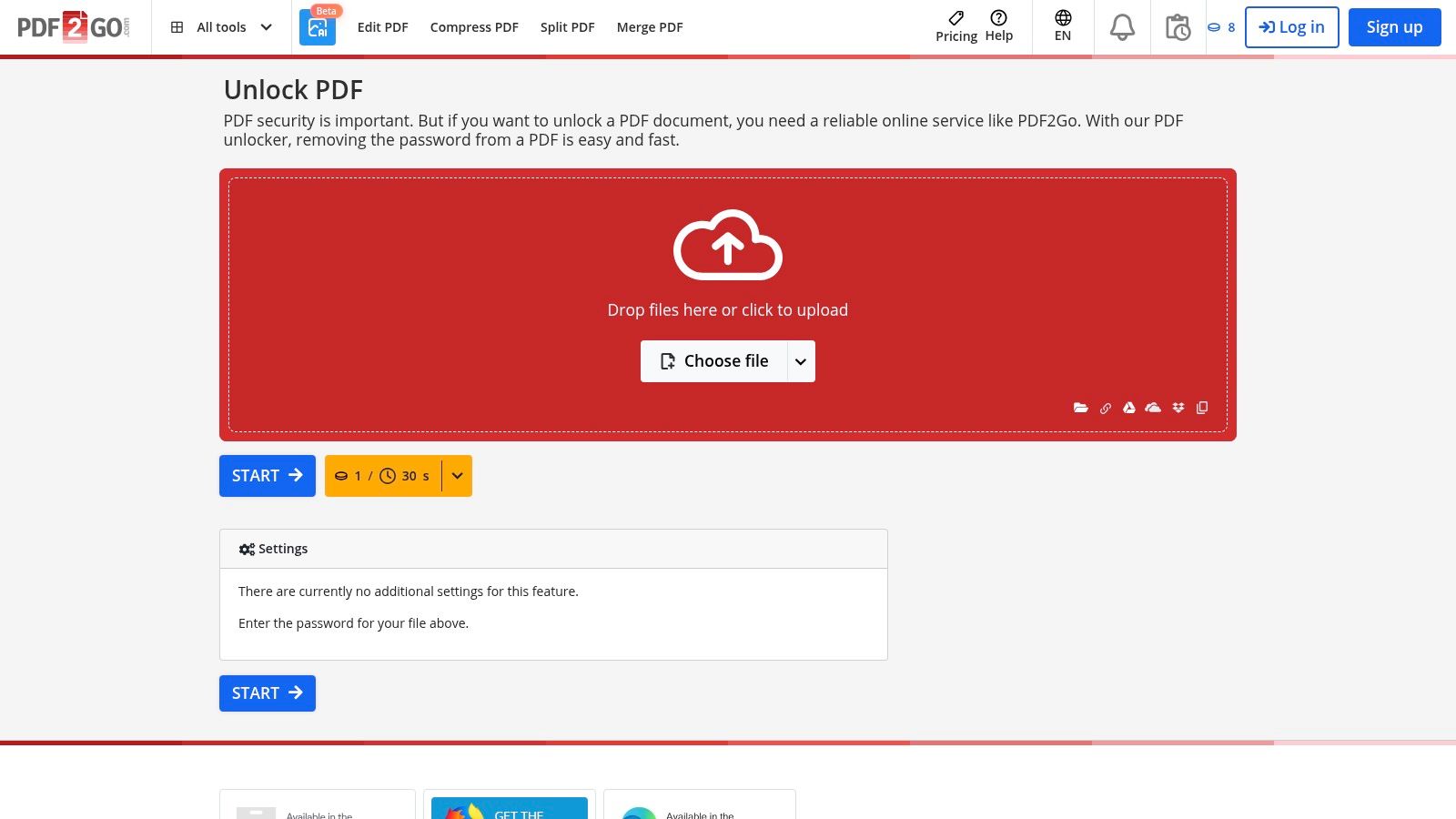
PDF2Go offers a guided browser workflow for users who want clear instructions at each stage. Its PDF Password Remover tool removes a password you provide and returns an unrestricted copy. The service is operated by a German company and emphasizes secure upload and automated deletion, which may help users compare its handling approach with other upload-based tools.
The platform also includes editing, conversion, and compression. That makes it useful when the processed file needs immediate cleanup or format changes. You can complete the process through a modern browser without installing a desktop application.
Where it falls short
The free plan may include ads and usage limits, and larger jobs may require a paid option. Since this comparison focuses on free workflows, that means PDF2Go is better for occasional, ordinary documents than for large or repeated processing. Its web version also sends the file to a server, so the security question remains even when deletion is automated.
PDF2Go is a reasonable choice when guided instructions and EU-based operation matter. It isn't the strongest choice when you need an uncapped free workflow, guaranteed local processing, or a completely distraction-free interface.
Website: PDF2Go Unlock PDF
8. HiPDF
HiPDF is designed for users who want a broad Wondershare document ecosystem. Its web password remover follows a one-click style workflow for a known password or owner-level restriction, then connects with tools for conversion, editing, OCR, and other PDF tasks. It also presents AI-assisted features in its wider catalog, but those features shouldn't be confused with the basic password-removal operation.
The service works across modern browsers, so you can use it from desktop or mobile without a local installation. Its clear pricing and limits page helps set expectations before you upload a document.
Usage limits change the fit
HiPDF's free plan is tightly capped, including a stated allowance of about two free tasks per day in the supplied product information. That makes it suitable for occasional password removal, but not for a workflow involving many documents. The upload requirement also means confidential files need a separate privacy review.
Choose HiPDF if you value a large ecosystem and don't mind strict free usage limits. Choose a different option if you need repeated browser processing or want a tool built around a simple, uncapped everyday task flow.
Website: HiPDF Unlock PDF
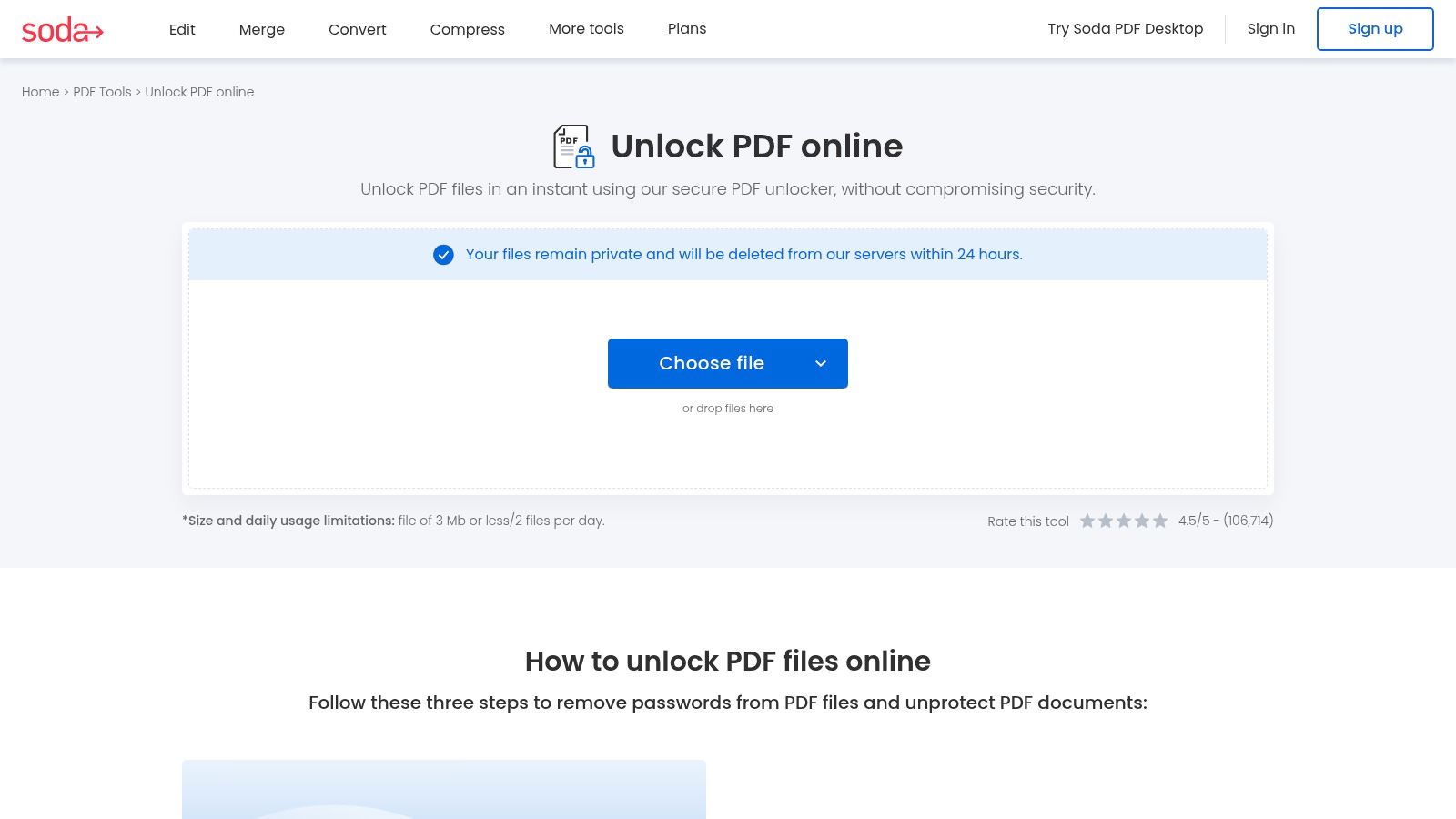
9. Soda PDF
Soda PDF combines an online password remover with desktop applications, which gives it a broader workflow than a browser-only service. The web tool removes protection after you enter the correct password, and the platform connects password removal with editing and later protection changes. That can help when you need to revise a file and then apply new permissions before sharing it.
The workflow is familiar. Upload the PDF, provide the password when requested, process the file, and download the result. You can then move into Soda PDF's editing or protection tools rather than starting again in a separate application.
Online convenience versus local control
Soda PDF is a fit for users who want an established PDF suite and may move between web and desktop work. Its limitations are important, though. Some functionality and higher usage allowances sit behind paid plans, and the browser workflow requires uploading the document.
Use the online version for routine files when its free allowances are enough. Use the desktop application when you need local handling and your license or available desktop features support the task. The presence of a desktop option is valuable, but it doesn't make the web version local.
Website: Soda PDF Unlock PDF
10. Adobe Acrobat
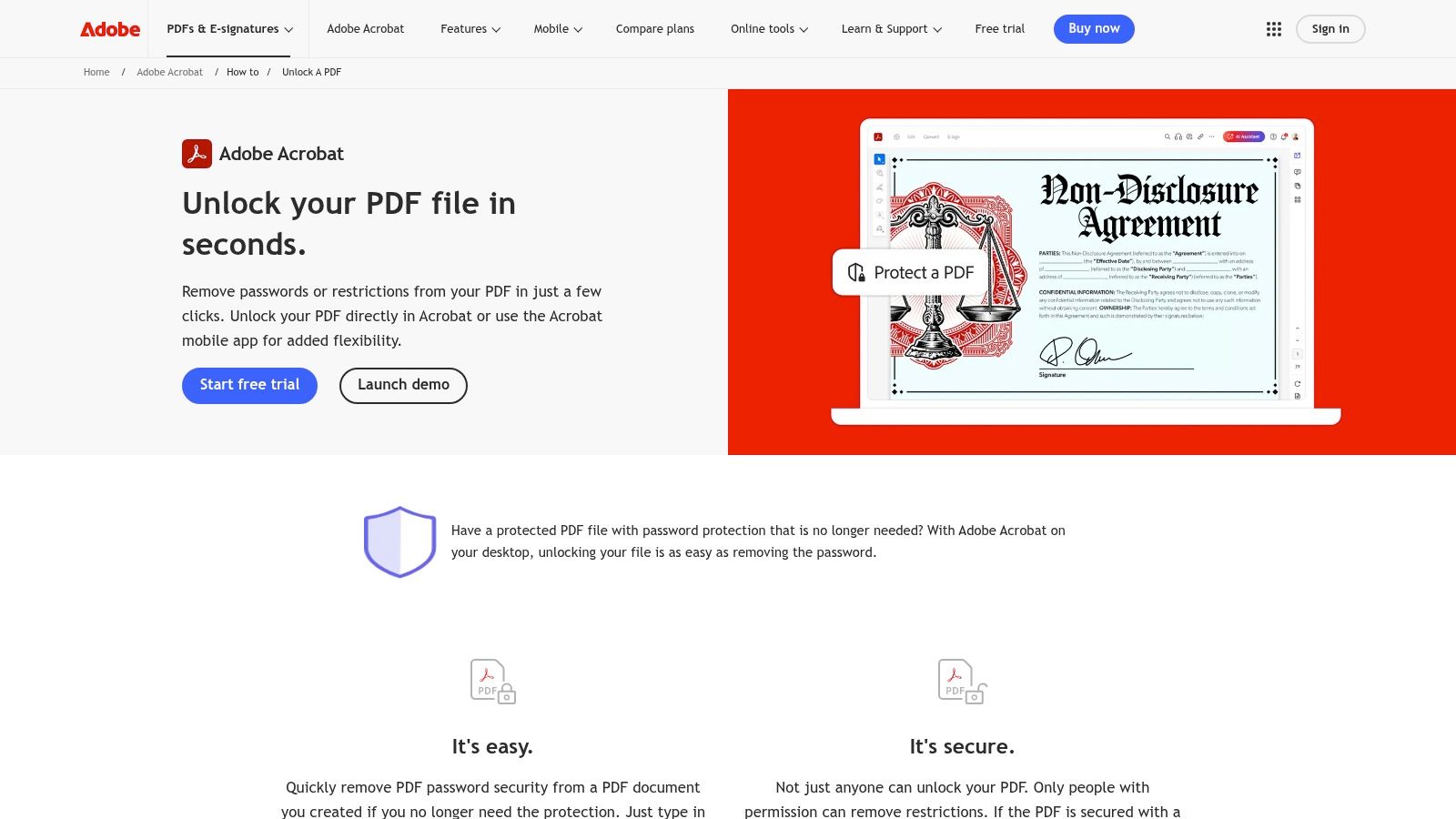
Adobe Acrobat is the official option for vendor guidance on PDF security. Adobe explains how to remove protection from a PDF you created or are authorized to modify, provided you have the correct open or owner password. Its desktop application and online tools support different workflows, although available features depend on product access.
The main advantage is precise terminology. Adobe separates authorized removal from attempts to bypass a password, and distinguishes an open password from a permissions password. That makes its documentation useful when you first need to identify what type of restriction the file uses.
Best fit and limitation
Choose Adobe when compatibility, official instructions, or an existing Acrobat workflow matters. It is less suitable for repeated free batch processing, and some desktop or online capabilities may require a subscription. For one routine document, a browser-based service can involve fewer steps. For guidance on applying protection afterward, see how to password-protect a PDF for free.
The comparison also points to a practical privacy rule. A browser service fits an authorized file when you know the password and accept uploading the document. A local desktop method is safer for highly confidential PDFs because the file can remain on your device. PDFKing is a practical everyday choice when a quick browser workflow and related PDF tasks matter, while Adobe is better suited to users who need official product guidance or already work in Acrobat.
Website: Adobe Acrobat Unlock a PDF
Top 10 Free PDF Password Removers, Quick Comparison
| Tool | Core features | UX & reliability | Price / value | Target audience & USP |
|---|---|---|---|---|
| PDFKing 🏆 | ✨ 22+ browser tools: merge, split, compress, convert, edit, sign, redact, protect | ★★★★★ Fast 3–5 step flows; no ads or watermarks | 💰 Free, no sign-up, no card, no noted caps | 👥 Students, freelancers, SMBs, legal teams; ✨no-account, privacy features |
| Smallpdf, Unlock PDF | Unlock + full toolkit (compress, convert, edit, e-sign) | ★★★★ Clean, widely trusted | 💰 Free (strict daily cap) → paid plans | 👥 General users; ✨smooth suite integration |
| iLovePDF, Unlock PDF | Unlock + cloud import (Drive/Dropbox) and common tools | ★★★★ Simple and fast | 💰 Free with usage limits | 👥 Cloud-focused users; ✨Drive/Dropbox import |
| Sejda, Unlock PDF | Web unlock + desktop app; clear free-tier limits | ★★★★ Reliable, transparent limits | 💰 Free (metered) / paid desktop features | 👥 Casual & pro users; ✨offline desktop option |
| PDF Candy, Unlock PDF | Unlock plus OCR, conversion, editing tools | ★★★★ Intuitive UI, broad coverage | 💰 Free with hourly/task caps; paid removes limits | 👥 Conversion/OCR users; ✨wide toolset |
| PDF24 Tools, Unlock PDF | No-signup unlock, EU-hosted, auto-deletion policy | ★★★★ Functional, privacy-forward | 💰 Free | 👥 Privacy-conscious/EU users; ✨server-location & deletion notices |
| PDF2Go, Unlock PDF | Guided unlock UI, secure upload, editing suite | ★★★ Helpful step-by-step guidance | 💰 Free (ads/limits); paid for larger jobs | 👥 EU users & novices; ✨clear instructions |
| HiPDF, Unlock PDF | Unlock plus AI-assisted tools, broad toolkit | ★★★ Frequent updates, clear limits | 💰 Free (tight cap ~2 tasks/day) / paid tiers | 👥 Power users; ✨AI features & ecosystem |
| Soda PDF, Unlock PDF | Online unlock with desktop apps; re-protect options | ★★★★ Mature, end-to-end workflow | 💰 Free basic / paid for advanced | 👥 Business users; ✨desktop + web continuity |
| Adobe Acrobat, Unlock a PDF (official) | Official desktop & web tools; authoritative guidance | ★★★★★ Gold-standard reliability & docs | 💰 Paid subscription for full features | 👥 Enterprises, legal, pros; ✨vendor-standard toolchain |
Choose the Unlock Method That Fits the File
The best free PDF password remover online isn't automatically the tool with the shortest button sequence. The file's sensitivity, password type, expected workload, and need for follow-on editing matter more than small interface differences.
Choose PDFKing for routine browser work when you want no installation, no account, no watermark, and no stated daily or file-size caps. It also makes sense when removing restrictions is part of a larger task, such as editing, compressing, merging, signing, or redacting the resulting copy. You still need an internet connection, and you should avoid uploading a highly confidential file unless its handling fits your requirements.
Choose a service with explicit deletion or server-location notes when upload privacy matters but a browser workflow is still acceptable. PDF24 and PDF2Go provide more visible handling information in the supplied comparison, while other services may be easier to use but give you fewer operational details. Treat those notices as information for your decision, not as a substitute for your own organization's security policy.
Choose a local option when the document contains sensitive legal, financial, personal, or internal business information and shouldn't leave your device. Sejda, Soda PDF, and Adobe provide desktop paths, although available features and licensing differ. A local workflow removes the specific risk of uploading the document to a third-party server.
1. Confirm authorization
Only remove protection from a PDF you own or are authorized to modify. Password removal changes the file's access controls, so permission matters even when the tool itself is technically able to process the document.
2. Identify the password type
An open password prevents you from opening and viewing the PDF. An owner or permissions password controls actions such as printing, copying, editing, or filling forms. The two cases aren't interchangeable. An owner-only restriction may be removable during a legitimate re-save or decryption workflow, while an open password normally requires the correct password before a copy can be created.
3. Confirm the current password
Online password removers generally don't recover a forgotten open password. If you don't know it, contact the sender, owner, or authorized administrator instead of trying to bypass the protection. Tools that advertise password bypassing deserve extra caution, particularly when they ask you to upload confidential documents.
4. Upload only when acceptable
Review the service's privacy information, deletion policy, server location, and usage limits before selecting the file. Browser tools are convenient because they work without installation, but that convenience usually involves server-side processing. For a sensitive document, use a local desktop method when possible.
5. Download and inspect the copy
After processing, download the new PDF and open it before deleting the original. Check that the pages, forms, text, links, signatures, and layout still work as expected. Keep the protected original if you may need to prove its source or preserve the original access controls.
6. Reapply protection when needed
Removing a password reduces a document's access control. If you need to share the file with restrictions, use a protection tool to apply a new password or permissions policy after editing. Don't assume that a working copy without a password should become the permanent version.
Frequently asked questions
Can an online remover unlock a PDF without the password?
Usually not when the file has an open password. Legitimate workflows generally require the correct password or authorized access, and they create a usable copy by re-saving or decrypting the document rather than bypassing its encryption.
Is it appropriate to upload a confidential PDF?
Only if the service's privacy practices, deletion policy, and processing location meet your requirements. For highly confidential legal, financial, or personal files, a local desktop tool is the safer choice because the document can stay on your device.
What's the difference between an owner password and an open password?
An open password controls whether you can open the PDF at all. An owner or permissions password controls actions such as editing, printing, copying, or form filling after the file opens.
When should you use a local tool?
Use a local tool when the document must not be uploaded, your organization requires local processing, or you need dependable offline access. Browser tools are better for authorized routine files where speed and convenience matter more than keeping the file entirely local.
If your document is authorized, the password is available, and the file is suitable for browser processing, start with the PDFKing Unlock PDF tool for a free, no-install workflow.
PDFKing gives you a free browser-based way to remove protection from owned PDFs, with no sign-up, watermark, or installation. Use the PDFKing toolkit to remove the password from your file, then edit, compress, merge, sign, redact, or protect it as needed.
Ready to try Unlock PDF?
Remove password protection from PDF files you own.