ON THIS PAGE
Use Add Page Numbers now
Drag & drop a PDF here
or click to browse · No file size limit
You've just received a PDF packet that needs to go out today. The cover should stay clean, the table of contents needs Roman numerals, and the introduction must begin at page 1. To add page numbers to a PDF, first identify the document's existing structure, then choose the correct position, format, and page range before saving the final file.
PDFKing's free online tool handles the straightforward stamping step in your browser. It's 100% free, adds no watermark, and requires nothing to install. The part that deserves your attention is the setup before you click Apply.
Table of Contents
- What Adding Page Numbers to a PDF Actually Means
- Preparing Your PDF Before You Start
- Adding Page Numbers with PDFKing
- Choosing Position, Format, and Page Range
- Alternatives Worth Knowing
- Tips, Fixes, and Accessibility Habits
- Wrapping Up and Getting Started
What Adding Page Numbers to a PDF Actually Means
Adding page numbers means placing a visible number in a consistent header or footer position, or assigning a logical page label that PDF software and assistive technology can recognize. Most everyday tools create a visual overlay. That works well for printed reports, contracts, packets, and manuals because readers can see the number immediately without changing the document's main text.
The number you see on a page and the label shown in a PDF viewer aren't always the same thing. Adobe explains that logical page labels can switch between Roman numerals, standard Arabic numbers, and prefixed formats such as chapter-based numbering, while changing only thumbnail and navigation displays, not the printed number on the page. That distinction matters when a document has a cover, front matter, appendices, or multiple sections.
Decide what the numbering should communicate
Before you upload anything, answer three questions:
- Should every page receive a visible number?
- Should the cover, blank pages, or inserts remain unnumbered?
- Should the front matter use lowercase Roman numerals while the main body starts at Arabic page 1?
A plain report may need simple Arabic numbers from its first page. A thesis, book manuscript, or formal filing may need separate numbering sections. If you're preparing a book, a glossary of self-publishing format definitions can help clarify how front matter and body pages are commonly organized.
Why pagination is more than decoration
Page numbering solved a practical navigation problem long before modern PDF software. An early example, the Ebers Medical Papyrus, was numbered from 1 to 110. In printed books, leaf numbering began around 1470, became general by 1480, and full page numbering became general around 1590, according to research on the history of page numbers. Page numbers later supported cross-references, indexes, citations, and dependable discussion of long documents.
Preparing Your PDF Before You Start
A numbering tool cannot tell a cover from a chapter opener. Review the PDF from beginning to end first, then mark the pages that determine the numbering plan. You do not need to read every sentence, but you do need to see how the file is assembled.
Check the existing structure
Confirm the total page count and record:
- Cover pages: Decide whether the cover stays unnumbered.
- Blank divider pages: Check whether blank versos or inserts should be skipped.
- Front matter: Mark the table of contents, acknowledgments, preface, and list of figures.
- Main body: Identify the page that should display Arabic page 1.
- Appendices: Decide whether they continue the body sequence or begin a separate section.
A report may use Arabic numbers throughout. A thesis or book manuscript may use lowercase Roman numerals for front matter, then restart with Arabic page 1 in the main body. Appendices can either continue that sequence or use their own section. Write the decision down before opening the numbering controls. Rework usually comes from selecting the wrong range, not from operating the tool.
Look for collisions
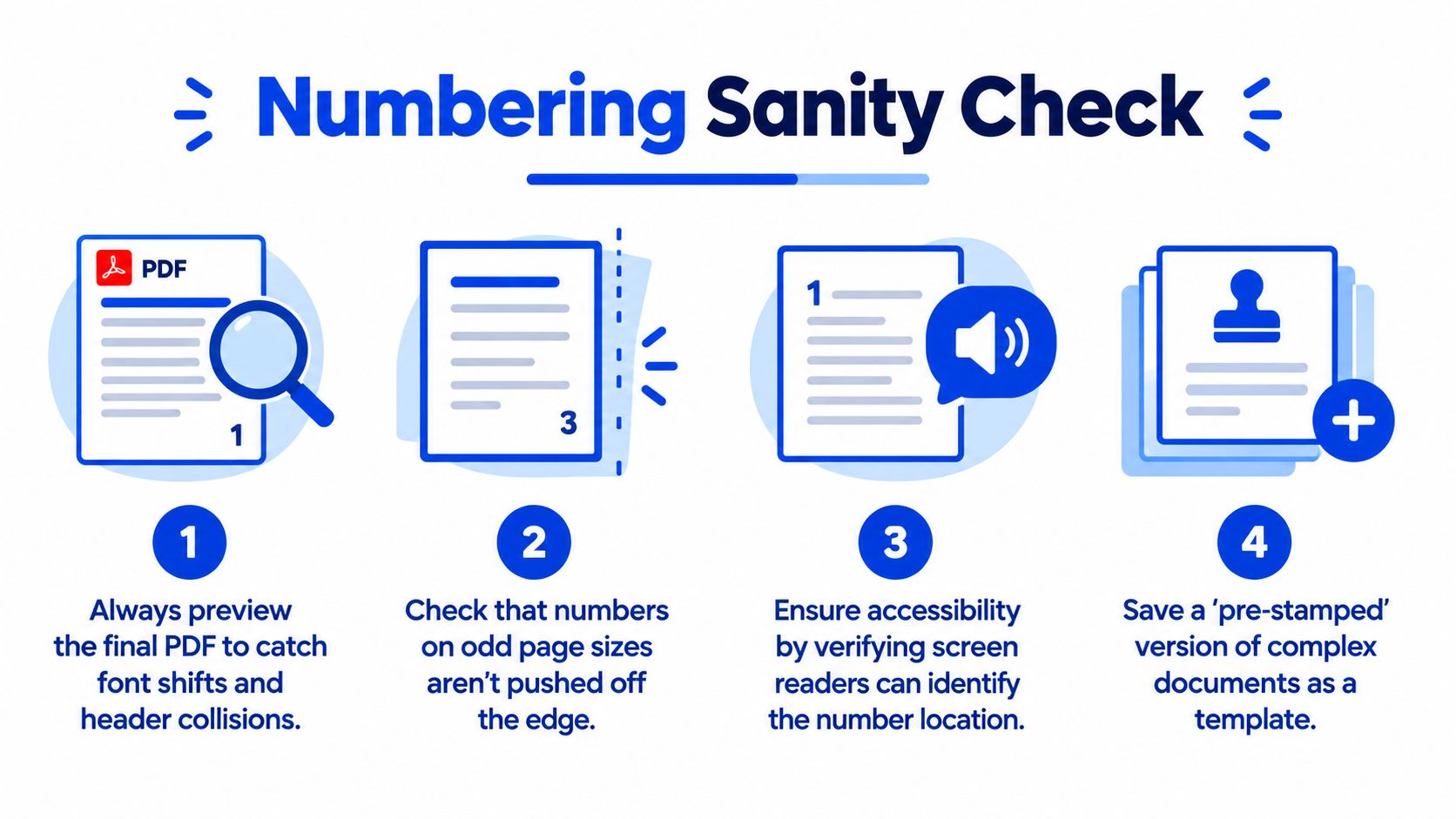
Inspect the top and bottom margins on several representative pages. Existing footer text, copyright lines, chapter titles, logos, and old page numbers can overlap a new stamp. If the lower center is crowded, choose a corner or remove the old footer before applying a replacement.
Check page size and orientation as well. A sideways page inside a portrait report may place the number awkwardly, while a narrow scanned page may leave too little room for a centered footer. Review cover pages and inserts separately, since their layout often differs from the body.
Check editing restrictions
Password protection or editing restrictions may stop a numbering tool from changing the file. If you own the document and have permission to edit it, follow this guide to open a password-protected PDF before numbering. Keep the original untouched, so you can restore its security settings after making the paginated copy.
Adding Page Numbers with PDFKing
PDFKing's add page numbers tool is designed for the common upload, configure, preview, and download workflow. Every PDFKing tool is 100% free, has no watermark, and requires no installation.
Start by opening the tool and uploading your PDF. You can drag the file into the upload area or choose it from your device. Once it loads, a scrollable page preview appears on the left, while the controls sit on the right.
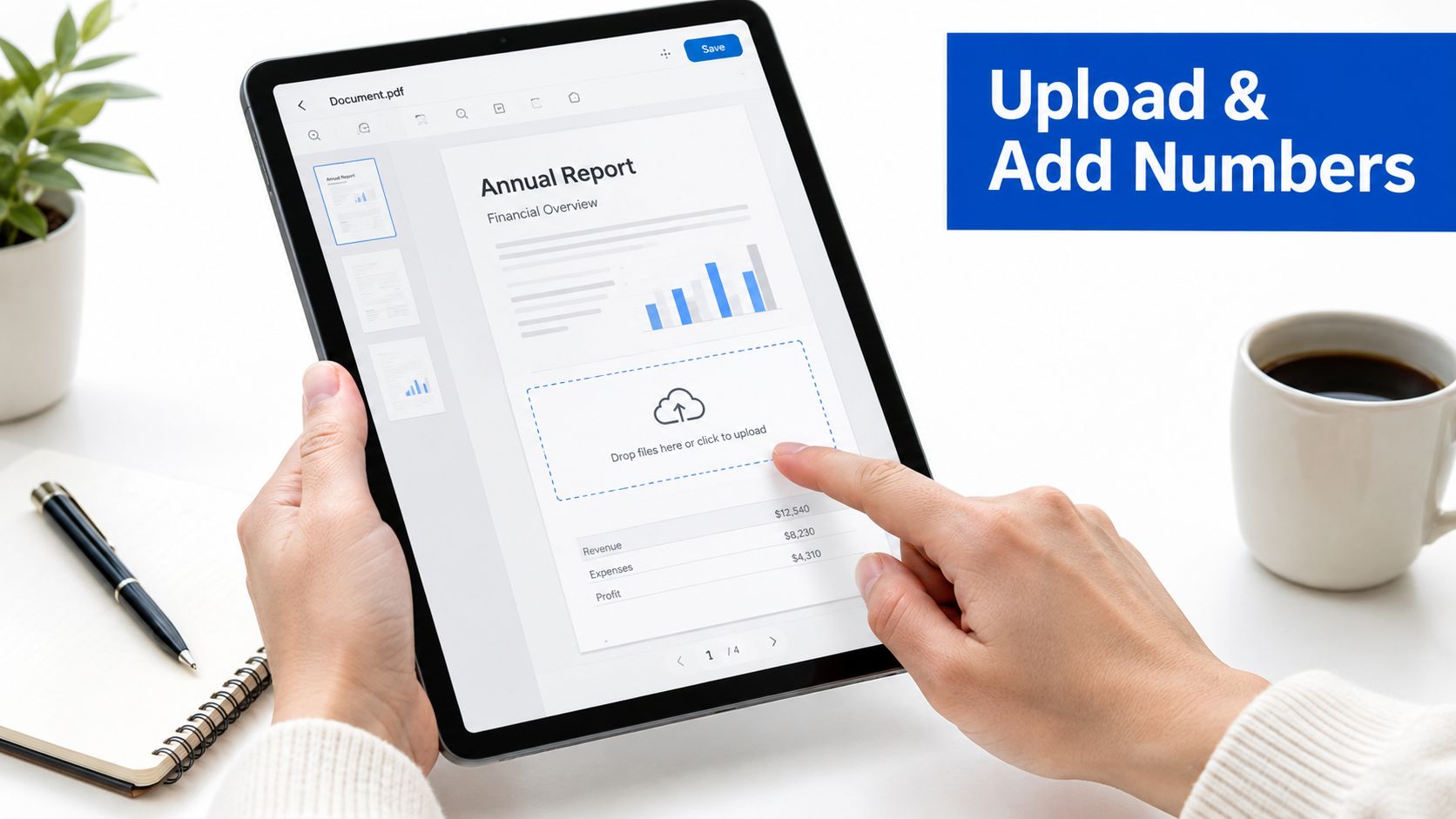
Follow the controls in order
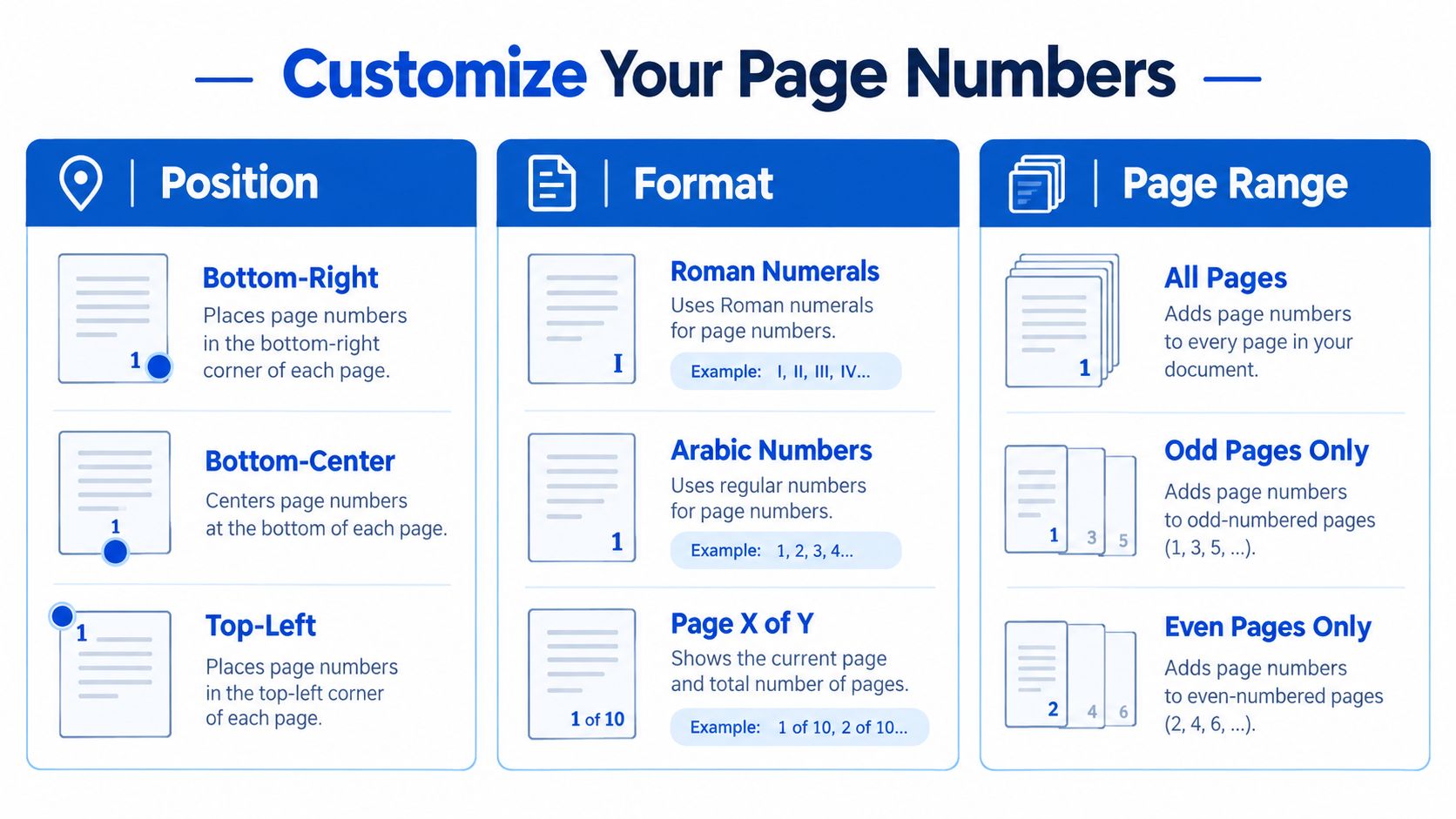
- Position: Choose top-left, top-center, top-right, bottom-left, bottom-center, or bottom-right. Bottom-center suits standard reports and manuals. A bottom outer position works better for bound documents printed double-sided because the number stays away from the binding edge.
- Format: Select plain digits for ordinary documents, Roman numerals for front matter, or Page X of Y when readers need the total length.
- Start At: Enter the number that should appear on the first selected page. This is useful when a packet continues a sequence from an earlier section.
- Apply To: Leave this at All Pages only when every page should be numbered. Choose Page Range when the cover, inserts, or other pages need to remain unnumbered.
For example, entering 2-47 applies numbering to a continuous range while skipping the first page. A comma-separated selection such as 3, 5-12, 20-30 targets separate pages or ranges. Use the preview to verify that the first visible number lands where you expect.
Click Apply, inspect several pages rather than only the first preview, and download the stamped PDF when the placement and sequence look right. If your source began as a manuscript, guidance on how to add page numbers to your manuscript can also help you think through front matter and body numbering before export.
If the packet needs a blank separator before numbering, handle that page first with PDFKing's add blank page to PDF tool. Adding or moving pages after pagination can make the visible sequence misleading.
Choosing Position, Format, and Page Range
The control panel is simple. The correct choice depends on how people will read, print, file, and cite the document.
Position should follow the page design, not habit. Bottom-right is common for legal and financial packets. Bottom-center works well for training manuals and forms that need a clear visual anchor. Top-right can suit wide-format reports where the footer already contains notes or signatures. Keep the number away from footnotes, crop marks, logos, and binding edges.
Format should match the document's purpose. Plain Arabic numerals, such as 1, 2, and 3, cover most reports and internal packets. Lowercase Roman numerals, such as i, ii, and iii, are conventional for introductory material. A Page X of Y format helps during meetings and printing because readers can tell whether they have the complete file.
Build the ranges before applying them
Consider a report with a cover, table of contents, acknowledgments, body chapters, and appendices. You might leave the cover unnumbered, assign Roman numerals to the introductory pages, start the introduction at Arabic page 1, and continue the appendix sequence from the last body page.
Don't treat a multi-section document as one undifferentiated range. Apply each numbering section separately, then preview the transition page. If you need to inspect or reorganize individual pages first, PDFKing's split PDF into single pages tool can make the structure easier to review.
A layout guide such as designing book page layouts is useful when the page number must fit an established publishing design rather than a basic office footer.
Alternatives Worth Knowing
PDFKing is a practical route when you already have a finished PDF and need visible numbering without installing software. Microsoft Word and Adobe Acrobat take different approaches, so the right choice depends on where the document came from and how much control you need.
| Tool | Best For | Limitations |
|---|---|---|
| PDFKing | Finished PDFs that need headers, footers, formats, or selected ranges | A visual numbering workflow may not replace specialized compliance tools |
| Microsoft Word | Source documents with complex headers, section breaks, and front matter | Editing an unrelated PDF can change layers, fonts, form fields, or layout |
| Adobe Acrobat | Detailed PDF editing, selected ranges, Bates-style workflows, and accessibility work | More control means more setup, and Acrobat Pro requires a subscription |
Word is sensible when you own the original document. Open or rebuild the file, use Insert > Page Number, configure the header or footer, set section breaks, and export again. Word handles Roman-to-Arabic transitions cleanly when the source file is already structured.
Acrobat is the stronger choice when the PDF itself is the authoritative file. It can handle detailed range settings, legal production workflows, and tagged accessibility work. It's excessive for a quick footer job, though, and its Pro version requires a subscription.
For a broader look at desktop and browser-based options, review PDFKing's guide to Adobe PDF alternatives. Choose the source-aware option rather than forcing a finished PDF back through Word.
Tips, Fixes, and Accessibility Habits
The final review catches problems that the setup screen can't. Preview the complete numbered file before you send it, print it, or attach it to a filing. Check pages with charts, footnotes, signatures, colored backgrounds, unusual margins, and mixed orientations.
Fix the common visual failures
A number sitting on top of a logo isn't a minor design issue. Move the number to another corner or use a clearer margin. If a footer already contains a chapter title or copyright line, don't stack a second footer on top of it. Remove the old numbering first, or choose a position with enough separation.
For front matter, treat the cover and blank verso as skipped pages. Apply lowercase Roman numerals to the table of contents and acknowledgments, then begin Arabic 1 on the body. If you upload a file that was already numbered, look for inherited footer text before applying another layer.
Keep accessibility in the workflow
Visible numbers aren't automatically accessible numbers. W3C's PDF17 technique recommends checking the visual page navigation, confirming with a screen reader that the announced page number matches the page label shown on the page, and inspecting the PDF's /PageLabels entries with a capable tool. A document can look correct while still announcing the wrong page label, especially after front matter or section-based renumbering.
W3C's guidance also treats repeated footer numbers as artifacts when they're purely repetitive content, so assistive technology doesn't read the same footer as body text on every page. If the footer contains meaningful section-location information, its structure must remain consistent.
If you're preparing an interactive packet, PDFKing's turn PDF into a fillable form tool can help with the form workflow, but it doesn't replace a dedicated accessibility check. Save the original with a clear name such as Report_v3_pre-stamped.pdf, then save the numbered version separately so you can recover the unnumbered file later.
Wrapping Up and Getting Started
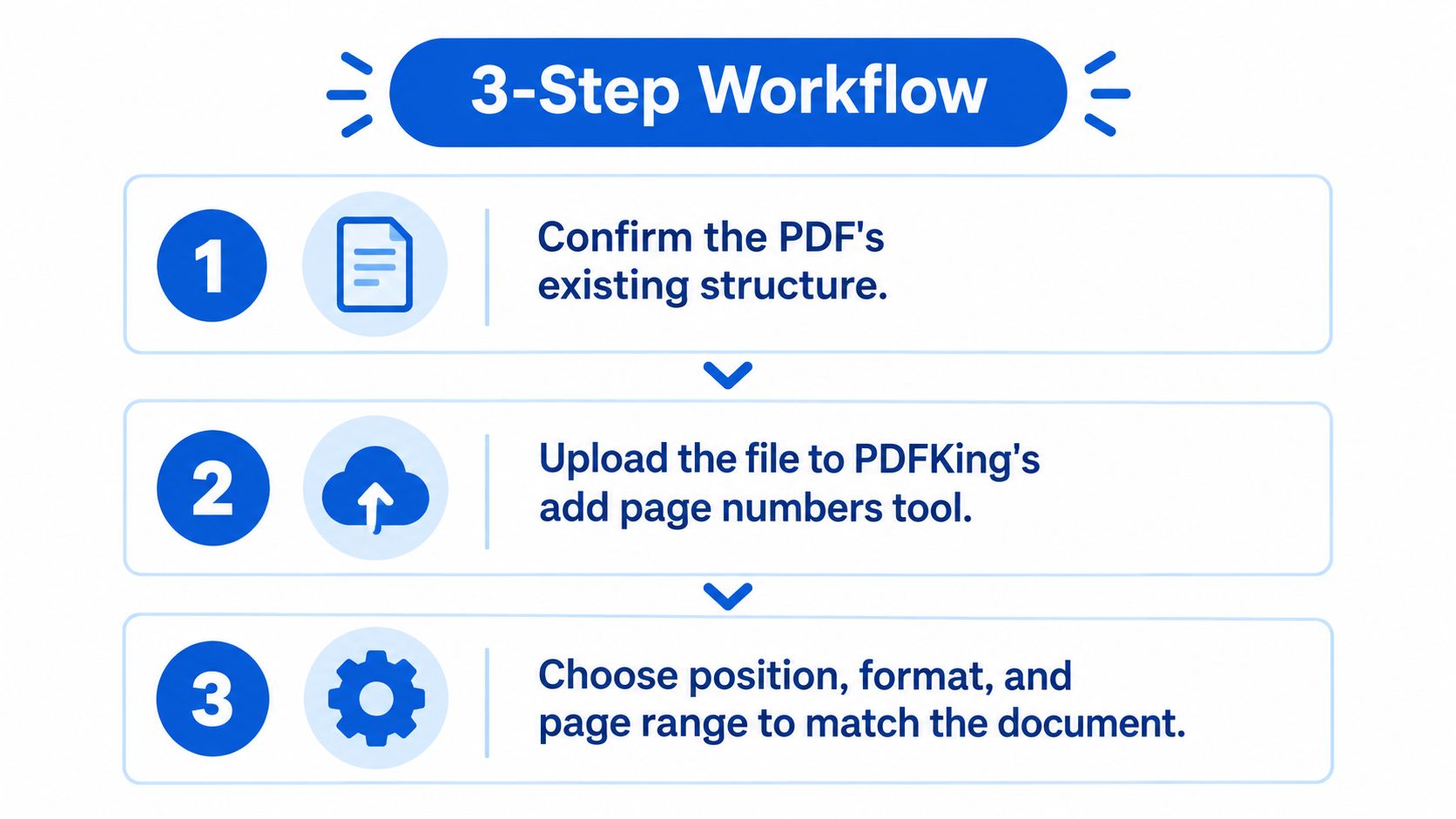
Adding page numbers is a three-part job:
- Confirm the existing structure. Identify the cover, front matter, body, appendices, blank pages, and existing footer content.
- Upload the PDF to PDFKing. Use the browser-based add page numbers tool without installing software.
- Choose the position, format, and range. Apply the settings that match how the document will be read, printed, and referenced.
Most numbering mistakes happen during preparation. The tool will apply the selected format consistently, but it can't decide whether your table of contents belongs in Roman numerals or whether a cover should stay blank.
Use these patterns as a quick starting point:
- Five-page report: Number all pages with plain Arabic numerals.
- Packet with a cover: Skip the cover, then start the selected range at page 1.
- Thesis with Roman-numeral front matter: Use a separate Roman numeral range, then begin Arabic page 1 at the introduction.
Frequently asked questions
Can I skip the cover page?
Yes. Select Page Range instead of All Pages and begin numbering on the first page that should display a number.
Can I use Roman numerals for front matter?
Yes. Apply Roman numerals to the front-matter range, then apply Arabic numerals to the main body as a separate range.
What does Page X of Y do?
It displays the current page number together with the document's total, which helps readers confirm the packet is complete.
Are visible numbers enough for accessible PDFs?
Not always. W3C recommends verifying the visible number, the screen-reader announcement, and the PDF's logical /PageLabels entries.
PDFKing gives you a free browser-based way to add page numbers, choose the placement and format, and apply numbering to selected pages without a watermark or installation. Visit PDFKing, upload your prepared PDF, and use the add page numbers tool to create a file that's ready to share or print.
Ready to try Add Page Numbers?
Insert page numbers into your PDF in just a few clicks.