ON THIS PAGE
You can change a TXT, DOC, or DOCX file to PDF in your browser by uploading it to a free converter such as PDFKing, then downloading the result with no installation or watermark. The right method depends on whether your source contains only plain text or also includes formatting, images, tables, links, and accessibility features.
You're probably trying to submit homework, send a resume, share meeting notes, or upload an official form. The words may already be correct, but the file can still change appearance when someone opens it on another device. PDF helps keep the page layout consistent, while preserving selectable text when the conversion is done properly.
This guide shows how to change text document to PDF from TXT, DOC, DOCX, and Google Docs files. You'll also learn how to choose between a browser converter and a native export option, check formatting after conversion, protect searchability, and avoid common accessibility and privacy mistakes.
Table of Contents
- How to Change Text Document to PDF Quickly
- Understand Your Text Document Before You Convert
- Convert Your Text Document to PDF in Your Browser
- Optimize Quality and Preserve Formatting After Conversion
- Fix Common Text to PDF Conversion Problems
- Final Checklist and Next Steps With PDFKing
How to Change Text Document to PDF Quickly
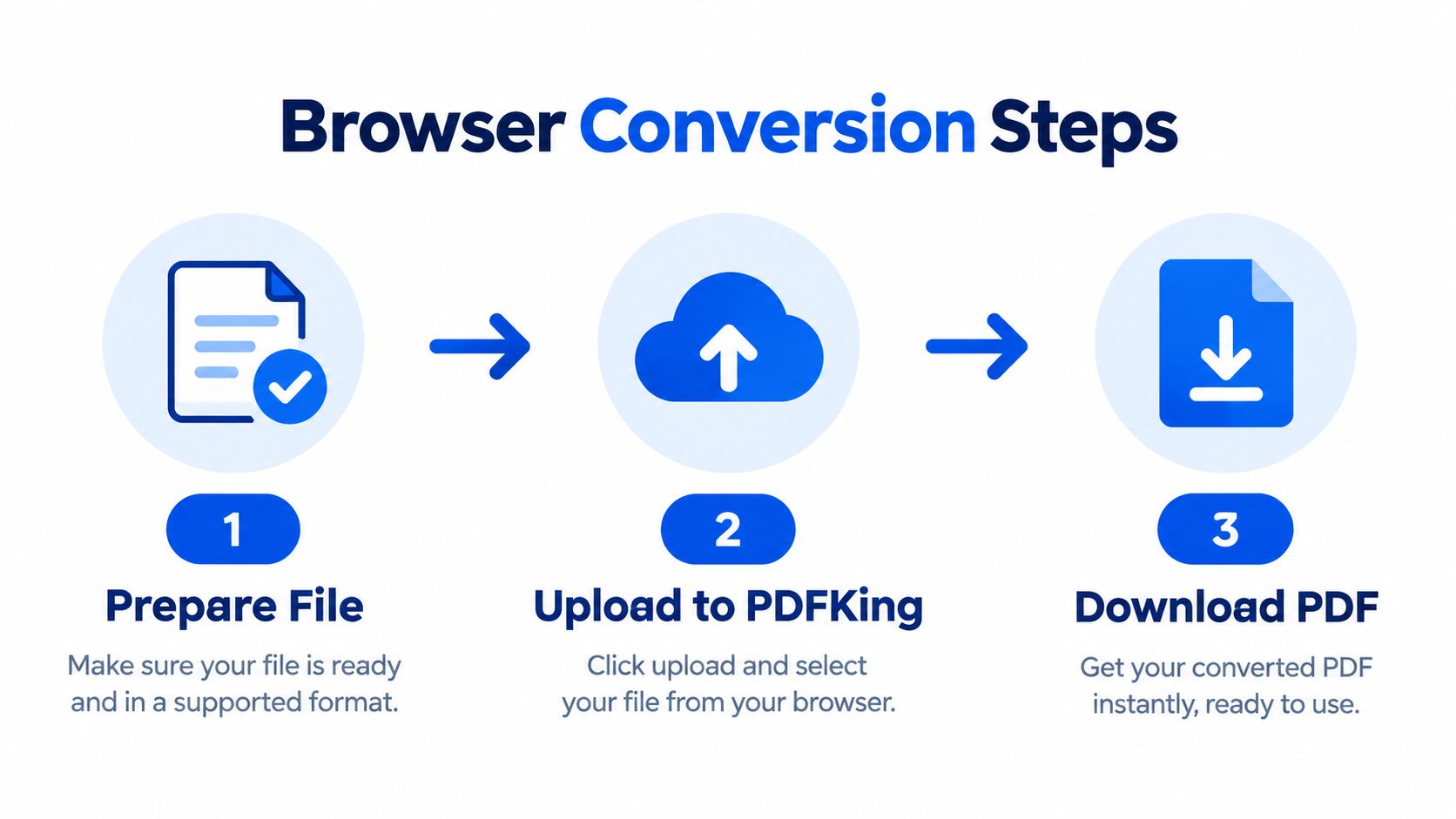
A browser workflow is usually the simplest choice when you need a shareable file without installing desktop software. Open a PDF conversion tool, select your text document, upload it, and download the resulting PDF. PDFKing's tools are 100% free, add no watermark, and require nothing to install.
The process is useful because PDF is designed for consistent document exchange. Adobe released PDF with Acrobat 1.0 on June 15, 1993, following the Camelot project, which began in 1990 to preserve document layout across applications and machines. PDF 1.7 became ISO 32000-1 in 2008, moving the format from a proprietary system to an open international standard. The ISO PDF 2.0 standard followed in 2017. You can read the format's development in this timeline of PDF innovation{target="_blank"}.
That standardization helped PDFs work across operating systems, devices, and software ecosystems. A 2026 industry summary reported that 98% of businesses use PDF as their default file type for external communication, while more than 2.5 trillion PDFs exist worldwide and over 290 billion new PDFs are created annually. The same summary reported that 63% of PDF views happen on smartphones and tablets, which makes a browser-based, mobile-friendly workflow useful for everyday sharing. These figures come from PDF statistics and industry data{target="_blank"}.
Before you upload a file, check whether it's a plain TXT file or a formatted Word document. That choice affects how much layout control you need. If the document contains sensitive information, also decide whether a browser upload is appropriate or whether you should export locally from the application that created it.
Understand Your Text Document Before You Convert
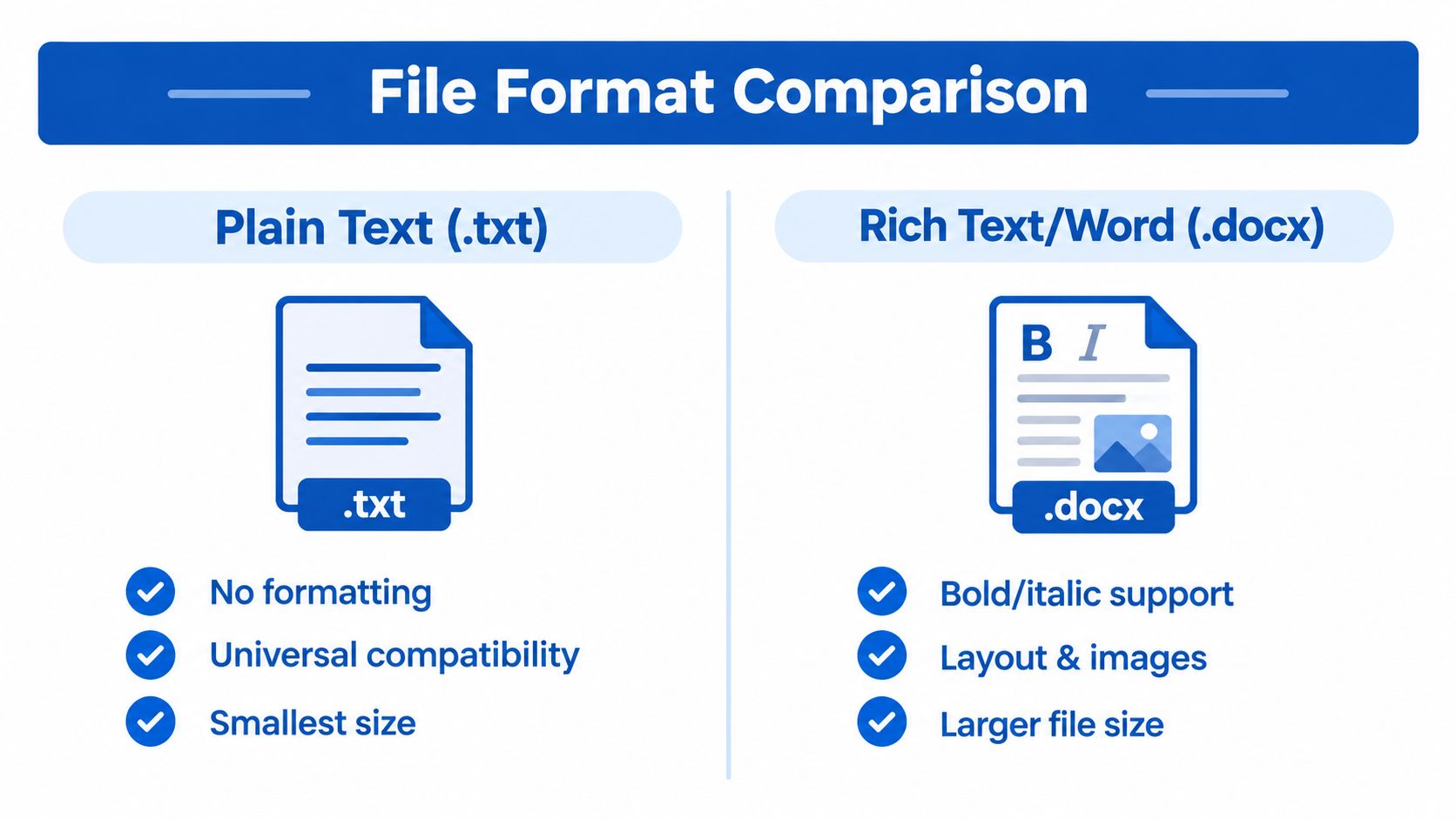
Start by identifying the file type. A TXT file contains plain characters and basic line breaks. It usually has no font choices, images, tables, page margins, or clickable hyperlinks. That makes it easy to convert, but the resulting PDF may need additional layout work if you want a polished handout or formal submission.
A DOC or DOCX file can contain headings, bold and italic text, images, tables, page breaks, hyperlinks, comments, and other formatting. Word-to-PDF conversion can preserve much of that structure, although Microsoft notes that page breaks may not always match the original document exactly. Its Office file format reference{target="_blank"} explains how Word handles PDF files and document formatting.
Google Docs files live online rather than as ordinary local documents. In Google Docs, use the download or export option to save a PDF, then open the result and inspect it. This route can be convenient when your document already contains headings, tables, and links, but you should still check the downloaded file before submitting or sharing it.
| Source file | What it usually preserves | What you should check |
|---|---|---|
| TXT | Text and line breaks | Page width, spacing, special characters |
| DOC or DOCX | Styles, images, tables, and links | Fonts, page breaks, comments, and table alignment |
| Google Docs | Cloud-based document formatting | Exported links, images, margins, and pagination |
Choose a browser converter when you need a quick result from a compatible document and don't need to adjust advanced export settings. Choose the application's native PDF export when the file includes complex tables, strict page design, tracked changes, or accessibility requirements. If your starting point is an existing PDF that needs editable text, a PDF to text converter can produce a text version for review before you rebuild or reformat it.
Convert Your Text Document to PDF in Your Browser
The browser method works well for a student on a shared computer, an office user working from a phone, or anyone who doesn't want to install software. Before uploading, save the latest version of your document with a clear filename. Remove comments and tracked changes if the recipient shouldn't see them, and confirm that any private information belongs in the final file.
Prepare the source file
Open the document once and scan it from beginning to end. Look for cut-off lines, empty pages, unusual symbols, broken links, and tables that extend beyond the page. In a TXT file, add sensible line breaks before conversion if the text currently appears as one long block.
If you're working with DOCX, confirm the document size and orientation first. A resume may need portrait pages, while a wide table may need a horizontal layout. A browser converter can create the PDF, but it generally can't correct a poorly organized source document for you.
Upload the document
Open the PDFKing Word to PDF tool in your browser. Select the file picker and choose your DOC or DOCX document, or drag the file into the upload area if your browser supports drag and drop.
If you're converting a TXT file, use the PDFKing text-compatible conversion route available in the document tools. Keep the original file on your device until you've checked the output. If the upload takes time, avoid refreshing the page. A slow connection can interrupt the transfer and require you to start again.
Download and inspect the result
After conversion finishes, download the PDF and open it in a browser or PDF reader. Check the first page, a middle page, and the final page. This quick review can reveal missing text, unexpected page breaks, or a table that moved outside the margins.
The same workflow fits several everyday tasks:
- Submitting homework: Confirm that your name, course details, and page numbers appear correctly.
- Sending a resume: Check that headings, contact links, and spacing remain readable on a phone.
- Sharing meeting notes: Verify that bullets, action items, and dates are easy to scan.
- Uploading an office form: Open the PDF after downloading and confirm that all required text is present.
Every PDFKing tool is 100% free, has no watermark, and requires nothing to install. You can work in a modern browser on a desktop or mobile device, then keep the original document separately in case you need to make corrections.
Optimize Quality and Preserve Formatting After Conversion
A PDF can look correct and still be difficult to use. The key question isn't only whether the pages resemble the source. You should also ask whether the text remains selectable, links work, headings make sense, and assistive technology can follow the document in a logical order.
Check the visual layer
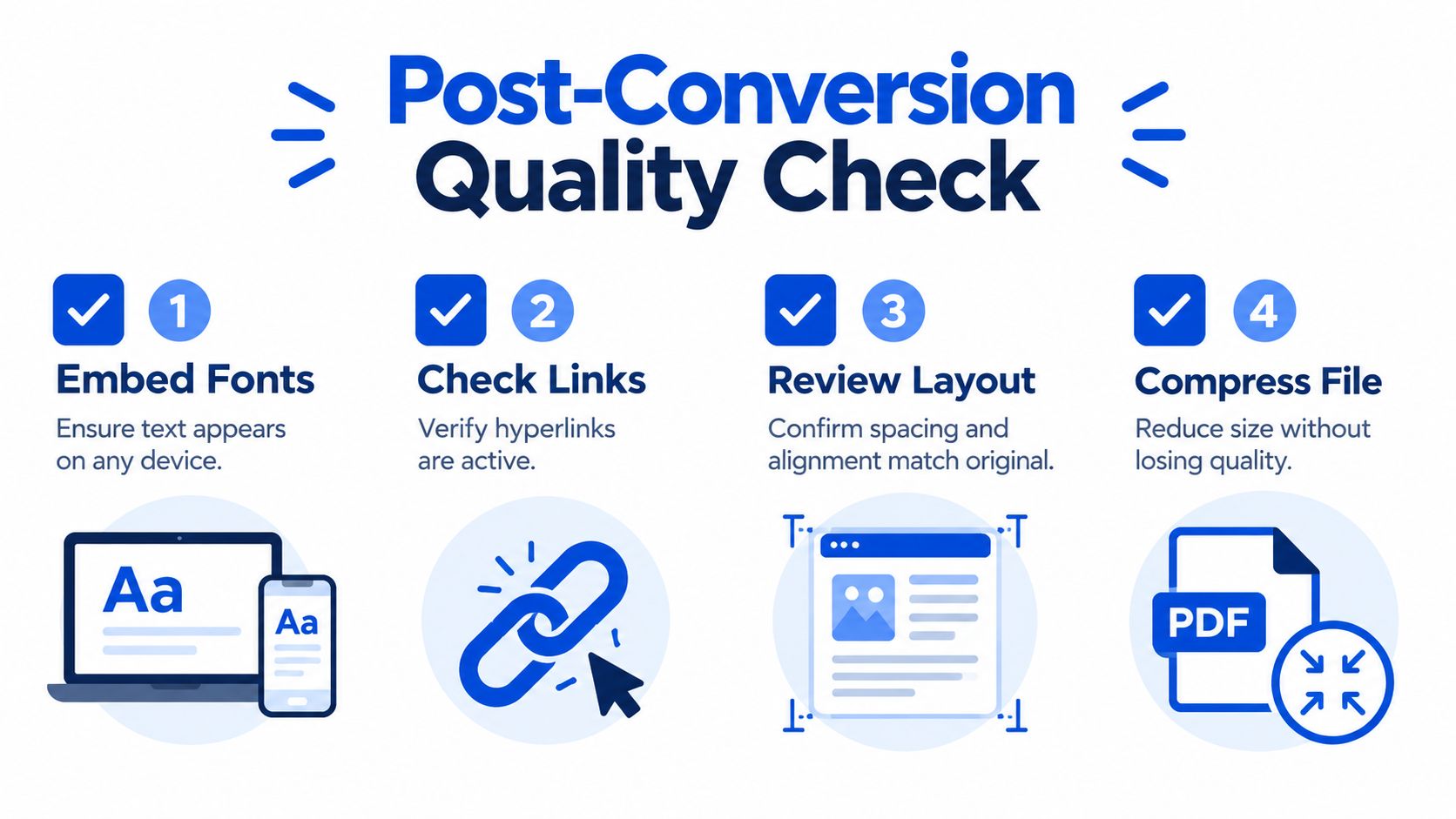
Open the PDF at normal reading size. Review font appearance, margins, page size, line spacing, images, and tables. A font that looks fine on your computer may be substituted on another device if it wasn't embedded during export.
Test hyperlinks by clicking them. Check that headings are visually distinct and that page breaks don't separate a heading from the paragraph that follows. If a table has merged cells, confirm that the content hasn't shifted or become unreadable.
Practical rule: A successful conversion should preserve both the page's appearance and the document's usable text layer.
Text should remain selectable. Drag your cursor across a sentence and copy it into a plain text editor. If you can't select individual words, the PDF may have been flattened into an image. That creates problems for searching, copying, indexing, and screen-reader access.
Protect structure and accessibility
University accessibility guidance recommends structuring the source document first, then using the application's native Save As PDF or export path with document-structure tags enabled. Built-in headings, alt text, hyperlinks, and table structure are more likely to survive that route than a print-to-PDF driver. Printing can flatten a document into an image and destroy tags and reading order. Review the accessible PDF guidance from UC Berkeley{target="_blank"} for the relevant checks.
Floating text boxes, merged-cell tables, weak contrast, and missing alt text can cause trouble even when the page looks visually correct. If the PDF will be used in a school, government, legal, or enterprise setting, inspect headings, reading order, tags, and image descriptions instead of assuming that visual similarity means accessibility.
Consider PDF/A for archives
Use PDF/A when long-term preservation matters, such as official records or files that must remain readable over time. The Library of Congress describes PDF/A-1 as a constrained form of PDF 1.4 intended for long-term preservation of page-oriented documents. PDF/A keeps the information needed to render the file inside the document, including fonts, color information, and images, as explained in this Library of Congress format description{target="_blank"}.
PDF/A has stricter rules than ordinary PDF. Some source features may not transfer cleanly to the selected archival target, so validate the result when compliance matters. For scanned documents, OCR can store recognized Unicode text alongside the original image, which keeps the visual appearance while making the PDF searchable. This technical explanation of PDF/A and OCR{target="_blank"} describes that approach.
If the file is too large after conversion, use a PDF file size reduction guide to choose a suitable compression approach without making the text difficult to read.
Fix Common Text to PDF Conversion Problems
Most conversion problems have a straightforward cause. Diagnose the output instead of repeatedly uploading the same source file.
- Garbled characters: The source uses unusual symbols or a character encoding the converter doesn't interpret correctly. Replace unsupported symbols, save the source in a widely supported format, and convert again.
- Missing fonts: The original font isn't available or wasn't embedded. Replace it with a common font or use the application's native export settings with font embedding where available.
- Broken TXT layout: Plain text doesn't store page design, so long lines may wrap unexpectedly. Add deliberate line breaks and organize the text before conversion.
- Inactive hyperlinks: The source may contain visible web addresses rather than actual links. Create real hyperlinks in the source application, then export through a PDF path that preserves link objects.
- Oversized output: Large images often create the problem. Resize or compress images before conversion, then review the PDF for readable quality.
- Scanned text can't be searched: A scan may contain only pixels. Run OCR before or during an archival workflow so the PDF includes a searchable text layer.
- Poor screen-reader navigation: Missing tags, headings, alt text, or logical reading order can block access. Inspect the document structure and use native export instead of print-to-PDF when accessibility is required.
- Failed download: A blocked pop-up, unstable connection, or browser permission can interrupt the final step. Allow the download, try another modern browser, or repeat the conversion after saving the source locally.
A PDF that passes a visual check can still fail a text-selection, link, or accessibility check.
If a link appears correct but won't open, test it in the source document first. Then compare the exported file with a known working link. For a targeted diagnosis, use this guide to fix hyperlinks that don't work in a PDF.
Privacy deserves a separate check. Browser conversion can be convenient, but confidential contracts, medical information, legal records, and internal business documents may require a local workflow approved by your organization. If you use an online route, avoid unnecessary sign-ins and extra cloud transfers, and delete temporary copies from shared devices afterward.
Final Checklist and Next Steps With PDFKing
Before you send the PDF, complete this short review:
- Open every important page. Check the first page, a representative middle page, and the last page.
- Select text. Copy a sentence and paste it into a plain text editor.
- Test links. Click each important hyperlink.
- Review layout. Look for cut-off text, empty pages, shifted tables, and incorrect page breaks.
- Check accessibility. Confirm headings, alt text, tags, and reading order when other people will use assistive technology.
- Check privacy. Remove comments, tracked changes, hidden content, and unwanted metadata.
- Choose the next operation. Compress a large file, merge several PDFs into one packet, or protect a sensitive document with a password.
The best conversion path depends on the source. TXT is simple but carries little layout information. DOCX and Google Docs can preserve richer formatting, but they need a closer review. PDF/A is more appropriate when the file must remain renderable for long-term preservation, while ordinary PDF is usually enough for routine sharing.
For more document tasks, browse this guide to the 10 best free PDF tools. PDFKing's browser-based toolkit is 100% free, adds no watermark, and requires nothing to install, so you can convert and organize files from a desktop or mobile browser.
Frequently asked questions
Can I convert a TXT file to PDF?
Yes. Upload the TXT file to a compatible browser conversion tool. Because TXT files contain little or no layout information, review line breaks, margins, and page spacing after conversion.
Is DOCX better than TXT for a polished PDF?
DOCX is usually better when you need headings, images, tables, fonts, page breaks, or hyperlinks. TXT is useful for simple notes and plain content, but you'll need to organize the layout before creating the PDF.
Can I change a Google Docs file to PDF?
Yes. Use Google Docs' download or export option to create a PDF, then open the downloaded file and inspect its pages, links, images, and text selection.
Can I convert a document to PDF on my phone?
Yes. Open a browser-based converter on your phone, choose the document from your device or cloud storage, and download the finished PDF. Review the output before sharing because small screens can make layout problems easy to miss.
How do I keep a PDF searchable?
Make sure the output contains selectable text. If the source is a scan, use OCR so the PDF contains recognized text as well as the scanned image.
When should I use PDF/A?
Use PDF/A for long-term preservation, official records, and archive workflows. It has stricter requirements than standard PDF because the file must contain the resources needed for consistent rendering.
Should I use print to PDF?
Use the application's native PDF export when formatting, links, tags, or accessibility matter. Print-to-PDF can flatten content and remove document structure.
PDFKing gives you a browser-based way to turn Word documents into shareable PDFs, with no installation and no watermark. When you're ready to convert your file, visit PDFKing and use the Word to PDF workflow to create and download your document.