ON THIS PAGE
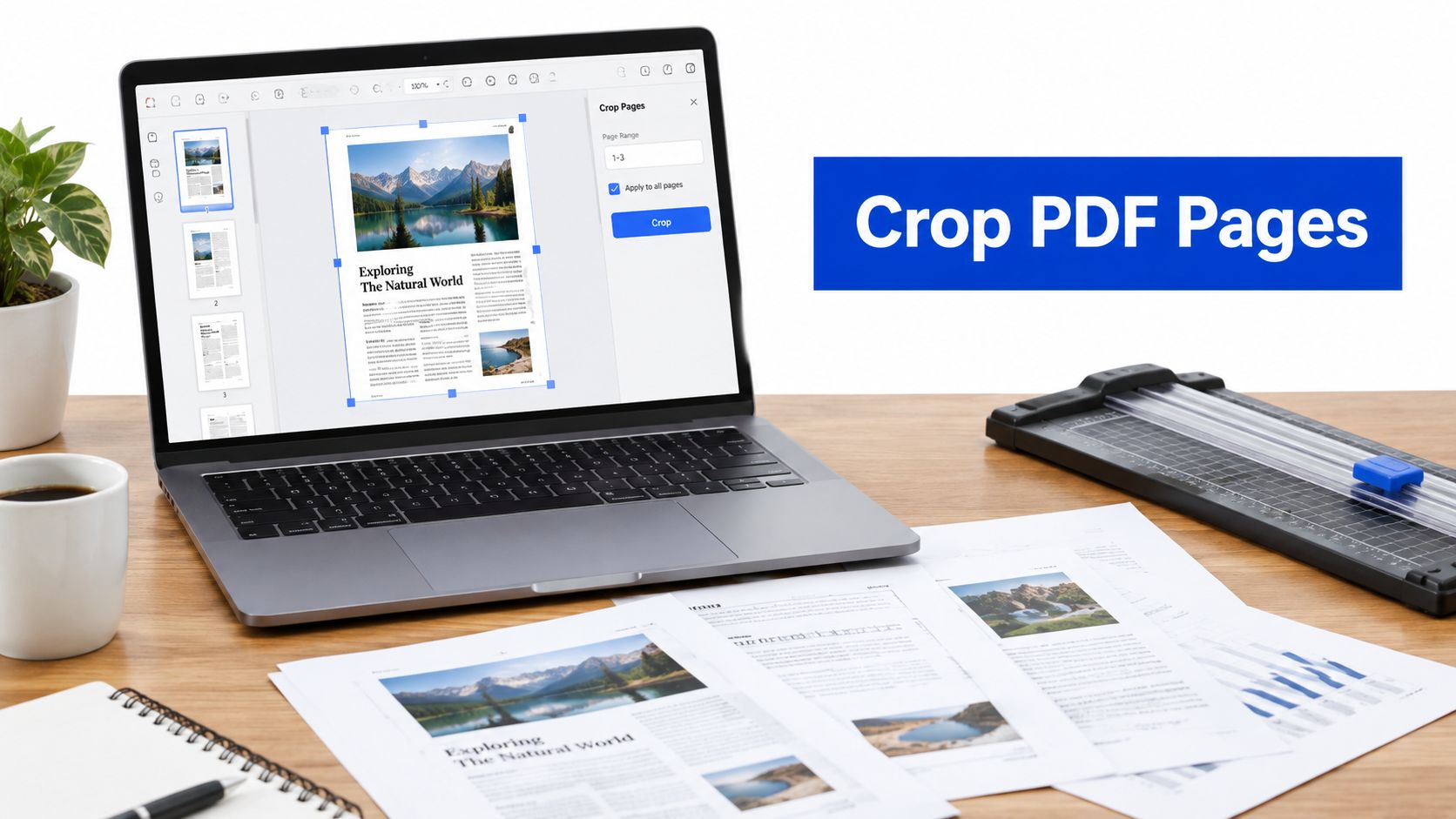
You've scanned a contract, report, or book, and every page has a wide white border, a dark scanner edge, or a binding shadow. To crop PDF pages, select the area you want to keep, adjust the page range and margins, preview the result, then save a new PDF. Cropping changes the visible page boundary, so it usually hides unwanted space without deleting the text or images stored outside that boundary.
Table of Contents
- What Cropping a PDF Page Does
- Cropping Pages with PDFKing in Your Browser
- Crop vs Resize vs Split Knowing Which Fix You Need
- Page Boxes and Margin Measurements Explained
- A Practical Cleanup Workflow for Multi Page PDFs
- Common Cropping Mistakes and How to Avoid Them
- Final Tips and Your Next Step
What Cropping a PDF Page Does
A scanned filing may contain a dark edge, uneven whitespace, or a binding shadow that makes every page look unfinished. Cropping a PDF page changes its page box, not its underlying content. The crop box sets a new visible rectangle with top, bottom, left, and right boundaries. Viewers and printers use that rectangle, while text and graphics outside it may remain in the file. PDF page-box documentation{target="_blank"} explains the difference between the full page canvas and the displayed region.
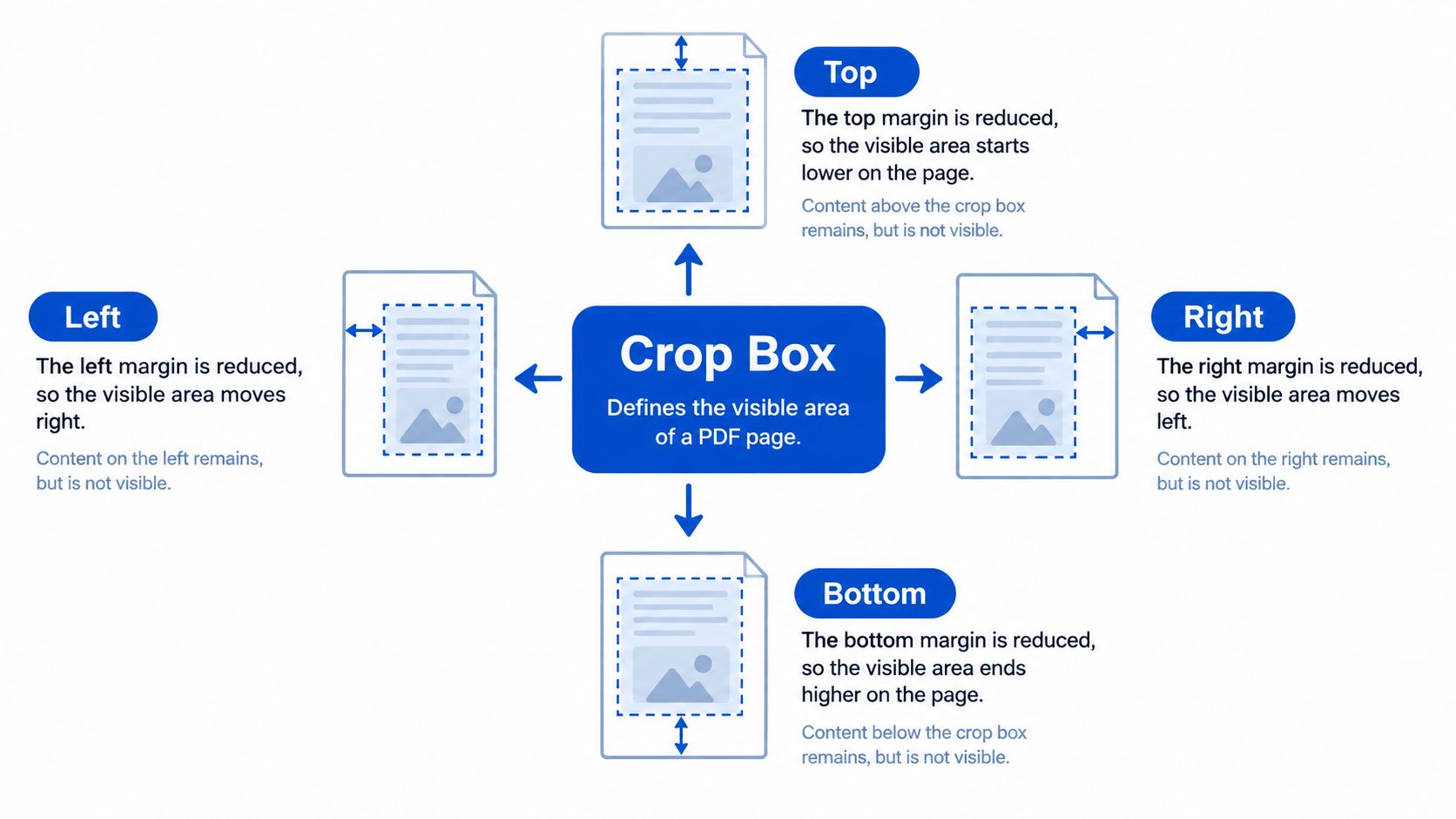
Cropping therefore differs from deleting content, flattening a scan, or changing the document's paper size. A PDF editor can often restore the original view because the text and graphics may still exist beyond the crop boundary. It isn't a substitute for redaction when private information must be removed permanently.
What cropping changes
A crop tool usually controls:
- Top margin, removing space above a title or scanner border.
- Bottom margin, trimming blank space below the content.
- Left and right margins, reducing binding shadows, uneven borders, or wide scan edges.
- Page range, applying the change to one page, selected pages, or the entire file.
PDF page boundaries use points. A documented PDF cropping workflow{target="_blank"} notes that 72 points equal 1 inch, or about 28.35 millimeters. Entering measurements helps keep margins consistent across pages, while visual dragging is faster for irregular scans.
Crop a duplicate rather than the only copy. Check headers, footers, footnotes, signatures, and table edges after exporting. For a repeatable cleanup workflow, use PDFKing's browser crop tool, then combine it with its other PDF tools when the file also needs conversion, merging, or further page preparation.
Cropping Pages with PDFKing in Your Browser
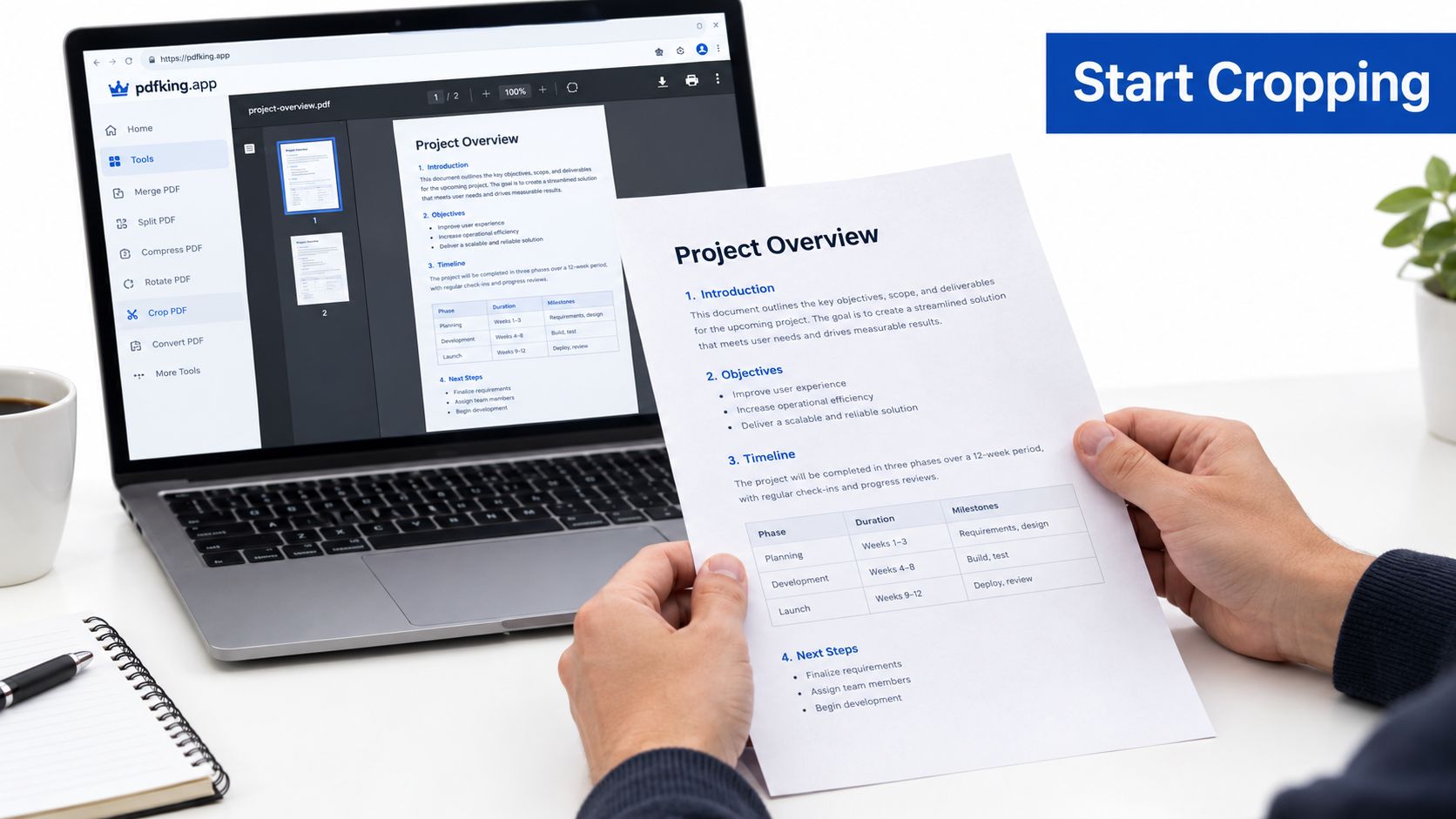
PDFKing's browser-based crop tool lets you trim white margins, scanner edges, headers, footers, and extra page space without installing software. Every tool is 100% free, produces no watermark, and requires nothing to install. Open the PDFKing crop PDF tool, then upload your file or drag it into the browser window.
Choose the pages to change
After the PDF loads, select whether the crop applies to all pages, one page, or a custom range. Start with a single representative page when the file contains mixed layouts. A uniform crop works well for a clean scan batch, but it can cut into a legal page, form field, or odd-sized insert if you apply it too broadly.
The page selector is also useful for duplex scans. Odd and even pages may have binding shadows on opposite sides, so give each group its own crop rather than forcing one rectangle across the entire document.
Adjust the crop area
Drag the crop handles around the content you want to keep. For more controlled output, enter the margin values in the side panel. You can also choose a preset ratio such as A4, Letter, or square, or switch to a custom crop when the page contains a form, chart, or image with unusual proportions.
Watch the live preview while you adjust the handles. Keep a little breathing room around text and signatures. If the result looks too tight, use reset and try again instead of guessing from the original scan.
Practical rule: Crop to the edge of unwanted space, not to the edge of important content.
Review pages with different layouts before applying the change. PDFKing keeps the original file untouched, so you can test a crop and return to the source if the framing isn't right.
The browser workflow is intentionally direct. Nothing is installed, and PDFKing's tools are designed to run in the browser session across modern desktop and mobile browsers. When the preview looks correct, click Apply Changes, download the new PDF, and open it once before sending or printing.
For a visual walkthrough of the page selection and crop process, use this short demonstration:
Crop vs Resize vs Split Knowing Which Fix You Need
These operations can look similar in a toolbar, but they solve different document problems. Crop trims the visible frame. Resize changes the page dimensions. Split divides one file into separate files.
| Operation | What it changes | Best for |
|---|---|---|
| Crop | The visible page boundary and margins | Removing scanner edges, blank space, shadows, or distracting banners |
| Resize | The page's target dimensions or paper format | Preparing a Letter document for A4 output or another required paper size |
| Split | The file's page grouping | Separating chapters, isolating selected pages, or creating smaller documents |
Consider a 300-page scanned book with a dark strip near the binding. Cropping removes that visual edge from the displayed page while preserving the page content inside the remaining rectangle. If the same book must be printed on a different paper format, resizing is the relevant operation, not cropping.
A contract prepared on US Letter paper may need to be resized to A4 for a European client. The purpose is to change the page format so printers and downstream systems handle the document consistently. Cropping the outer margins alone won't repaper the file.
A 50-page statement may contain monthly sections that need to be emailed separately. Splitting creates smaller documents or extracts defined ranges. It doesn't clean the page edges. Use the PDFKing guide to splitting a PDF into single pages when the problem is file division rather than page framing.
The decision rule is simple: crop to trim the view, resize to repaper, split to divide. Choose the operation based on what must change, not on which button appears first.
Page Boxes and Margin Measurements Explained
A PDF page can carry several rectangles at once. The MediaBox sets the complete page canvas. The CropBox sets the area a viewer displays or a printer uses when a crop is applied. The BleedBox, TrimBox, and ArtBox describe boundaries used mainly in printing and production.
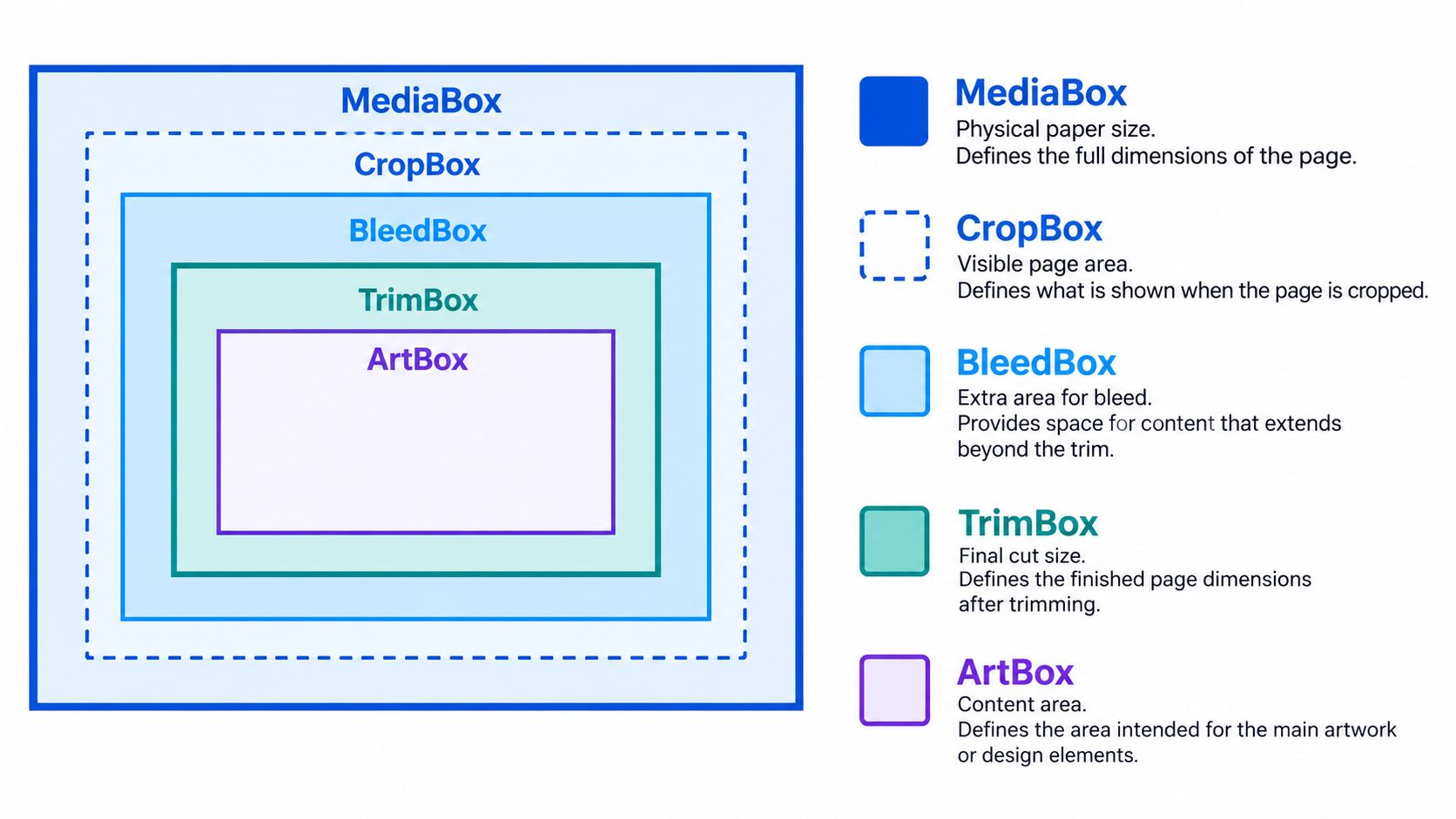
Browser crop tools such as PDFKing generally adjust the CropBox. Content outside that window can therefore remain embedded in the file, even though viewers no longer show it. If a PDF has no separate CropBox, the MediaBox supplies the page boundary.
Why points matter
PDF editors measure page geometry in points instead of inches or millimeters. 72 points equal 1 inch, and 28.35 points equal 1 centimeter. A US Letter page measures 612 by 792 points, while A4 measures 595 by 842 points. A 0.5-inch margin equals 36 points on each side.
These conversions make repeatable crops easier across pages with the same layout. Set matching values rather than dragging each edge by eye, then inspect the result at normal viewing size to catch text that sits close to the boundary.
Page boxes also account for differences between PDF viewers. One application may prioritize the CropBox, while another reveals more of the MediaBox or applies different print settings. Open the saved PDF in a second viewer before sending it to court, a print shop, or a filing portal. For a reference on page-box behavior and measurement, consult the ISO 32000 PDF specification.
A Practical Cleanup Workflow for Multi Page PDFs
Cropping is often one stage in a larger cleanup job. A reliable order prevents you from repeating work after page boundaries or orientation change.
Inspect before editing
Open the source and scan through every page. Look for uneven borders, sideways pages, blank sheets, mixed paper sizes, and pages where text sits unusually close to the edge. Apply a shared crop only when the pages share the same layout.
A practical sequence looks like this:
- Crop first, using separate page ranges when the borders differ.
- Split selected sections if only certain pages need to be shared.
- Rotate sideways pages so the document reads consistently.
- Compress the cropped output when high-resolution scans create an unnecessarily large file.
- Run OCR after cropping and rotation so recognized text aligns with the final visible page.
- Redact sensitive regions when information must be permanently hidden.
- Rename the finished file with a descriptive name that identifies its contents and version.
The order matters. Cropping and rotating establish the page geometry. OCR then works against a stable layout, while compression can reduce scan size after the visual cleanup is complete. For page arrangement and related cleanup, use PDFKing's guide to organizing PDF pages.
Workflow note: Keep a clean source copy and create a new working file at each major stage.
Redaction deserves special care. A crop only changes what viewers see within the page boundary. If confidential text lies outside that boundary, use a dedicated redaction operation rather than treating the crop as permanent removal.
Common Cropping Mistakes and How to Avoid Them
The most damaging crop errors come from applying a correct setting to the wrong pages. A scanner batch may contain consistent pages, but a bundled report can mix Letter, legal, wide, and portrait layouts. Preview the entire selected range before saving, especially when tables, signatures, footnote markers, or page numbers touch the margin.
Auto-detection can also misread uneven scans. A dark border on one page may be a scanner artifact, while the same dark area on another page may be part of a form. Manual adjustment takes longer, but it gives you a defensible result when page content varies.
Check the edges before export
Use this checklist:
- Check footers: Page numbers and filing references often sit lower than the main text.
- Check tables: Outer rules can touch the crop boundary and disappear when the crop is too tight.
- Check signatures: Leave enough surrounding space to preserve the document's context.
- Check page ranges: Confirm that a single-page test hasn't accidentally become an all-pages change.
- Check another viewer: Open the exported file elsewhere to verify that the CropBox was written and displayed as expected.
Cropping before OCR requires judgment. If you change the page boundary after text recognition, extracted text regions may no longer align with the visible page and you may need to rerun OCR. A scan guide describes a workflow that places cropping before cleanup and OCR, which is a sensible order when the scan has large borders or shadows. Rotating a PDF and saving the corrected file can also prevent OCR from processing sideways pages.
Don't flatten a source that may need later editing. Reversible page-box cropping gives you room to recover margins. Permanent deletion or redaction is appropriate only when you're sure the hidden information must not remain available.
Final Tips and Your Next Step
Three habits prevent most crop rework:
- Preview the page box before saving. Check the first page, then inspect pages with different layouts.
- Crop a copy, not the original. Keep the source available until the exported file passes review.
- Run OCR after cropping and rotation. Let text recognition work against the final page geometry.
Remember the distinction between crop and resize. Crop changes the visible frame around the existing page content. Resize changes the document's paper dimensions, so it's the right fix when a printer or filing system requires a different format. If the file is still too large after cleanup, use PDFKing's guide to making a PDF file smaller.
Frequently asked questions
Does cropping a PDF delete the hidden content?
Usually, no. Cropping changes the visible page boundary, while text and graphics outside that boundary may remain in the file. Use redaction when information must be permanently removed.
Can I crop only one page?
Yes. Choose a single page or a custom page range instead of applying the same crop to the entire document. This is useful for mixed scans and inserted forms.
Should I crop before OCR?
For messy scans, cropping and rotating before OCR can give the recognition process a stable page area. If you crop after OCR, recognized regions may need to be regenerated.
Will cropping change the paper size?
Cropping changes the displayed region. It doesn't automatically replace the document with a different paper format. Use resizing when you need Letter, A4, or another target page size.
Can I crop a scanned book?
Yes. Cropping can hide scanner borders, blank margins, and binding shadows around scanned pages. Review both facing pages because the shadow may appear on different sides.
PDFKing gives you free browser tools for cropping, splitting, rotating, compressing, organizing, and cleaning PDF files, with no watermark and nothing to install. Start with a copy of your document, open the PDFKing crop tool, preview the page range carefully, and download the finished file when the margins look right.