ON THIS PAGE
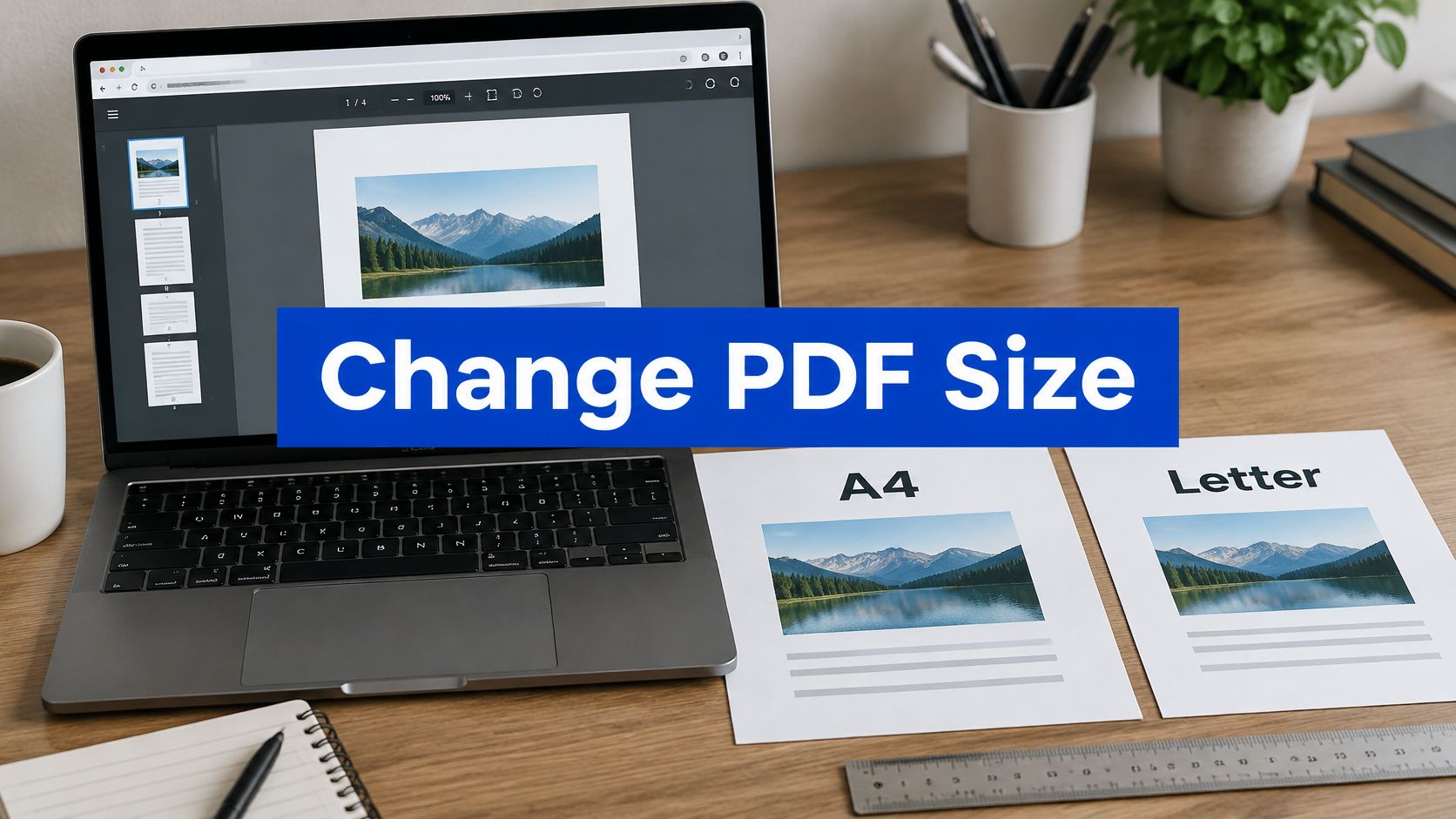
Changing a PDF's page size can mean changing the canvas, scaling the content, or both, so choose based on whether you'll view, print, or submit the file. For an A4 destination, the target is 210 × 297 millimeters, but setting those dimensions alone doesn't guarantee that your content will fit.
You've probably discovered the problem at the worst moment: a submission needs a different format, a contract loses its footer when printed, or a merged packet contains pages that don't match. The right fix starts with deciding what must stay unchanged, not selecting a paper preset and hoping for the best.
Table of Contents
- What Changing PDF Page Size Actually Means
- How PDFs Store Page Dimensions
- Choosing a Standard Target Size
- Setting Custom Width and Height
- Scaling, Cropping, or Adding Margins
- Preparing Files for Print or Submission
- Frequently Asked Questions About PDF Page Size Change
What Changing PDF Page Size Actually Means
A Letter-sized contract headed to an international office looks like a straightforward conversion. But you need to decide whether the recipient requires a particular PDF page size, a readable printed copy, or both. Those are different requirements.
A4 measures 210 × 297 millimeters, approximately 8.27 × 11.69 inches. It's 6 millimeters narrower and 18 millimeters taller than North American Letter, which measures 216 × 279 millimeters, or 8.5 × 11 inches, as detailed in the University of Cambridge paper-size reference. The proportions differ, so you can't assume that everything will transfer unchanged.
Choose What Must Stay Fixed
Before making a PDF page size change, identify your intended result:
- Canvas only. Change the page boundary while keeping the existing text and images at their current size. This works when the content already fits inside the target.
- Scaled content. Enlarge or reduce the page contents proportionally, then position them on the destination canvas.
- Bleed-aware crop. Set the finished boundary for print and retain the artwork needed beyond that boundary for trimming.
Practical rule: Preserve document content by default. Crop only when you know exactly what you're removing.
For a screen-only reference copy, readability may matter more than uniform page dimensions. For a submission, the actual saved page dimensions may be mandatory. For print production, finished size and bleed need deliberate attention.
Also separate a document change from a print setting. A printer can fit an unchanged PDF onto another sheet, but that doesn't prove the saved document meets a submission requirement. Ask what the next person needs to receive before you modify the file.
How PDFs Store Page Dimensions
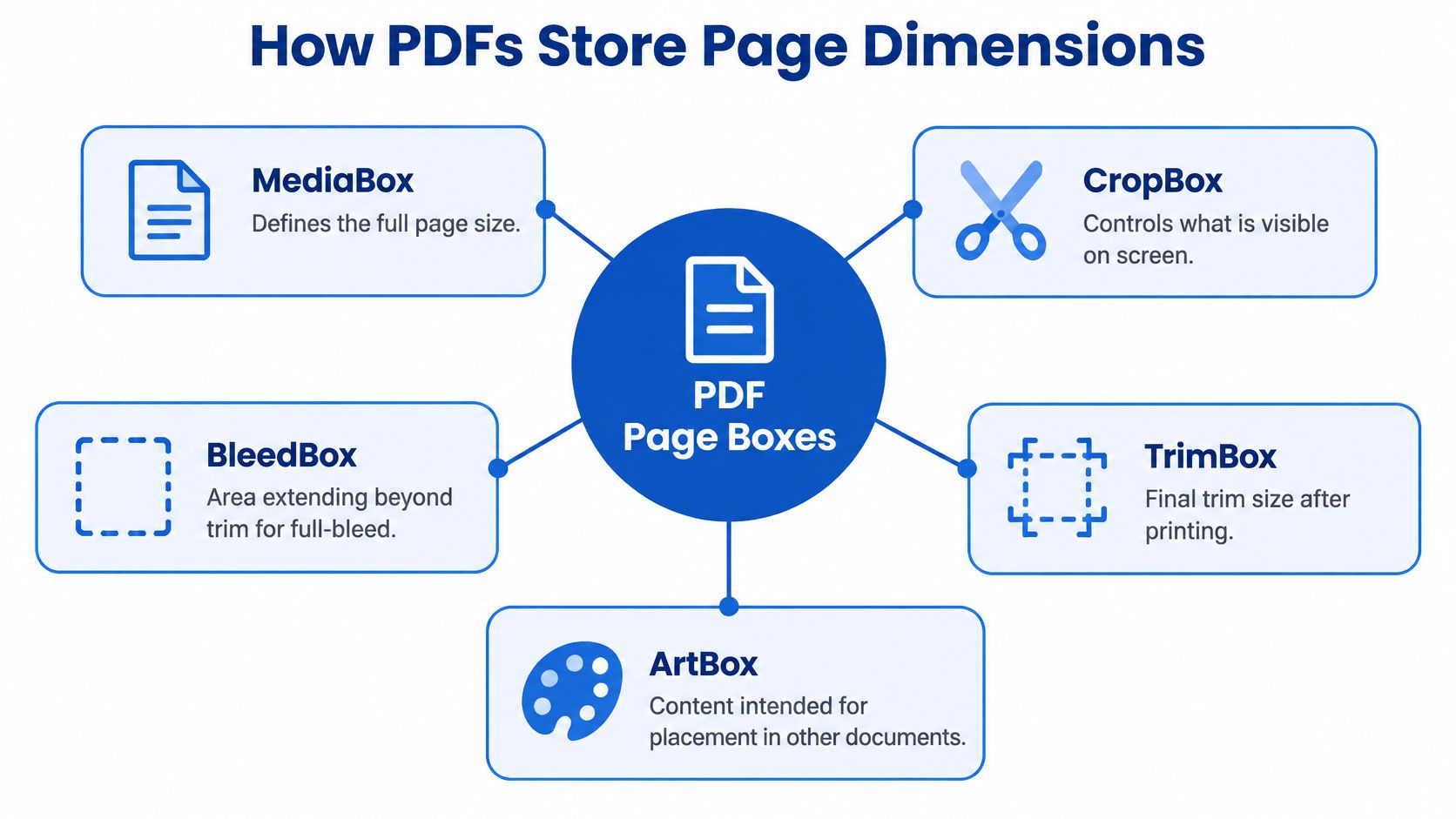
A PDF doesn't store page size as a simple label such as “office paper.” It uses geometric boundaries called page boxes, with coordinates measured in PDF points. Those boundaries describe the page and the areas intended for viewing or production.
Understand Which Boundary You're Editing
| Page box | What it defines | What you should check |
|---|---|---|
| MediaBox | The physical page boundary | Whether the overall sheet has the intended dimensions |
| CropBox | The region shown or printed by viewers | Whether content disappears outside the visible area |
| TrimBox | The finished size after trimming | Whether the final piece matches the production requirement |
| BleedBox | The bleed area around the finished piece | Whether background artwork reaches the required boundary |
| ArtBox | The intended artwork area | Whether the relevant artwork boundary remains appropriate |
The technical distinction matters because changing a boundary isn't the same as moving the objects inside it. Text, images, annotation rectangles, and form fields need compatible positions after the change. The PDF page-box implementation discussion describes why changing page metadata without updating content coordinates can leave objects shifted, clipped, or incorrectly scaled.
That same technical guidance uses 72 points per inch, meaning a Letter page is 612 × 792 points. It also explains that the CropBox defaults to the MediaBox when absent, while TrimBox and BleedBox commonly default to the CropBox.
Don't treat a successful preview as proof that every boundary is correct. A viewer can show a tidy page while the production boxes still need adjustment. For ordinary office documents, concentrate on the physical and visible boundaries; for commercial print, inspect the finishing boundaries too.
Choosing a Standard Target Size
Use the recipient's required format, not your computer's default. An attractive preview won't help if the receiving office expects a different page size. Find the submission instructions or ask the person who will print the file.
For routine international paperwork, consider A4 when the destination calls for ISO paper. For US and Canadian office workflows, check whether Letter is required. Select Legal only when the receiving workflow specifically asks for it, rather than assuming every contract belongs on longer paper.
Match the Destination Before the Layout
Use this sequence to settle the target:
- Read the requirement. Look for the paper name, orientation, and whether every page must match.
- Inspect the source. Check page dimensions across the document, including attachments and scanned inserts.
- Choose the target. Use a named preset when it matches the requirement exactly.
- Preview representative pages. Include dense text, tables, signature pages, and horizontally oriented material.
If you're checking unit labels before entering a preset, the guide to A4 paper size in inches provides a useful reference. Don't confuse a paper-size conversion with a layout redesign: narrow side margins and carefully aligned forms deserve individual inspection.
Book interiors require a different decision. Before choosing a custom trim for a manuscript, compare trade and mass-market sizes through BarkerBooks, then confirm the actual production specification with your printer. Don't apply an office-paper preset just because it's familiar.
Choose the destination format first. Adjust the layout to that requirement, not the other way around.
For a mixed packet, record the target alongside each page group before applying changes. If the recipient accepts mixed sizes, preserving a long contract page may be better than shrinking it into unreadable text to make the thumbnails uniform.
Setting Custom Width and Height
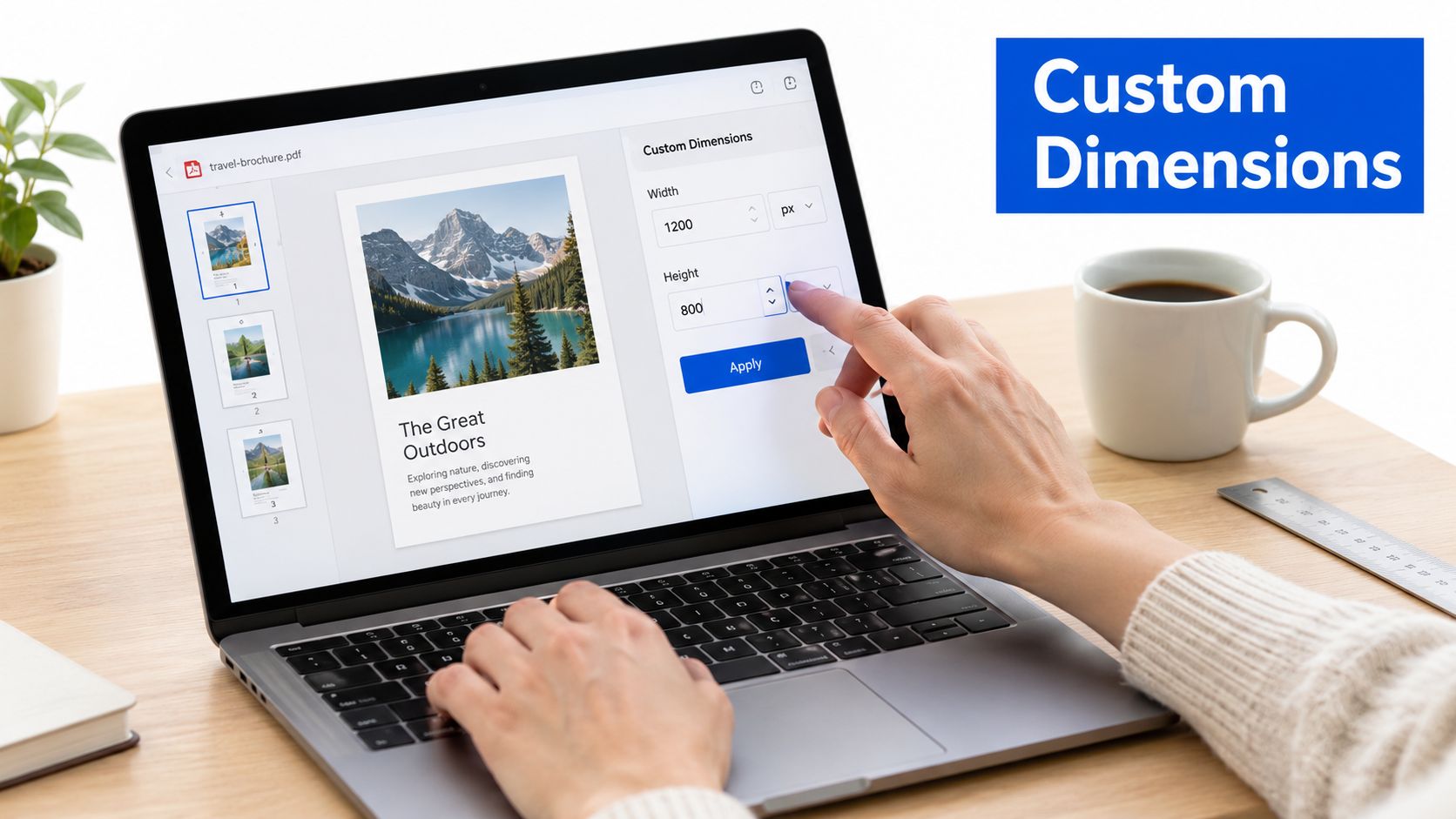
A custom size should come from a written requirement, a measured stock size, or an approved production template. Don't estimate the dimensions from how large a page looks on your screen. Zoom level isn't a measurement.
Enter Dimensions Without Changing Their Meaning
Start by matching the units used in the destination specification. If the printer supplies millimeters, enter millimeters rather than converting the values unnecessarily. If the form specifies inches, keep inches throughout your setup.
- Confirm orientation. Width and height must describe the intended finished page, not merely reuse the source orientation.
- Separate trim from bleed. Ask whether the supplied dimensions describe the finished piece or the larger production sheet.
- Choose content behavior. Decide whether objects should scale, stay centered at their current size, or be cropped.
- Save a separate output. Keep the original available while you inspect the result.
For a certificate, inspect the border and signature area closely. For a booklet page, confirm whether the supplied dimensions describe an individual page or an imposed spread. These are specification questions, not settings you should guess.
For poster artwork, page dimensions and image detail need separate checks. Cobra DTF's DPI tips for poster printing offer relevant reading when you're assessing enlarged photographs. Don't assume that increasing the canvas adds detail to the original image.
If your content starts as a presentation, review the source layout before conversion; the PowerPoint-to-PDF workflow guide is relevant to that preparation. Avoid promising a particular conversion route unless your chosen application supports it.
For unusually large media, confirm that your editor, viewer, and output provider support the intended dimensions. A custom-width field alone isn't evidence that the entire production workflow can handle the result.
Scaling, Cropping, or Adding Margins
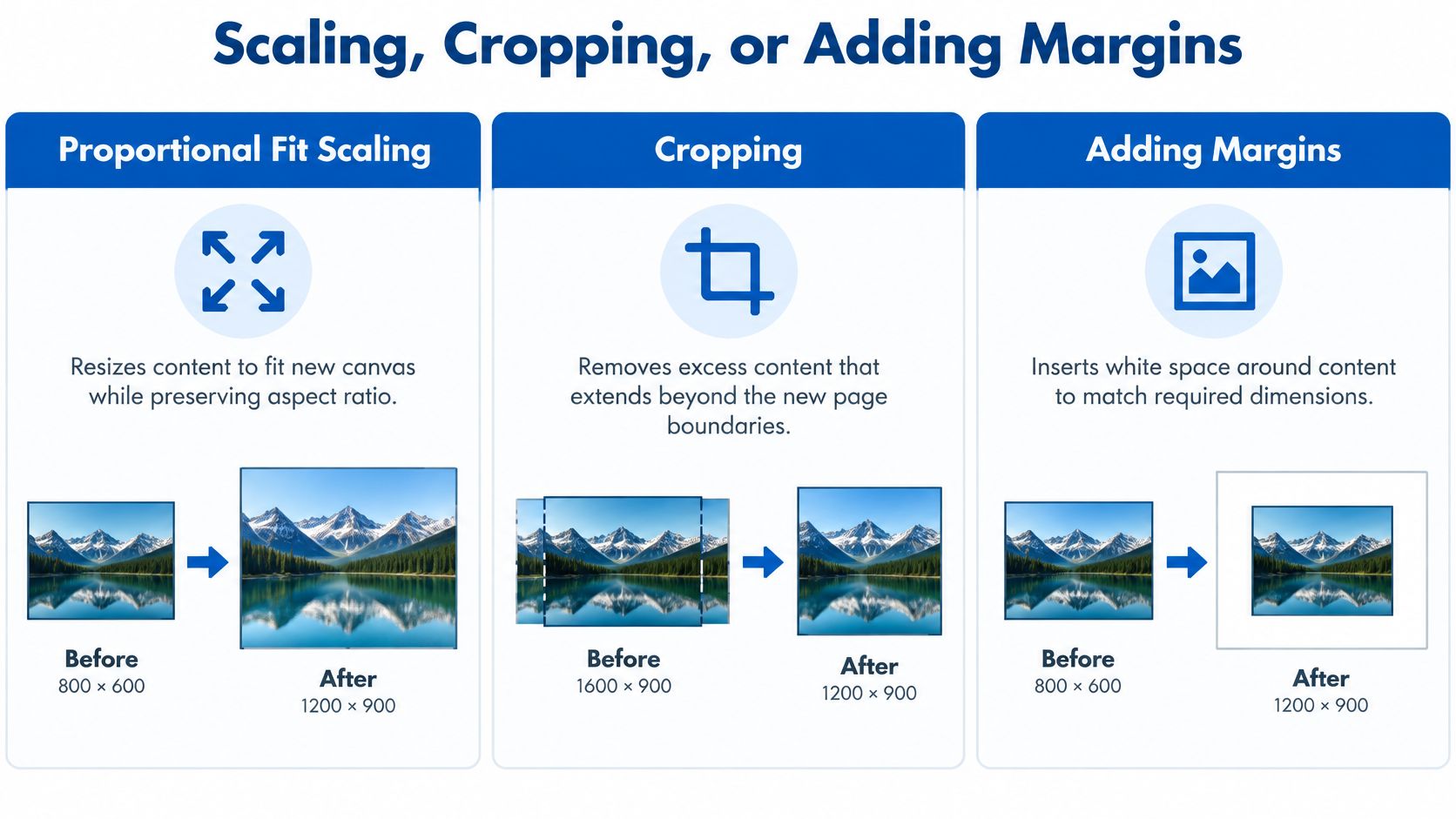
Proportional fit is my default recommendation for text-heavy documents. It preserves the relationship between objects without deliberately discarding content. Cropping and padding are valid alternatives, but they solve different problems.
Compare the Actual Trade-Offs
| Method | Choose it when | Reject it when |
|---|---|---|
| Proportional fit | The full document must remain visible | The resulting text becomes too small |
| Crop to fill | Artwork has expendable edges | Forms, clauses, labels, or signatures approach the boundary |
| Add margins | Existing content fits at its original size | The destination is smaller than the occupied content area |
Padding isn't a magic fix for every Letter-to-A4 conversion. Because the destination has different proportions, preserving the original content size works only if the occupied area fits. Otherwise, you still need to reduce or rearrange the content.
For cropping, inspect the area you'll remove before committing. The guide to cropping PDF pages helps distinguish trimming unwanted margins from making a meaningful layout change.
Avoid this shortcut: Don't stretch text horizontally and vertically by different amounts just to cover the destination page.
Keep Print Scaling Separate
Print-dialog controls describe output behavior. Fit enlarges or reduces a page to the printable area; Actual size doesn't scale and can crop oversized content; Shrink oversized pages reduces larger pages without enlarging smaller ones; Custom Scale uses your selected percentage. Those distinctions belong to print output, not proof of changed document dimensions.
For physical printing, choose the setting that preserves legibility within the printer's usable area. For a portal submission, inspect the saved PDF's dimensions instead. For an archival copy, my recommendation is to retain the original alongside any standardized derivative.
Don't repeatedly scale an already adjusted output while troubleshooting. Return to the original, choose the intended behavior, and generate a fresh version so you can judge the change clearly.
Preparing Files for Print or Submission
A uniform-looking packet isn't finished until you've checked its content. Treat page dimensions, readable text, finishing boundaries, and interactive objects as separate acceptance checks. Passing one doesn't excuse failing another.
Follow a Destination-Specific Preflight
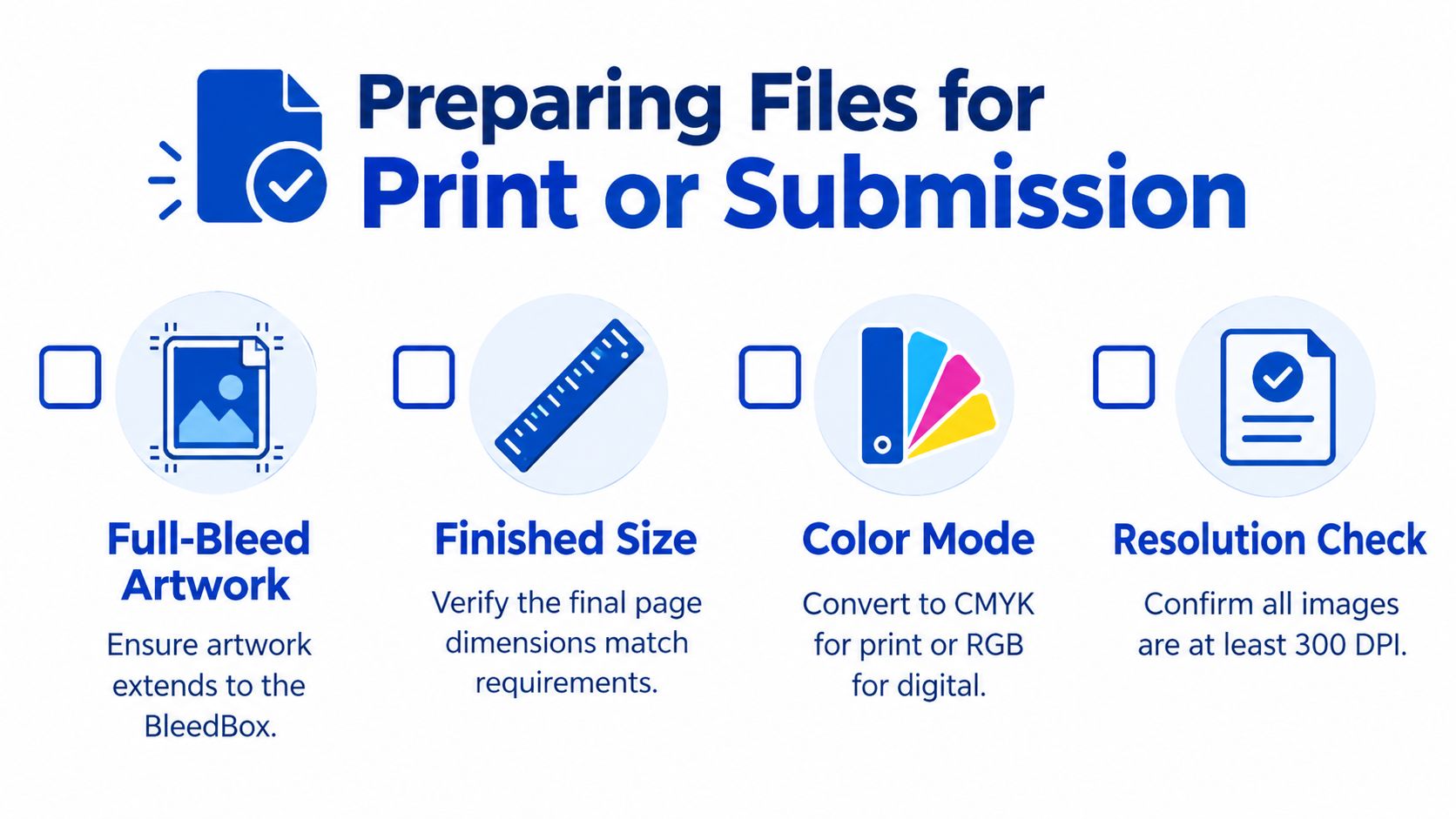
For print production, define the finished TrimBox first, add the required bleed, and extend full-bleed backgrounds to the BleedBox. Otherwise, resizing can leave white edges after trimming. Follow the printer's actual color and image-resolution requirements rather than treating a general checklist as a universal specification.
For office printing, check the selected device and loaded stock. If you're evaluating a particular model, such as the HP CP5225n printer listed by Godukkan, verify its suitability separately from the PDF's dimensions. Device selection doesn't replace document inspection.
For editable source documents, correct layout problems before exporting whenever practical. The Word-to-PDF preparation guide is useful when you can fix the original instead of squeezing an unsuitable PDF layout onto another canvas.
Use a Mixed-Packet Decision Path
- Inventory the pages. Identify correspondence, forms, contracts, scans, and horizontal attachments.
- Check whether uniformity is required. Preserve original sizes when the destination permits them and readability benefits.
- Group similar pages. Apply consistent treatment within each group rather than forcing unrelated layouts through the same setting.
- Inspect the saved output. Render every page, compare corners and edges, and reopen it in an independent viewer.
- Test interactive elements. Check form fields, annotations, links, and signature placement separately.
The failures worth hunting are clipped content, unreadable scaling, and misaligned interactive objects. Inspect dense footnotes and wide tables, not just the opening page.
If a contract becomes difficult to read after fitting, stop and reconsider the destination format. If a form field no longer aligns with its label, fix the transformation rather than moving only the visible text. Accept the output only when both the page geometry and the document's practical use remain correct.
Frequently Asked Questions About PDF Page Size Change
How Can I Verify That the Resize Worked?
Check the saved file's page dimensions in your viewer's properties or page-information panel. Inspect pages throughout the document, especially inserts and attachments. Then reopen the file in another viewer and compare edge content, forms, and annotations.
A changed filename or a matching print preview isn't sufficient. You need the downloaded output to meet the destination requirement.
Does Resizing a PDF Reduce Its Quality?
Judge the final output rather than assuming a page-size change is harmless. Enlarged scans may look soft, reduced text may become uncomfortable to read, and an unsuitable export method may change the appearance.
Page dimensions and file size are separate concerns. If your actual problem is an upload limit, use the guide to reducing PDF file size without losing readable quality instead of changing paper dimensions.
What Should I Do With a Password-Protected PDF?
Work only with a document you own or have permission to modify. If protection blocks the operation, obtain the authorized password or request an editable copy from the owner.
Use a tool to remove restrictions only for authorized files, then return to the same inspection process. Removing protection doesn't resolve layout problems or prove that the resized output is correct.
How Should I Handle Mixed Page Sizes?
Don't normalize a packet just to make its page thumbnails match. First establish whether the recipient requires uniform dimensions.
If uniformity is mandatory, group pages by source size and content type, then apply the least destructive treatment to each group. Pay particular attention to long contract pages and wide tables, where a blanket fit setting can make the result difficult to use.
Should I Resize Before or After Signing?
My recommendation is to finalize page geometry before collecting signatures whenever your workflow allows it. That avoids asking a recipient to approve a layout that you intend to modify afterward.
If a document is already signed, preserve the original and follow the receiving organization's requirements before producing an altered copy. Don't assume that a signature that still looks correctly positioned is enough for acceptance.
PDFKing offers browser-based PDF tools, including Crop PDF for trimming unwanted page margins. Every tool is 100% free, with no watermark and nothing to install. Visit PDFKing and choose Crop PDF when trimming page boundaries, rather than scaling the entire document, is the right fix.