ON THIS PAGE
If you need to unprotect a PDF, first identify whether it has a user password that blocks opening or an owner password that limits editing, printing, or copying. If you know the password and have permission to modify the file, a browser-based tool can create an unrestricted copy without installing software. If you don't know the opening password or lack authorization, the safe answer is to contact the document owner rather than attempt to bypass the protection.
Table of Contents
- Understanding PDF Password Types
- Removing Restrictions with Browser Tools
- When Browser Tools Are Not Enough
- Legal and Ethical Boundaries
- Best Practices for Document Security
- Common Questions About PDF Security
Understanding PDF Password Types
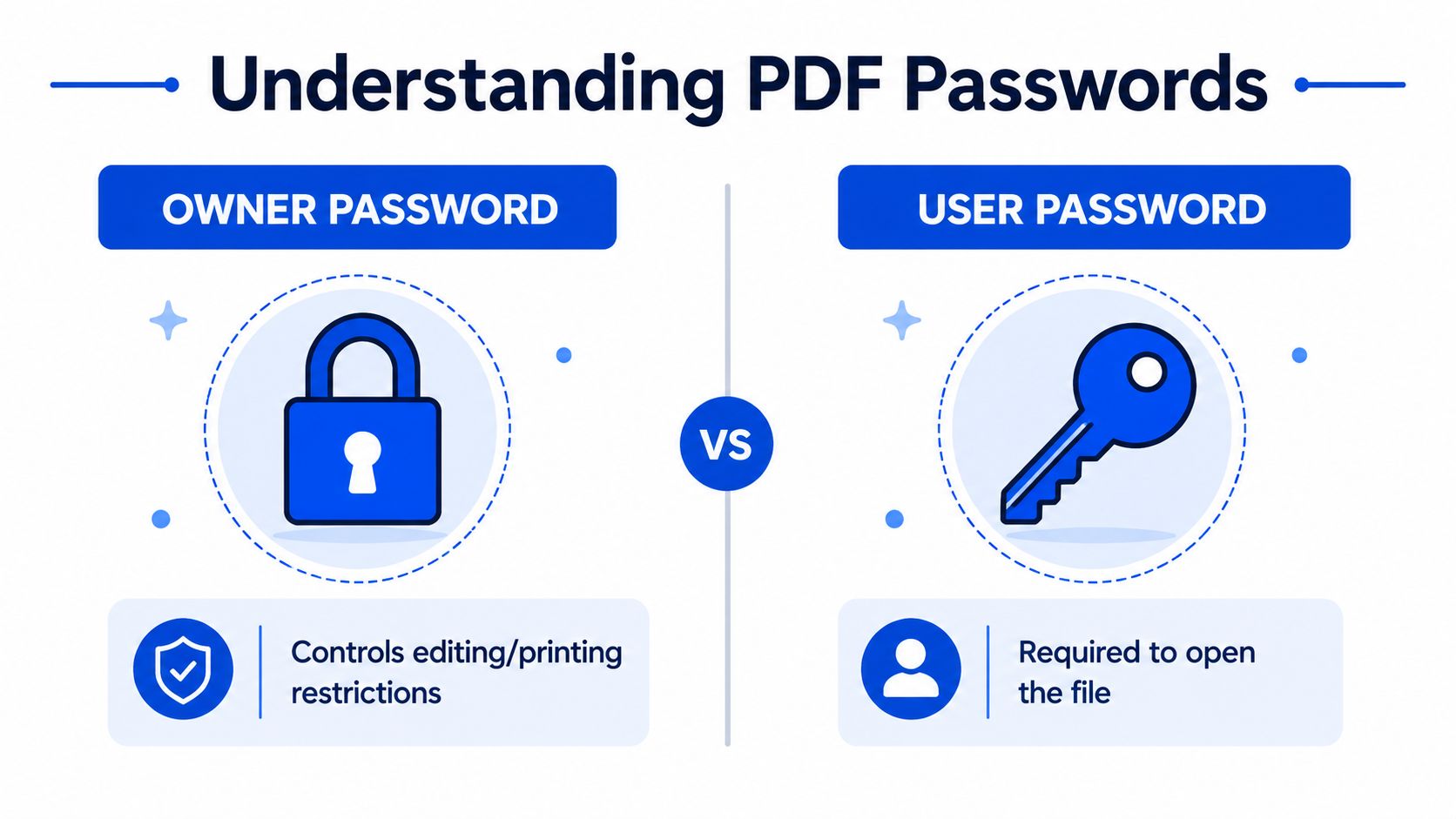
A PDF can open normally while refusing to print, copy, or edit. Another file can stop at the password prompt before displaying any page. Those outcomes reflect different security controls, so identify the password type before changing the document.
A user password, also called an open password, controls access to the encrypted file. Without the correct password, a compliant PDF reader should not show its contents. An owner password, also called a permissions password, governs operations such as printing, editing, and copying. The file may open for viewing while those operations remain restricted. Adobe explains the distinction in its PDF password security documentation{target="_blank"}.
The technical distinction affects what a legitimate workflow can do. Under the PDF encryption model, either password can provide the encryption key. A conforming reader applies the permissions when the document is opened with the user password, but does not apply them when the owner password is supplied. The qpdf encryption reference{target="_blank"} documents this behavior.
Check the security type first
Open the document properties or security panel in your PDF viewer. Review the security method, whether a password is required, and which actions are allowed. If the PDF opens but lists printing or editing as prohibited, it has permissions restrictions rather than an opening-password problem.
If the viewer requests a password before showing the file, you need the correct user password before a standard decrypt-and-save process can succeed. Do not treat an owner-password restriction as permission to remove someone else's controls. Ownership, written authorization, and the intended use of the document still matter.
For practical guidance after permission restrictions are removed, see this guide to editing a protected PDF. The distinction helps you choose an appropriate browser workflow and avoid treating access to the pages as authorization to alter the file.
Removing Restrictions with Browser Tools
A browser workflow fits a straightforward case: you know the current password, have permission to change the file, and need a separate copy without the applicable restriction. The original protected PDF remains on your device, unchanged. This is suitable for your own documents, files supplied by a client with authorization, and records you are responsible for managing.
The PDFKing tools run in the browser, leave no watermark on the output, and require no installation. Use the browser-based PDF password removal tool for a direct password-removal workflow.
Follow these steps
Confirm authorization. Verify that you own the document or have explicit permission to remove its protection. Being able to open a file does not, by itself, give you permission to change its security settings.
Open the browser tool. Use a current browser on a desktop or mobile device. The workflow does not require a desktop application, browser extension, or separate PDF editor.
Select the protected PDF. Upload the file from your device, and retain the original in its existing protected location. This gives you a reference copy if you need to compare the files later.
Enter the current password. Supply the password that opens the document or authorizes the permitted security change. Check capitalization, spaces, and similar-looking characters. A service that processes a supplied password performs an authorized document operation. It does not recover an unknown password.
Process the document. The service uses the supplied credential to create a new copy without the applicable password restriction. Processing can fail if the password is incorrect, the file uses another security type, or an unsupported protection layer is present.
Download the new copy. Store the result where its access controls match the document's sensitivity. The output is separate from the original, allowing you to keep the protected version for archival or comparison purposes.
Verify the result
Open the downloaded copy in your usual PDF viewer. Review its security properties, then test only actions you are authorized to perform, such as printing or editing. If restrictions remain, the browser workflow may not support that protection method, or it may have removed access protection without changing permissions.
Practical rule: Treat the downloaded file as a new security object. If it no longer requests a password, avoid placing it in a broadly shared folder by default.
When Browser Tools Are Not Enough
A browser-based remover works when you have the required credential and the file uses a supported PDF security structure. It cannot solve every protection problem. Forgotten open passwords, DRM controls, plugin-based protection, and strong encryption outside your authorization require a different response.
The key distinction is between the user password and the owner password. A user password controls whether the file can be opened. An owner password controls permissions such as printing, editing, or copying. Decrypting a PDF with a known credential is an authorized document operation. Recovering an unknown password is a separate technical problem, and results depend on password length, character variety, encryption revision, and the search method.
PDF security has changed over time. Early files used 40-bit RC4, later versions introduced stronger RC4 variants and AES-based protection, and newer standards include AES-256. The PDF encryption reference from PDFlib{target="_blank"} documents this progression, including AES-256 handling in PDF 1.7 Extension Level 8 and PDF 2.0.
Match the approach to the situation
| Situation | Appropriate approach | What to expect |
|---|---|---|
| You know the user password | Authorized decrypt-and-save workflow | Usually the most direct route |
| You know the owner password | Remove permissions and save a new copy | Editing or printing restrictions may be removed |
| You forgot a short, familiar password | Try a permitted dictionary or pattern search | Success depends on the search assumptions |
| You forgot a strong random password | Contact the sender, owner, or IT team | Recovery may be impractical |
| The file uses DRM or plugin protection | Ask the issuing organization for access | Standard PDF tools may not decrypt it |
According to ElcomSoft's PDF password recovery requirements{target="_blank"}, brute-force search is practical only for passwords of roughly 7-8 characters; longer or mixed-character passwords can take months or years.
Converting a protected file to another format is not a reliable bypass. The process can change the layout, omit interactive elements, or create a new document without removing the original security model. After authorized access, use a deliberate PDF to Word conversion workflow when an editable working copy is the actual requirement. Keep the original protected file for comparison and records.
Legal and Ethical Boundaries
A PDF that opens on your screen is not automatically yours to modify. Technical access only shows that the file can be processed. It does not grant permission to remove controls, create an unrestricted copy, or redistribute the result.
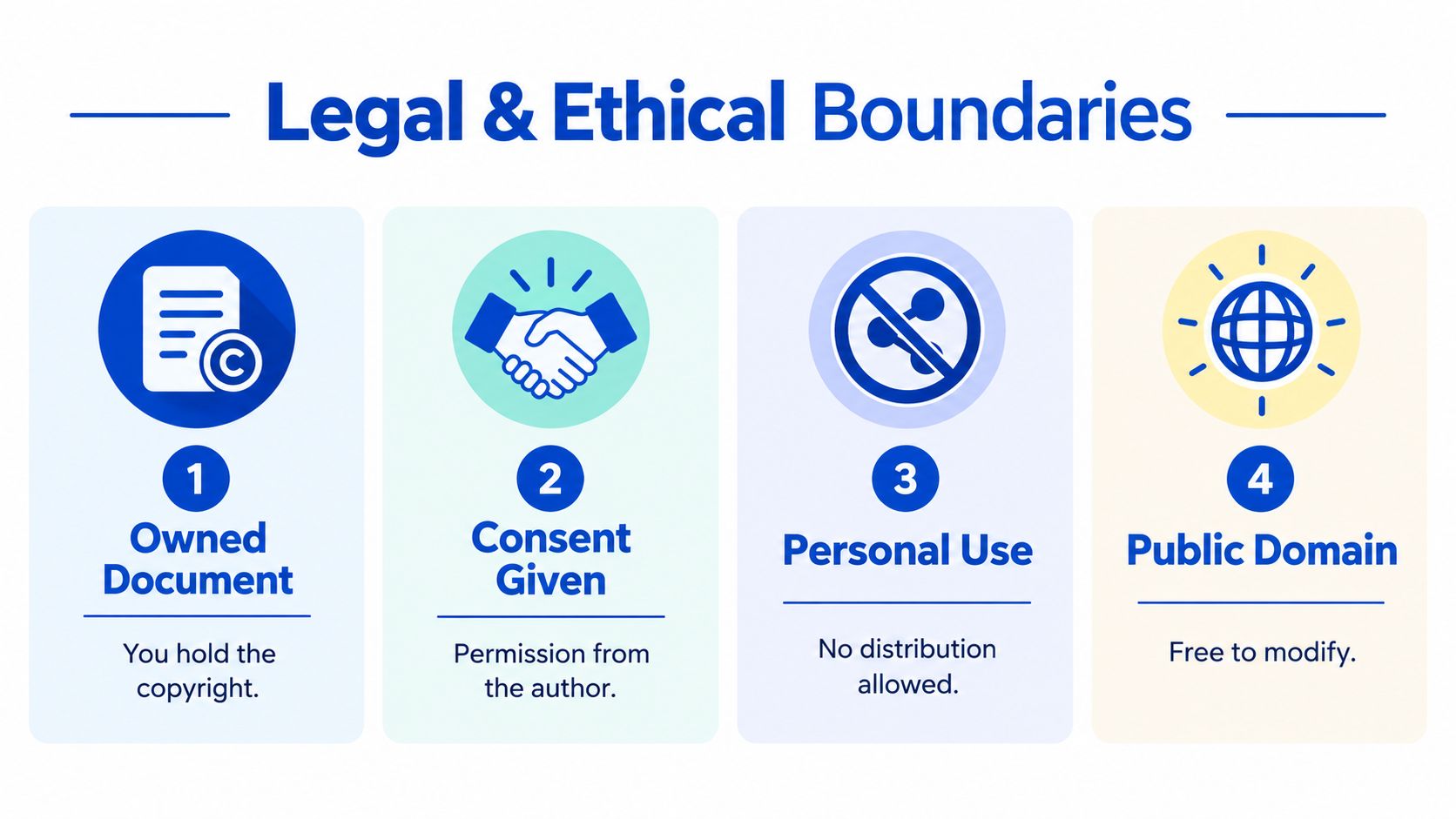
Check four points before uploading the file to a browser tool:
- Did you create or own the document? Removing protection for your own workflow is generally consistent with your rights, unless a separate contract limits what you may do.
- Did the owner authorize the change? A client, employer, colleague, or sender may permit editing or archiving an unrestricted copy. Keep that approval with the project record when the document is sensitive.
- What type of material are you handling? Payroll, legal, medical, financial, and government documents can have handling rules beyond the permission to view them. Confirm internal policy before creating another copy.
- Who will receive the new file? If the recipient could not access the original, confirm the intended audience before sharing the unrestricted version.
Removing protection from a file you do not own, or lack explicit authorization to modify, may create anti-circumvention, copyright, or privacy issues in the U.S., EU, and other regions, as discussed in this global encryption trends report{target="_blank"}. The legal outcome depends on the jurisdiction, document, purpose, and rights involved. Treat general online guidance as a practical reference, not legal advice.
Control the copy you create
An unprotected PDF is easier to search, print, email, and expose accidentally. Apply the original file's retention and access rules to the new copy, especially for payroll records and client deliverables. Record why the copy exists, and keep it within the approved workspace.
If the document must remain controlled after the authorized task, use a PDF password protection workflow before distribution. A new password protects the working copy, but it does not change whether removing the original restrictions was authorized.
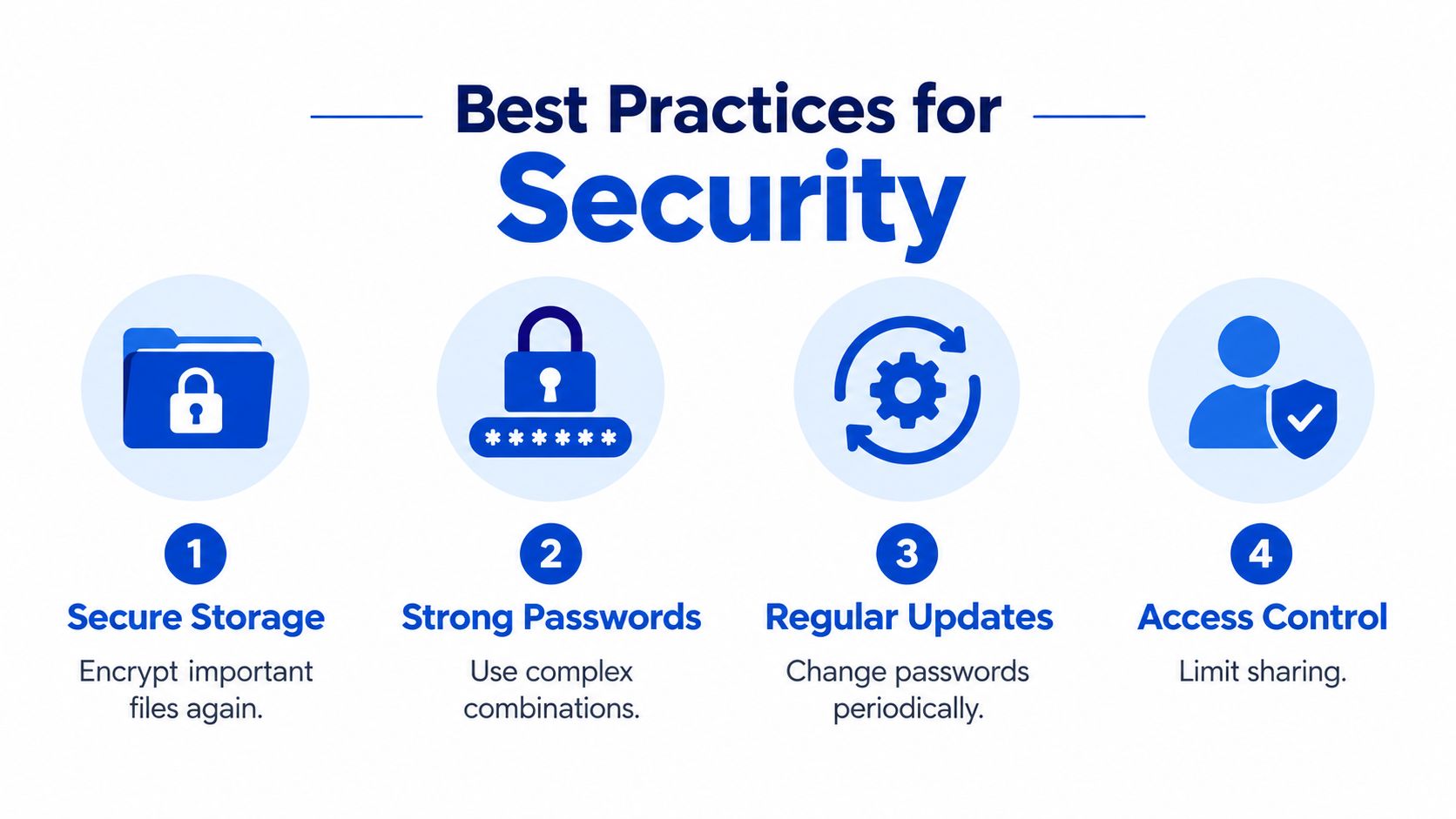
Best Practices for Document Security
Unprotecting a PDF creates a new handling requirement. Give the file a clear name, preserve the protected source when policy or the project requires an audit trail, and record why the working copy exists. This keeps colleagues from mistaking an easier-to-edit version for the authoritative record.
Manage the file deliberately
- Keep the original: Retain the protected source instead of overwriting it. The original may be needed to verify integrity, reproduce the authorized workflow, or document which restrictions applied.
- Choose secure storage: Save the unrestricted copy in the managed repository approved for the document. A local downloads folder can expose it to other users, backup systems, or automatic synchronization.
- Check the contents: Open the processed PDF and test pages, form fields, annotations, signatures, bookmarks, and other elements your workflow depends on. Permission removal or file conversion can affect how these features behave.
- Reduce unnecessary exposure: Remove or redact sensitive content recipients do not need before distribution. A password controls access, but it does not erase information that remains visible in the document.
- Reapply protection when needed: Create a fresh protected copy for distribution outside the controlled workspace. The new password protects that copy, while the original authorization and handling requirements still apply.
Organize before you share
Prepare the final packet before sending it. Remove obsolete pages, correct orientation, and place related documents in the intended order. Compressing a large PDF can simplify transfer, while merging separate files can reduce the risk of a recipient overlooking an attachment. These changes affect document structure, so review the final file rather than relying on the source.
Review metadata as part of that check. Author names, titles, subjects, keywords, comments, and software details may help internal cataloging but can disclose information to external recipients. Use this PDF metadata removal guide to inspect or clean those fields before releasing a copy.
Common Questions About PDF Security
Can I unprotect a PDF without the password?
Not through a normal authorized decrypt-and-save workflow when the file has an open password. Ask the sender, document owner, or your IT team for the correct credential or an authorized unrestricted copy. Attempting to defeat unknown protection can also create legal and privacy problems.
Is an owner password the same as an open password?
No. An owner password controls permissions such as editing, printing, and copying. A user password controls whether the file opens at all. A PDF may open successfully while still enforcing owner-side restrictions.
Will a browser tool remove DRM protection?
Standard PDF tools may not process DRM-protected or plugin-secured documents. Contact the organization that issued the file and request the correct access method or a permitted working copy.
Why does a password-removal attempt fail?
The password may be incorrect, the file may use unsupported protection, or the document may contain a security layer beyond ordinary PDF permissions. Check the security properties, confirm the credential, and avoid repeatedly uploading confidential files to unknown services.
How has PDF encryption changed?
PDF protection evolved from 40-bit RC4 in early versions to AES-256 with improved password handling in PDF 1.7 Extension Level 8 and PDF 2.0, according to the PDFlib encryption overview{target="_blank"}. That history is why older and newer PDFs can behave very differently during authorized recovery or decryption.
Does unprotecting a PDF change the original?
A properly designed browser workflow should provide a separate output copy rather than overwrite the protected source. Still, compare the result with the original and store both according to your document-handling policy.
PDFKing provides free browser-based tools for removing password protection from authorized PDF files, with no watermark and nothing to install. Visit PDFKing to unprotect your PDF with the current password, download a separate working copy, and manage the document with other standard PDF tools.