ON THIS PAGE
A free PDF to TXT conversion is straightforward for born-digital files: open PDFKing's browser-based PDF to Text tool, upload the PDF, run the conversion, and download the TXT file. If the PDF is a scan or image-only document, ordinary extraction isn't enough, so you'll need OCR to recognize the characters first.
You're probably here because you have a report, form, contract, or class handout that looks fine on screen but is awkward to search or reuse. You may want to copy a clause, analyze a dataset, quote a source, or move text into another application. The important question isn't only how to convert PDF to TXT file free. It's which conversion path your PDF needs.
A selectable-text PDF usually follows the direct extraction path. A scanned PDF follows the OCR path. Choosing correctly prevents blank output, scrambled columns, and hard-to-find errors.
Table of Contents
- How to Convert PDF to TXT File Free in Your Browser
- Why a PDF Holds Text in Two Different Ways
- Direct Extraction for Digital PDFs Step by Step
- OCR Workflow for Scanned or Image-Only PDFs
- Choosing Between TXT DOCX and Image Output
- Verifying Your Converted TXT File
- Common Questions About Free PDF to TXT Conversion
How to Convert PDF to TXT File Free in Your Browser
PDFKing's PDF to Text tool lets you convert a PDF to a plain TXT file in your browser. You don't need an account, software installation, or a watermark on the result. Every PDFKing tool is 100% free, with nothing to install.
Start with these steps:
- Open the PDF to Text tool. Use a modern browser on your computer or mobile device.
- Upload your PDF. Select the file from your device.
- Run the conversion. The tool reads the available text content and prepares a plain-text file.
- Download the TXT file. Open it in a text editor, search through it, copy passages, or import it into another application.
For a practical explanation of browser-based conversion, see PDFKing's guide to a PDF to text converter online.
The workflow depends on the source file. A born-digital PDF contains characters that software can usually extract directly. A scanned PDF contains page images, so the text must be recognized with OCR. A document can also combine both types, such as a digital report with scanned signatures or inserted image pages.
After downloading the TXT file, compare it with the PDF. Check reading order, tables, hyphenated words, special characters, headings, and page sequence. A successful download only proves that a file was created. It doesn't prove that every character landed in the right place.
Why a PDF Holds Text in Two Different Ways
A PDF may look like a page, but it doesn't always store that page as readable text. The first type, often called a born-digital PDF, contains character codes, fonts, and mappings that connect the characters to Unicode text. The second type is an image-based PDF, created by scanning or photographing a page. It may show clear words while containing no selectable characters at all.
Try this simple test. Open the PDF and drag your cursor across a sentence.
- If individual characters highlight, direct extraction may work.
- If the entire page behaves like one picture, OCR is required.
- If some pages allow selection and others don't, the file uses a mixed workflow.
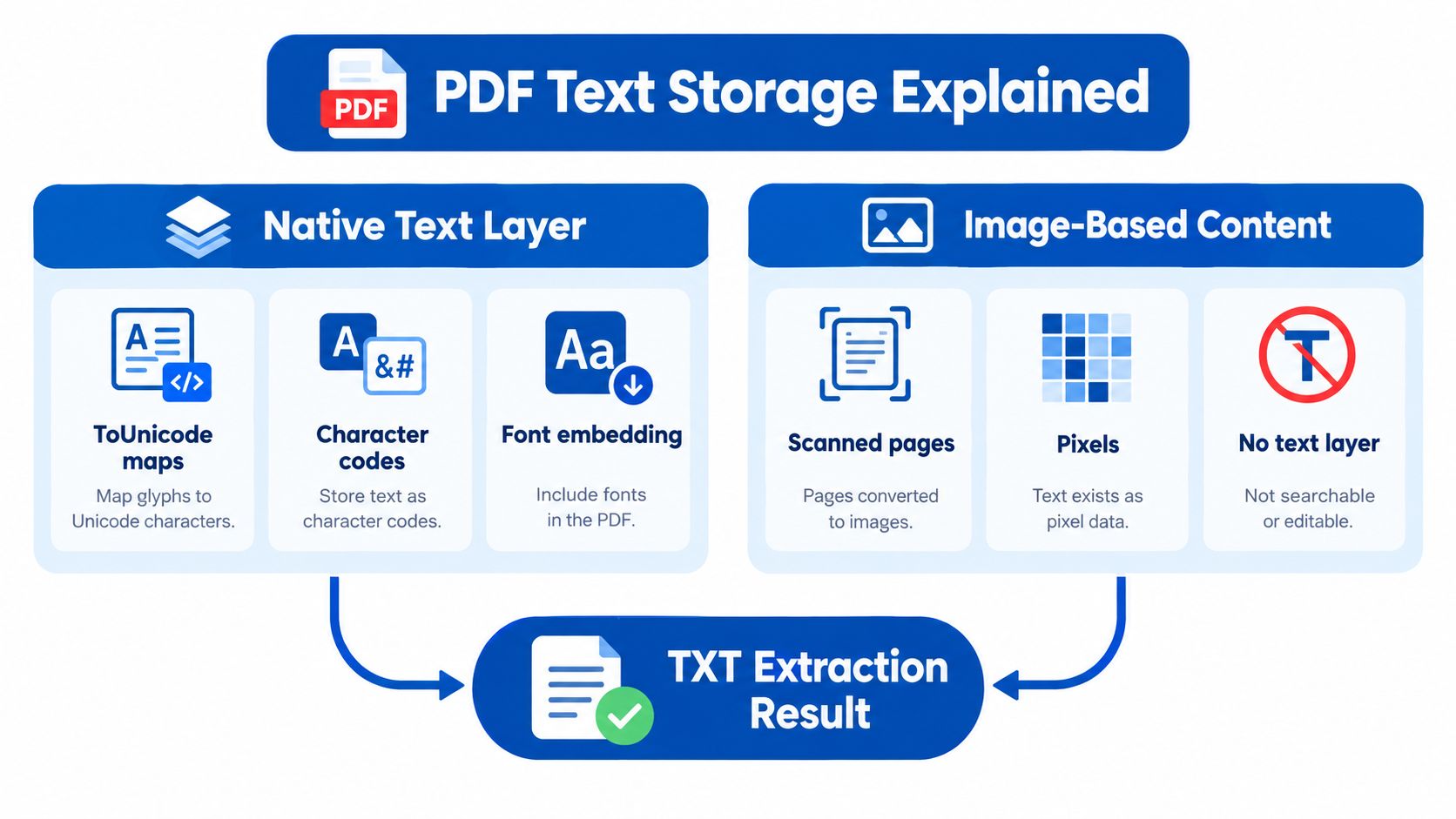
The text layer also affects the quality of the result. Character codes can depend on font encoding and ToUnicode maps. If those mappings are missing or incorrect, the page may look normal but copied text can contain wrong symbols, missing accents, or scrambled words. That's why visual accuracy on the screen doesn't guarantee extraction accuracy.
Reading order matters
A PDF can position text blocks visually without storing them in the order a person reads them. This causes problems in two-column articles, brochures, forms, and pages with sidebars. A converter may extract the left column, then the right column, or interleave them if it can't interpret the layout.
Tagged PDF can help. Tagged files store logical elements such as chapters, headings, paragraphs, sections, figures, tables, and footnotes, which gives extraction software more information about meaningful reading order. The W3C explanation of PDF structure describes how tags support reuse and interpretation of page content.
Accuracy depends heavily on the file type. Born-digital PDFs can exceed 99.2% character accuracy with direct extraction, while degraded or historical scans may range from 71% to 98%, and handwriting may range from 46% to 95%, depending on the system and document conditions (document-type accuracy reference). These figures describe why classification should come before conversion.
Direct Extraction for Digital PDFs Step by Step
Direct extraction is the cleaner route when your PDF contains selectable text. It reads the existing character layer instead of trying to identify letters from pixels.
1. Confirm the source
Select a sentence in the PDF and copy it into a temporary text field. If the pasted result contains recognizable words, start with direct extraction. If it's blank or filled with unrelated symbols, the PDF may be scanned or may have a damaged character map.
A PDF can also contain a text layer that's incomplete. For example, a report may have searchable body text but image-based tables. Treat each unusual page as a possible exception.
2. Upload and export
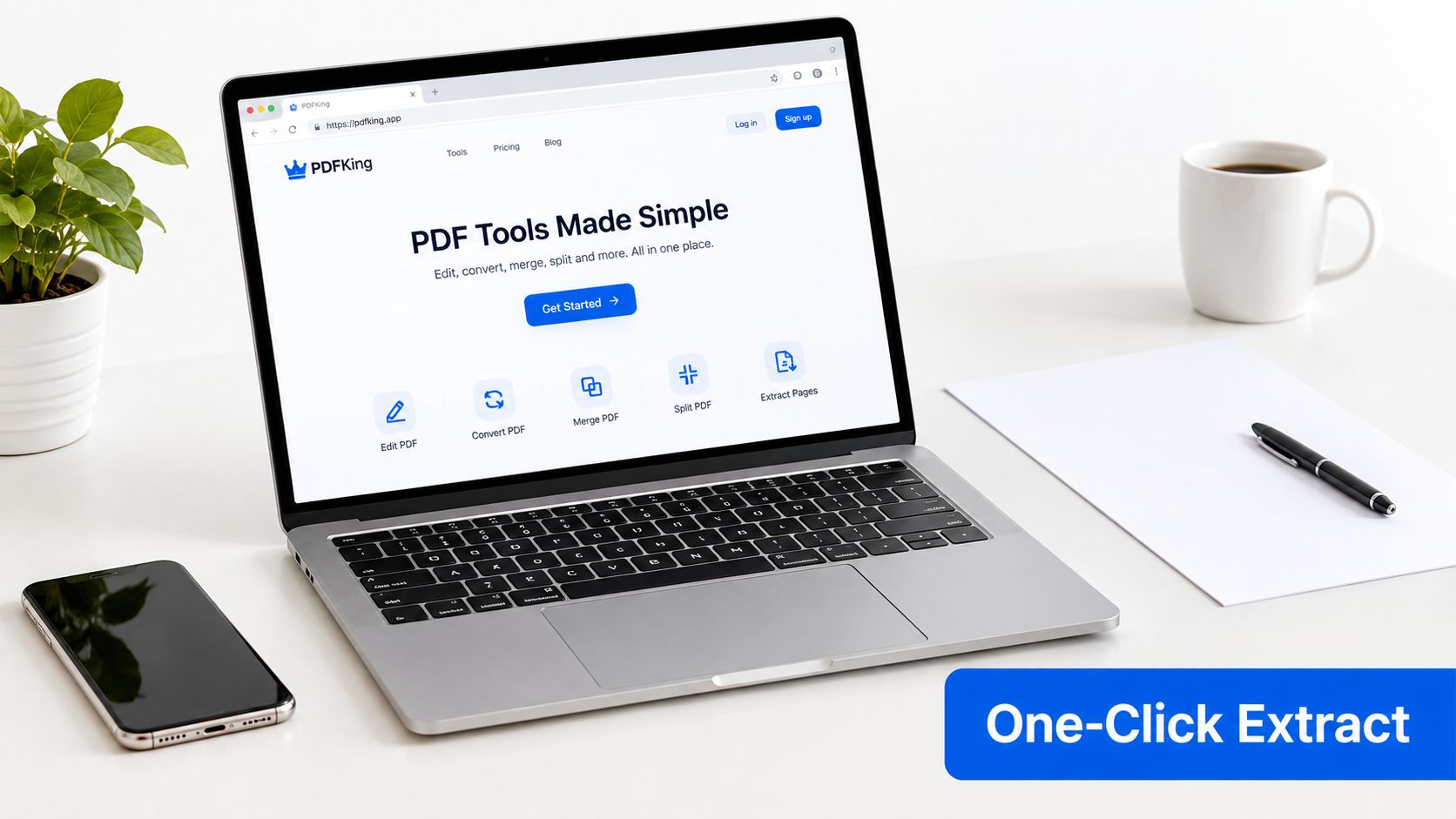
Open PDFKing's PDF to Text tool, upload the file, and start the conversion. The output is a lightweight TXT file. It intentionally drops fonts, colors, images, page styling, and most visual positioning.
That simplicity is useful. Plain text can be searched, quoted, indexed, fed into analysis software, or copied into a working document without carrying the original page design.
3. Inspect reading order
Look closely at any page with columns, footnotes, a sidebar, or rotated text. A practical extractor should reconstruct reading order from the position of text blocks, generally moving from top to bottom and left to right. A naïve result may place the first paragraph from column one beside a sentence from column two.
Tables need special attention. A table may become tab-delimited text, separated lines, or a flattened sequence of values. The words can all be present while the relationship between a heading and its value is lost.
Practical rule: A TXT file preserves characters more reliably than it preserves page geometry. If the relationship between items matters, inspect the source and output side by side.
4. Check line breaks and encoding
Hyphenated words at the edge of a line may remain divided, such as conver- on one line and sion on the next. Decide whether the break is a real hyphen or a layout break before using the text in a report.
Also check accented names, mathematical symbols, quotation marks, and currency characters. Font-specific encodings and ToUnicode mappings influence how a converter interprets these characters. If you need a broader editable document rather than plain text, PDFKing's guide on how to make a PDF editable can help you choose a different output path.
OCR Workflow for Scanned or Image-Only PDFs
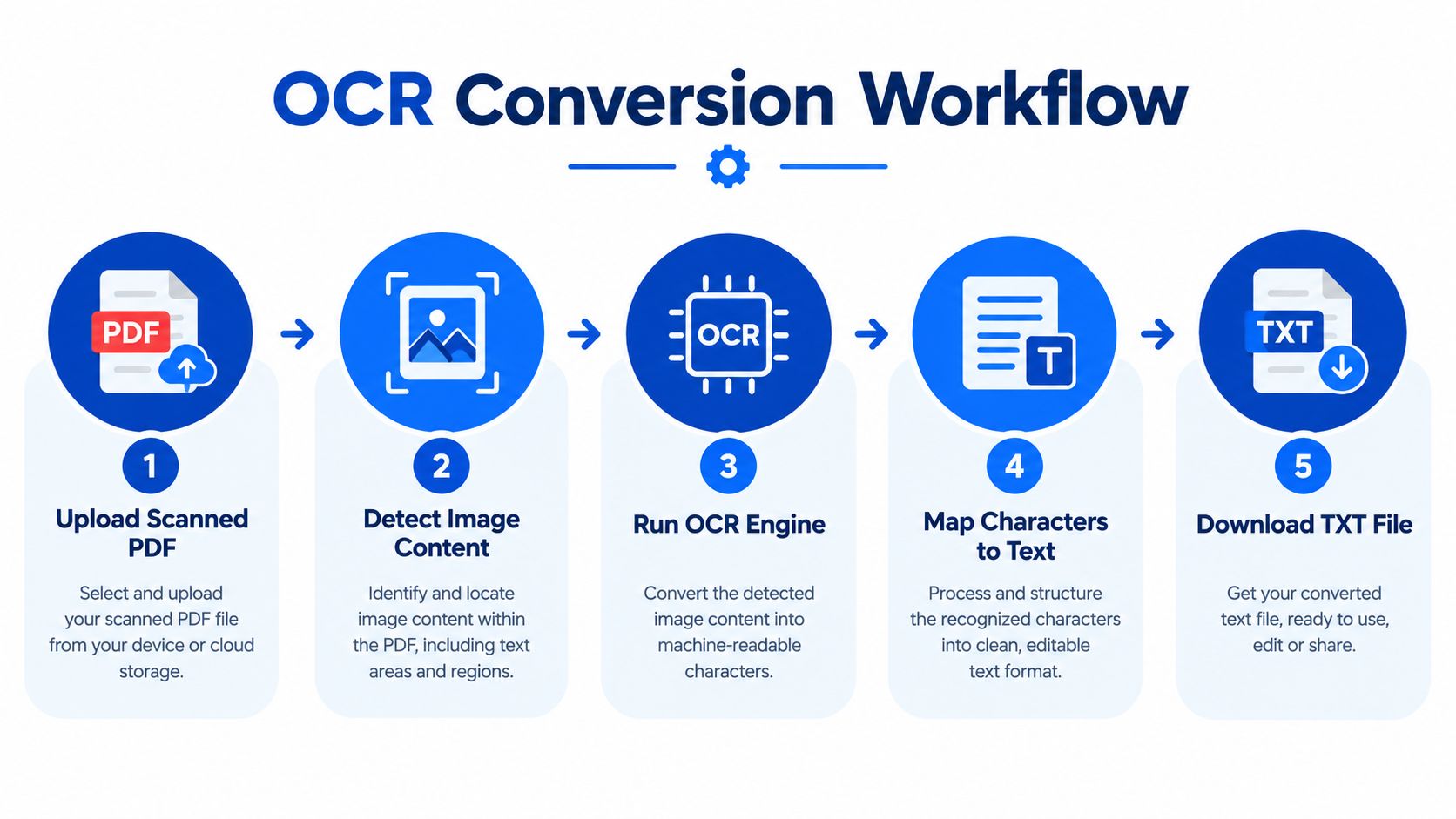
A scanned PDF is a collection of page images. A direct extractor can't read words that exist only as pixels, which is why an image-only file may produce an empty TXT file or output very little. OCR, or optical character recognition, analyzes the page image and creates machine-readable text.
Prepare the page before recognition
OCR works from the visual quality of the page. Before processing, render or scan pages at sufficient resolution. Straighten tilted pages, rotate sideways pages, improve contrast, and remove dark borders or background noise. Select the correct language so the recognition system can interpret accents and character shapes appropriately.
A page with a clean background and clear printed letters gives the OCR engine a better starting point than a blurry photograph. If you're working from an image rather than a PDF, an image to text converter may also be useful for creating recognized text from page images.
Run OCR, then treat the result as a draft
Upload the scanned file to an OCR-capable workflow, select the document language, and export the recognized text. Review the output instead of assuming that a completed process means the content is correct. OCR can produce plausible words that are still wrong.
Clean printed text commonly reaches about 98–99% character accuracy, but handwriting, low resolution, skew, compression artifacts, unusual fonts, complex scripts, and tables reduce OCR performance (academic OCR evaluation). A misplaced character can change a name, date, number, or legal phrase.
Pay particular attention to:
- Names and citations: Compare spelling against the scan.
- Numbers and dates: Check every digit in forms, invoices, and records.
- Negation terms: A missed “not” can reverse a sentence's meaning.
- Table cells: Confirm that values stayed with the correct row and heading.
- Rotated or handwritten content: Expect more recognition errors than in clean printed paragraphs.
For scanned documents used in academic, legal, financial, or administrative work, manually compare important passages with the original. Spell-checking alone won't catch a correctly spelled but incorrect name or number. PDFKing's article on converting a scanned PDF to Word provides another route when you need to edit the recognized content.
Choosing Between TXT DOCX and Image Output
TXT is useful when you need the words without the page design. It creates a lightweight, searchable character stream for quoting, indexing, accessibility, analysis, and data processing. The tradeoff is that plain text doesn't preserve the original visual structure.
DOCX is better when you need to edit the document as a document. It can retain a more useful approximation of headings, lists, tables, and styles, although complex PDFs may still need cleanup. JPG is appropriate when the visual appearance matters more than searchable text, such as a thumbnail, visual reference, or page image.
A recent evaluation of PDF-to-text pipelines found that the strongest tested method achieved 98.70% character accuracy and 97.71% word accuracy overall on digital documents (PDF-to-text pipeline evaluation). That result supports direct extraction for suitable digital files, but it doesn't mean every PDF, especially every scan, will produce the same result.
| Goal | Best Format | Why it works |
|---|---|---|
| Search, quote, analyze, or import text | TXT | Removes layout distractions and provides plain characters |
| Edit content while keeping document structure | DOCX | Gives you headings, lists, tables, and styles to revise |
| Share or reuse the page as a visual | JPG | Preserves the page appearance as an image |
Use this quick decision rule:
- Edit later: Choose DOCX.
- Run analysis or feed a tool: Choose TXT.
- Share a visual: Choose JPG.
PDFKing provides browser-based tools for PDF to Word and PDF to JPG conversion, as well as PDF to Text. Every tool is free, requires no installation, and adds no watermark. If you're moving in the opposite direction and need to turn a text document into a fixed-layout file, the guide on changing a text document to PDF covers that workflow.
TXT also works well as an intermediate format. You can extract the words, clean them, analyze them, and later place the final content into a styled document. If the final reader needs a polished layout, don't force plain text to do a job it wasn't designed to do.
Verifying Your Converted TXT File
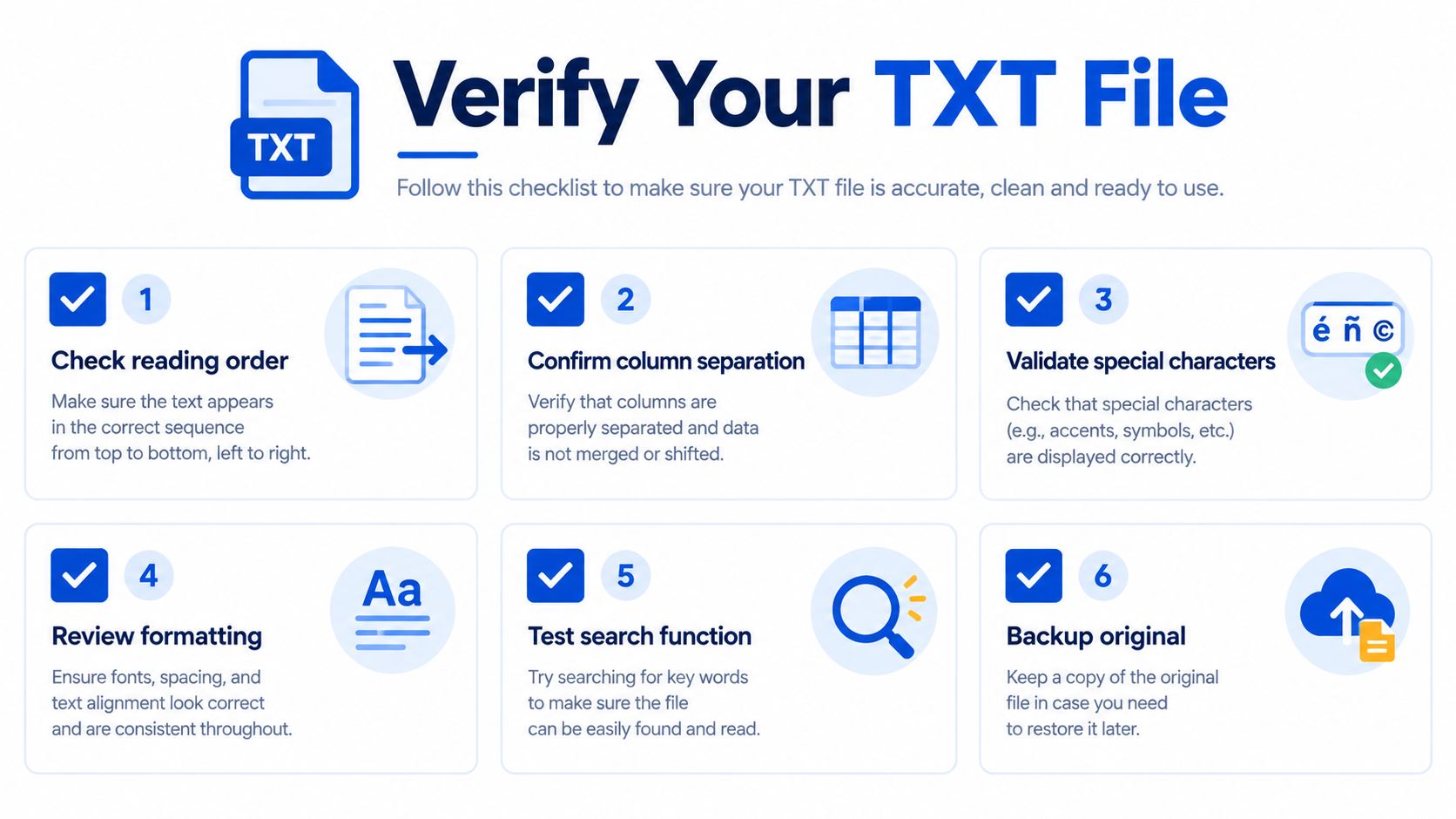
A conversion is complete only after you verify the output. Open the TXT file beside the PDF and inspect representative pages, especially pages with unusual structure. This matters for both direct extraction and OCR, although OCR needs closer checking because recognition errors can look like normal words.
Run the six checks
- Reading order: Confirm that paragraphs follow the way a person reads the page. On a two-column article, make sure column one doesn't alternate with column two.
- Tables: Compare several rows and headings. A flattened table can place a total beside the wrong label even when every number appears.
- Hyphenated breaks: Search for words split at line endings. Rejoin layout-based breaks, but keep genuine compound-word hyphens.
- Special characters: Check accented names, quotation marks, symbols, and currency signs. Encoding problems can replace them with blanks or unrelated characters.
- Important values: Spot-check names, dates, numbers, citations, and amounts. These are small errors with large consequences.
- Page sequence: Confirm that headers, footers, footnotes, and page content remain in the expected order.
A teacher may reject a quotation if words from two columns have been mixed. A client may question a report if a table's labels no longer match its values. A legal or administrative reviewer may focus on one incorrectly extracted date rather than the many correct paragraphs around it.
You can also use PDFKing's document comparison tool for PDFs when you need a structured way to compare source material and revised documents. The core rule remains simple: direct extraction is generally dependable when a usable text layer exists, while OCR quality depends on the page and must be reviewed.
Common Questions About Free PDF to TXT Conversion
Why is my TXT file empty?
The PDF is likely scanned or image-only. Use OCR rather than ordinary text-layer extraction.
Why did the formatting and images disappear?
TXT is plain text by design. It keeps characters, not fonts, colors, images, columns, or page layout.
What should I do if the text looks garbled?
Check special characters and font mappings, then run the PDF through PDFKing's PDF to Text tool again. If the source is scanned, use OCR instead.
Does the free tool have a page or file-size limit?
PDFKing's free tools work with standard documents, have no watermark, and require nothing to install. If a file is unusually large, splitting it into smaller parts can make processing easier.
When should I choose DOCX instead?
Choose DOCX when you need to edit, style, or retain more of the document's layout. Choose TXT when plain searchable text is the main goal.
Use PDFKing's free PDF to Text tool to extract searchable plain text from digital PDFs directly in your browser, with no account, installation, or watermark. If your document is scanned, prepare it for OCR and review names, dates, numbers, and tables before reuse. Visit PDFKing to start converting your PDF today.