ON THIS PAGE
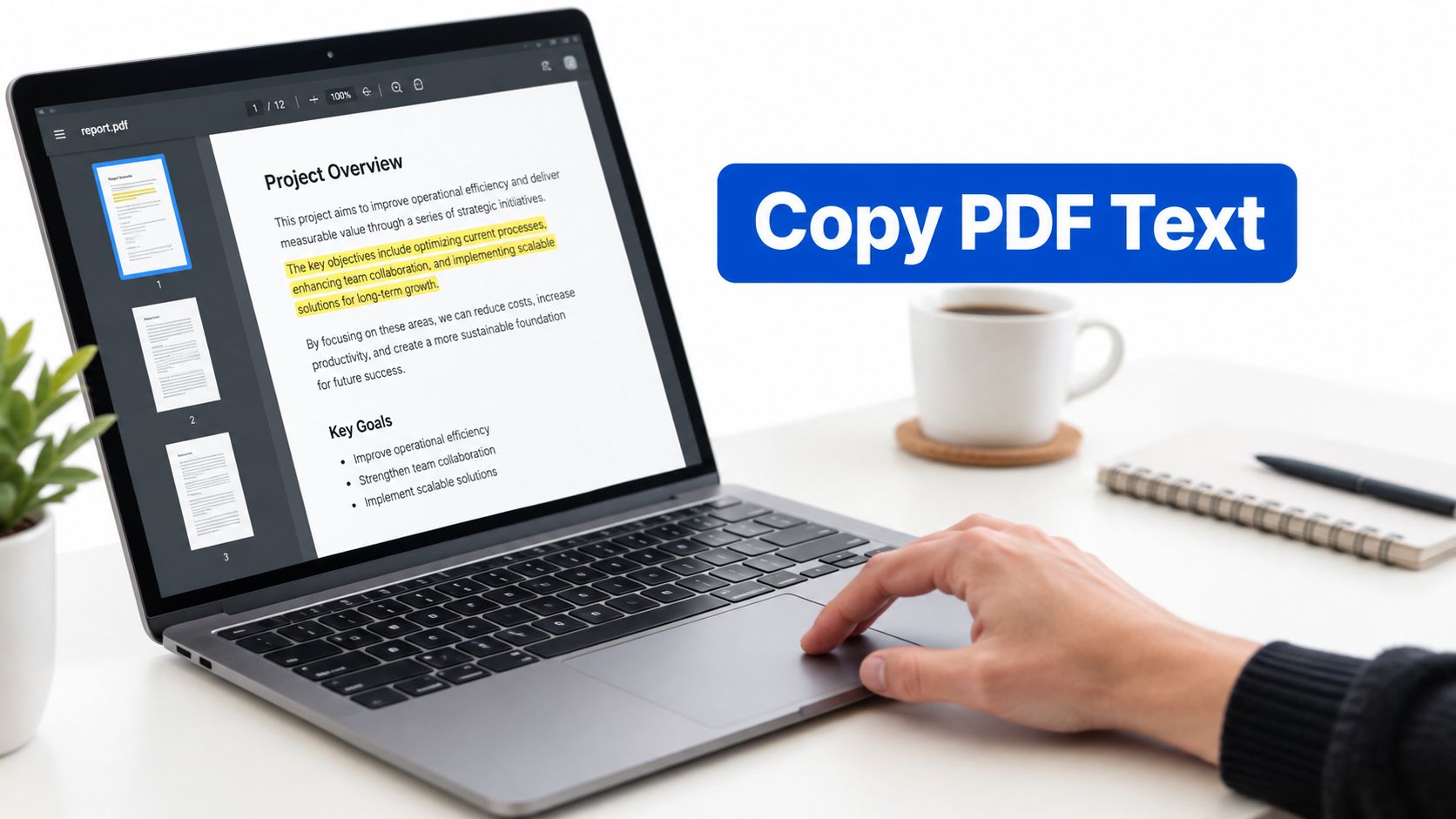
You've found the paragraph you need, but dragging across it does nothing, or the copied text turns into symbols. The right fix depends on the PDF's structure. If it has selectable text, copy it directly. If it's a scan, run OCR. If copying is blocked, check permissions before doing anything else.
PDFKing is a browser-based toolkit for common PDF and file-conversion tasks. Its tools are 100% free, add no watermark, and require nothing to install.
Table of Contents
- Basic Text Selection in Any PDF
- How to Extract Text from Scanned PDFs
- Why Your PDF Text Looks Garbled
- Handling Password Protected PDFs
- Preserving Layout When Copying Text
- Frequently Asked Questions
Basic Text Selection in Any PDF
Start with the simplest test before converting the file. Open the PDF in a standard reader such as Adobe Acrobat Reader, a web browser, or another desktop PDF viewer. Move your cursor over a sentence, then click and drag across a few words.
If individual letters highlight, the document contains a usable text layer. Press Ctrl+C on Windows or Command+C on Mac, open Notepad, TextEdit, Word, or another editor, and paste with Ctrl+V or Command+V.
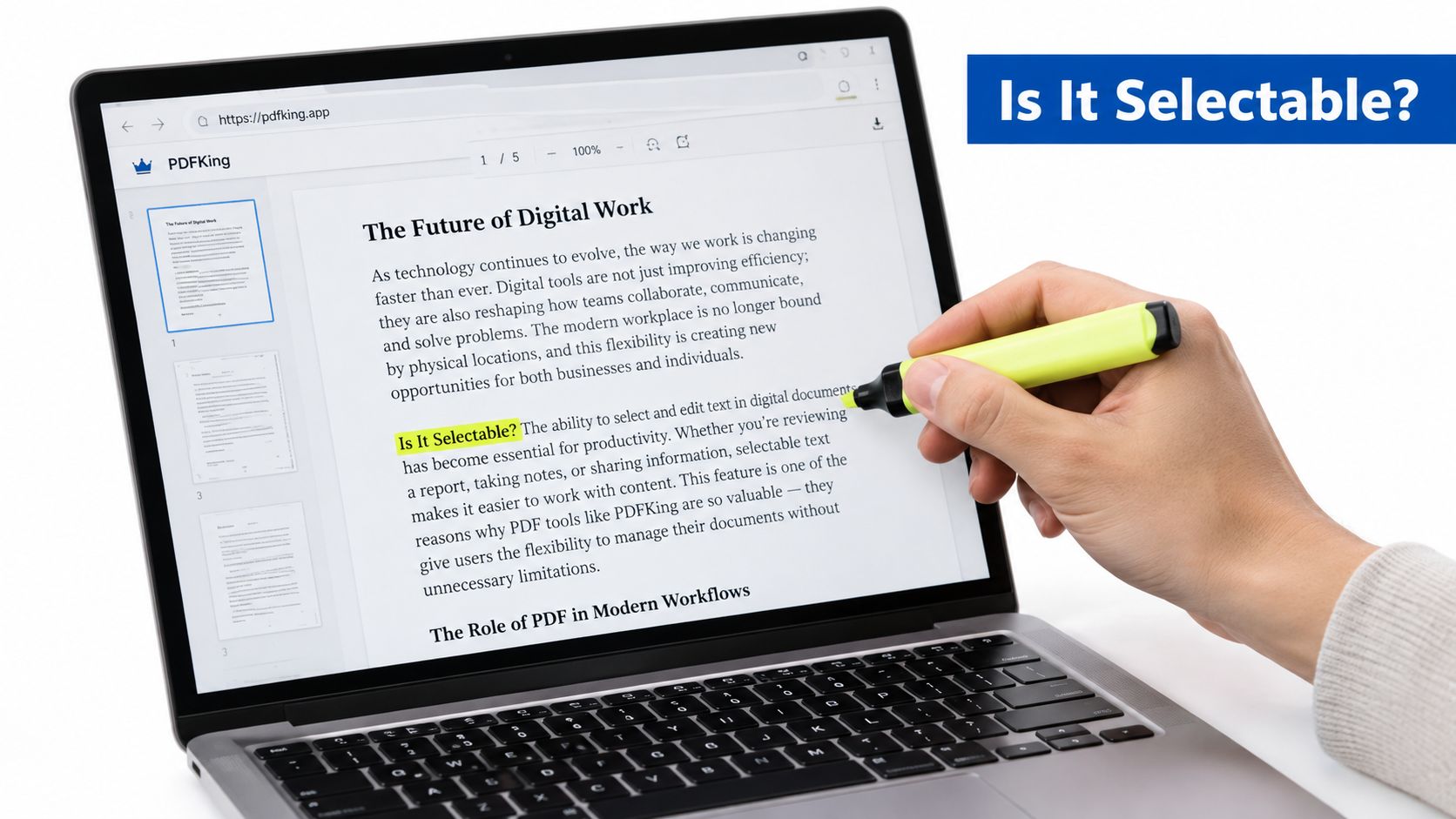
A digital PDF created from a word processor usually stores characters, fonts, and layout instructions as machine-readable objects. When you select words, the PDF reader reads those objects and places the character data on your clipboard. That's why direct selection works quickly in many reports, letters, invoices, and exported documents. PDF format and text extraction overview
Test a short passage first
Don't copy an entire document immediately. Select one sentence and paste it into a plain-text editor. This removes styling and makes hidden problems easier to spot.
Check whether:
- The words are complete: Look for missing letters or unexpected symbols.
- The order is correct: Confirm that columns haven't been mixed together.
- The spacing makes sense: Watch for words joined together or split apart.
- Important details survived: Compare names, dates, amounts, and citations with the PDF.
If the result is accurate, continue with the rest of the document. For tips on marking and reviewing content before copying, see PDFKing's guide to highlighting text in a PDF document.
Practical rule: A successful selection is only the first test. Always inspect a representative passage before trusting copied text.
If dragging highlights a large rectangle instead of individual letters, or nothing highlights at all, you're probably looking at a page image. That requires a different method. A selectable PDF can also produce incorrect text when its internal font mapping is damaged, so a quick comparison with the rendered page is worth the time.
How to Extract Text from Scanned PDFs
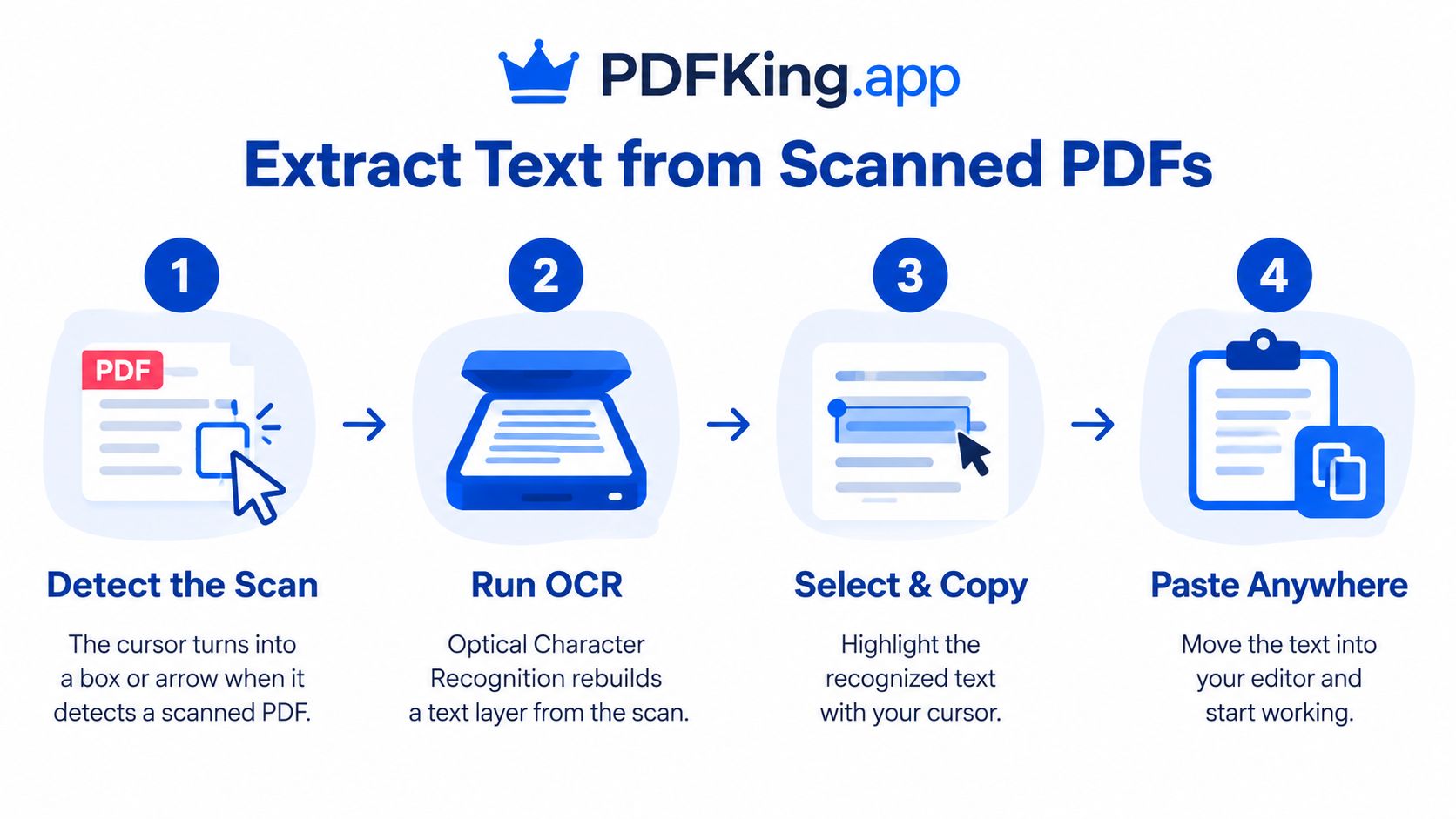
A scanned PDF is usually a collection of page images. Your reader can display the words, but it doesn't have character data to place on the clipboard. Optical Character Recognition, or OCR, examines those pixels and creates a searchable, selectable text layer.
The cursor can help you diagnose the problem. If it behaves like a box or arrow over the page instead of selecting letters, treat the file as image-based. You'll need to recognize the text before you can copy it normally.
Use OCR in a browser
For a scanned document, follow this sequence:
- Open a PDF-to-Word conversion tool: Choose a browser-based converter that supports OCR or recognizes image-based pages.
- Upload the original PDF: Keep the original file unchanged so you can compare the output later.
- Enable OCR if there's an option: The converter needs to analyze the page image instead of looking only for an existing text layer.
- Convert the document: The result should be an editable Word file with recognized text.
- Open the converted file: Select the words in Word or another compatible editor, then copy them into your destination document.
- Compare critical passages: Check the converted text against the PDF image, particularly names, dates, decimal values, citations, addresses, and serial numbers.
You can also follow PDFKing's instructions for converting a scanned PDF to Word. PDFKing's tools are available in the browser, with no installation, watermark, or charge.
OCR is useful, but it isn't a perfect recovery of the source document. A digitization-pipeline study reported 97.71% word-level accuracy for direct extraction from embedded text, while conventional OCR performed substantially worse on scanned documents and complex layouts. Those results support a simple working rule: use direct extraction when a real text layer exists, and use OCR for image-only pages. OCR accuracy by document type
Poor scans need extra preparation. Straighten tilted pages, improve contrast, remove heavy borders, and select the correct document language when the tool allows it. Tables, stamps, signatures, handwriting, mathematical notation, and multilingual pages deserve closer review. If you're comparing more advanced recognition methods, this guide to AI OCR tools 2026 provides broader context, but OCR output should still be checked before you reuse it.
Why Your PDF Text Looks Garbled
Some PDFs let you highlight text but still produce nonsense when you paste it. You might see unrelated symbols, scrambled letters, missing spaces, or text in the wrong order. In that situation, the page image isn't necessarily the problem. The file's internal character mapping may be broken.
PDFs can store character codes, font data, and Unicode mappings separately. A missing or incorrect ToUnicode mapping can make a page look normal while causing copied text to contain substitutions or unreadable characters. Custom font encodings create a similar problem. Overview of text extraction from PDFs
Diagnose the copied result
Paste a short selection into a plain-text editor first. If the text looks correct there, the issue may be formatting in the destination application. If it remains garbled, try the same file in another viewer or browser.
Use this troubleshooting order:
- Copy a different sentence: One damaged text object may not represent the entire file.
- Try another viewer: Software can interpret the same PDF differently.
- Paste without formatting: Plain text removes styles that can disguise the problem.
- Compare the page visually: Check proper names, dates, numbers, symbols, and legal wording.
- Switch extraction methods: A PDF-to-text converter may interpret the file more cleanly than the clipboard.
PDFKing's online PDF-to-text converter is an option when direct selection produces unreliable output. Use it for a short sample first, then inspect the result before processing a larger passage.
Important: OCR isn't always the right first fix for garbled text. If the PDF already contains real characters, OCR can introduce recognition errors instead of correcting the font mapping.
Columns and tables can also make copied text appear wrong even when individual characters are accurate. The reader may follow the page's visual layout differently from the underlying character sequence. For business records, contracts, academic citations, or financial information, compare the copied passage with the page image before sharing it.
Handling Password Protected PDFs
A PDF may open normally while blocking text copying. The cause is often a permissions setting, not an opening password. In Adobe Acrobat, open Document Properties, select the Security tab, and read the Document Restrictions Summary. Check whether copying text, images, or other content is allowed. Adobe's PDF permission guidance
Separate access from copying
First identify which problem you have:
- You can't open the file: The PDF requires an opening password. Request it from the owner.
- You can open it but can't copy: The file has copying or extraction restrictions. Ask the owner or authorized administrator for the permissions password or an unrestricted copy.
A permissions password protects the document's security settings. You may be able to read the PDF without it, but access to the file does not grant permission to change its protections. Ask the owner for an approved version instead of trying to bypass the setting.
If you own the file or have authorization, use an approved method to remove the restriction. PDFKing's guide to removing passwords from owned PDFs can help with files where you're authorized to change the protection. Then repeat the basic selection test and compare the copied text with the page.
Use authorization, not a workaround: Don't attempt to bypass security on a document you don't own or have permission to modify.
Security settings can affect assistive technology too. Adobe separates controls for copying and screen-reader access, and extraction restrictions may interfere with tools that need document text. If selection fails, check both the permissions and whether the page is an image. These causes require different remedies.
Preserving Layout When Copying Text
Copying a few sentences is different from moving several pages into Word or Google Docs. PDF pages are positioned for display, not necessarily arranged as a clean stream of paragraphs. Columns may join together, headers can appear in the middle of a paragraph, and tables may lose their row structure.
Choose the method based on the result you need:
| Your goal | Better approach |
|---|---|
| Copy a short paragraph | Select it directly and paste as plain text |
| Reuse several pages | Convert the PDF to Word first |
| Preserve columns and headings | Use a Word conversion, then review the layout |
| Clean up messy spacing | Paste without formatting and rebuild styles |
| Work with a table | Convert it into an editable format and verify each cell |
For small selections
Use the paste options in Word or your document editor. Keep source formatting can preserve appearance when the source is simple. Plain text is usually better when the pasted result contains strange fonts, excessive line breaks, or inconsistent spacing.
After pasting, remove hard line breaks that occur at the edge of every PDF line. Don't automatically remove all breaks, though. Paragraph boundaries, numbered lists, and table rows may depend on them.
For larger sections
Convert the PDF to Word before copying large blocks. This gives you an editable working file where you can inspect headings, footers, columns, and page breaks. PDFKing's guide to converting PDF to Word without losing formatting covers the workflow and the layout issues to review.
A conversion can preserve the visual structure more effectively than raw clipboard copying, but it still needs checking. Compare the first page, a page with columns, and any page containing a table. If the layout is too messy, extract plain text instead and rebuild the document using your own headings and styles.
For authoritative content, keep the original PDF. Treat converted or OCR text as a working copy until you've checked it against the rendered pages.
Be especially careful with tables, ligatures, rotated text, footnotes, and multilingual documents. A passage that looks readable can still contain a changed digit or misplaced symbol. For contracts, legal filings, research citations, medical records, and financial documents, manual verification is part of the copying process, not an optional final polish.
PDFKing gives you browser-based tools for extracting text, converting PDFs to Word, opening owned files, and handling other routine document tasks. Every tool is 100% free, has no watermark, and requires nothing to install. Visit PDFKing to test the right tool on your document and verify the result against the original page.
Frequently Asked Questions
Can I copy words directly from any PDF?
No. Direct copying works when the PDF contains selectable text. If each page is an image, you'll need OCR before the words can be selected.
Why can I see words but not highlight them?
The page may be a scan or another image-only PDF. Your viewer displays the page picture, but there's no character layer for it to select.
Why does copied PDF text contain strange symbols?
The PDF may have damaged or missing font-to-Unicode mappings. Try a plain-text editor, another viewer, and a PDF-to-text extraction method before using OCR.
How do I copy text from a scanned PDF?
Run OCR on the scanned file, convert it into an editable document, then select and copy the recognized text. Check important details against the original image.
Can a password-protected PDF prevent copying?
Yes. A PDF may allow viewing while restricting copying or extraction. Ask the owner for authorization or the permissions password instead of bypassing the control.
How can I preserve formatting when copying?
For a short passage, use the editor's paste options. For multiple pages, convert the PDF to Word first, then review columns, tables, headings, spacing, and page breaks.
Is OCR output always accurate?
No. OCR interprets pixels, so document quality and layout affect the result. Review names, dates, numbers, citations, symbols, and other high-risk content manually.