ON THIS PAGE
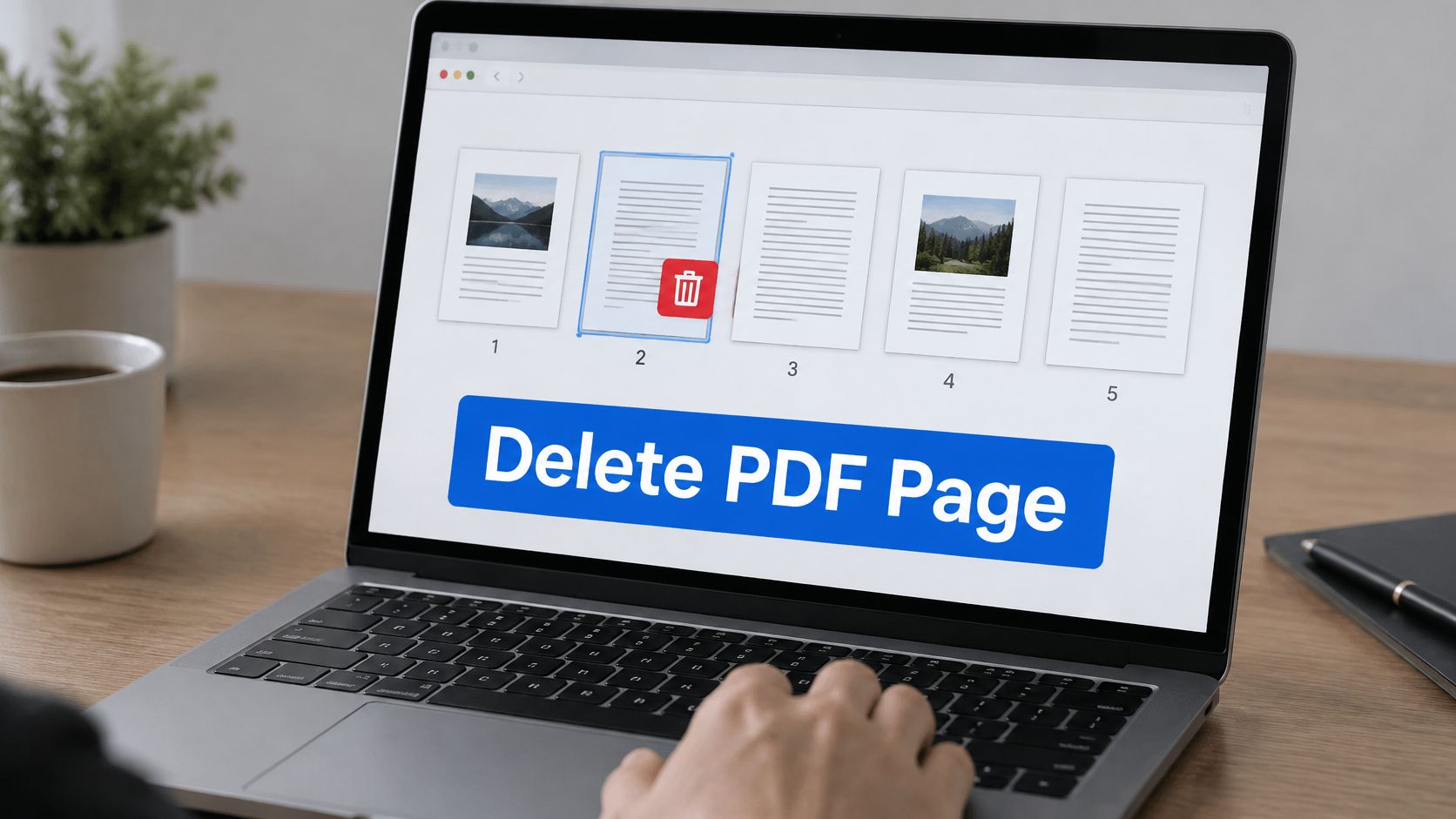
To delete a page, open the delete pages tool, upload your PDF, select the pages to remove, check the preview, and save a new copy. Keep at least one page in the document, and leave the original untouched.
You may be cleaning up an application, removing a duplicate scan, or taking a confidential appendix out of a client packet. The selection is usually straightforward. The important decision is what the saved file still contains and whether its signatures, navigation, and remaining pages still work.
Table of Contents
- Delete a Page From a PDF in Five Steps
- Delete, Extract, or Redact Based on Your Goal
- Pick the Right Pages and Check Them First
- Recover a Deleted Page or Undo a Mistake
- Protected and Signed PDFs Need Extra Care
- Check the Final File Before You Send It
- Frequently Asked Questions
Delete a Page From a PDF in Five Steps
A draft contract goes out for signature with a cover page nobody wanted. The deletion itself takes under a minute. What deserves your attention is the file that comes back: bookmarks pointing at page numbers that shifted, a signature field whose validity depended on the complete document, comments attached to pages you kept. A protected or signed PDF can block page removal outright, so check the document properties if an upload or edit fails.
The delete pages tool handles the mechanics in a browser tab: upload, select, review, download. It is free, adds no watermark, and requires no installation. If the PDF comes from work, check your organization's document-handling rules before uploading it to any online service.
Follow the page-removal sequence
Open the tool. Use a current desktop or mobile browser. Dense documents deserve a screen large enough to tell similar thumbnails apart without guessing.
Upload your PDF. Click the upload area or drag the file in. Read the filename before it loads, especially when your folder holds several drafts with near-identical names. Send the working copy, not the only original you have.
Select the pages to remove. Read the page number under each thumbnail before confirming. Enlarge any page whose contents aren't obvious at thumbnail size. Page numbers printed inside the document can differ from PDF positions when cover sheets or front matter come first.
Review the preview. The page count should drop by exactly the number you selected. Check the pages directly before and after each removal, then scan the remaining run for gaps or duplicates.
Apply the deletion and download the result. Open the downloaded PDF itself. A preview in the browser tab tells you less than the file you will send.
Page Removal at a Glance
The process-flow image below shows the selection and review sequence in the browser toolkit, ending in a separately saved copy.
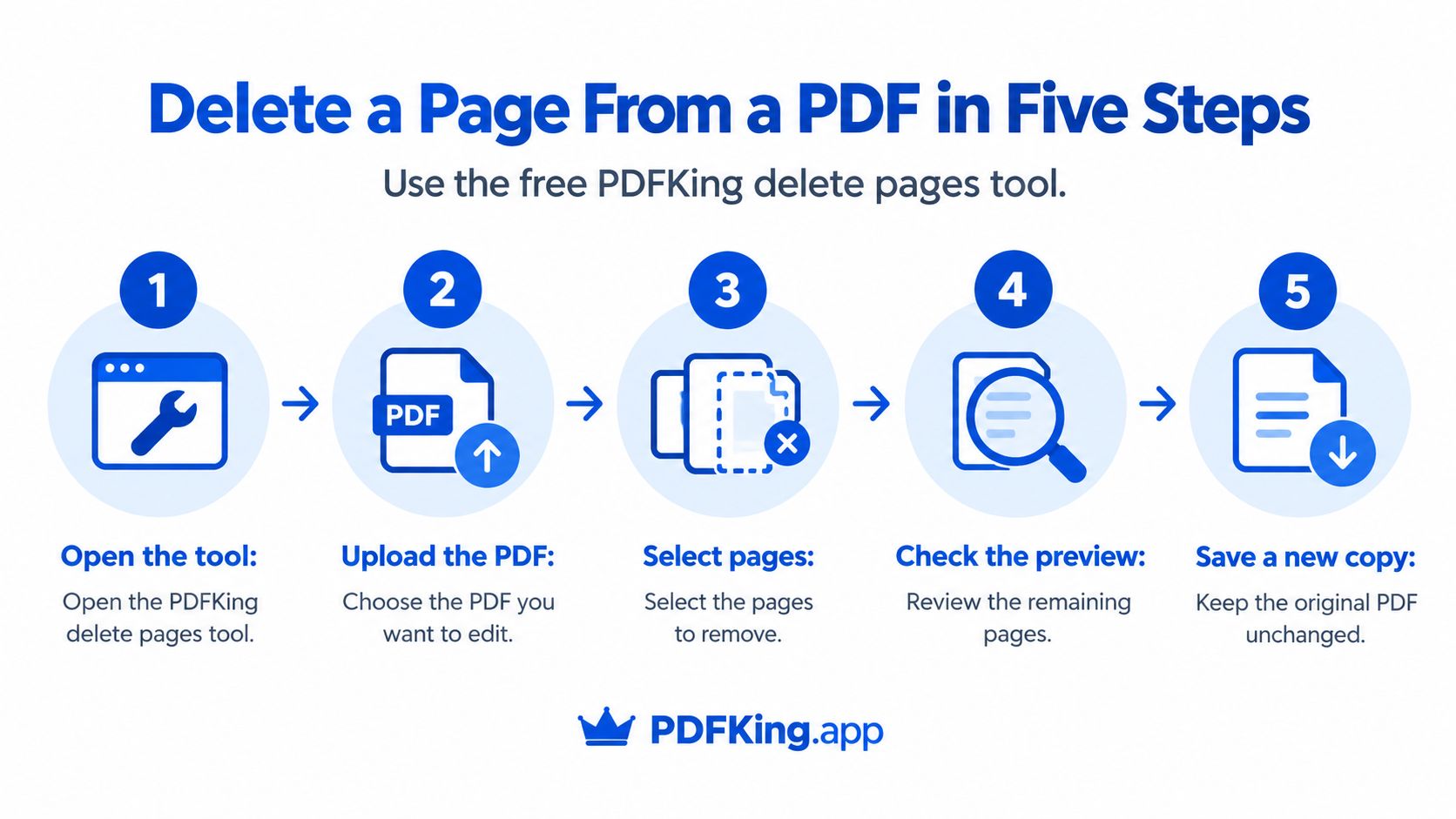
The preview is your last cheap chance to catch a wrong selection. A highlighted thumbnail confirms what you marked. It says nothing about what remains, so read the transition where the deleted pages used to sit.
Practical rule: Name the output clearly, such as a filename ending in “v2,” so the original stays separate and easy to find.
For office handoffs, a suffix like “appendix-removed” beats “final.” The next person sees what changed without comparing two packets page by page.
Delete, Extract, or Redact Based on Your Goal
Deleting a page changes the file you save. Extracting builds a second file. Redacting removes content but keeps the page count. Pick the operation that matches what the recipient should end up holding, then decide what happens to the original.
| Goal | Best action | Keeps the original? |
|---|---|---|
| Remove unwanted pages from a working copy | Delete pages | No, unless you saved a copy first |
| Save a smaller file and keep the full document | Extract pages into a new file | Yes |
| Send each selected page to a different recipient | Extract as separate files | Yes |
| Hide only a sensitive part of one page | Redact | Yes, if you save a copy first |
| Remove a whole sensitive page before sharing | Delete, then clean metadata and comments | Yes, if you save a copy first |
Choose the output you need before changing the file. Deletion suits a working copy that holds unwanted material. Extraction suits a new submission assembled from selected pages while the complete record stays intact.
For court filings, applications, and records, preserving the source makes later comparison easier. The extract pages tool handles that split in a browser, and the guide to extracting selected pages into a new PDF walks through the workflow.
Different recipients often need different pages, so be deliberate about whether you're creating one combined excerpt or separate files. Those are different deliverables, and similar filenames make them easy to confuse.
Use redaction for partial-page information
Redaction removes sensitive content from part of a page. Deletion removes the whole page. A white rectangle drawn over text leaves the underlying content intact, and anyone can copy it out.
Extraction carries its own trade-off: bookmarks and article threads tied to the original pages may not survive into the extracted document. Check navigation rather than assuming the excerpt behaves like the source.
Signed or shared files shift the decision further. Removing a page from a signed PDF can invalidate the signature, and editing a file already sent does nothing about copies the recipient holds. For outgoing material, redacting a saved copy is often the safer call.
A PDF also needs content left in it. At least one page must remain in common editing workflows, so deleting every page will not produce an empty replacement document.
When you're unsure which operation fits, save a copy before changing anything.
Pick the Right Pages and Check Them First
A cleanup can look finished in the thumbnail pane and still fail in the saved file. Before selecting pages, decide what the output must preserve: valid signatures, working form fields, intact bookmarks, and no leftover comments or metadata on pages you keep.
| Page type | Check before deleting | Watch for after deleting |
|---|---|---|
| Blank-looking page | Hidden text, tags, form fields, annotations, or content outside the crop area | Later pages renumber and links may shift |
| Duplicate scan | Stamps, signatures, initials, or handwritten notes on either copy | Bookmarks can point to the surviving scan's neighbor |
| Cover sheet or fax header | Title, document number, recipient routing, or bookmark target | First-page links and page labels may need updates |
| Confidential appendix | Whether sensitivity spans the page or only one block | Comments and metadata elsewhere still need review |
| Signature page | Signature fields, signed content, or certification status | A changed file can show an invalid or broken signature |
| Form page | Fields that feed calculations or references on other pages | Cross-page scripts and totals can break |
Verify at reading size, then select
I treat a blank page as unverified until I open it at normal zoom and check the layers, comments, and form panels. Small previews hide content that still matters to the file.
When two scans look alike, compare both at readable size. One may carry the signature or stamp that makes the packet acceptable, even if the other looks cleaner.
Renumbering is the easy mistake. Remove original page 3 and old page 4 becomes page 3, so confirm each selection against the current view rather than the first plan.
If the underlying issue is misplaced or rotated pages, the guide to organizing pages in a PDF fits that step before you delete anything. Write the intended removals down, match the final selection to that list, and keep the untouched source available until the replacement is accepted.
Recover a Deleted Page or Undo a Mistake
A wrong deletion usually surfaces after you've already saved and downloaded the result. The saved PDF has no undo for what you removed. Recovery depends on which copy of the document still exists.
Choose the recovery path that matches your situation
Still reviewing the preview? Fix the selection before applying the change. Return to the questionable page and compare it with the pages around it. This is the cheapest recovery: nothing was lost yet.
Already downloaded the result? Look for the original in your downloads folder, email attachments, cloud storage, or document management system. Check version history where one exists before editing anything else.
Found the original? Repeat the deletion on a fresh copy using the corrected selection. Working from the complete document beats patching the shortened one, because the rebuilt file still holds everything you meant to keep.
Can't find the original? Ask the sender or document owner for another copy. If the missing page lives in a different source file, extract it there and merge it into the retained pages.
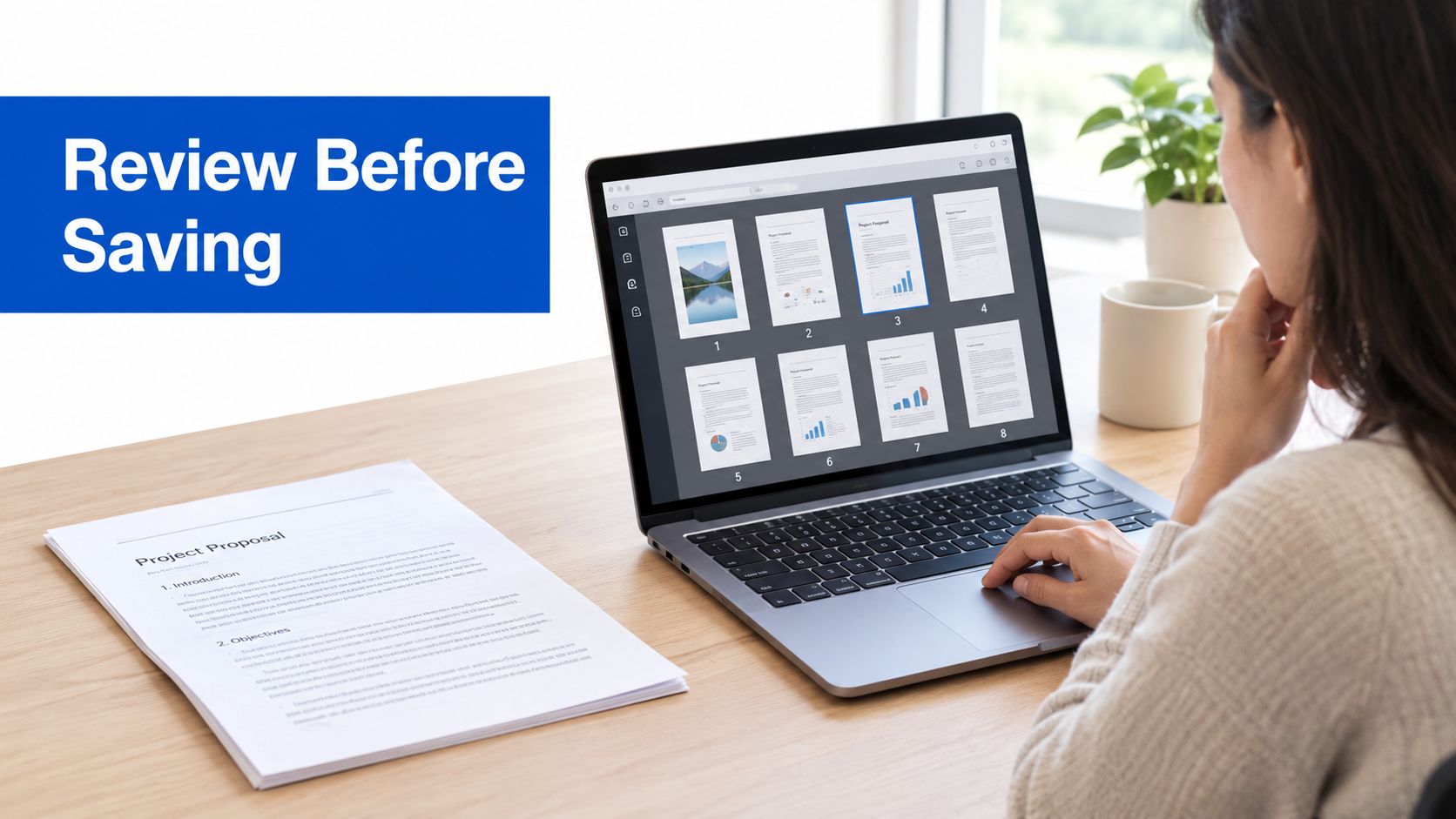
After recombining, check the order, bookmarks, and page labels against your intended packet. A restored page does not restore every navigation link that pointed at it.
Don't confuse a placeholder with recovery
An empty page restores a layout break. It cannot bring back content, annotations, or signatures. Use adding a blank page to a PDF only when you want an intentional separator, such as a divider before an appendix.
A saved-over file may still hold traces of the deleted page inside it. Treat that as a privacy risk when you share the document; it is not a dependable way to get the page back.
Recovery habit: Keep the original untouched. Give every edited output a distinct version name, so the file you sent is never the only copy.
Protected and Signed PDFs Need Extra Care
Deleting a page from a digitally signed PDF can invalidate its signature. The edit changes the file bytes, so a document that looks correct on screen can fail validation when the recipient opens it.
That risk changes the order of operations.
Check signature and password requirements
Make page changes before signing whenever possible, then ask the signer to sign the completed version. A signature image still sitting on the page tells you nothing about whether the digital signature survived the edit.
For a password-protected file, confirm you have permission to edit it and the password that allows changes. Remove protection only from files you own or are authorized to change. After editing, use Protect PDF to apply the required password protection to the output. Skipping that last step leaves the edited copy exposed.
The guide to editing a protected PDF helps you tell authorized editing apart from a file you should leave alone. If you lack access, ask the owner for an editable copy rather than working around the restriction.
Inspect revisions and form relationships
- Earlier revisions: Incremental saving can append changes while leaving older objects inside the file. A page can vanish from the current view and still exist in an earlier revision. When the revision history has to go, export the retained pages into a newly generated document.
- Shared resources: Cleanup has to keep the fonts, images, and other resources that remaining pages still use. A smaller file still fails if those pages stop rendering correctly.
- Form fields: Removing a form page can break fields or calculations elsewhere in the document. Test the retained fields and any calculations that reference them.
Saving over the same file can leave the prior revision inside it, so check whether your editor rewrites the document or appends to it. For legal, evidentiary, or signed work, record why the page was removed and keep hashes of the original and the output where your process requires them. Treat the result as a new derivative file.
Check the Final File Before You Send It
A freelancer deletes a client appendix, exports the PDF, and almost sends it. Then document properties still show the original author, an old project code, and an attachment copied from last year's contract. The page is gone from view; the file still carries evidence around it.
Treat deletion as a file decision, not only a page decision. The European Union Publications Office's metadata guidance warns that shared files can expose names, email addresses, device details, or location information and recommends removing metadata before sharing or uploading.
Make a privacy pass on the saved output
- Review document properties. Check the author, title, subject, and keywords. Look for client names, internal project labels, or details copied from an earlier document.
- Inspect comments, attachments, and form data. Read what remains instead of assuming it belongs to the final recipient.
- Check hidden layers and bookmarks. Remove stale references to deleted material and inspect other nonvisible content.
- Update metadata deliberately. Edit supported properties where your tool allows it. A metadata edit is one part of sanitization, not the whole job.
- Reopen and search the exported file. Search for distinctive text from the removed page. A match needs investigation; no match alone does not prove secure removal, especially for scanned content.
If only part of a retained page is sensitive, use redaction. The guide to whiteout and sensitive-content removal in PDFs helps distinguish a visual edit from the removal you need before disclosure.
Check access, navigation, and delivery together
Georgetown University's PDF accessibility guidance recommends reviewing tags, alternative text, table structure, and reading order. Deleting a page can affect tagged content, headings, navigation, and form relationships. A visually correct preview is not enough for an important public document.
- Page count and thumbnails: Confirm the expected count and inspect every remaining page.
- Bookmarks and labels: Check destinations and displayed page labels.
- Links and forms: Test internal links, fields, and calculations.
- Accessibility: Run automated checks and a manual screen-reader pass, including the reading sequence around the removal.
If the file is protected, signed, or shared under a records rule, pause before cleanup. Use the access route described earlier, keep the original where policy requires it, and make changes in the copy meant for delivery. For archival workflows, validate the actual saved output against its PDF/A requirements before delivery.
Frequently Asked Questions
Can I undo a page deletion after I save?
No. Once you save and close the file, there is no undo inside the PDF. Get the original back from your files, email, storage history, or the sender, then repeat the edit on a fresh copy. This is why saving the edited file under a new name matters: it keeps the untouched version available if you removed the wrong page.
Will deleting a page break a signed PDF?
Almost always. A digital signature covers the exact bytes of the file at signing, and removing a page changes those bytes. Recipients will see the signature marked as invalid or tampered with. Make the deletion first, then have the signer sign the completed version.
Is a deleted page really gone?
Treat the answer as "maybe not." Some editors leave earlier revisions or unused objects inside the file, and a removed page's content can survive in them. When confidentiality matters, generate a fresh output file rather than saving over the original, then check that output as covered earlier.
Can I delete every page?
No, not in common page-deletion workflows. At least one page must remain; if nothing should be retained, don't distribute the document.
Does the delete pages tool cost anything?
No. It's free, adds no watermark, and requires nothing to install.
Once you have the cleaned file, open the downloaded copy and check it end to end before sharing it. Deletion is a file decision, and the saved output is what recipients receive.