ON THIS PAGE
You've photographed receipts, lecture notes, or forms on your phone, and now you need one file that's easy to submit or share. To combine images into a PDF, upload them in the order you want, set the page layout, and export the document. Before you send it, check the page sequence, readability, privacy, accessibility, and any upload-size limit.
Table of Contents
- Prepare Your Images Before Combining Them
- Upload and Arrange Your Images in Order
- Set Page Size, Orientation, and Scaling
- Choose Compression and Output Settings
- Compare Local and Online Processing for Sensitive Files
- Make Your Combined PDF Accessible and Searchable
- Put Your Combined PDF to Work in Real Scenarios
Prepare Your Images Before Combining Them
Each image becomes a page in the PDF, so check your files before opening a converter. A rotated photo, an accidental duplicate, or a cut-off edge won't fix itself during export.
Start by opening each image and confirming it shows the right content. Crop only unwanted borders, such as a desk edge around a photographed form, and keep the original aspect ratio. Stretching an image to fill a page can distort text and diagrams. If you're converting PNG files, this guide to converting PNG images to PDF covers another common image format.
Check your files and requirements
Before you start, make sure you have:
- A browser on the device you'll use.
- The image files saved somewhere you can select them.
- A page-size decision, such as A4 or Letter, based on where the PDF will be viewed or printed.
- The destination's upload limit, if you're sending the file to a school, court, agency, or other portal.
Also check how each photo is oriented. A phone may save a sideways picture with rotation information in its metadata. Some tools interpret that information differently, so look at the actual image and confirm its direction rather than relying only on a thumbnail.
Resolution matters, too. The Library of Congress explains that PDF viewers support scaling and printing, but raster image quality depends on the embedded image itself (PDF format description from the Library of Congress). Enlarging a small image can make it occupy more page space, but it can't restore detail that wasn't captured.
Practical rule: Keep your original images in a separate folder. You'll have a clean fallback if you need to rebuild the PDF or compare quality.
Preparation takes only a short time and prevents the most common rework: fixing page order, rotating images, and replacing blurry or incomplete files after export.
Upload and Arrange Your Images in Order
Once your files are ready, select them together in a JPG to PDF tool. Before exporting, check that every expected file appears in the list and that the preview shows the intended sequence. The first image should be the first page, not just the photo you happened to select first.
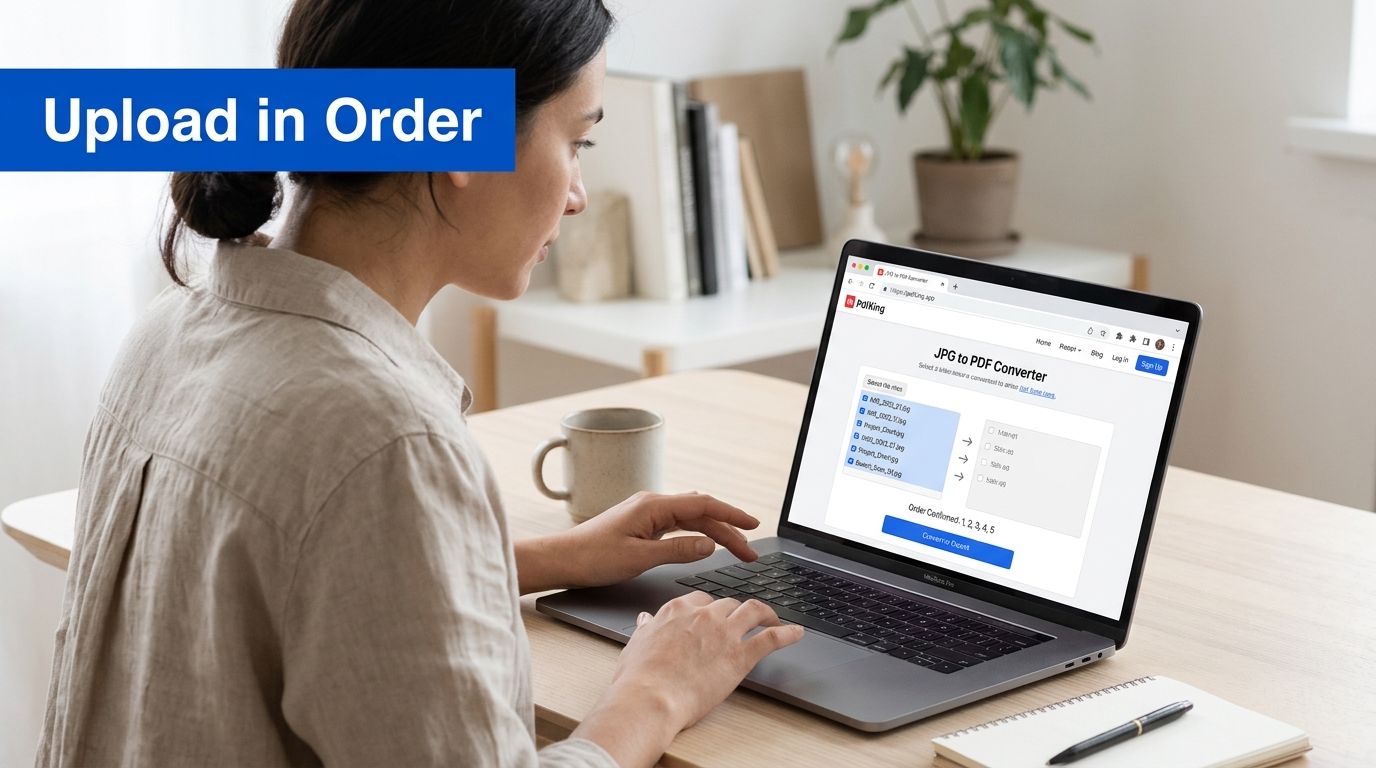
Set the order before export
Two simple habits make page order easier to control:
- Name files with leading numbers. Use names such as
01-cover.jpg,02-page.jpg, and03-appendix.jpg. The leading zero helps keep files in the intended sequence when sorted by name. - Sort the folder before selecting files. Arrange it by name, then select the images in that visible order. Don't assume a device will always use the same order you expect.
A student photographing lecture notes on a phone might find the pages mixed up because the pictures were taken in separate batches. Reordering the thumbnails before conversion is easier than discovering the problem after sending the assignment. Check for a missing page, a duplicate photo, a blurry shot, or an image that belongs at the end rather than the beginning.
You can also review practical advice on how to prepare consistent images for social campaigns. The setting is different, but the underlying habit applies here: organize a batch before processing it.
Confirm the preview
Use the preview or file list to make sure the beginning and ending pages are correct. If you've photographed a multi-page document, compare the visible thumbnails against the original stack or notes. A page can look fine as a small thumbnail but still be too blurry to read when opened.
Don't export until the order makes sense from start to finish. That check is quick, and it can prevent a confusing submission that forces someone else to piece the pages back together.
Set Page Size, Orientation, and Scaling
Page settings determine how each image sits inside the PDF page. A4 and Letter are common choices, but the right one depends on the document's destination and how it will be printed. Portrait usually suits forms, letters, and notes; horizontal orientation is often more suitable for wide photographs, diagrams, or spreadsheets.
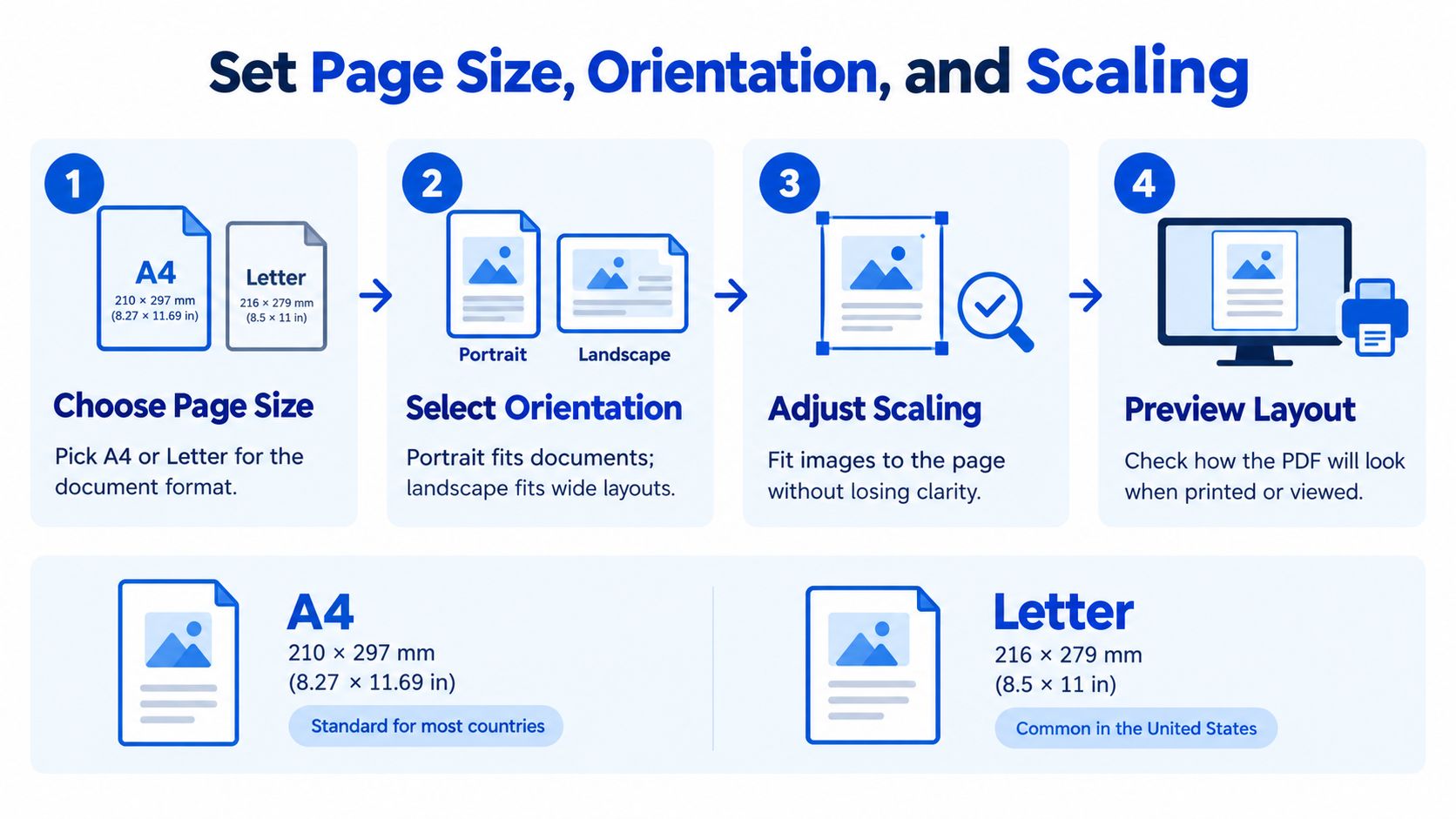
Normalize pages without stretching them
Use this sequence to keep page geometry consistent:
- Inspect the image dimensions and metadata. Check whether a file is unusually small, rotated, or carrying an orientation that might affect how it appears.
- Rotate pages consistently. A portrait form should read upright. Turn wide-format pages deliberately instead of leaving the viewer to guess.
- Choose the page size. Select A4 or Letter according to the document's use. If you need to adjust an existing PDF afterward, this guide to changing PDF page size can help.
- Fit each image to the page. Preserve its aspect ratio. Letterboxing or margins are preferable to stretching a photograph until its proportions look wrong.
- Reopen the exported PDF. Check every page at a useful zoom and confirm the layout works on screen and in print.
A common mistake is importing photos at arbitrary display sizes. That can leave one image filling the page and another appearing as a small block in the middle. Mixed portrait and horizontal pages can also be correct, but only if the change is intentional and each page remains easy to read.
For ordinary text pages, use 300 dpi as a practical target when scanning or preparing images. OCR guidance identifies 240 dpi as a minimum and 300 dpi as the recommended baseline; resolutions above 600 dpi generally slow processing without substantial recognition gains (Hyland's OCR processing standards). If small text is already hard to read in the source image, increasing its display size won't bring back the missing detail.
Choose Compression and Output Settings
Image PDFs involve a trade-off between file size and recoverable detail. Compression can make a document easier to upload, but lossy compression discards information. Keep your original images, export a baseline PDF first, and compare before you settle on a smaller version.
The National Archives prefers uncompressed images and may accept lossless methods such as Group 4 or LZW for preservation work; it rejects lossy compression for archival transfers because information loss can make records unsuitable for preservation (National Archives scanning guidance). For routine sharing, the right setting depends on whether the pages contain ordinary text, fine detail, or color that matters.
Match the setting to the job
| Goal | Starting setting | Why it matters |
|---|---|---|
| Ordinary office pages | 300 dpi | Provides a practical baseline for readable text and OCR. |
| Faint text, signatures, maps, or detailed illustrations | Consider 400–600 dpi | Captures more detail when the source is clear enough to benefit from it. |
| Pages where color isn't needed | Grayscale | Can reduce file size while keeping text and shapes legible. |
| Archival or preservation use | Keep the highest available resolution and use lossless compression where possible | Reduces avoidable loss of image information. |
To compare exports, note the baseline PDF's size, create a compressed copy, then inspect both at 100% zoom and on paper if print quality matters. Look closely at small characters, fine lines, signatures, and page edges. If the compressed version makes a letter or number ambiguous, the file is too compromised for that use.
A smaller PDF isn't automatically a better PDF. Aim for the smallest file that still preserves readable text, correct page geometry, and any color or detail the recipient needs.
For a practical walkthrough of reducing a finished file, see the guide to compressing a PDF. Treat compression as a test, not a guess, and keep the originals so you can return to them if the result doesn't hold up.
Compare Local and Online Processing for Sensitive Files
A tax scan with a Social Security number, a patient intake photo, or a signed contract changes the question from “Can this tool merge JPGs?” to “Where does every copy go?” Local processing keeps images on your device when the software works offline, which reduces exposure but puts responsibility on your disk encryption, updates, and backups. Browser processing is convenient for a quick merge, but uploads create a second set of copies governed by that service's retention, deletion, logging, and analytics terms.
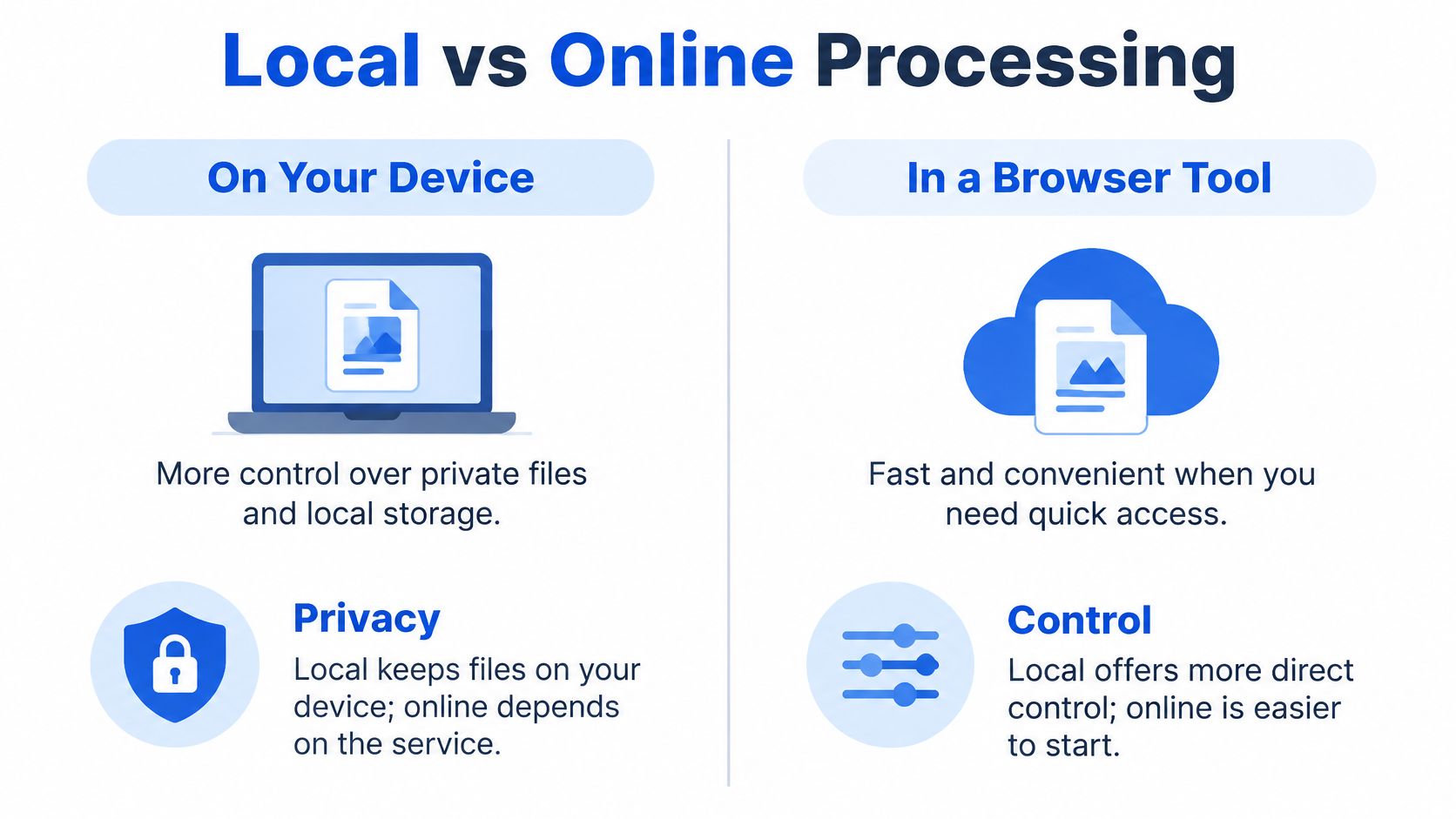
Terms vary by service, so read them before uploading rather than after a file has been shared. Check whether the connection is encrypted, how long uploads are retained, how deletion is confirmed, whether metadata survives export, and whether content may be used for analytics or model training. Phone photos can carry location and camera details, so decide whether that metadata should remain in the source image or be removed before assembly.
Choose the workflow by risk, then verify the output
For high-confidentiality files, prefer local tools or an approved managed service. For low-risk pages, an online tool can be reasonable if you still control the final check: open the exported PDF, confirm page order and orientation, zoom on the smallest text, look for stray metadata in the filename or document properties, and test the recipient's upload limit before sending. A password protects the finished file during delivery; it does not erase exposure while images sit on a server. If the recipient requires protection, use this guide to add a password to the finished PDF.
PDFKing's JPG to PDF tool works in a browser, requires no installation or account, is free to use, and adds no watermark to output files. Those facts can fit a routine merge, but privacy terms still decide whether sensitive images belong there. For another angle on comparing tools, see how Genpire compares.
Make Your Combined PDF Accessible and Searchable
A PDF made from photographs can look complete while remaining difficult to use with assistive technology. It may have no machine-readable text, logical reading order, tagged headings, or alternative text. Combining images is not the same as making a document accessible.

That distinction matters for photographed receipts, handwritten forms, lecture notes, and scanned applications. A person using a screen reader may not be able to search or follow the page content if it exists only as an image.
Remediate after assembly
Run OCR, or optical character recognition, when the PDF needs searchable text. Then compare the recognized text against the page, especially around handwriting, faded print, small characters, and columns. OCR can misread a receipt total or turn a handwritten entry into unrelated text.
Next, check reading order and add structure where the document requires it. Headings should be identified as headings, and important images should have meaningful descriptions. Check contrast, too, particularly where light text or faint marks appear against a pale background. Finish by testing the PDF with a screen reader or an accessibility checker rather than relying on appearance alone.
OCR has a clear limitation: it can recognize characters, but it can't reliably infer the document's semantic structure or describe a complex chart. Those details need human review. A chart may require a text explanation of its main point, while a form may need its labels and fields represented in a logical order.
If a PDF contains text but you need to work with it elsewhere, this guide to copying words from a PDF can help with that separate task. Searchable text can improve access, but it doesn't replace checking the reading order, tags, and descriptions.
Put Your Combined PDF to Work in Real Scenarios
A portfolio, a class assignment, and a scan packet each get judged on different things. A portfolio reviewer notices when one page sits sideways. A professor notices when page six is missing. An e-filing portal notices nothing at all; it rejects the file. Build the document around its destination, then verify it the way the recipient will see it.
For a portfolio, put the strongest work first and keep the orientation consistent so nobody has to rotate the screen. Wide pieces may need horizontal pages while the rest stays vertical, and that works as long as the choice is deliberate. Compress only after zooming in on the most detailed image and confirming that edges and textures still read clearly.
For a class assignment, name the file with the student's name and course, and leave out anything private the recipient doesn't need. Check page order against the submission requirements before you send it. For scanned text pages, the 300 dpi starting point covered earlier still applies; after export, inspect the PDF at 100% zoom instead of trusting the thumbnail view.
Check the destination before sending
Upload limits vary by portal, and portals enforce them. The U.S. District Court for the Western District of North Carolina sets a 50-megabyte maximum for a single PDF, and its scanning guidance recommends a 25-megabyte limit per file, with instructions to split documents that remain above that threshold after scan settings are corrected (court upload guidance). Other destinations set their own numbers, so check the requirements where the file is going rather than assuming one limit applies everywhere.
When a file comes back oversized, work in a fixed order. First remove pages that don't belong and fix scan settings that inflate size, like color mode on a black-and-white document. Then compress, and compare a page of fine text before and after; if letters blur or fill in, ease off. If the document still exceeds the limit, split it into parts that follow the portal's stated rules and name the parts so their order is obvious. When the job involves stitching several existing PDFs into one ordered submission, a merge PDF tool handles that step.
One more pass protects you. Scroll the finished PDF for pages that reveal more than intended: a home address on a receipt, an ID card, an account number. Everything in the file goes to whoever receives it.
A few habits make repeat jobs less error-prone:
- Keep the originals so you can rebuild the PDF without rescanning or reshooting.
- Name files by page order before selecting them for upload.
- Open the exported PDF once and check the first page, last page, and any page with fine text.
- Confirm the portal's limit before uploading, and split the file if the destination requires it.
For people preparing research reports, PDF reporting for academic research offers related guidance on presenting work in a PDF. The final check is always the same: open the file you plan to submit and confirm it holds every page in the order you intended.
Frequently asked questions
Does PDFKing charge to combine images into a PDF?
No. The JPG to PDF tool is free to use.
Will the output PDF have a watermark?
No. PDFKing doesn't add a watermark to the output file.
Do I need to install software?
No. The tool works in a browser, so there's nothing to install.
Can I use the tool in a browser on my phone?
PDFKing's tools work in modern browsers on desktop and mobile operating systems.
What should I do if a portal rejects my file size?
Check the portal's stated limit, correct scan settings if needed, and compare a compressed version for readability. If the file still exceeds the limit, split it according to the portal's instructions.
Why can't I search for words in my scanned PDF?
The pages may be stored as images without recognized text. Run OCR where appropriate, then check the text it recognizes for errors.
Will enlarging an image make small text clearer?
Enlarging only changes the display size. If the original image lacks the detail, it can't restore information that was never captured.
Use PDFKing's JPG to PDF tool to arrange your images and create one multi-page document. It's free, adds no watermark, and requires nothing to install. Combine your images at PDFKing, then open the finished file and check it before sharing.