ON THIS PAGE
Removing links from a PDF usually means deleting its clickable link annotations or neutralizing URL behavior. Whether you should also edit the visible URL text depends on your goal: stop click-throughs, remove link styling, protect a final distribution copy, or preserve references for accessibility and review.
You've probably seen the problem just before sending a report, contract, handout, or application packet. The pages look finished, but blue underlined text still opens websites, email addresses remain active, or a flattened-looking file still reacts when someone clicks near a URL. The right cleanup method depends on what's embedded in the PDF.
Table of Contents
- Why Removing Links From a PDF Is Not Just Formatting
- How PDF Hyperlinks Actually Work Under the Surface
- Step-by-Step Ways to Remove Hyperlinks From a PDF
- Annotation Removal vs Text Replacement vs Flattening
- Accessibility and Compliance Considerations Before You Clean Up
- When to Keep Visible URLs Even After Removing Links
Why Removing Links From a PDF Is Not Just Formatting
A PDF can look harmless while containing active destinations beneath the visible text. That matters when you're preparing a public copy, an archival version, or a document that will move through email and enterprise systems. Check Point reported that over 400 billion PDF files were opened in one year, 16 billion documents were edited in Adobe Acrobat, and 87% of organizations use PDFs as a standard business communication format. The same report identified PDF-based attacks as 22% of all malicious email attachments. See the Check Point report on PDF-based attacks for the underlying security context.
That scale explains why teams in finance, legal, education, and administration often clean outbound PDFs before distribution. Every embedded destination creates a possible click-through path to phishing, malware, or credential theft. Removing links isn't a complete security program, but it can reduce unwanted behavior in a file that no longer needs to be interactive.
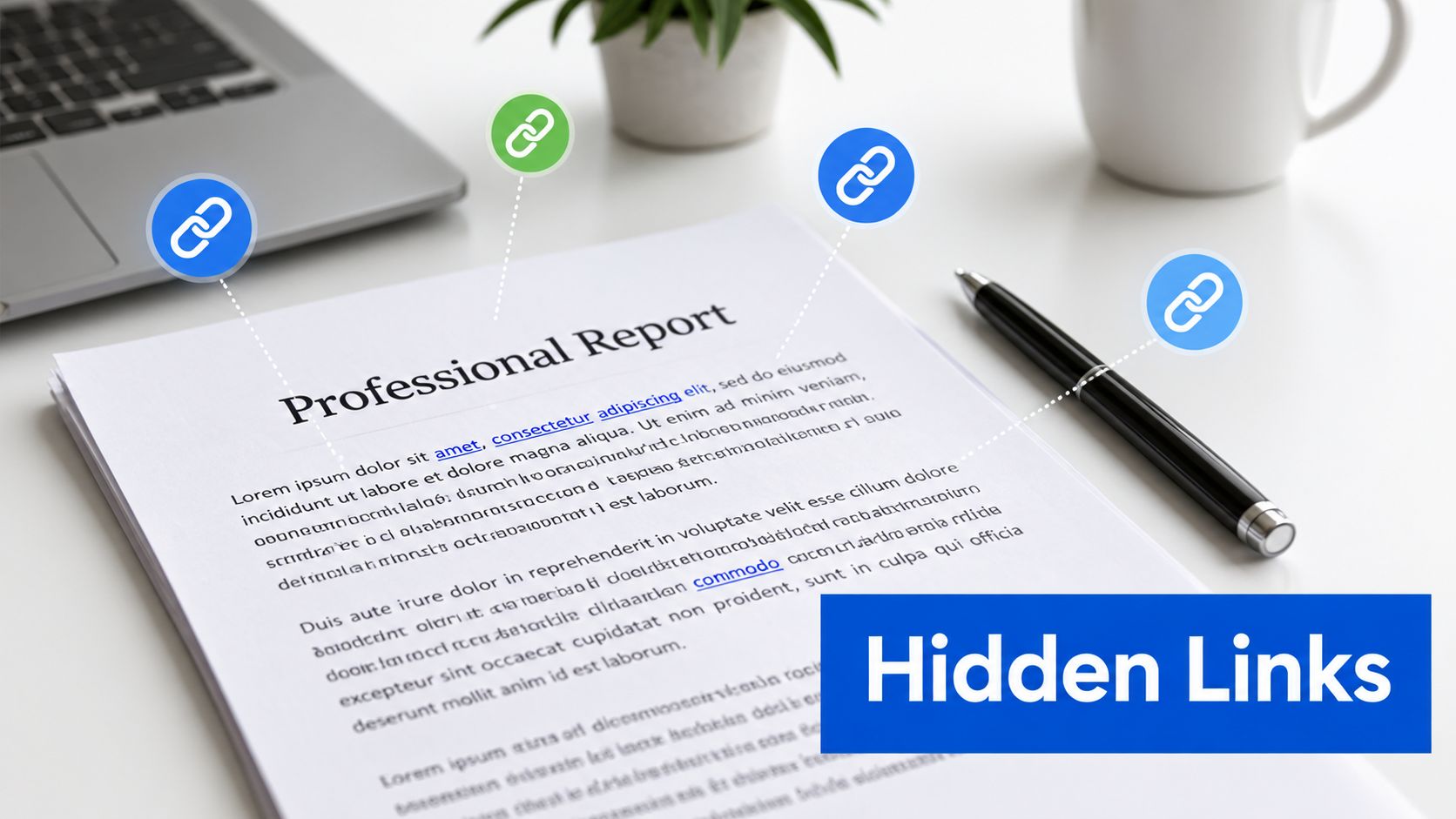
The practical trap is that visible URL text and clickable annotations are separate things. Deleting a URL from the page may leave an annotation behind. Removing an annotation may leave the blue text, underline, or a reader's automatic URL detection in place.
Practical rule: Decide first whether you want to remove click behavior, visible URL wording, link styling, or all three.
Before cleaning a sensitive file, you may also want to review other embedded information. PDFKing's guide to removing metadata from a PDF covers a separate layer of document cleanup. Metadata removal doesn't remove clickable links, so treat the tasks as related but distinct.
How PDF Hyperlinks Actually Work Under the Surface
A PDF hyperlink isn't necessarily part of the sentence you can select and edit. It is commonly stored as a link annotation, an interactive object layered over the page content. Adobe's PDFMark documentation describes a link annotation as a hypertext link to an internal destination or an action, with the action defined separately from the visible page text. The Adobe PDFMark reference makes the separation clear.
That design explains a common failed attempt. You edit or cover the visible URL, but the clickable rectangle remains. Alternatively, you remove the annotation and the words remain readable because the text was never deleted in the first place.
Destinations and actions are different
A link can point to another page in the same file, open an external destination, or trigger an action. Adobe lists action types including GoTo, GoToR, Hide, JavaScript, Launch, Named, Sound, SubmitForm, and Thread in its PDF actions reference. You don't need to understand the underlying syntax to clean a document, but you do need to know that “link” can mean more than a web address.
A PDF editor may remove the annotation, remove the action attached to it, or both. The safest choice for a final noninteractive copy is usually to remove the annotation or flatten the output, then test the result rather than assuming the visual change proves anything.
Why links can appear to return
Some PDF readers auto-detect plain text URLs. OPSWAT distinguishes between removing hyperlink annotations and suppressing text links that readers may highlight automatically. Its Deep CDR configuration guidance describes stronger cleanup options for text that still resembles a URL.
That creates two separate questions:
- Is an annotation still present? Test the original clickable region.
- Does the visible text still trigger automatic detection? Test the saved file in the reader your audience uses.
If a link isn't working rather than needing removal, the cause may be different. The PDFKing guide to fixing a hyperlink in a PDF is relevant when the goal is to preserve a destination and repair its behavior.
Step-by-Step Ways to Remove Hyperlinks From a PDF
The best workflow depends on whether you need selective removal or a clean, noninteractive distribution file. For a single link, use an editor that can target annotations. For many links, flattening or printing to a new PDF is usually faster, but it can remove forms and other interactive elements.
Method one, use a desktop PDF editor
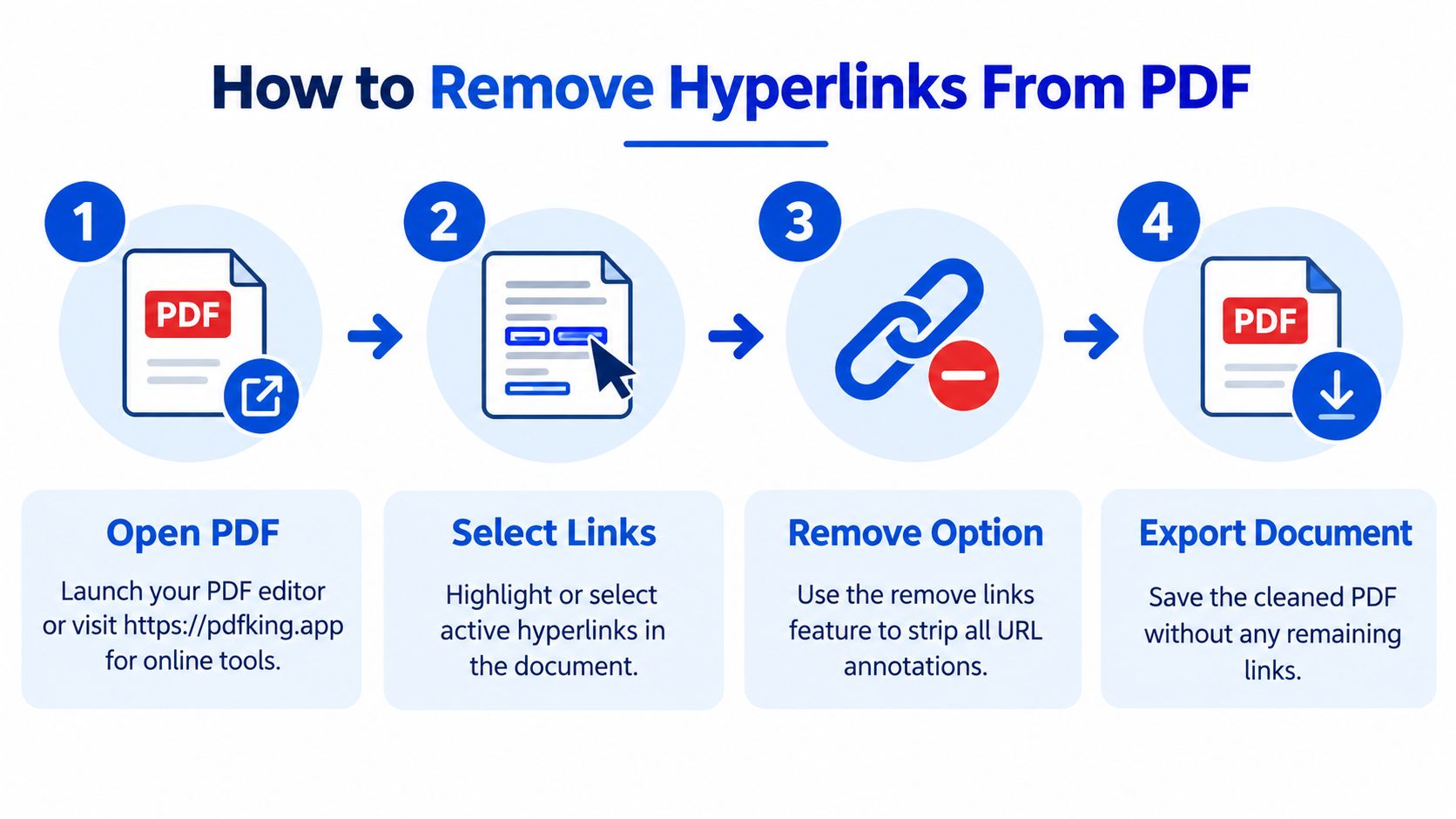
Acrobat X and XI provide a direct removal command:
- Open the PDF and keep the original file untouched.
- Open Tools.
- Choose Document Processing.
- Select Remove All Links.
- Save the result as a new file.
- Reopen the new copy and test every page.
Adobe's guidance on removing hyperlinks from a PDF distinguishes embedded link removal from editing visible text. That distinction is important because changing the words around a link doesn't necessarily change the annotation.
After saving, move your pointer across areas that used to be clickable. Check web addresses, email addresses, logos, buttons, linked images, and internal table-of-contents entries. A clean visual appearance isn't enough.
Method two, flatten a final distribution copy
Flattening merges interactive elements into the page content so the result behaves like a static document. It can remove links in one pass and is useful when the file contains many annotations or when you don't need any remaining fields, buttons, or interactive controls.
Use this sequence:
- Save an editable master copy.
- Open or upload the final-output PDF.
- Run a flatten or print-to-PDF workflow.
- Save the flattened result under a new filename.
- Test old link areas, form fields, buttons, and internal navigation.
- Compare page count, text, images, and layout with the master.
The trade-off is irreversible loss of interactivity in the output. Don't flatten the only copy of a form, workbook, or internally navigable manual. Keep the source file so you can produce a different version later.
For routine browser-based PDF operations, PDFKing provides free PDF and file-conversion tools with no watermark and nothing to install. Its protected PDF editing guide is useful when permissions prevent ordinary changes, provided you own the file or have authorization to edit it.
Method three, edit the source when the PDF will be regenerated
If links keep returning, the source document probably still contains them. Remove the hyperlinks in Word, Google Docs, PowerPoint, or the original design file before exporting another PDF. This is the only reliable way to prevent the same annotations from being recreated during the next export.
For documents that contain sensitive or unwanted public references, link cleanup may be only one part of a broader publication review. A specialized resource such as TheBestReputation content removal service can be relevant when the concern extends beyond the file itself and involves information published elsewhere.
Annotation Removal vs Text Replacement vs Flattening
These methods solve different problems. Choosing the wrong one creates either a false sense of security or unnecessary damage to the document.
| Method | Best For | Main Risk |
|---|---|---|
| Delete link annotations | Removing click behavior while keeping readable text | A reader may still auto-detect visible URL text |
| Replace or edit visible URL text | Removing wording, blue styling, or an exposed destination | Editing can alter layout, reading order, or meaning |
| Flatten the PDF | Bulk cleanup of a final, noninteractive copy | Forms, buttons, navigation, and other interactive elements may stop working |
Annotation removal is the most precise option when the words should remain. It preserves the document's wording and usually keeps the layout intact, but it doesn't guarantee that plain URL text won't be recognized by a PDF reader.
Text replacement is appropriate when the visible destination itself should disappear. You might replace a full URL with a descriptive phrase, remove an outdated address, or change blue underlined text to match the surrounding paragraph. This approach can be difficult in scanned PDFs, OCR-generated files, and complex layouts. Converting a PDF to an editable format may also shift line breaks, fonts, spacing, or page breaks.
Don't confuse a covered URL with a removed URL. A white rectangle or opaque shape may hide text visually while leaving the underlying content and annotation available for selection or extraction.
Flattening is the broadest method. It works well for a final handout, archived visual record, or public copy that must not contain active controls. It works poorly as an editing strategy because it can remove useful form fields and navigation. Use it after approvals, not before them.
When visible confidential information must be permanently concealed, use a true redaction workflow rather than drawing over the text. PDFKing's redact text in a PDF guide addresses that separate requirement. Redaction and link removal often appear together in legal or administrative workflows, but they are not interchangeable.
Accessibility and Compliance Considerations Before You Clean Up
Removing links can reduce unwanted click-throughs, but it can also weaken a document for people who rely on assistive technology. W3C guidance explains that PDF links use a Link tag and objects in its structure, including the annotation and related text objects. Screen readers need correctly tagged links so they can describe destinations, and keyboard users need to reach and activate them.
The accessibility history is uneven. PDF was created in 1992, tags were added in 2001 as a major accessibility feature, and PDF/UA arrived in 2012 to standardize accessible electronic documents, as summarized in OPSWAT's discussion of embedded PDF threats and accessibility. The same source cites an academic review of 200 disability studies articles published as PDFs between 2009 and 2013, finding that 95.5% were not tagged, 99.5% lacked a logical reading order, and 0 had a consistent heading structure. Those figures show why a link-removal pass shouldn't be treated as an isolated visual edit. See the W3C PDF11 technique for accessible links when the document has accessibility obligations.
Use this decision check
- Remove links when the file is a final public copy and interactive destinations are unnecessary or risky.
- Preserve links when they provide essential navigation, references, instructions, or access for screen-reader and keyboard users.
- Remove only selected annotations when some destinations must remain functional.
- Review the source structure when the PDF is tagged, legally significant, or part of a regulated workflow.
- Validate the output with visual, keyboard, and assistive-technology checks appropriate to the document.
A compliance review should also record what changed and why. For legal teams and organizations handling high-stakes documents, the ProPlaintiff.ai 2026 accuracy guide offers broader context for accuracy and risk review. It doesn't replace a PDF accessibility assessment, but it reinforces the need to verify the final artifact rather than relying on an editing command alone.
If the source is a Word file and the PDF was exported too early, correct the source and generate a new copy. PDFKing's free Word to PDF conversion tool can fit that workflow when the content is ready for a fresh export.
When to Keep Visible URLs Even After Removing Links
Removing a clickable annotation doesn't always require deleting the visible URL. Keeping the text may preserve a citation, help readers identify a referenced resource, or support an accessibility review. In an archival or legal copy, the readable destination can matter even when the file should not open external content directly.
The opposite is also true. If the visible address is sensitive, obsolete, or likely to be auto-detected by the recipient's PDF reader, annotation removal alone may not meet your goal. You may need to edit the text, change the URL format, or create a static final copy after preserving the editable master.
Use a simple rule: remove click behavior when interaction is the risk, and remove or replace visible URL text when disclosure or appearance is the risk. Always test the saved file in a PDF reader, because plain text URLs may still become clickable through automatic detection.
PDFKing offers free browser-based PDF and file-conversion tools with no watermark and nothing to install. Use PDFKing to prepare a clean distribution copy, then reopen and test the finished PDF before sharing it.