ON THIS PAGE
To change a PDF title, edit the document's Title metadata field, then save the file so PDF viewers, browser tabs, and document systems can read the new name. If you're using a browser tool or desktop app, look for Document Properties or Edit Metadata, not the filename box.
You're probably here because you changed a file name and nothing happened. The browser tab still shows the old text. Or the PDF opens with a strange title that doesn't match the document cover. That's normal, because a PDF title usually lives inside the file's metadata, not in the filename you see in your folder.
Table of Contents
- What Changing a PDF Title Really Means
- Choose the Right Way to Update Your PDF Title
- How to Change PDF Title in Your Browser With PDFKing
- Alternative Methods Using Desktop Apps and Source Files
- Verify Your New Title and Fix Common Issues
- Frequently Asked Questions About PDF Titles
- Does renaming the file change the PDF title
- Why does my browser tab still show the old title
- Should the title match the filename
- What other fields should I check besides Title
- When should I clear metadata instead of editing it
- Is changing the visible cover title enough
- What if I can't edit the title field
What Changing a PDF Title Really Means
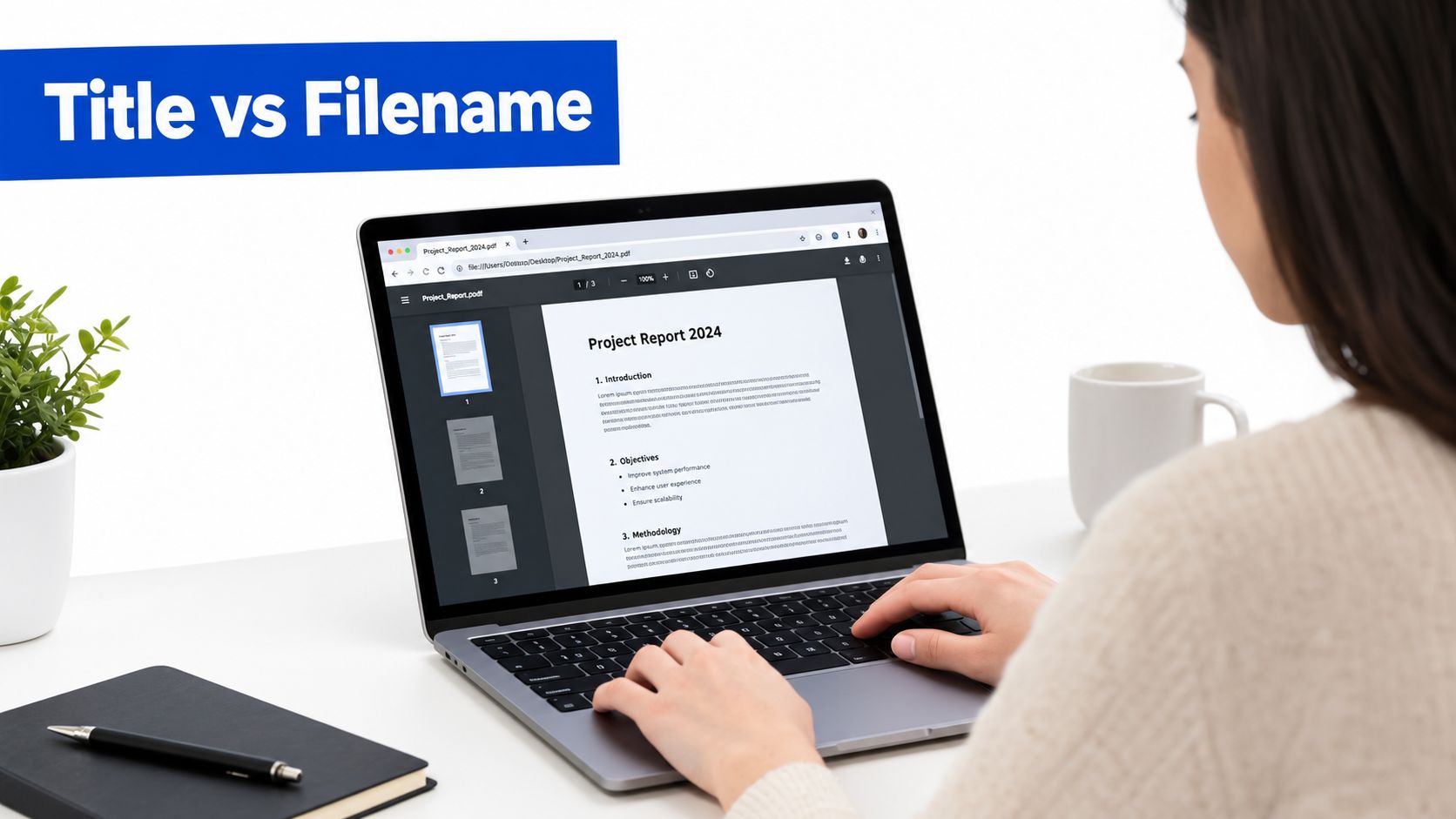
A PDF can show different names in different places. That's where most confusion starts.
The filename is what you see in Finder, File Explorer, email attachments, and downloads. The PDF title is a metadata field stored inside the file. The browser tab title or viewer title may use either one, depending on the app and its settings.
The W3C's PDF technique for accessibility says the title is a formal metadata field in the PDF and instructs authors to modify the /Title entry in the document information dictionary, not just rename the file. It also notes that some viewers can be set to show the document title instead of the filename, which is why a title change can seem invisible until the viewer is configured correctly in the WCAG PDF18 technique{:target="_blank"}.
The two layers that matter
Older PDFs often store title data in the Info dictionary. Many newer workflows also store it in XMP metadata. Over time, PDF title handling moved from that older Info field toward XMP-based metadata, and in PDF 2.0 the Info dictionary is deprecated in favor of metadata in the catalog stream, as explained in this PDF metadata overview{:target="_blank"}.
That matters for one simple reason. If you update only one metadata layer, some apps may still show the old title.
Practical rule: If the file matters for accessibility, archiving, or formal recordkeeping, treat the title as metadata, not page text.
When metadata editing is enough
If the PDF is already final and you just need to fix how it appears in a tab, viewer, or document system, editing the metadata title is usually enough.
If the original file is still available in Word or Google Docs, and you suspect the PDF carries old document properties, comments, or other stale metadata, re-exporting from the source can be cleaner. If privacy is part of the problem, read this guide on how to remove metadata from PDF.
A good mental model is this:
- Rename the file when you want a different attachment or folder name.
- Edit the title metadata when you want the embedded document identity to change.
- Re-export from the source when the PDF keeps inheriting old document properties.
Choose the Right Way to Update Your PDF Title
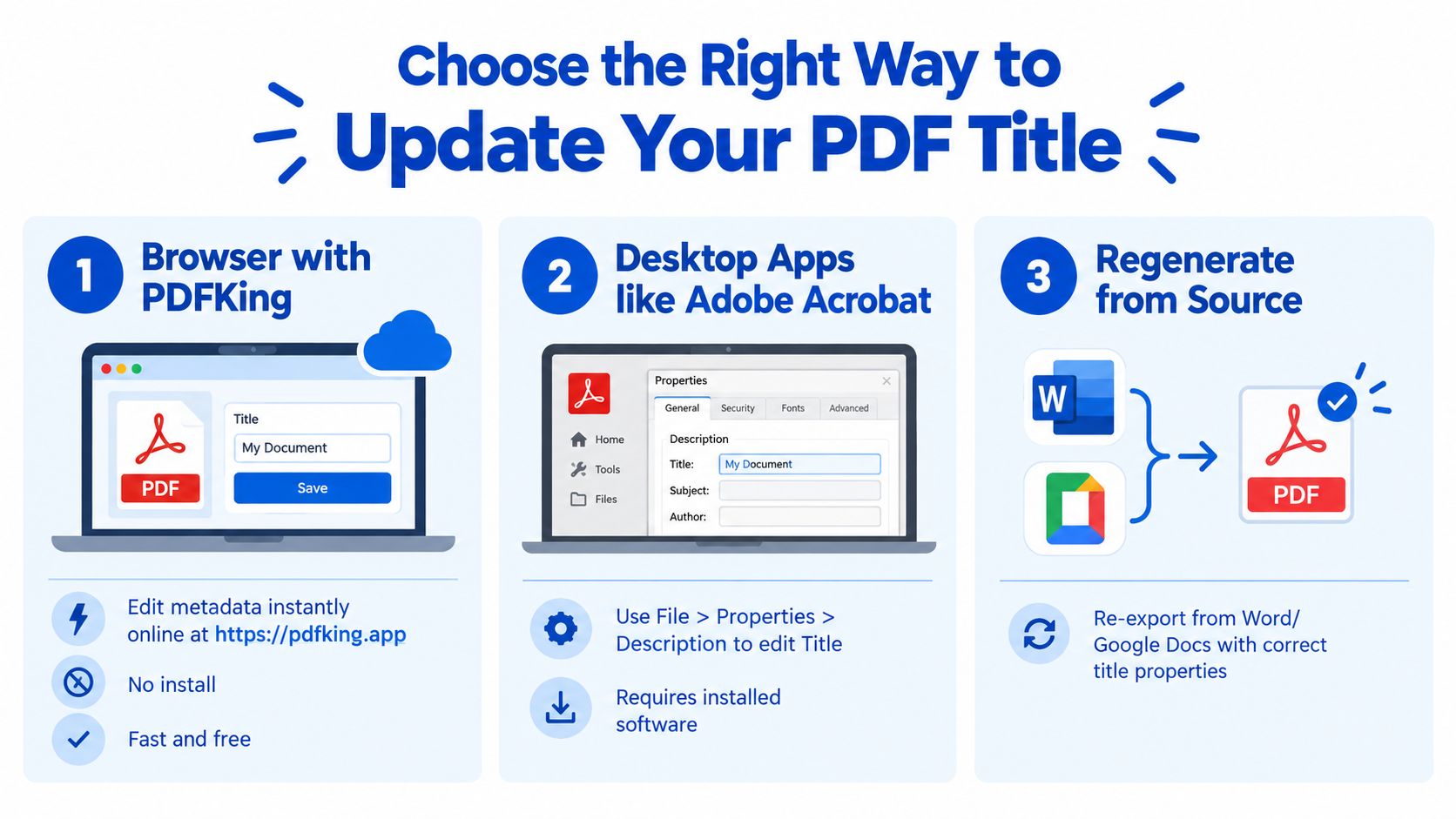
There isn't one single method that fits every file. The right choice depends on what you're trying to fix and how controlled your workflow needs to be.
Which method fits your situation
| Method | Best For | What It Changes |
|---|---|---|
| Browser metadata editor | Quick title fixes, routine document cleanup, no-install work | Embedded metadata fields such as Title |
| Desktop PDF app | Offline editing, established office workflows, accessibility checks | PDF properties and often related metadata layers |
| Re-export from source file | Documents still being revised in Word or Google Docs | Source properties plus a fresh PDF export |
How to decide fast
Use a browser-based metadata editor when the PDF is already finished and the problem is the embedded title. This is the shortest path for students, office staff, and educators who need a corrected file right away.
Use a desktop app if your team already works in Acrobat or another installed PDF editor. A common manual workflow is File > Properties > Description > Title, which both W3C and Swarthmore support documentation describe as the standard way to change the title field in Acrobat-style properties editing{:target="_blank"}.
Use the source file when the PDF is not really final. If the title keeps coming back wrong after each export, the problem is often upstream in the original document properties.
Some guides only explain the text you can see on the first page. That isn't the same as the PDF title used by viewers and indexing systems.
There's one more practical issue. If the file is protected, metadata changes may be blocked until editing restrictions are removed. If that sounds familiar, this article on editing a protected PDF can help you sort out the access problem first.
A simple choice guide
- You need a quick fix today: edit metadata directly.
- Your office uses installed PDF software: update the properties there.
- You still have the original doc and want a clean export: fix the source and create a new PDF.
- You care about privacy as much as naming: decide whether to edit metadata or clear it.
How to Change PDF Title in Your Browser With PDFKing
If you want the fastest route, use a metadata editor in your browser. That lets you change the embedded title without installing software.
Step 1 Open the metadata editor
Go to the Edit PDF metadata tool. Upload your PDF and wait for the document properties to load.
This kind of workflow is designed for the actual metadata fields inside the PDF, not just visible page text. Common fields include Title, Author, Subject, and Keywords, which is why title editing is usually part of a broader metadata update rather than a simple rename, as described in metadata editor guidance{:target="_blank"}.
Step 2 Change the Title field
Find the Title field and type the new document title you want. Keep it clear and specific. Good titles identify the document when someone opens it in a tab or document viewer.
Examples:
- Good: Employee Handbook 2026
- Good: Biology Lab Safety Instructions
- Less helpful: Final Version
- Less helpful: Scan001
If you need to update related fields at the same time, you can also review Author, Subject, and Keywords. Leave anything alone that you want to preserve.
Step 3 Save the updated PDF
Save or download the edited file. With PDFKing, every tool is 100% free with no watermark and nothing to install, so you can make the metadata update in your browser and keep moving.
A small but important point. Some tools preserve untouched fields when you change only selected metadata. That's useful when you want to fix the title without rewriting the rest of the document properties.
Save a new file name if you want an easy before-and-after check. The filename and the embedded title can be different on purpose.
Step 4 Confirm the result
Open the saved PDF in your usual viewer. Check the document properties first. Then check the browser tab or title bar.
If you still see the old text, that doesn't always mean the edit failed. Some viewers are set to display the filename instead of the embedded title. Adobe-style workflows also note that title changes should be metadata-driven and that the viewer may need to be set to show document metadata rather than the filename, as described in this guide to changing a PDF title{:target="_blank"}.
A few practical notes
- For single files: edit, save, and verify right away.
- For repeated office tasks: use a naming pattern so titles stay consistent across teams.
- For school or legal files: make the title descriptive enough to identify the document without opening page one.
- For sensitive files: review the other metadata fields too, not just the title.
If your goal is specifically how to change PDF title in a quick browser workflow, this is usually the shortest path.
Alternative Methods Using Desktop Apps and Source Files
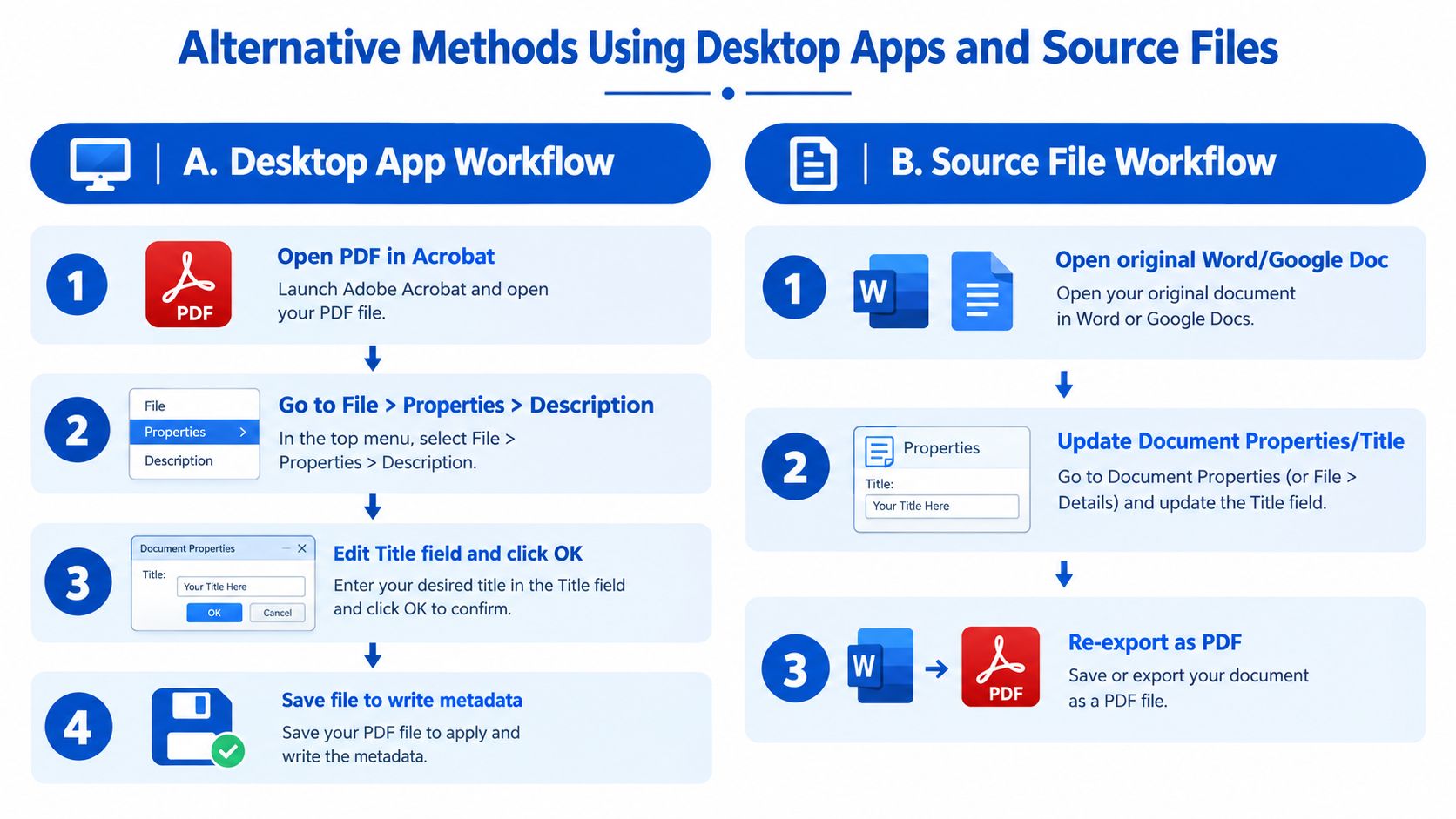
Some files need a more controlled method. That usually means either a desktop PDF app or a fresh export from the original document.
Desktop app workflow
Open the PDF in your installed editor. In Acrobat-style workflows, go to File > Properties, then the Description tab, edit the Title field, click OK, and save the file. W3C's PDF technique also describes opening the PDF properties dialog and modifying the Title entry in the document information dictionary in its PDF title guidance{:target="_blank"}.
This is the familiar route in many offices because it fits existing review and approval steps. It also helps when the file stays inside a managed desktop environment.
Re-export from the source file
If the PDF came from Word or another editable document, fix the source properties first, then export a fresh PDF. This is often the better option when the old PDF may carry stale metadata, layout changes, or inherited document properties that you no longer want.
A fresh export can also reduce confusion when the cover page title, document properties, and embedded metadata have drifted apart over time. If you need to recover editable content before re-exporting, a PDF to Word document guide can help.
If you still have the source file, changing the title there often prevents the same metadata problem from coming back the next time someone exports the PDF.
When compliance matters
For standards-focused files, title consistency matters more than convenience. PDF/A guidance says the Title entry in the document information dictionary should match the XMP dc:title value, and the metadata stream should contain an equivalent title entry when the Title key exists in the PDF/A metadata technical note{:target="_blank"}.
That's why archival, legal, and accessibility-sensitive workflows often prefer a careful save and review process, or a clean re-export from the original source.
Verify Your New Title and Fix Common Issues
You saved the PDF, but the old title still shows. That usually comes down to one of a few common issues.
What to check first
- Viewer settings: Some apps show the filename in the title bar instead of the embedded PDF title.
- Wrong field edited: Changing text on the cover page doesn't change the metadata title.
- File not fully saved: If the app didn't write metadata on save, the old title remains.
- Protected file: Editing restrictions can block metadata changes. If needed, review this guide to unlock a password-protected PDF.
Why mismatch causes confusion
For standards-compliant PDFs, the title in the document info and the title in XMP should stay aligned. Accessibility and archival guidance treats the metadata title as something that must be present and clearly identify the document, and PDF/A guidance expects equivalent title values across those metadata layers when the Title key exists in this PDF/A metadata note{:target="_blank"}.
If only one layer was updated, one viewer may show the new title while another still shows the old one.
A short troubleshooting checklist
- Open the PDF properties and confirm the Title field is changed.
- Save the file again and reopen it.
- Check whether your viewer is showing the filename instead of the embedded title.
- If the file came from Word or Google Docs and keeps reverting, update the source properties and export a new PDF.
- If privacy is a concern, decide whether you should edit selected metadata fields or clear them entirely.
Many people ask whether a descriptive title is always the right move. Not always. In some workflows, a clear title improves organization and search. In others, metadata may reveal more than you want, so clearing fields can be the safer option.
Frequently Asked Questions About PDF Titles
Does renaming the file change the PDF title
No. Renaming changes the filename only. The PDF title lives in metadata, which is a separate label stored inside the file.
A simple way to remember it is this: the filename helps you find the document in a folder, while the metadata title helps viewers and document systems identify it after the file is opened.
Why does my browser tab still show the old title
Browser tabs are inconsistent. Some PDF viewers prefer the embedded title. Others fall back to the filename or cached document data.
If you already worked through the checks in the previous section, return there and confirm which label your viewer is using.
Should the title match the filename
They can match, but they do not have to.
Use the same wording when you want consistency across downloads, records, and shared files. Use different wording when the filename needs to stay short but the opened document should show a clearer, more human-readable title.
What other fields should I check besides Title
Check Author, Subject, and Keywords if the file will be shared outside your team or stored in a document system.
This matters for privacy and compliance. A corrected title helps with identification, but leftover author names, project codes, or internal terms in other metadata fields can still reveal more than you meant to share.
When should I clear metadata instead of editing it
Edit metadata when the document still needs a useful identity.
Clear metadata when the file came from an internal workflow and the embedded details should not leave your organization. That is common with drafts, HR files, legal documents, and exported reports that may carry old authoring details.
Is changing the visible cover title enough
No. The text on page one and the PDF metadata title are separate parts of the document.
Change the cover text when readers need to see a new heading. Change the metadata title when you need the PDF itself to present the right label in supported viewers, accessibility tools, or records systems.
What if I can't edit the title field
Some files block metadata changes, and some apps only show a preview instead of the actual PDF properties editor.
If that happens, use a tool that supports metadata editing, remove password protection if you are authorized to do that, or update the source file and export a fresh PDF.
If you need to make a quick metadata change in your browser, PDFKing includes a browser-based editor for routine PDF title updates without installing desktop software.