ON THIS PAGE
You can delete pages from PDF online free in your browser with PDFKing by uploading the file, selecting thumbnails or ranges, deleting the unwanted pages, and downloading a new PDF. There's no installation, watermark, or desktop software involved.
You've probably faced this after scanning a packet, exporting a report, or preparing an attachment for email. A blank page appears at the end. A duplicate slips into the middle. A cover sheet contains information the recipient doesn't need. Deleting pages is often faster than rebuilding the document.
PDF use is large enough that page cleanup is now routine. Industry estimates cited for 2026 place the number of PDFs worldwide at about 2.5 trillion, with roughly 290+ billion new PDFs created annually and about 12% year-over-year growth. The same source estimates that 73% of businesses use PDF as a primary document format, while 93% of legal firms rely on PDF for contracts. See the supporting Adobe page deletion guidance{target="_blank"} for the page-management context.
The practical browser flow usually takes three to five actions: upload, preview, select, delete, and download. You'll learn how to remove one page, clear a range, undo a wrong selection, and check the exported file before sharing it. If you regularly annotate documents before cleanup, these PDF note-taking techniques{target="_blank"} can also help you mark pages for removal without losing track of important content. For broader page arrangement, use PDFKing's guide to organize pages in a PDF.
Table of Contents
- Delete Pages From PDF Online in Seconds
- How to Remove Pages With PDFKing in Your Browser
- Smart Ways to Select Ranges and Clean Up Faster
- Keep Your Document Private While You Edit Online
- Troubleshooting Common Issues When Deleting Pages
- Final Check and Download Your Clean PDF
Delete Pages From PDF Online in Seconds
The fastest method is to work from page thumbnails instead of trying to edit text inside the document. Thumbnails let you recognize a blank scan, duplicate page, outdated appendix, or confidential insert before you remove it. That visual check matters because page deletion changes the document's sequence and creates a new PDF artifact.
Start with a copy of the original. Keep the source file untouched, especially if you're editing a legal packet, a school submission, a signed agreement, or a record that may need to be restored later. Then identify exactly what needs to disappear. A quick review prevents the common mistake of deleting a page because it looks repetitive when it contains a continuation, signature, or reference.
PDFKing is a browser-based option for this routine task. Its delete-pages workflow is designed around uploading a PDF, viewing its pages, choosing the pages to remove, and downloading the revised file. The tools are 100% free, produce files with no watermark, and require nothing to install.
What you can clean up
Common deletion jobs include:
- Blank pages: Remove empty pages created by duplex scanning or inconsistent exports.
- Duplicate pages: Keep one copy when a scanner or merge process inserted the same page twice.
- Unneeded covers: Strip internal title pages before sending a client-facing copy.
- Sensitive inserts: Remove pages containing private details before wider distribution.
- Outdated sections: Delete superseded instructions, forms, or appendices.
- Scan errors: Clear upside-down, partial, or unreadable pages before filing.
Practical rule: Delete from a duplicate, not from the only copy. Page removal is easy to repeat, but restoring the original order is harder if you've overwritten the source.
The same approach works for a short form and a long report. You don't need a desktop editor just to remove a few pages. You need a clear preview, an accurate selection, and a final check of the exported document.
How to Remove Pages With PDFKing in Your Browser
Open the PDFKing delete pages tool and keep the original PDF available on your device. The process stays focused on page organization rather than text editing, which makes it useful when the content itself is correct but the file contains extra pages.
Start by uploading the PDF. You can use the file picker or drag the document into the browser window. Once it loads, wait for the thumbnail preview to finish rendering. Don't select pages from memory if the document is long. Use the visible page content, page position, and nearby headings to confirm what you're removing.
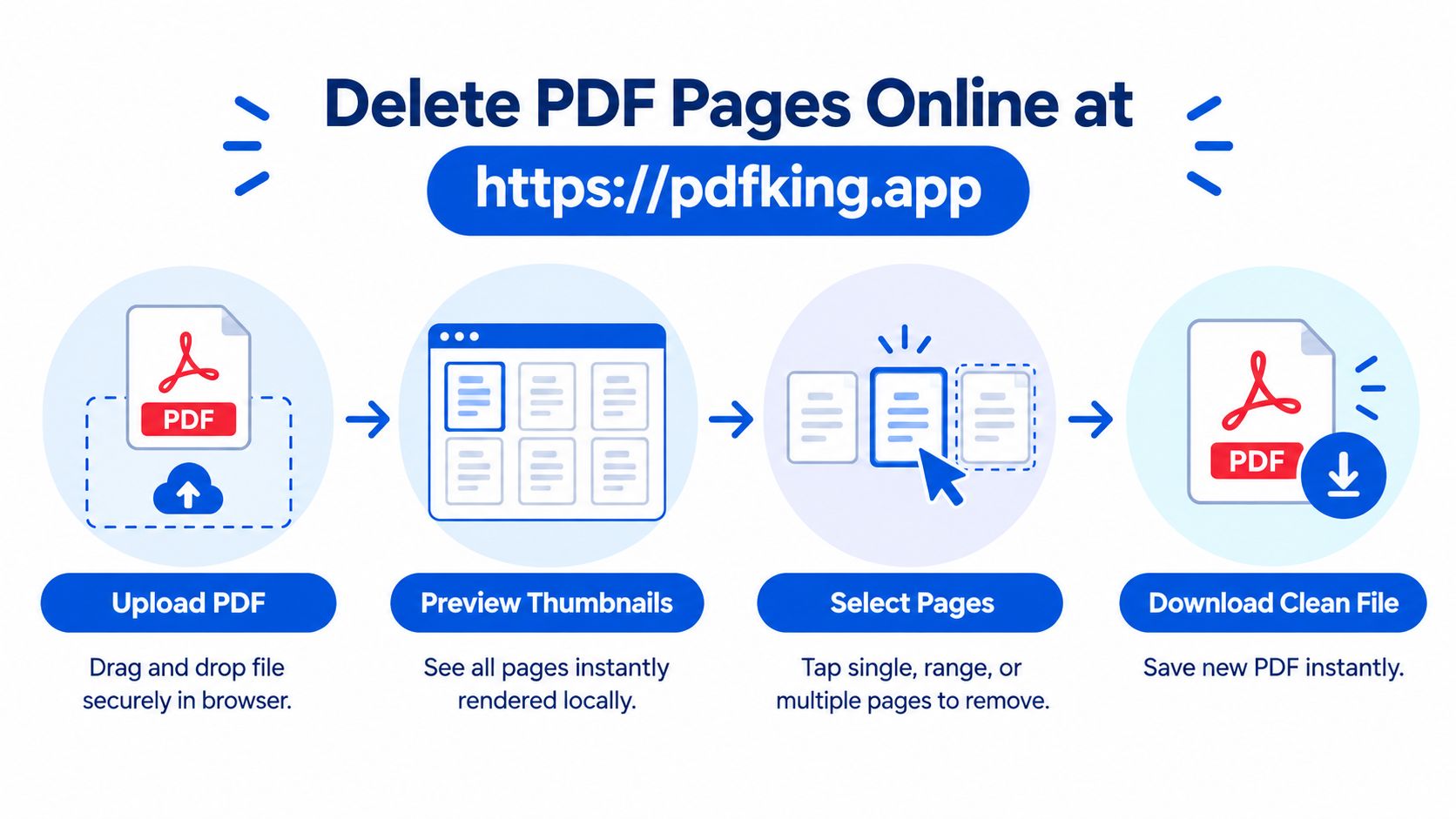
Click the thumbnail for a page you don't want. For several pages, select each required thumbnail or use the available range behavior. A trashcan icon identifies the deletion action. Before applying it, scan the selected pages again. This second look is especially useful when blank pages appear beside pages with light content, such as signatures or faint scan marks.
If you remove the wrong page, use the available undo or reset control before exporting. Resetting is safer than continuing with an uncertain selection. In a real cleanup job, such as trimming a 20-page report before emailing it, I'd remove the obvious cover and duplicate pages, pause to review the remaining sequence, and only then finalize the file.
Before you delete: Check the page number and its visible content. A thumbnail that looks empty may contain a form field, a signature, or a light background image.
Choose Delete, then confirm the action if the interface asks you to approve it. The confirmation step matters because the operation should not be treated as an accidental, irreversible click. Adobe's documented online flow also uses thumbnail selection, a trashcan control, and a save or download stage after deletion. You can review Adobe's online PDF page deletion workflow{target="_blank"} for a comparable description of those mechanics.
Finally, save or download the revised PDF. The exported file is a new artifact. Open it in a PDF viewer before attaching it to an email, uploading it to a portal, or sending it for signature. Confirm that the removed pages are gone and that the remaining pages appear in the intended order.
Smart Ways to Select Ranges and Clean Up Faster
Selection becomes the main time saver once a PDF has more than a few pages. For one unwanted page, select its thumbnail directly. For a continuous run, select the first and last pages as a range if the tool supports range entry. For scattered pages, select them individually rather than removing a larger span and risking useful content.
Page-management guidance commonly uses explicit page numbers and ranges, including comma-separated selections and contiguous spans. It also notes that at least one page must remain in the PDF. That safeguard is practical. If every page is selected, there's no meaningful document left to export. The relevant accessibility discussion is available in this PDF structure and compatibility guidance.

Use this quick decision table before you start:
| Goal | Best Action | When to Use |
|---|---|---|
| Remove one page | Select one thumbnail | A single blank, duplicate, or incorrect page |
| Remove a continuous range | Enter or select a page span | An appendix or outdated section occupies adjacent pages |
| Remove scattered pages | Multi-select individual thumbnails | Several unrelated pages need to go |
| Keep selected pages only | Extract the required pages | The source is large and you need a small, known subset |
| Rebuild page order | Organize or reorder pages | Deletion is only part of a larger cleanup |
Check the page immediately before and after every deletion. This catches broken transitions, missing continuation pages, and accidental removal of a page that looked similar to its neighbor. If the task is really about creating a smaller excerpt, use PDFKing's split PDF tool rather than deleting pages one by one.
A faster cleanup pattern
For a scanned packet, remove obvious blank pages first. Next, look for duplicates by comparing headings, signatures, or page numbers. Then remove private pages and review the final run from beginning to end. Don't rely only on the new page count. Check page order, links, bookmarks, and reading flow after export.
A page deletion can also change references that point to page numbers. If the PDF contains internal links or bookmarks, test them in a viewer. A document can look visually correct while its navigation still points to the wrong place.
Keep Your Document Private While You Edit Online
The key privacy question isn't only whether a tool deletes pages. It's where the file is processed. In a local-first browser workflow, the PDF loads into your browser, thumbnails render on your device, and the revised PDF is generated client-side. The document isn't transmitted to a server or retained there during the deletion operation. The local-processing model is described in this browser-based PDF deletion FAQ{target="_blank"}.
That distinction matters for legal exhibits, medical records, financial statements, student records, and internal business documents. A server-upload workflow may require you to assess transmission, storage, retention, access controls, and deletion policies. A local-first workflow avoids that particular upload path, although you still need to follow your organization's own security rules.
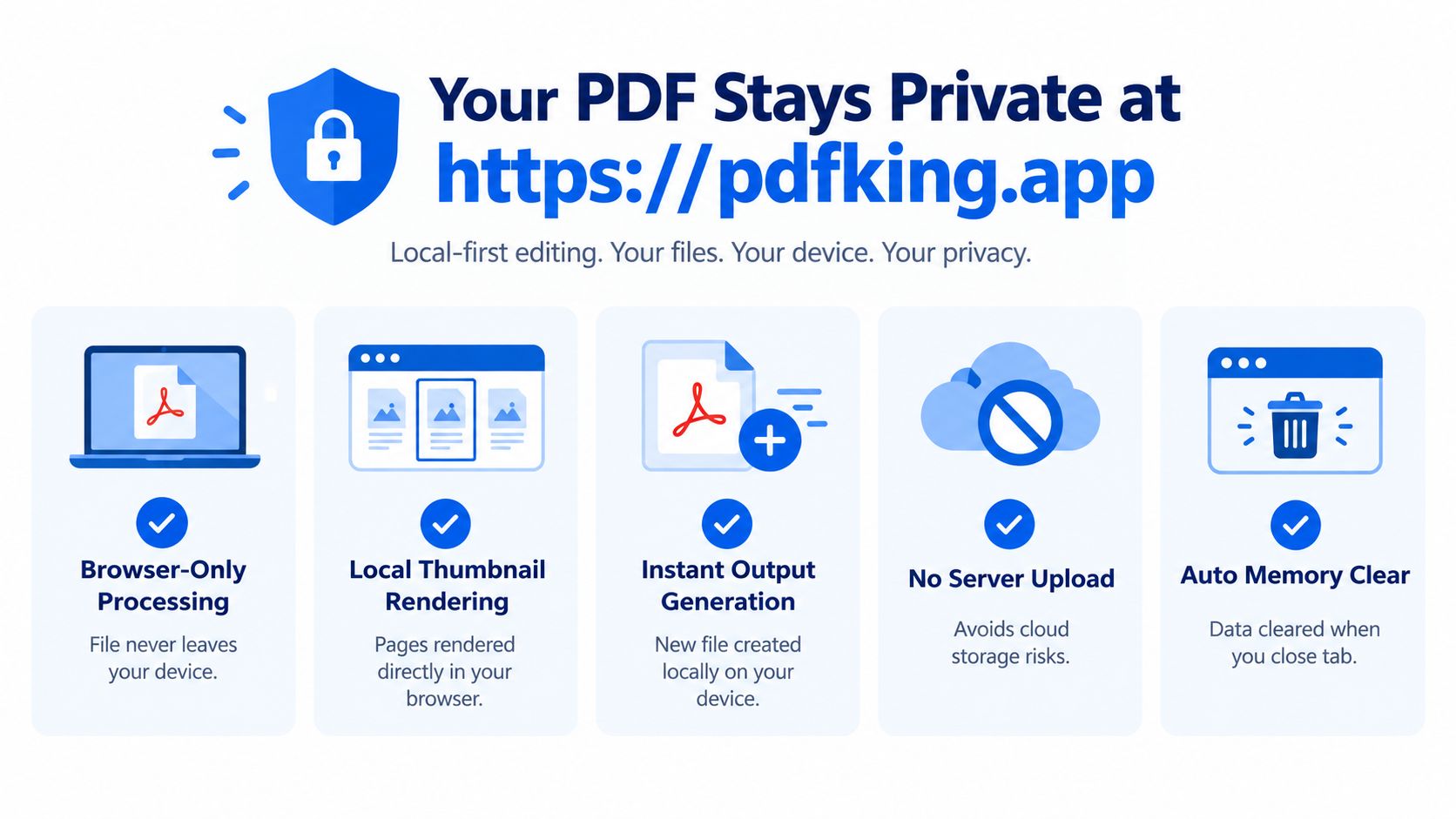
Before using any browser editor for confidential content, check its handling language. Look for clear answers to these questions:
- Processing location: Does the tool state that editing happens locally in the browser?
- File transmission: Does the PDF leave your device during deletion?
- Retention: Does the service keep a copy after the task?
- Output handling: Is the new file generated locally or returned from a server?
- Policy fit: Does the workflow comply with your employer, client, or regulator?
Security concerns are becoming more important in document workflows. Independent PDF market coverage says over 59% of businesses prioritize encrypted file handling, permission settings, and digital signatures. That figure is cited in this PDF editor software market overview{target="_blank"}. It reinforces a practical point: page deletion is also a document-handling decision.
For extra file hygiene, review the document's properties after export. PDFKing also provides a PDF metadata removal guide for checking information that may remain in the file beyond visible page content.
Troubleshooting Common Issues When Deleting Pages
Most failed page-deletion attempts come from the source file, not the trashcan control. Work through the problem based on what you see in the browser.
Restricted PDFs
An encrypted or permission-restricted PDF may block editing or printing. If deletion is unavailable, check whether the file owner has disabled those actions. Use an unrestricted copy or remove the restriction only when you're authorized to do so. Don't try to bypass controls on a document you don't own.
Scanned files
Scanned PDFs contain full-page images, so the browser may need more memory to render their thumbnails. A large scan can load slowly, display previews late, or strain the browser even though deletion itself remains local. Close unused tabs, use a current browser, and process a smaller document copy when appropriate. If the scan is hard to inspect, verify the final PDF at a higher zoom before sharing it.
Accessibility changes
Removing a page can affect tags, structure, and screen-reader navigation. Public-sector and regulated documents need a post-export accessibility review, and PDF/UA remediation may be necessary when page structure changes. Check reading order and heading navigation with the tools your organization uses, not only with a visual PDF viewer.
Mobile review
Phone browsers can make thumbnail selection difficult on small screens. Rotate your device sideways, zoom carefully, and select fewer pages at a time when the preview is crowded. Mobile deletion flows often involve browser upload, account prompts, and thumbnail selection, so a desktop browser may be more practical for a long or scanned file. Guidance on Android workflows is available in this Adobe guide to deleting PDF pages on Android{target="_blank"}.
Keep at least one page in the file. Then open the exported PDF and verify its page count, order, links, bookmarks, and reading order. If the source is protected and you have permission to modify it, PDFKing's guide to editing a protected PDF can help you identify the next legitimate step.
Final Check and Download Your Clean PDF
Treat the download as the start of quality control, not the end. Open the new PDF in a viewer and review the first page, the area around each deletion, and the final page. Confirm that the file opens normally and that no accidental blank page, gap, or out-of-order section remains.
Use this final checklist:
- Page sequence: Read the pages around each removed item.
- Navigation: Test bookmarks and internal links.
- Forms: Confirm that fields and signature areas still behave as expected.
- Accessibility: Review tags and reading order when the document is regulated or public-facing.
- Source backup: Keep the original PDF in a separate location.
- Filename: Give the cleaned file a clear name that distinguishes it from the source.
Deleting a page never changes the original in place. It produces a new PDF, so compare the export with the source before you distribute it. This habit catches problems that thumbnail review can miss, including altered navigation or a missing form page.
PDFKing gives you a free online way to remove unwanted PDF pages with no watermark and nothing to install. If you need more than deletion, you can also use the organize PDF tool, extract PDF pages, or compress a PDF as part of the same cleanup workflow.
Use PDFKing to delete pages from your PDF online, select individual pages or ranges, review the result, and download a clean file without installing software. Visit PDFKing to remove blank, duplicate, outdated, or sensitive pages from your next PDF.