ON THIS PAGE
Use Compress PDF now
Upload Files
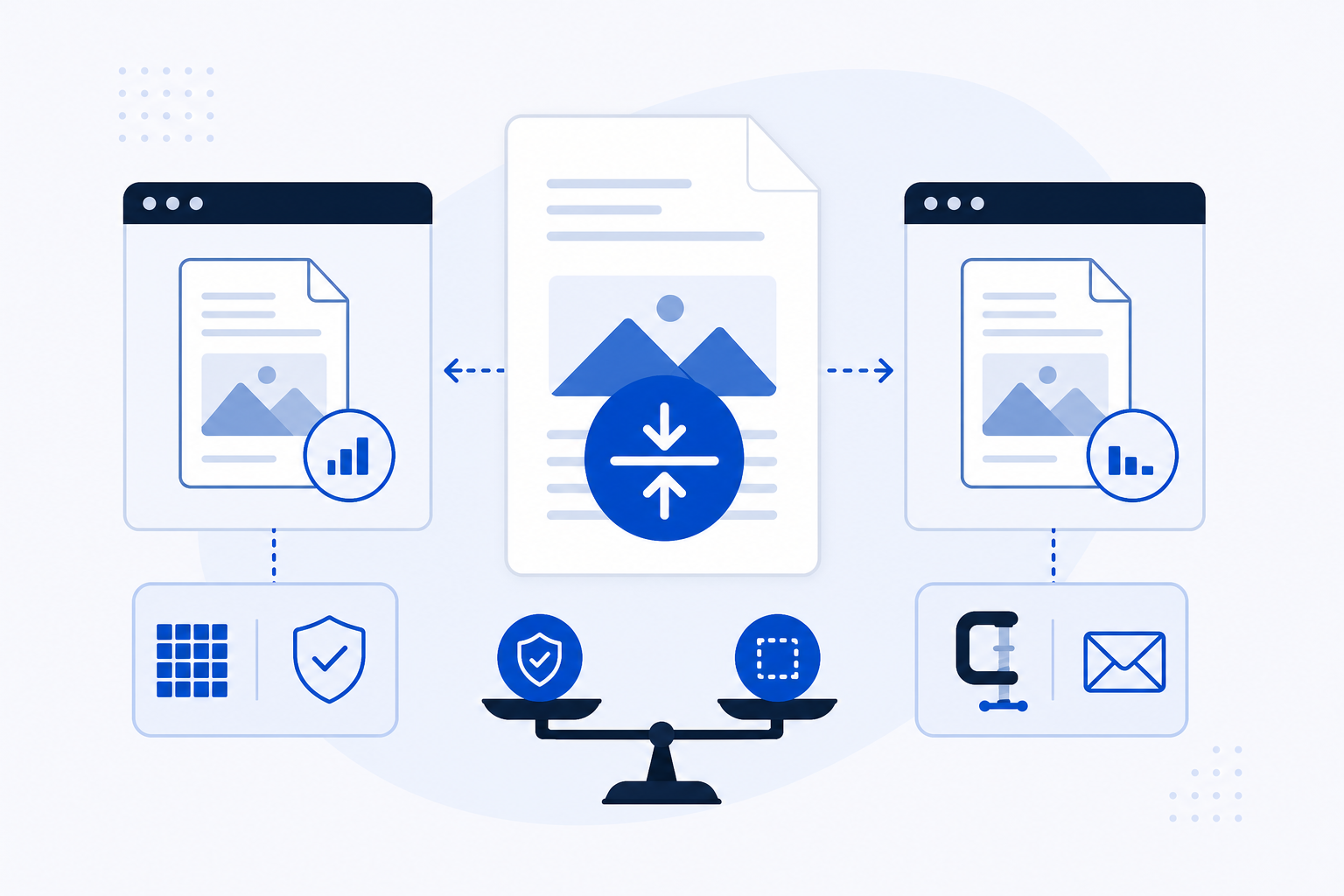
You can compress a PDF without losing quality for free using a browser-based tool that applies lossless or near-lossless compression — reducing file size while keeping text readable and images sharp. PDFKing's compress tool at pdfking.app requires no account, no software installation, adds no watermarks, and imposes no file size, page, or usage limits. The important decision before you compress is choosing the right compression level, because that choice determines whether your output looks identical to the original or noticeably degraded.
How to Compress a PDF with PDFKing
No sign-in, no setup. The sequence is short.
- Go to the compress tool. Open pdfking.app/tools/compress-pdf in any modern browser, on any device.
- Upload your file. Click the upload area or drag your PDF onto it. PDFKing imposes no file size limit, no page limit, and no cap on how many tasks you run.
- Choose a compression level. PDFKing offers multiple levels, from light compression that preserves near-original quality to high compression that reduces file size more aggressively. Pick the level that fits your use case — more on this below.
- Download the result. Once processing completes, download the compressed file. No watermarks are added.
If the compressed file is larger than expected, the original may already be well-optimised, or it may contain mostly text with very few images, where compression gains are naturally small.
Lossless vs Lossy Compression: What Each Level Does
Compression level is not just a slider. It determines which technique the tool applies and what trade-offs you accept.
Lossless compression
Lossless compression removes redundant data — duplicate font definitions, unused metadata, embedded objects that are no longer referenced — without altering any visible content. Text stays crisp. Images look identical to the original. The file size reduction is more modest: meaningful for PDFs that carry structural overhead, but not dramatic for image-heavy files.
Use lossless compression when the PDF will be signed, submitted to a court, sent to a client, or archived. The visual and structural integrity of the document is unchanged.
Lossy compression
Lossy compression reduces image resolution and resamples embedded graphics to a lower pixel density. Text rendered as vector data is unaffected, but photographs, scanned pages, and embedded raster images will lose some sharpness. The trade-off is a significantly smaller file.
Use lossy compression when file size matters more than pixel-perfect images: email attachments, web uploads, internal drafts, or presentations where the recipient needs to read the content rather than inspect the photographs.
Matching level to purpose
- Contracts, legal filings, signed documents: use the lightest compression level available. Some submission systems reject files that have been heavily resampled, and preserving the exact visual appearance matters.
- Scanned reports or manuals for internal use: a medium level is usually the right balance. Text stays readable, images remain clear enough, and the file is noticeably smaller.
- Large image portfolios or marketing decks sent by email: high compression is appropriate when the recipient needs to open the file quickly and the images are illustrative rather than archival.
Practical rule: If you are unsure which level to use, start with the lightest setting and check the output. You can always recompress a file, but you cannot recover quality that was discarded in a previous pass.
PDFKing vs Adobe Acrobat Online: A Direct Comparison
Adobe Acrobat's online compress tool is the page most commonly cited for this task. Here is how the two compare on the factors that matter for free, account-free use.
| Feature | PDFKing | Adobe Acrobat Online |
|---|---|---|
| Free access | Yes, no account required | Compression available free, but sharing the result prompts sign-in |
| Account or sign-in | Not required for any core tool | Required to share or access full features |
| Watermarks on free output | None | None on compressed download |
| Compression level choices | Multiple levels (light to high) | Compression levels offered |
| File size limit (free) | None | Not publicly specified; check Adobe's site |
| Software installation | None | None (online tool) |
| Privacy | Files processed in the browser for your task; no account data collected | Adobe's privacy policy governs uploaded files |
A few points worth noting. Adobe does offer compression levels on its online tool, and the compressed file can be downloaded without an account. Where it differs is in the sign-in prompt: sharing or accessing certain post-compression features requires an Adobe account. A full Acrobat subscription runs roughly $12.99/month for Standard and roughly $19.99–$23.99/month for Pro — check Adobe's site for current pricing, as these figures change. That context is relevant if you need features beyond basic compression.
PDFKing does not require an account for any of its core tools. Files are processed in the browser for your task. There are no usage limits to plan around.
Other Free Compression Tools Worth Knowing
PDFKing is not the only option. Three others are commonly used.
Smallpdf offers a compress tool with a free tier. It prompts sign-in after a set number of tasks per day and has a paid plan for heavier use. Check Smallpdf's site for current limits.
PDF24 is free with no account required for most tasks. The interface is less polished, but it covers a broad range of PDF operations.
iLovePDF offers compression and other PDF tools with a free tier that includes a daily task limit and prompts sign-in for some features. Check iLovePDF's site for current limits.
All three are legitimate options. The differences come down to file size limits, task quotas, and whether you prefer to work without creating an account. PDFKing's advantage is the combination of no account requirement, no watermarks, no usage limits, and a straightforward compression workflow.
Is It Safe to Compress a PDF in the Browser?
For most documents, yes. The important distinction is between documents that are sensitive and documents that are confidential to the point where any third-party processing is inappropriate.
Scanned invoices, reports, marketing materials, and general business documents are routinely processed through browser-based tools without issue. For documents containing privileged legal communications, medical records, or personal identification data, check your organisation's data handling policy before uploading to any online tool — including PDFKing or Adobe's online service.
PDFKing does not require you to create an account, which means no account data is associated with your uploads. Files are processed in the browser for your task. If your document is sensitive enough that even that level of processing is a concern, a locally installed tool is the appropriate choice.
Ready to try Compress PDF?
Shrink file size while keeping text and images sharp.